¶ Symptoms
- Ghosting – Two or more overlapping surface layers appear in the same area of the model, such as two outlines around the nose.
- Misalignment – Newly scanned data does not align with the existing model, resulting in steps, discontinuities, or positional shifts.
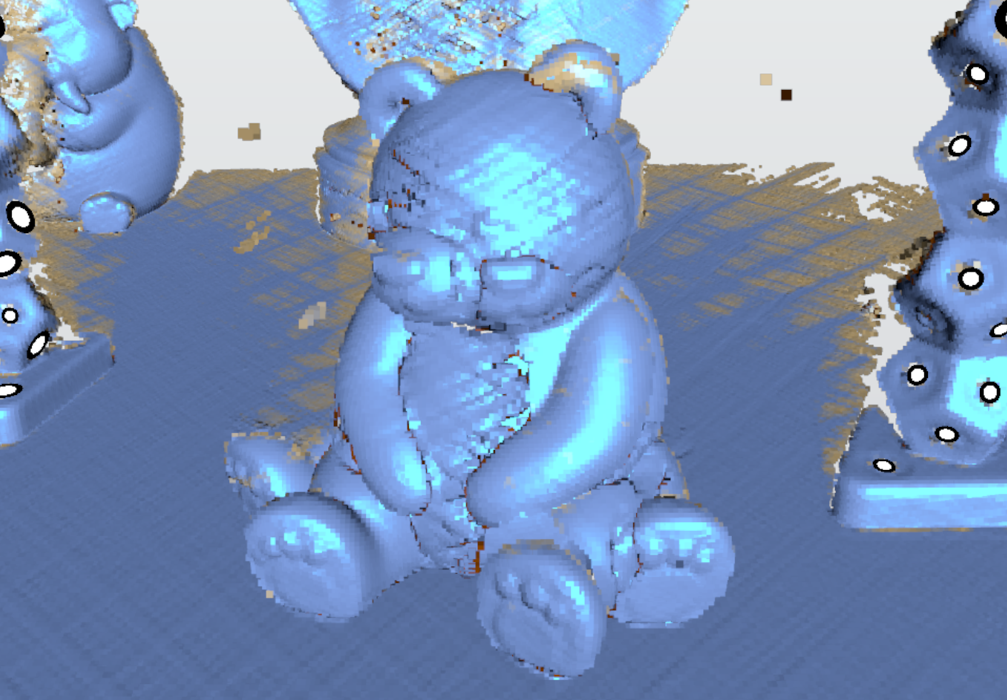
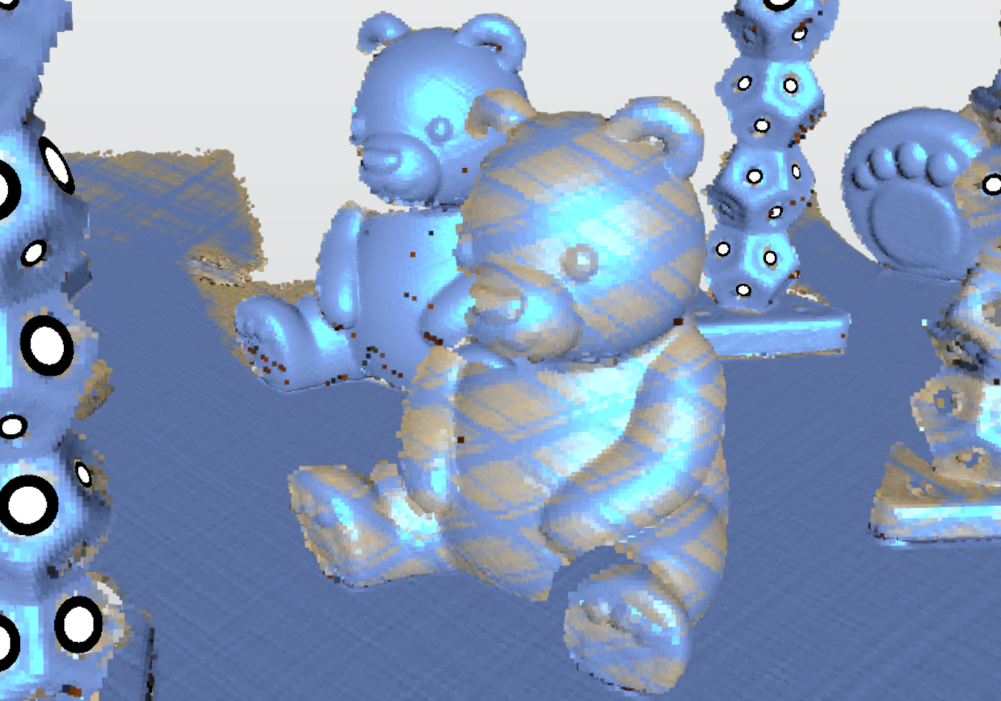
Note: A small number of floating points around the model are usually noise points and do not necessarily indicate ghosting. Focus on whether the object's surface appears duplicated or adjacent areas fail to connect properly.
¶ Common Causes
Ghosting or misalignment may occur when the scanner cannot accurately determine its position during scanning.
Common causes include:
- The scanner moves too quickly, or the scanning distance is inappropriate.
- The object lacks distinctive features, or reflective markers are not detected reliably.
- The object or reflective markers move during scanning.
- The scanning angle changes too drastically, leaving insufficient overlap between consecutive frames.
¶ Troubleshooting Steps
¶ Step 1 – Pause the Scan and Inspect the Problematic Scan Data
- Pause the scan immediately when ghosting or misalignment is detected.
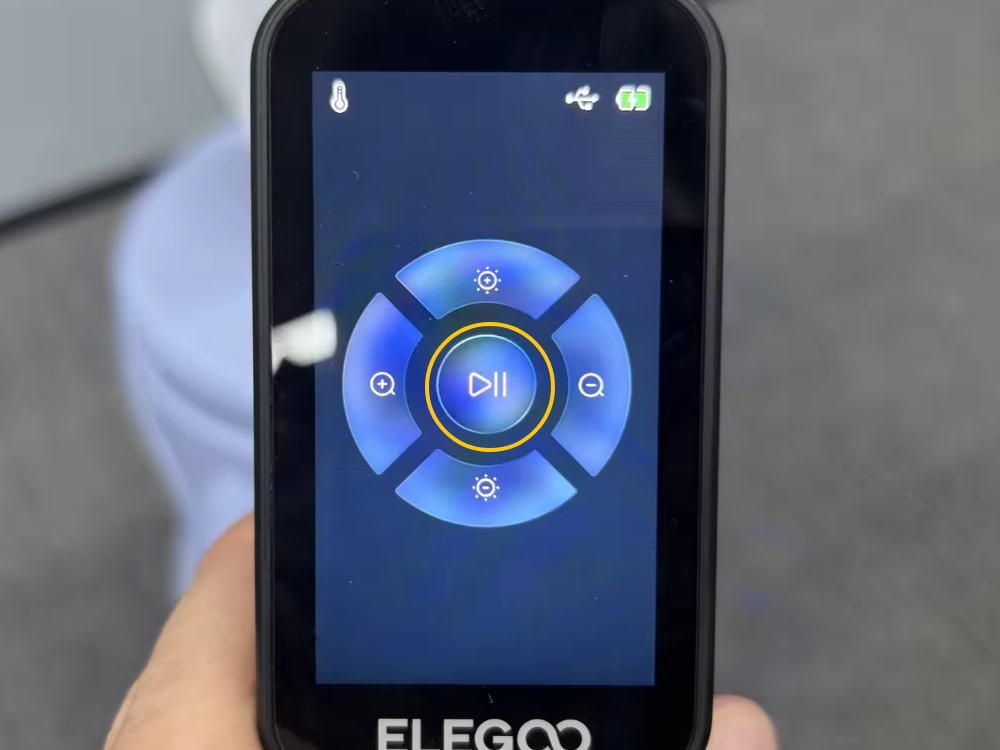
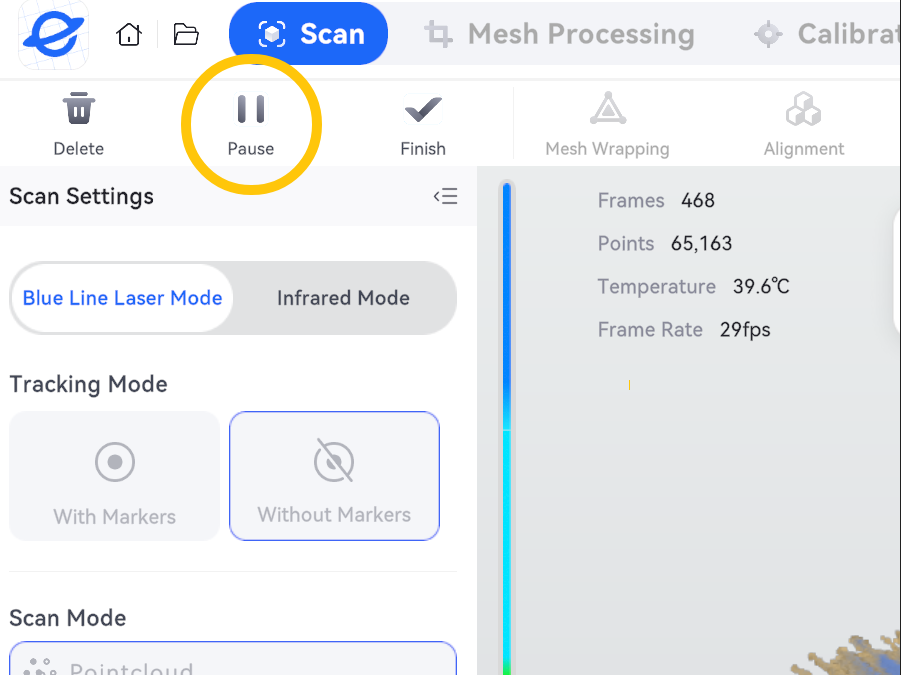
- Rotate the model in the preview to inspect the location and extent of the error.
Take the appropriate action based on the observed problem.
| Situation | Recommended Action |
|---|---|
| Only a tracking lost warning appears, with no obvious errors in the model | Try to restore tracking. |
| Localized ghosting or misalignment is present | If supported by the software, delete the corrupted data and rescan the affected area. |
| Extensive misalignment occurs, or the location of the error cannot be determined | Save the original project and rescan. |
Note: Restoring tracking does not automatically correct existing ghosting or misalignment. Do not repeatedly scan over an already corrupted model in an attempt to fix the problem.
¶ Step 2 – Return to a Previously Scanned Area and Restore Tracking
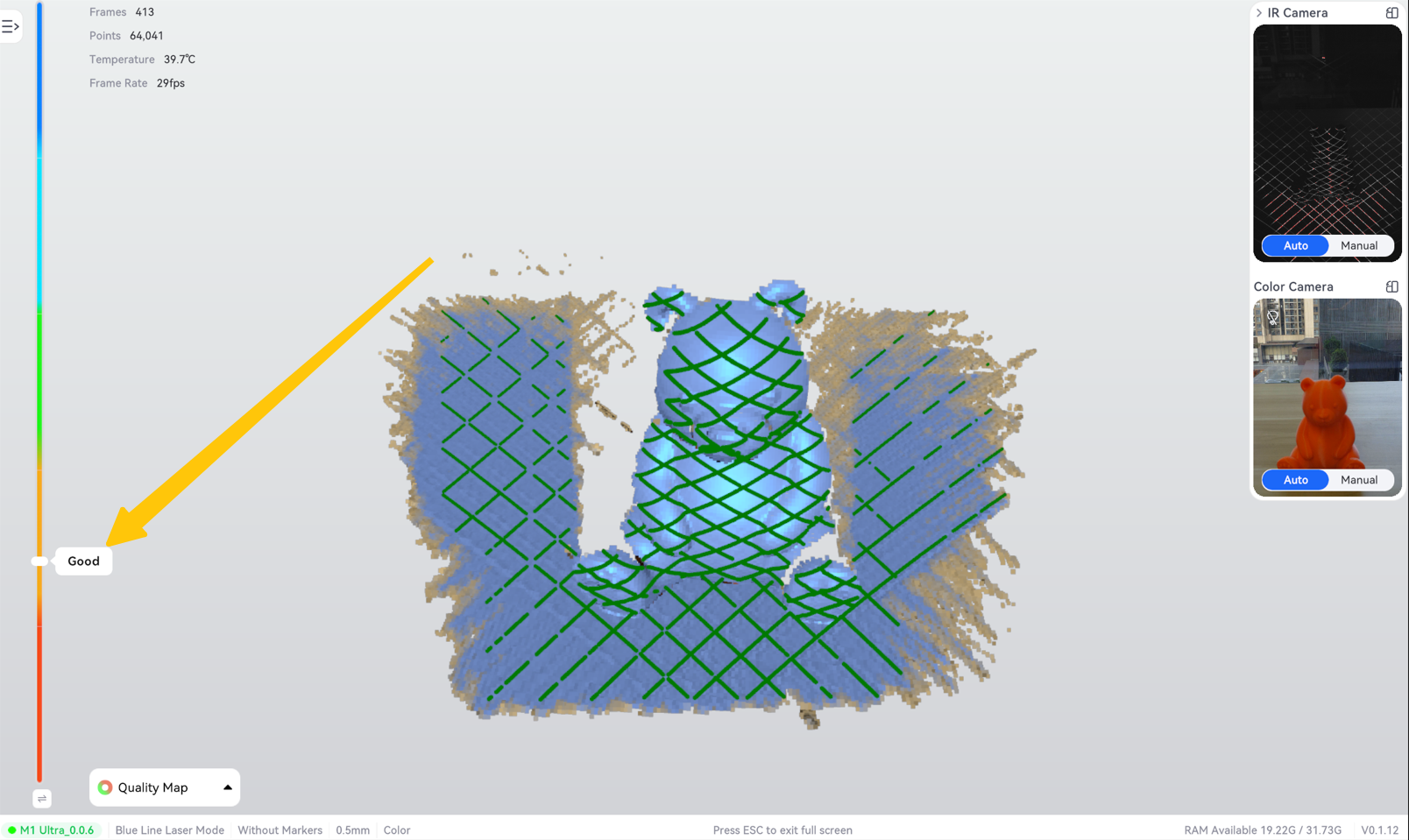
- Slowly move the scanner back to an area that was scanned successfully.
- Maintain approximately the same scanning distance and angle as before.
- Follow the on-screen instructions to restore tracking. Confirm that the new scan data aligns correctly with the existing model before continuing the scan.
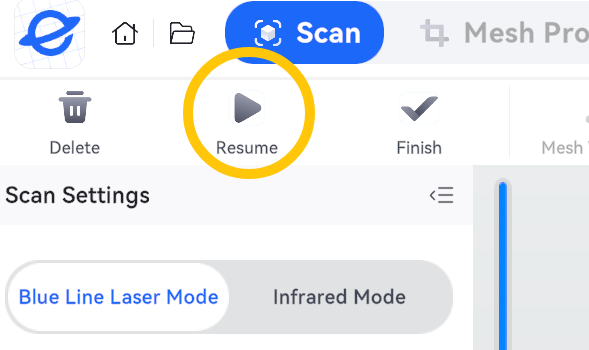
Tip: If tracking cannot be restored, do not move the scanner back and forth rapidly. Continue with the checks below.
¶ Step 3 – Adjust the Scanning Distance and How You Move the Scanner
- Adjust the distance between the scanner and the object according to the software prompts.
- Move the scanner slowly and steadily.
- When changing the scanning angle, ensure that consecutive frames retain sufficient overlap. Slow down when scanning edges, grooves, or corners. Avoid making sudden transitions from the front of the object to the back.
¶ Step 4 – Check the Tracking Reference
¶ 4.1 When Using Tracking with Markers
| Situation | Illustration |
|---|---|
| Make sure the reflective markers are supported by the scanner and that the marker stickers are flat, clean, and unobstructed. | 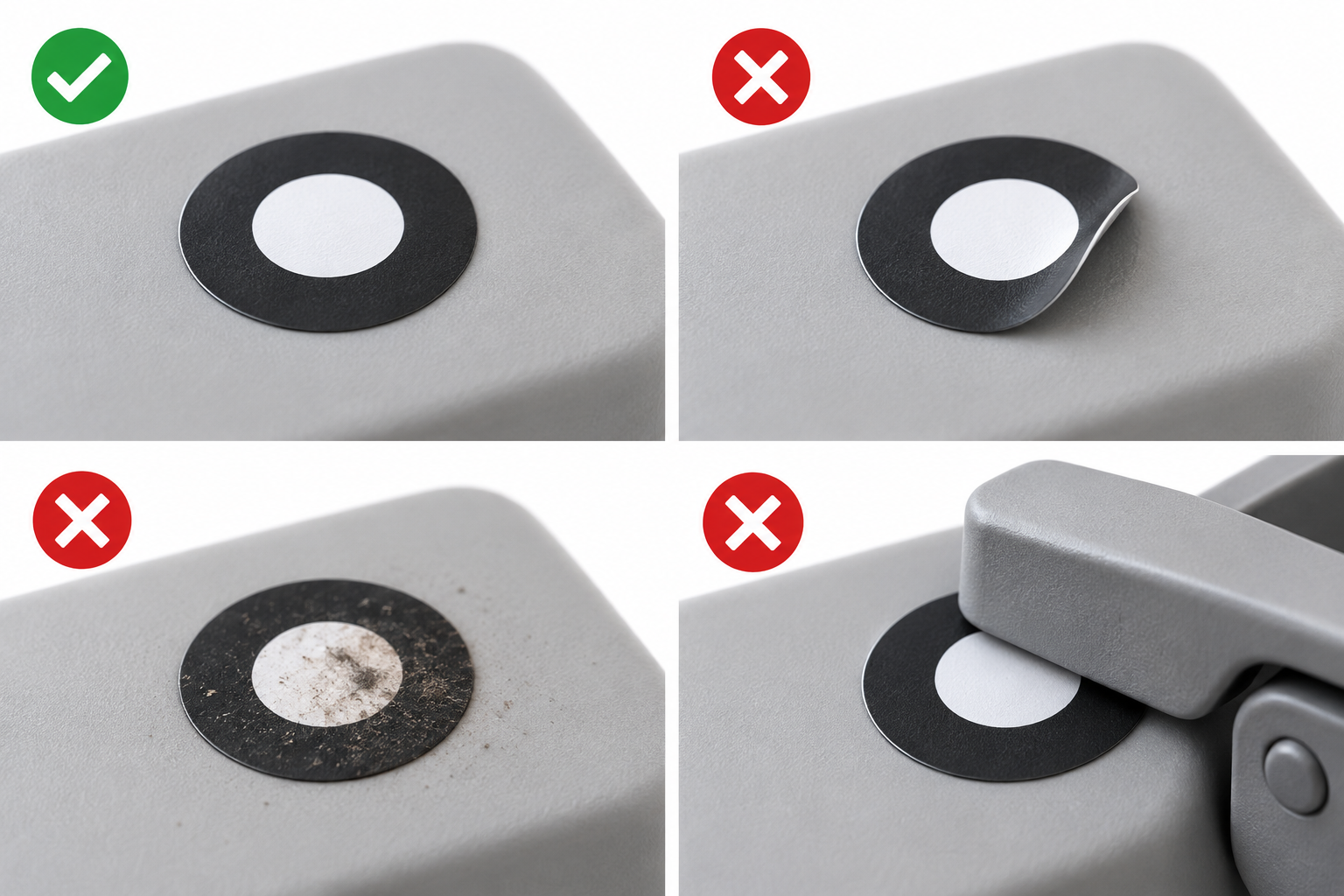 |
| Check whether the software consistently detects a sufficient number of reflective markers. Follow the model-specific requirements for marker quantity and spacing. | 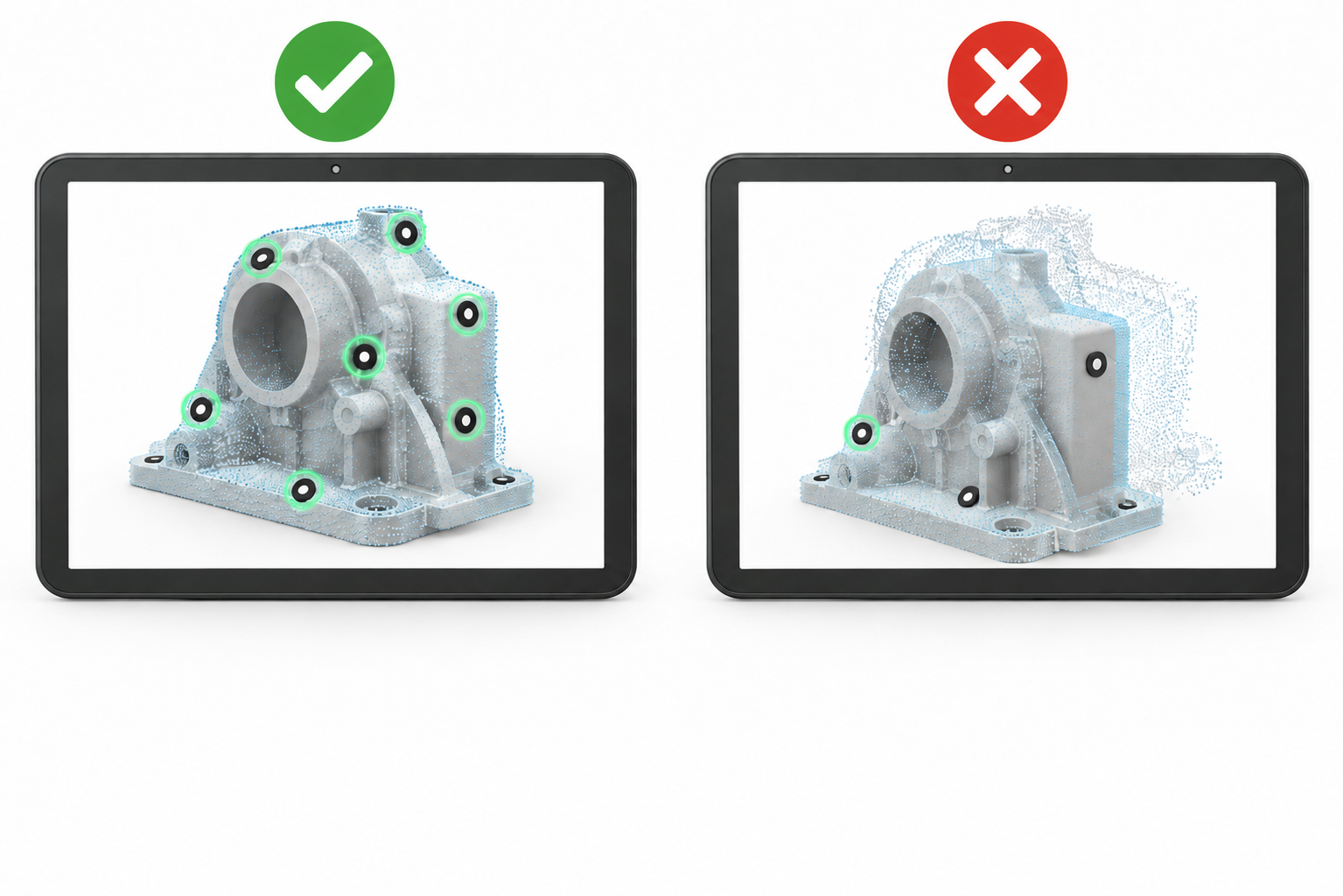 |
| Keep the reflective markers fixed relative to the object being scanned. When using a turntable, do not use markers on the stationary table as fixed tracking references for the rotating object. | 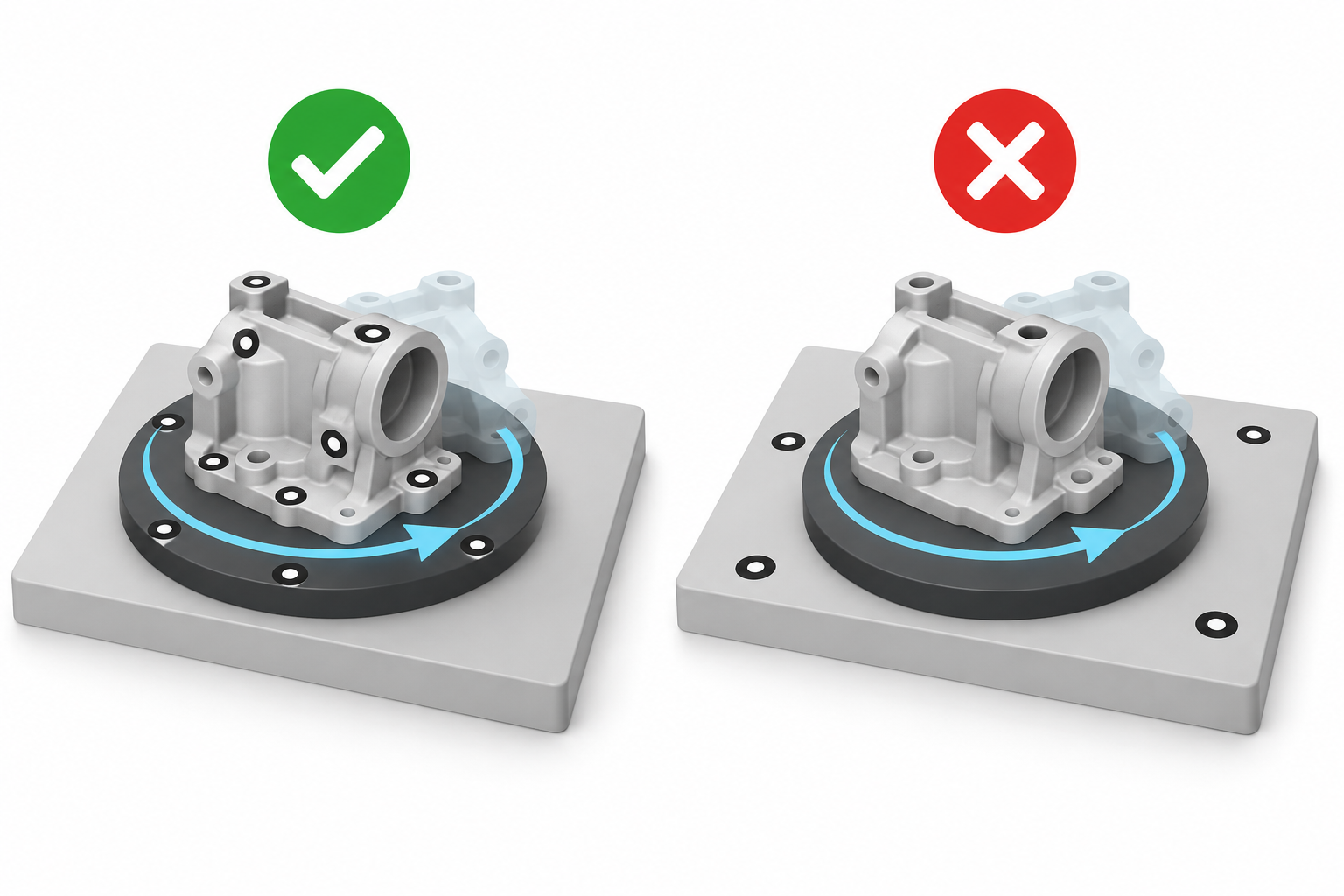 |
¶ 4.2 When Using Tracking without Markers
- Start scanning from areas with distinct geometric features, such as grooves and corners.
- Avoid scanning large flat surfaces, smooth cylinders, or repetitive structures for extended periods.
- If tracking is repeatedly lost, try switching to tracking with markers.
¶ Step 5 – Check the Object and Scanning Environment
¶ 5.1 Check the Object
- Ensure that the object is stable and does not move or wobble during scanning.
- Avoid pulling or moving the cables unnecessarily.
- When scanning a person, ask them to maintain a consistent posture and facial expression.
If the object needs to be turned over, complete the current scan first. Then scan the other side and perform alignment using the workflow supported by the software.
¶ 5.2 Check the Environment and Surface
- Avoid direct, intense light or significant changes in lighting conditions.
- Check that the scanning window is clean.
- If the object is transparent, reflective, or dark-colored, adjust the scanning angle and exposure settings as needed.
- If necessary, use a 3D scanning spray compatible with the object's material and the device requirements.
Note: A 3D scanning spray can improve data acquisition on certain surfaces, but it cannot replace tracking references such as reflective markers.
¶ How to Verify the Results After Rescanning
Scan a small section first and confirm that the data is captured and aligned correctly before continuing.
After completing the scan, rotate the model and check the following:
- Edges: Each edge should have a single, clearly defined outline.
- Connections: Adjacent areas should connect properly without steps or positional shifts.
- Surfaces: No duplicated or overlapping surface layers should remain.
If an individual scan looks correct but ghosting appears after multiple scans are combined, check the alignment results. If necessary, realign the scans before generating the mesh.
¶ Still Having Issues?
We recommend testing with a light-colored, matte, opaque, rigid object with distinct geometric features.
If ghosting or misalignment persists, check the scanner's calibration status and contact ELEGOO Technical Support.
When contacting Technical Support, please provide:
- A screen recording of the scanning process and a video showing the actual scanning operation.
- The scanned project file and photos of the object.
- The M1 Ultra firmware version.
- The Elegoo Scan software version and scan mode.
¶ Help us improve
If you have any ideas about the wiki pages, please let us know via ELEGOO official feedback channel