This guide will walk you through a complete object scanning workflow, including preparation, scanning mode selection, data acquisition, model processing, and file export. For your first scan, the goal is to obtain a model with complete contours and no obvious misalignment, and then gradually improve the level of detail.
¶ 1. Precautions
This product is a Class 2M laser product and can be used safely without personal protective equipment. Avoid direct exposure of the blue laser to your eyes during use.
¶ 2. Preparation Before Scanning
¶ 2.1 Prepare the Equipment and Items
- M1 Ultra
- Elegoo Scan installed in advance
- USB 3.0 data & charge cable
- An object suitable for your first scan (a simple object without significant occlusion is recommended)
- A compatible computer
| Requirements | Operating System | Configuration |
|---|---|---|
| Recommended Performance | Windows | System: Win 10/11 (64-bit) Processor: i7 Gen13 or above Discrete GPU: Nvidia 4060 or above (8 GB VRAM) Memory: ≥32 GB |
| Recommended Performance | macOS | System: macOS 14 or above Processor: Apple M4 or above Memory: ≥32 GB |
| Minimum Requirements | Windows | System: Win 10/11 (64-bit) Processor: i7-Gen7 Discrete GPU: Nvidia GPU (6 GB VRAM) Memory: ≥16 GB |
| Minimum Requirements | macOS | System: macOS 14 or above Processor: Apple M2 Memory: ≥16 GB |
¶ 2.2 Select a Suitable Object
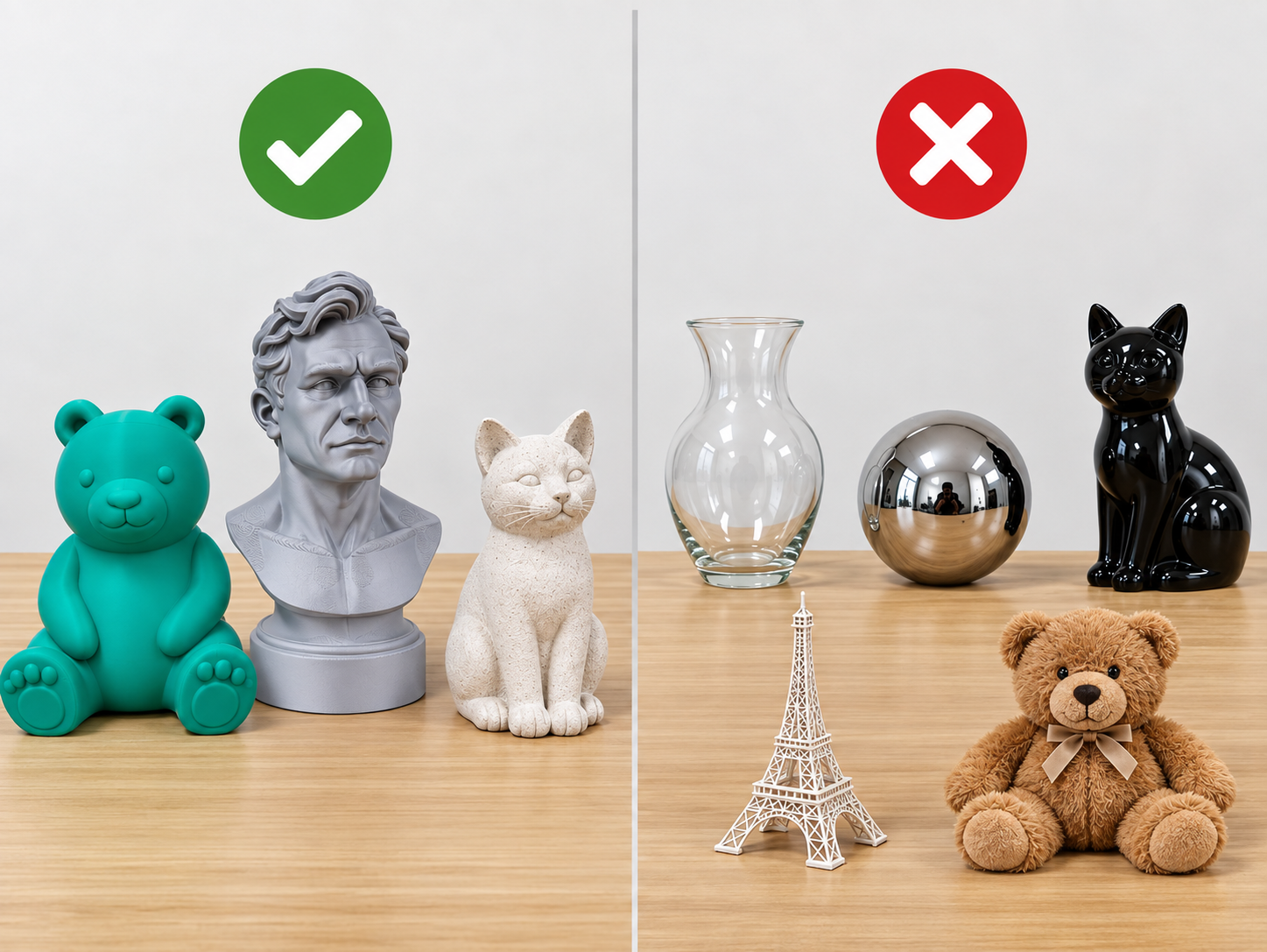
For your first scan, choose an object that is light-colored, matte, opaque, rich in shape features, and resistant to deformation, such as a plaster ornament with obvious contours or a rigid sculpture. The object should be within the supported size range of the device.
Avoid using transparent glass, mirror-finished metal, glossy black objects, thin structures, or soft furry objects as your first scanning targets. These objects usually require additional treatment or more advanced scanning skills.
Note: Flat, cylindrical, and highly symmetrical objects may lack sufficient tracking features. An object being easy to scan does not necessarily mean that the software can reliably determine the position of the scanner.
¶ 2.3 Prepare the Scanning Environment
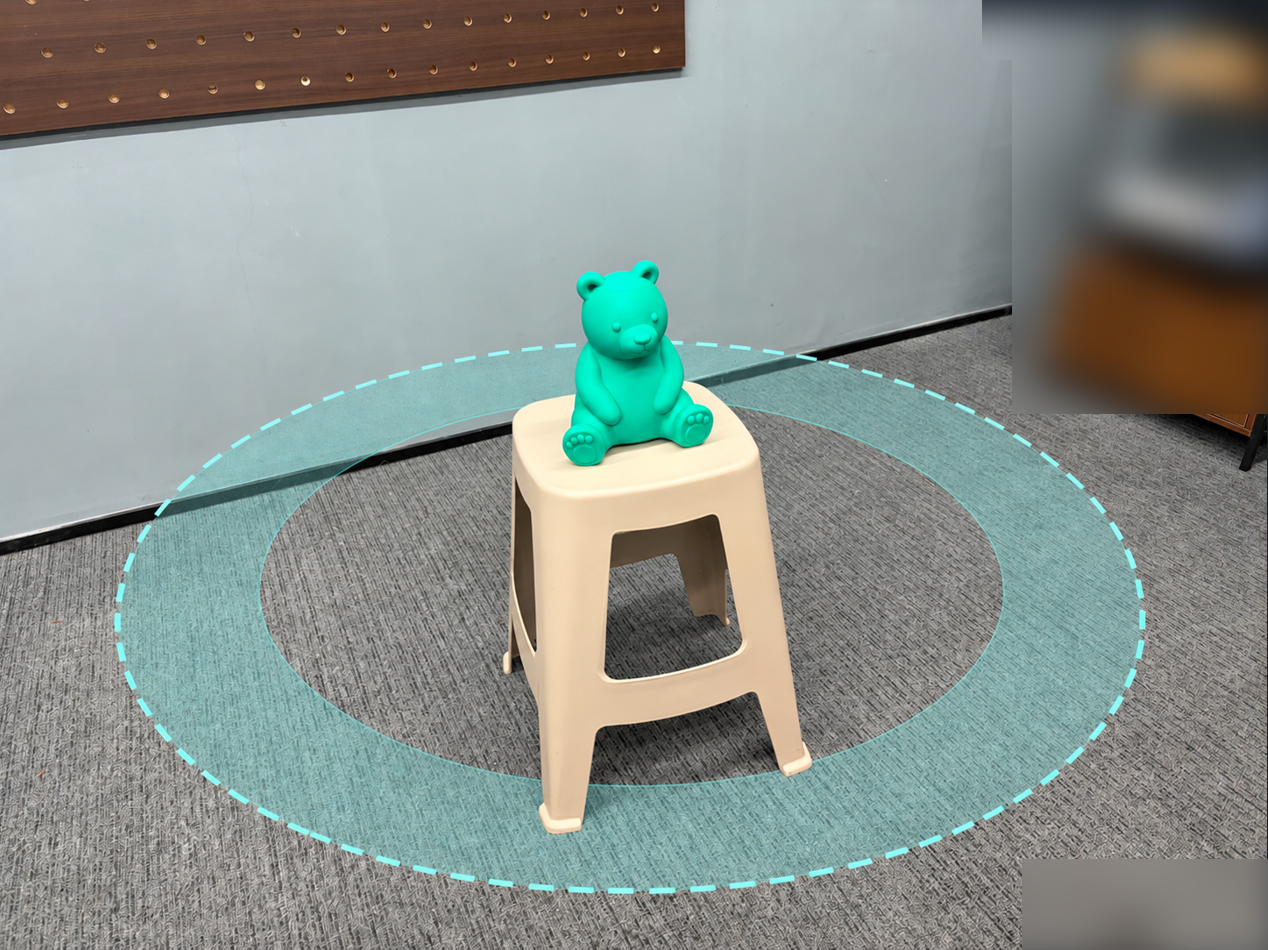
- Secure the object on a stable tabletop and make sure the scanner will not hit the object while moving.
- Use the scanner indoors whenever possible and avoid direct sunlight and rapidly changing lighting conditions.
- Leave sufficient space for movement and cables to reduce unrelated objects entering the scanning range.
- If color texture needs to be captured, keep the lighting as uniform as possible and avoid obvious shadows and reflections.
¶ 3. Connect the Scanner
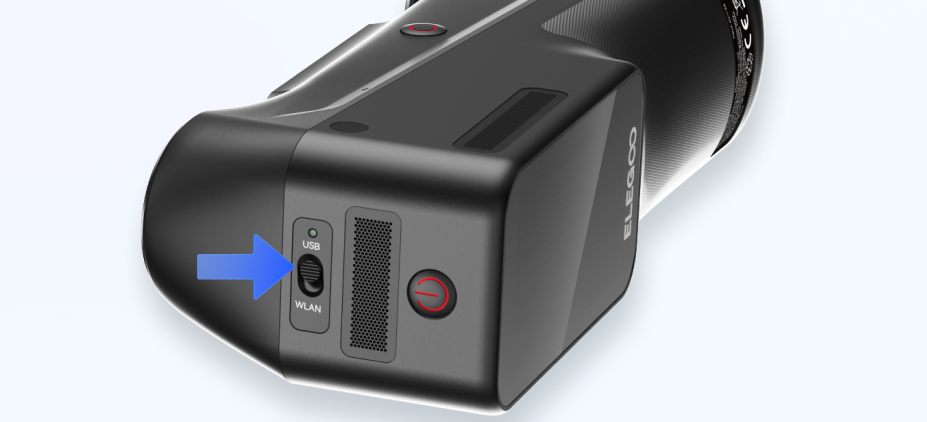
- Switch the USB/WI-FI switch on the top of the M1 Ultra to USB mode, then press and hold the power button for 2 seconds and wait for the screen to turn on.
- Use the included USB 3.0 data & charge cable. Insert one end of the cable into the Type-C port on the M1 Ultra and tighten the screw.
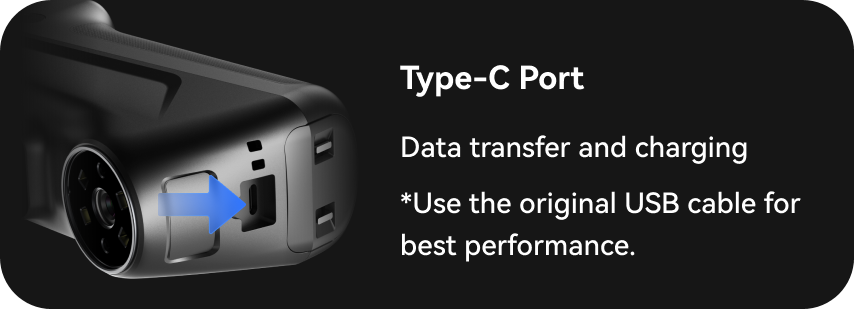
- Insert the other end of the cable into a USB 3.0 or higher port on the computer to ensure stable data transmission.
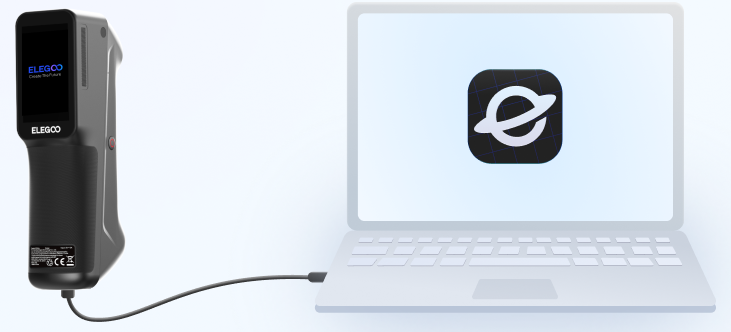
- Open Elegoo Scan on the computer. The software will automatically detect and connect to the scanner. A successful connection message will be displayed on both the M1 Ultra screen and the lower-left corner of the Elegoo Scan interface.
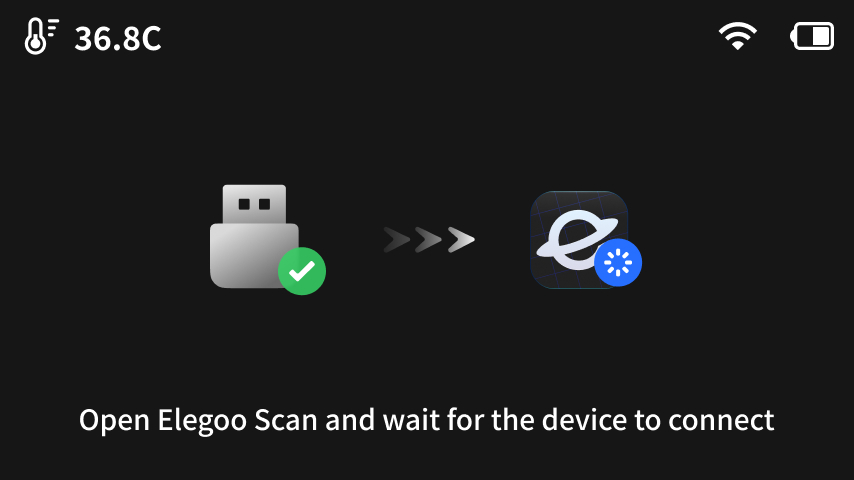
Note: Remove the lens protective film before proceeding.
¶ 4. Calibrate the Scanner
¶ Why Is Calibration Required?
The primary purpose of calibration is to eliminate systematic errors in the device and ensure the accuracy and reliability of the measurement data. Various deviations caused by manufacturing, assembly, temperature, and operating environment are detected and corrected through a standardized process. Without Calibration, the Pointcloud generated by the scanner may contain systematic distortion, which can lead to incorrect measurements, modeling, or analysis based on the data.
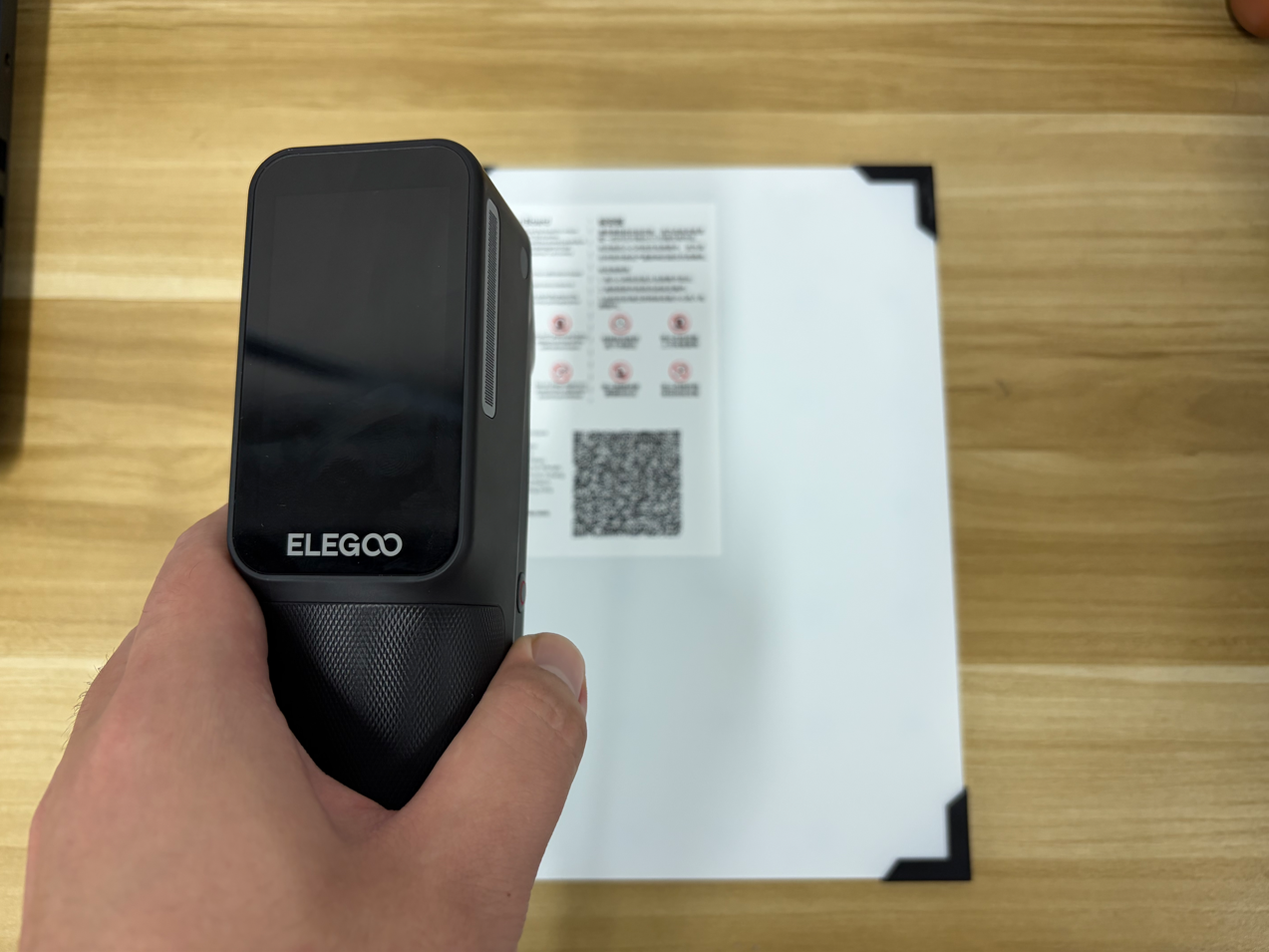
- Remove the Calibration board from the packaging.
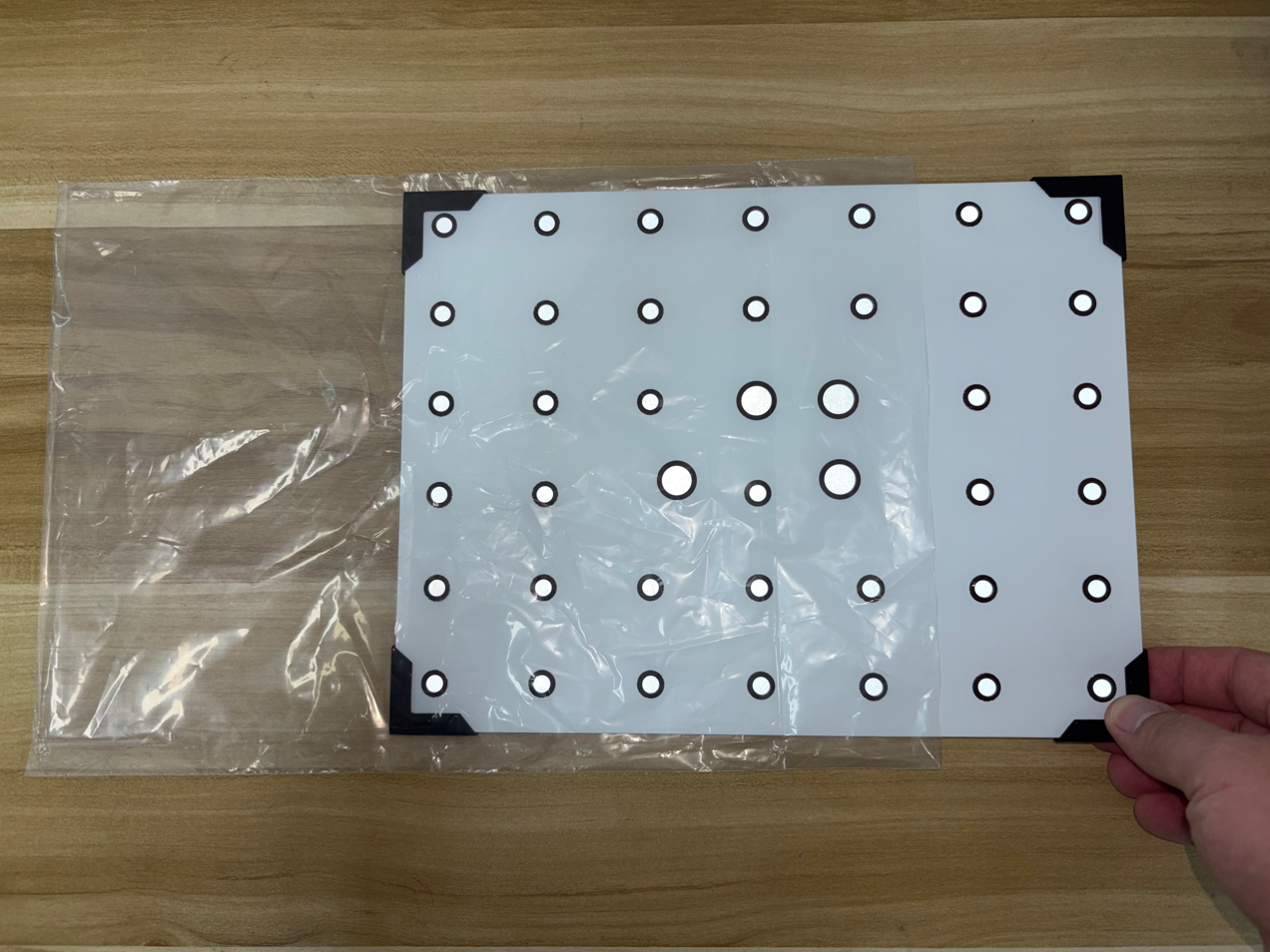
- Place the side with the QR code facing upward.
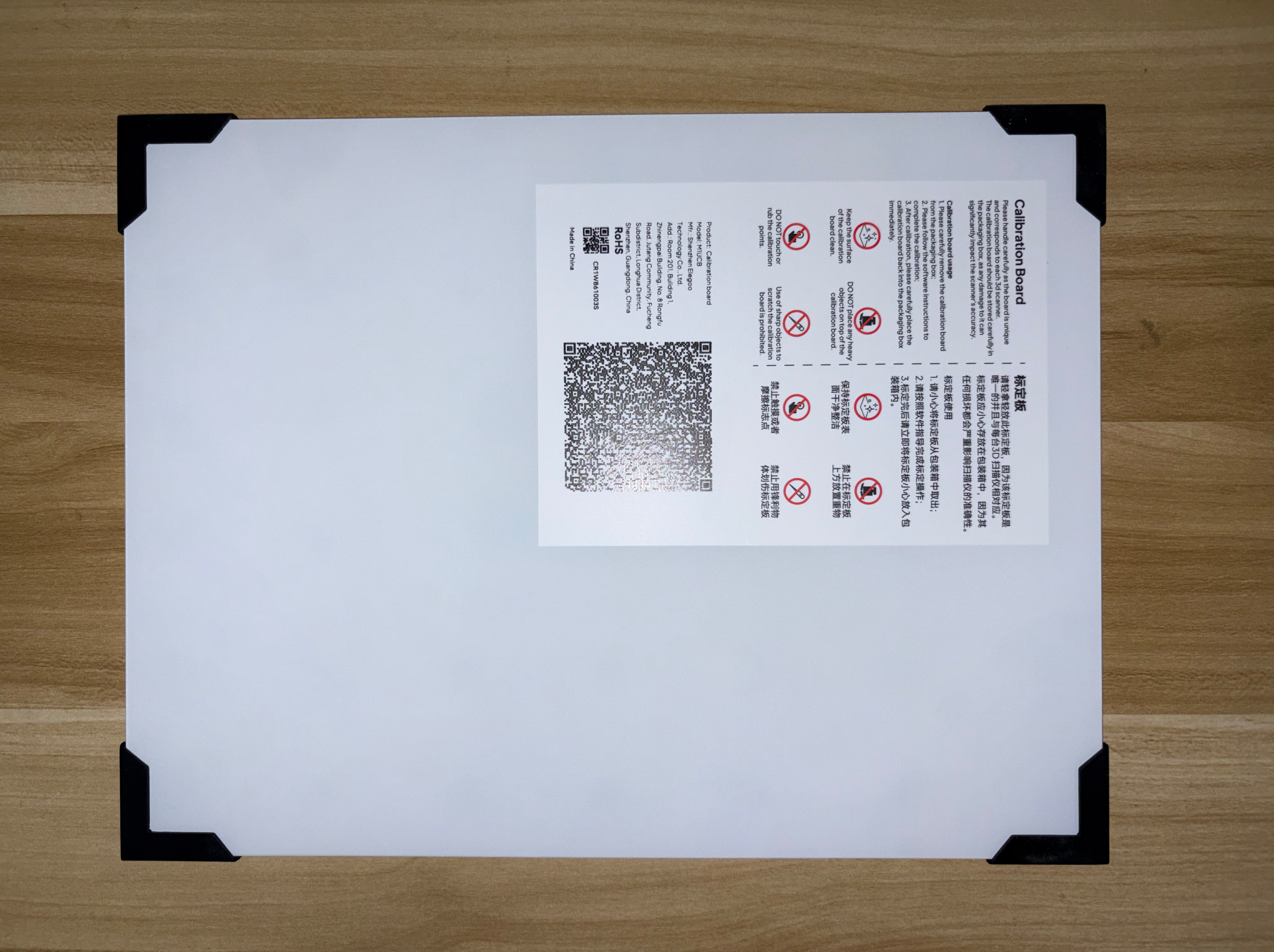
- Point the scanner at the QR code.
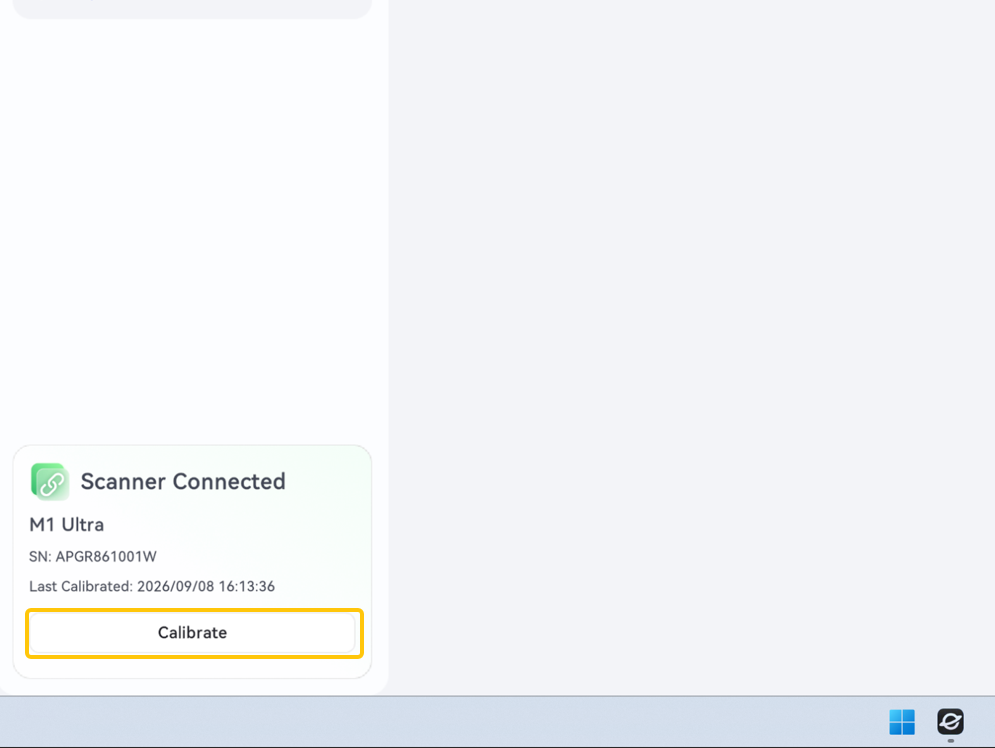
- Click Calibrate in the lower-left corner of the Elegoo Scan interface.
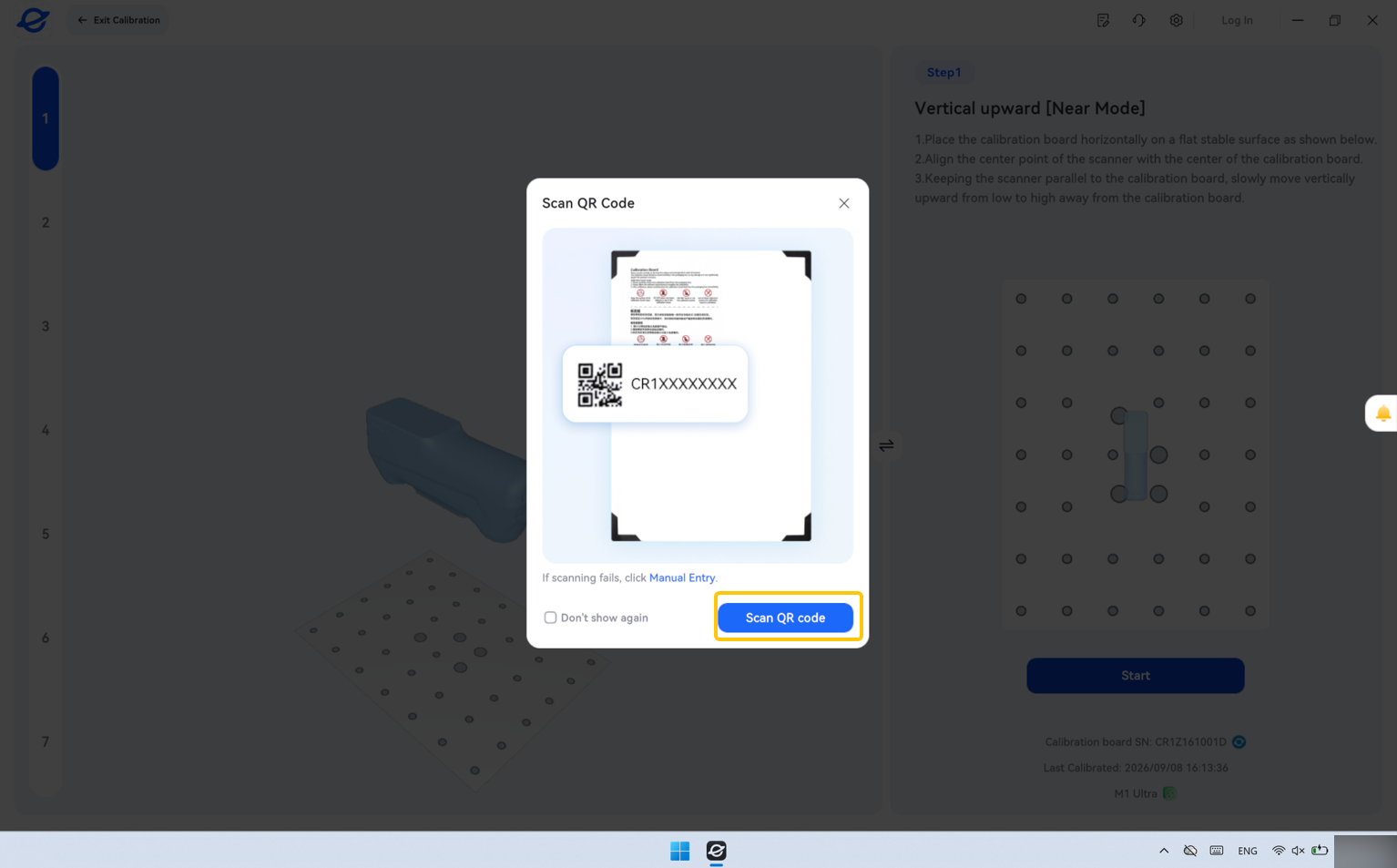
- Click Scan QR code. After the QR code is successfully scanned, the software will automatically proceed to the next interface.
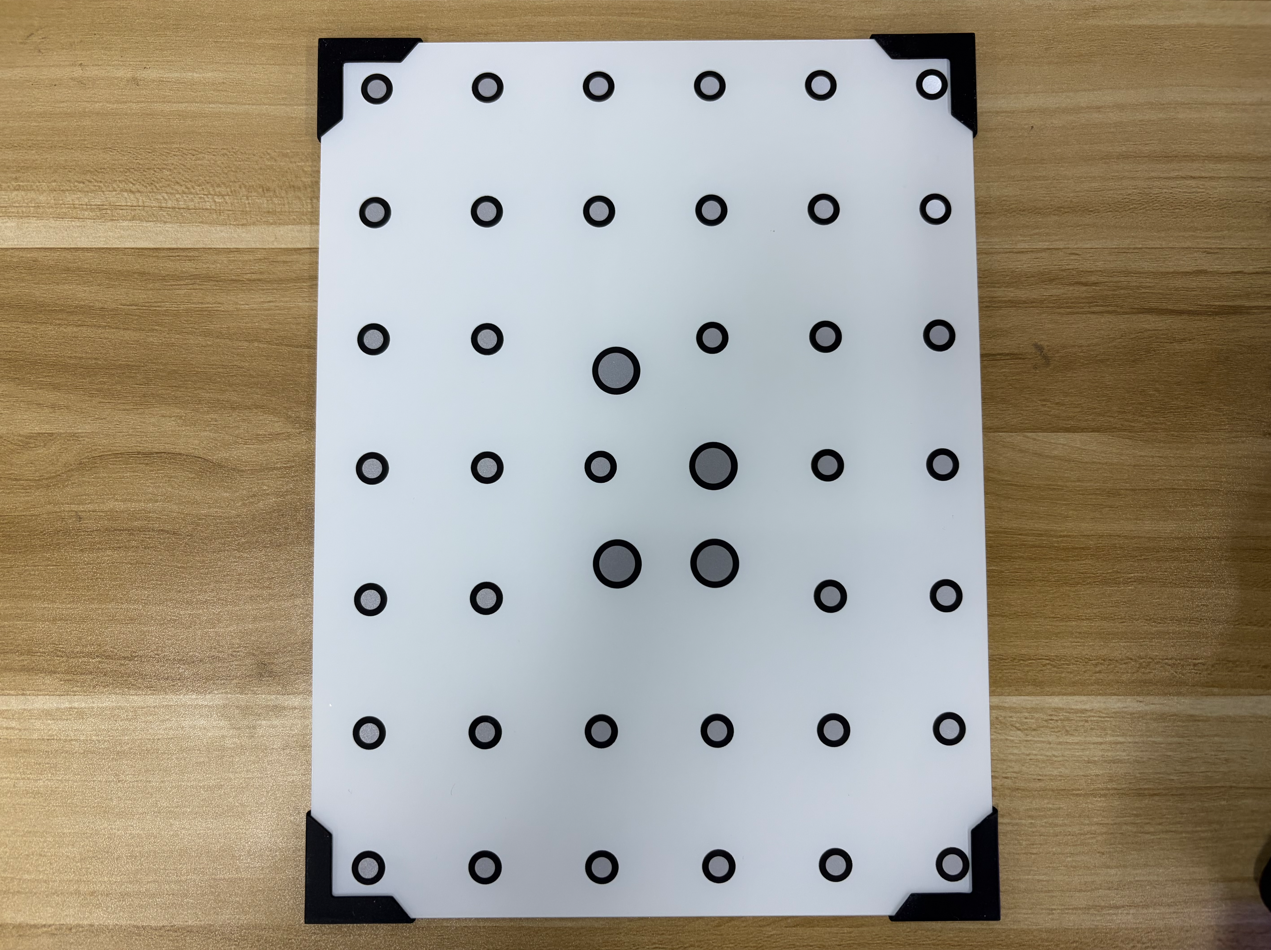
- Flip the Calibration board over with the side containing the Reflective markers facing upward.
- Follow the on-screen instructions in Elegoo Scan to adjust the scanner position and the distance between the scanner and the Calibration board.


Note: If the image becomes frozen during Calibration, move the scanner back to the center of the Calibration board.
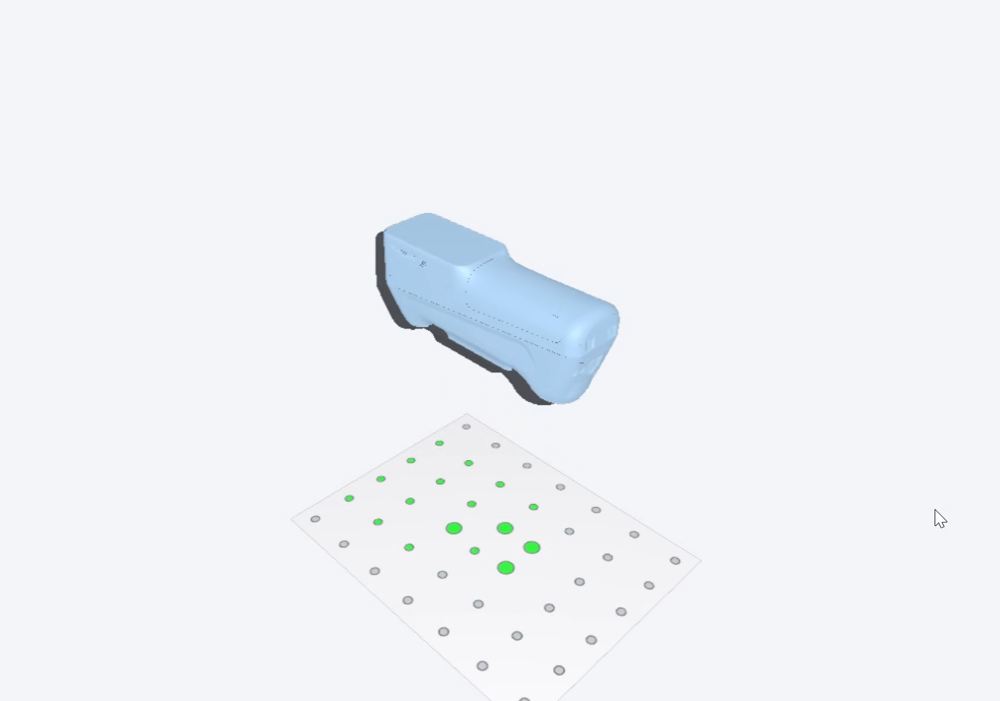
- Wait for the scanner to complete Calibration.
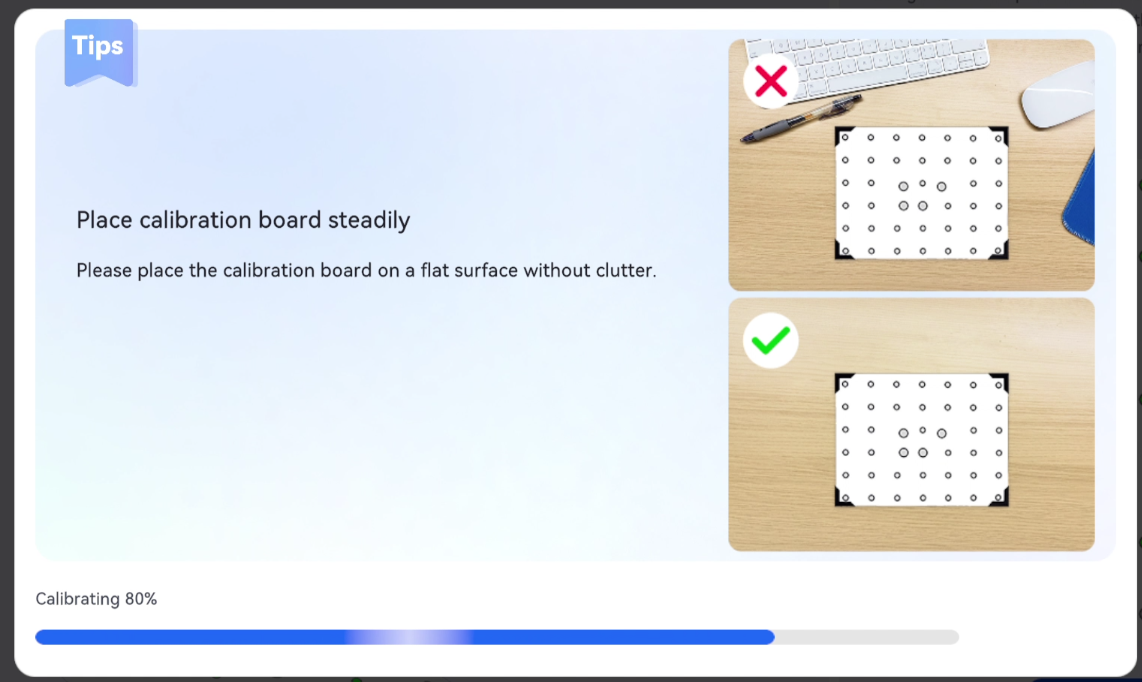
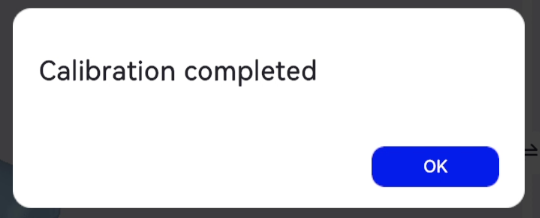
- Click OK to complete scanner Calibration.
¶ 5. Create a Project and Preview
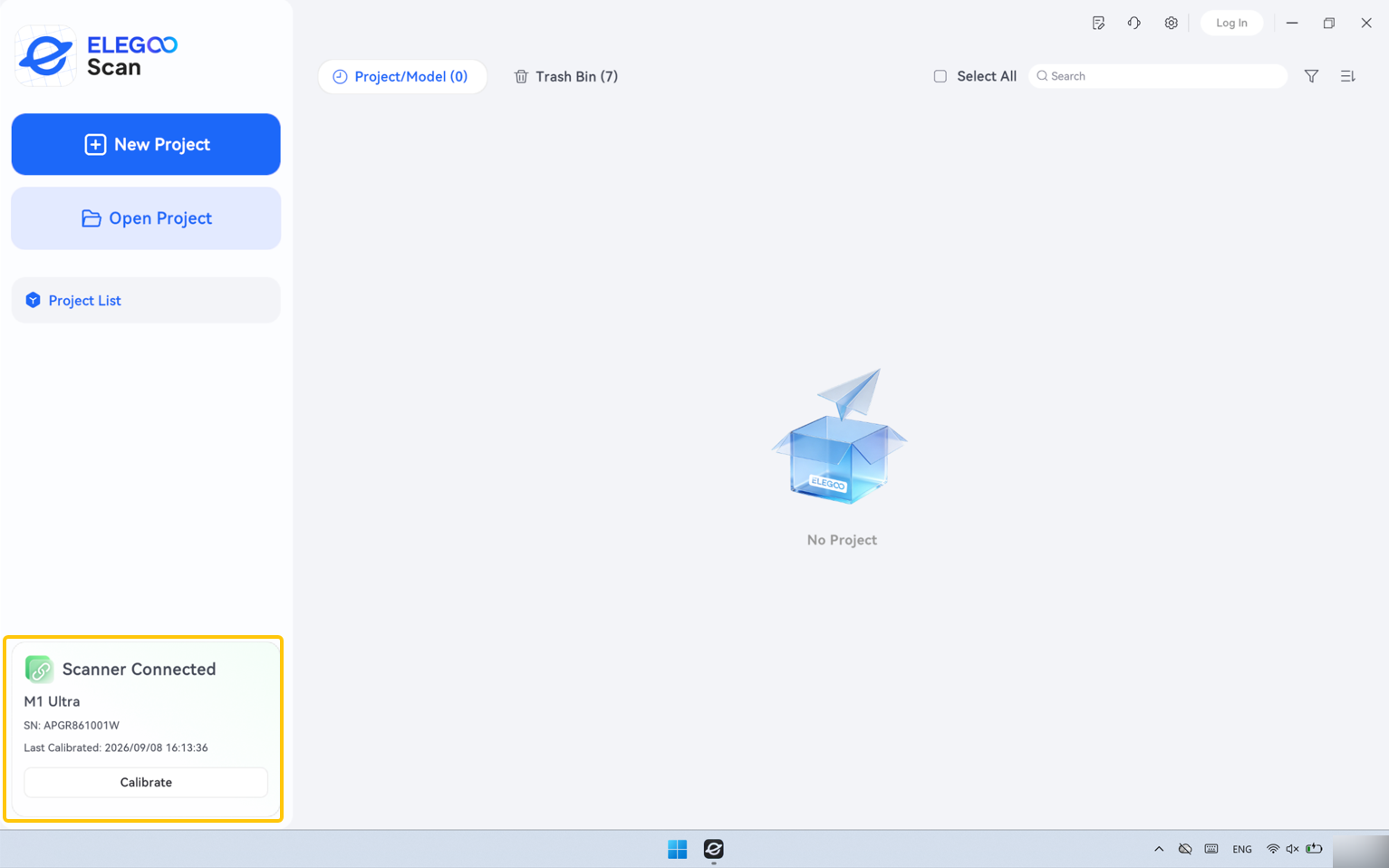
- Open Elegoo Scan and confirm that the scanner is connected properly.
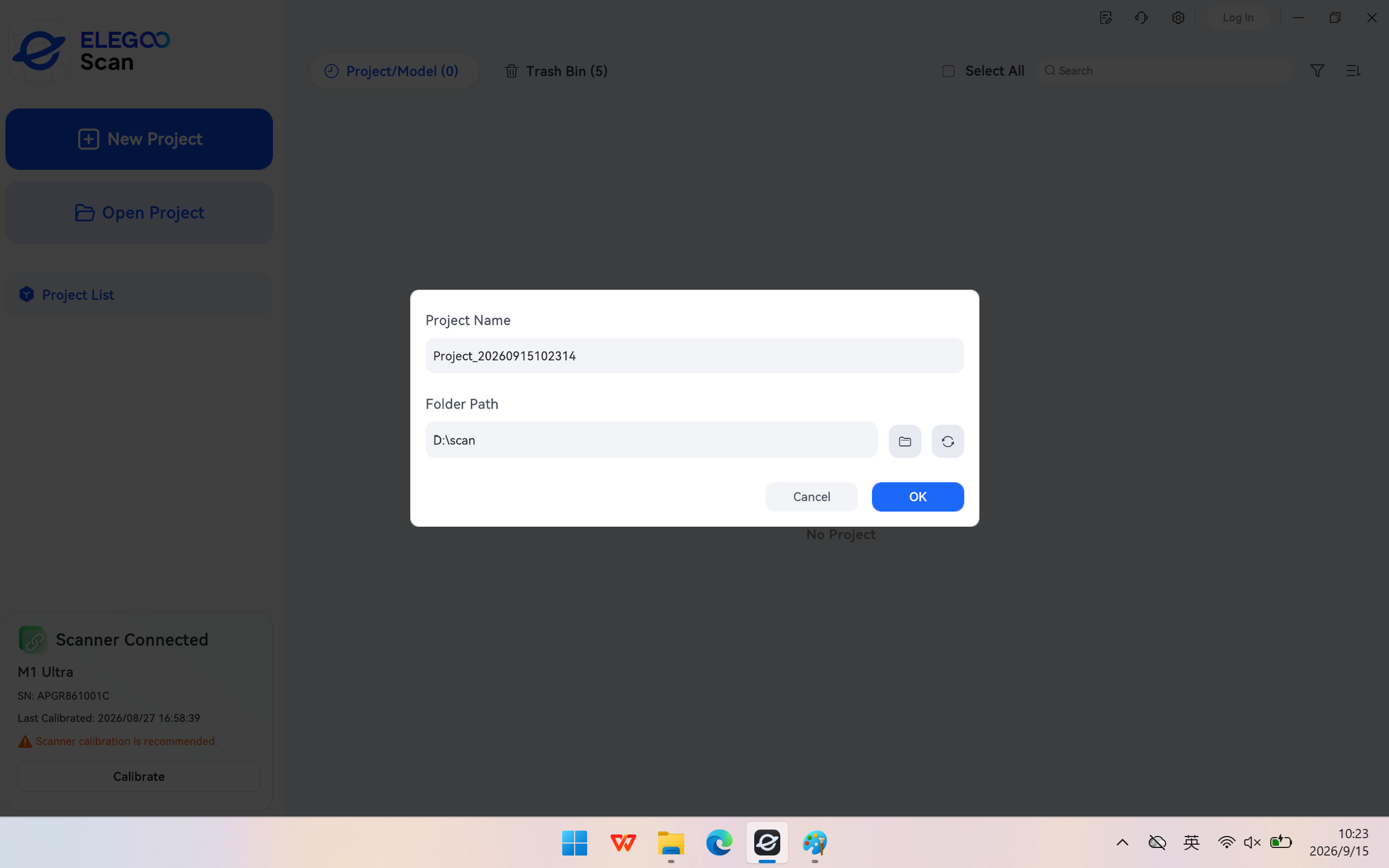
- Create a new project, enter a project name, and set the project storage path.
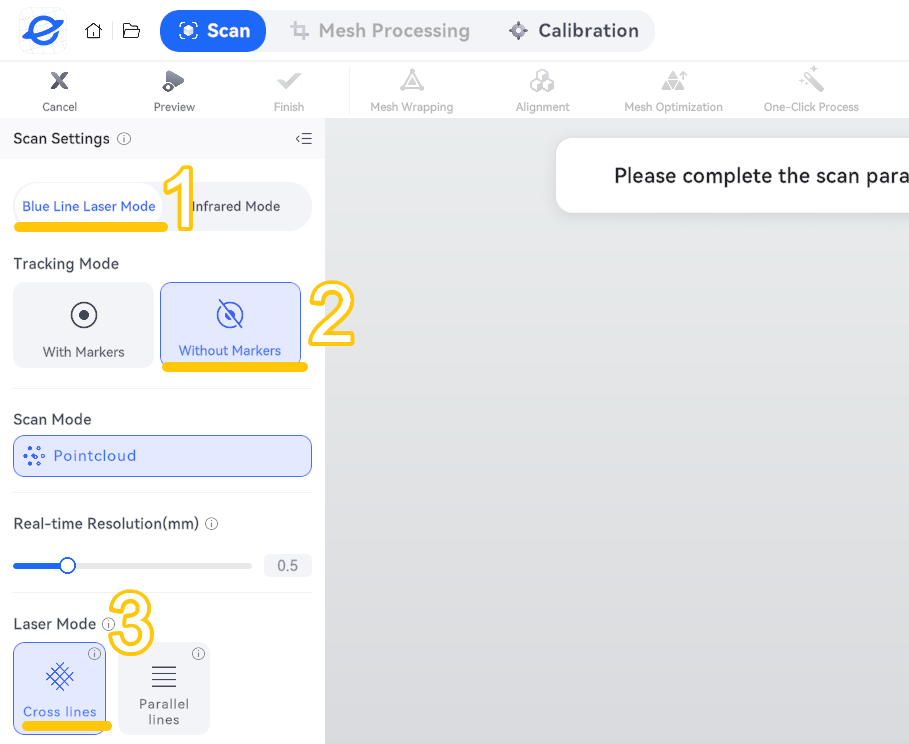
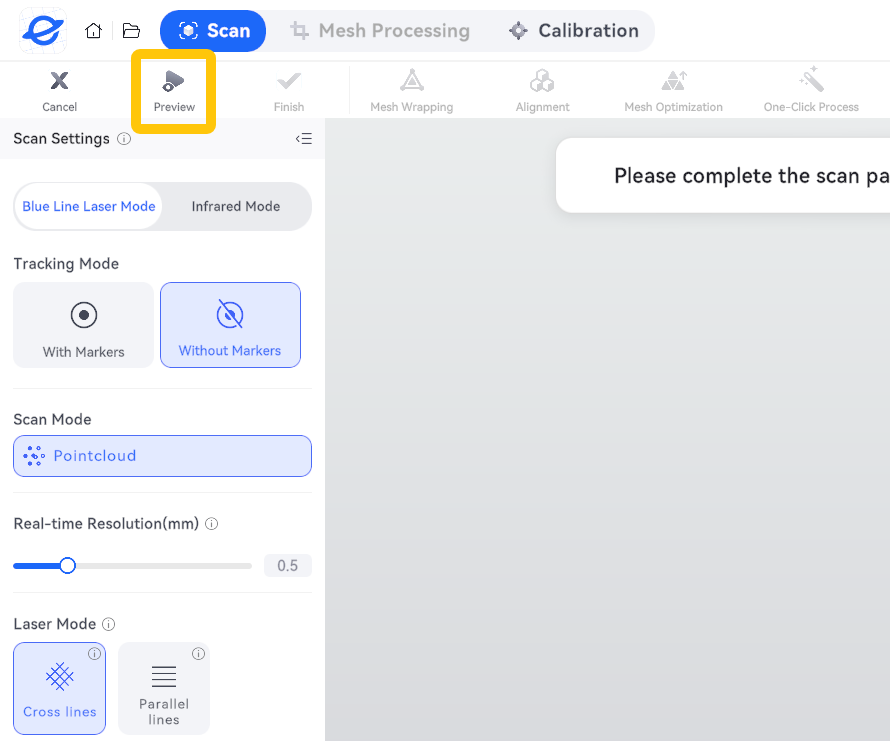
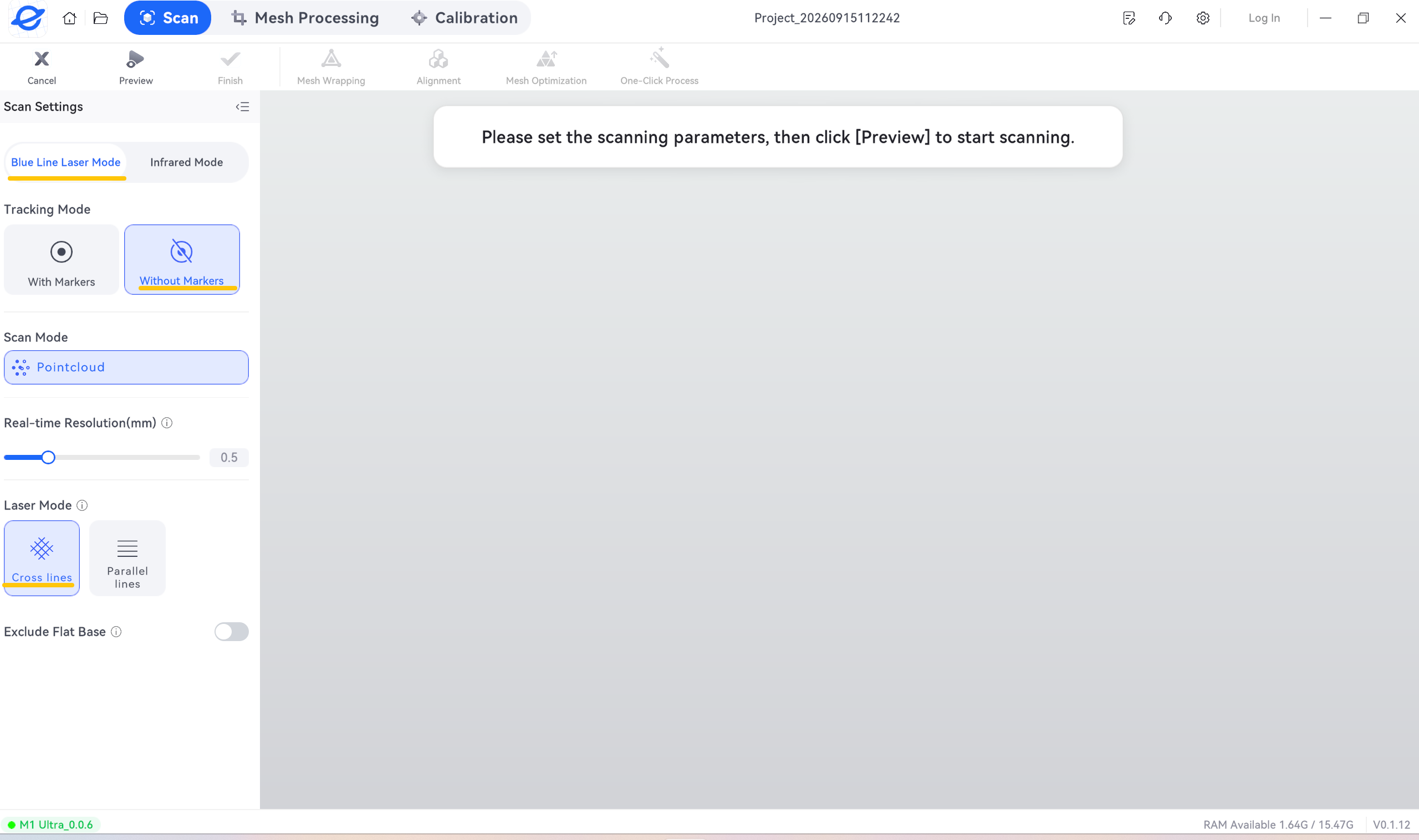
- Select the scanning mode: Blue Line Laser Mode - Without Markers - Cross Lines.
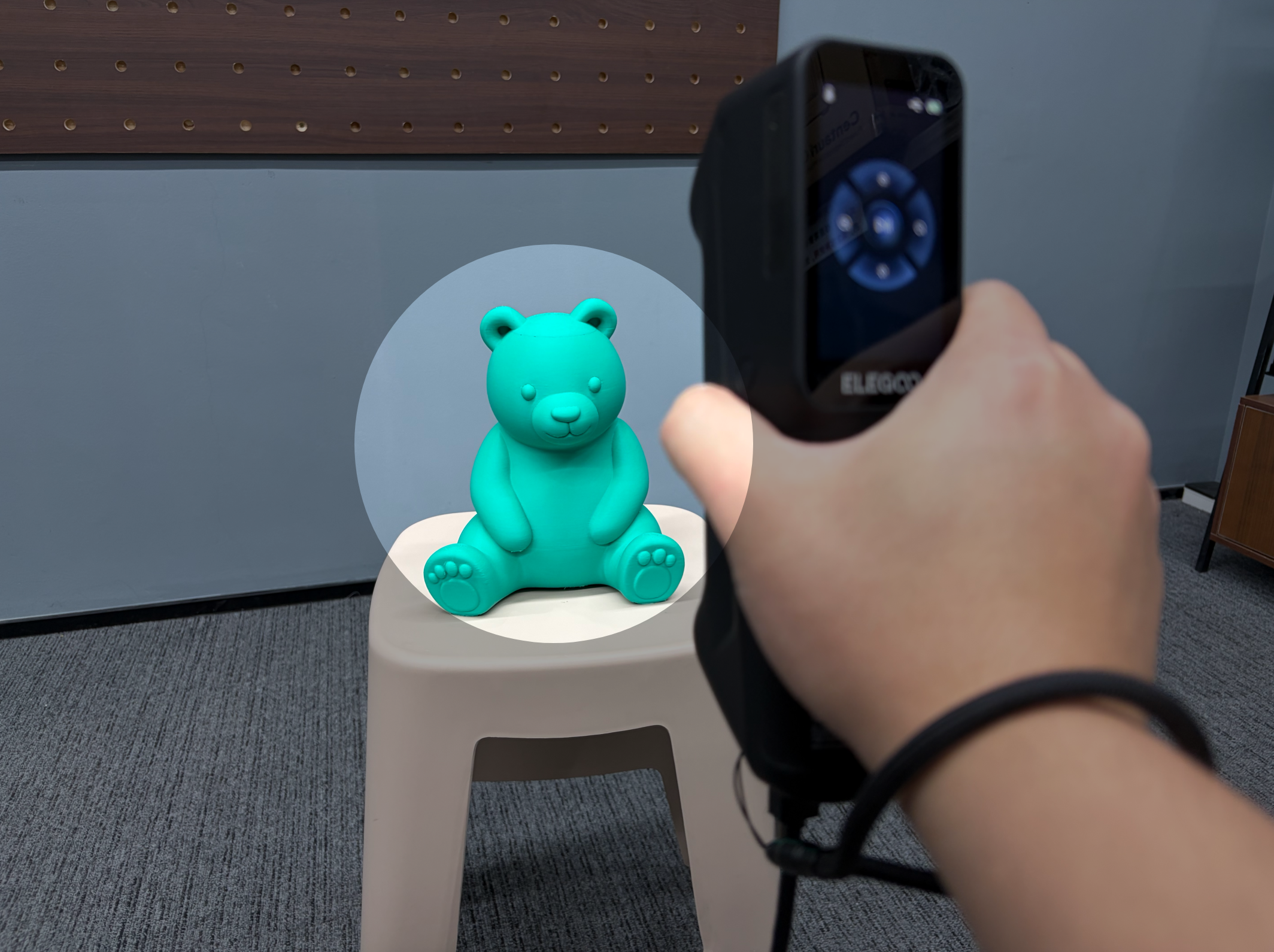
- Point the scanner at an area with clear features.
- Click Preview in the Elegoo Scan interface.
During Preview, check the following:
| Check Item | How to Check and Adjust |
|---|---|
| ① Scanning Distance | Keep the scanner within the effective distance indicated by the software. Avoid being too close or too far away. |
| ② Target Data | The main surface should remain continuously visible. Avoid large areas repeatedly disappearing. |
| ③ Exposure | You can use Auto Exposure/AE first and adjust it based on the Preview if necessary. |
| ④ Color Camera | Check whether the object is within the Field of View / FOV. |
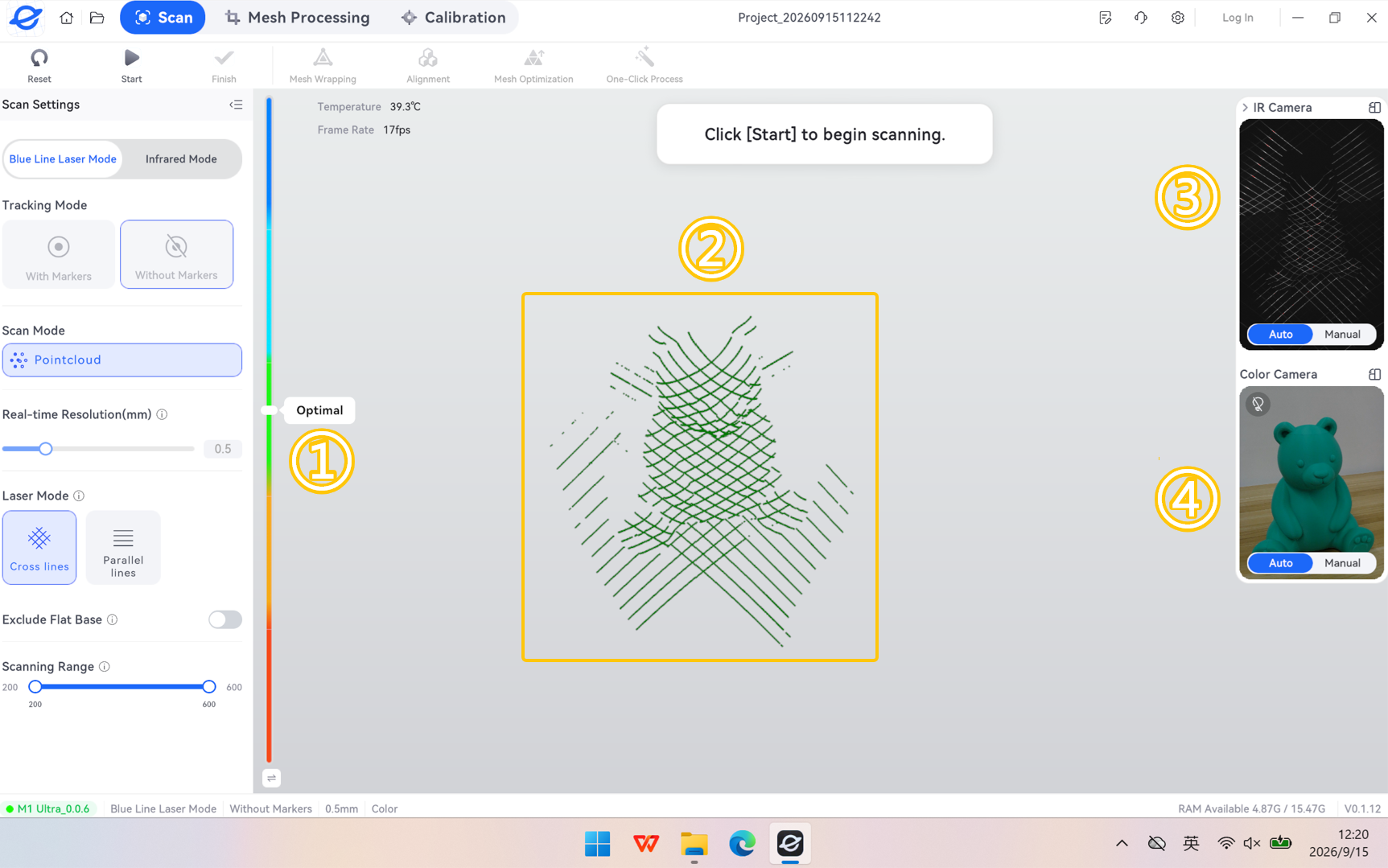
A smaller resolution value usually increases the amount of data and processing time, but does not necessarily mean higher actual accuracy. Preview is used to check the data acquisition status; the software does not save scanning data during Preview.
¶ 6. Start Scanning
¶ 6.1 Capture the Main Contours First
- Click Start Scanning and begin from an area with clear shape features or reflective markers.
- Move the scanner slowly and continuously while keeping the scanning distance relatively stable.
- Gradually scan around the object to capture its sides, ensuring sufficient overlap between adjacent views.
- Adjust the height and angle according to the coverage displayed by the software to capture the top and any missed areas.
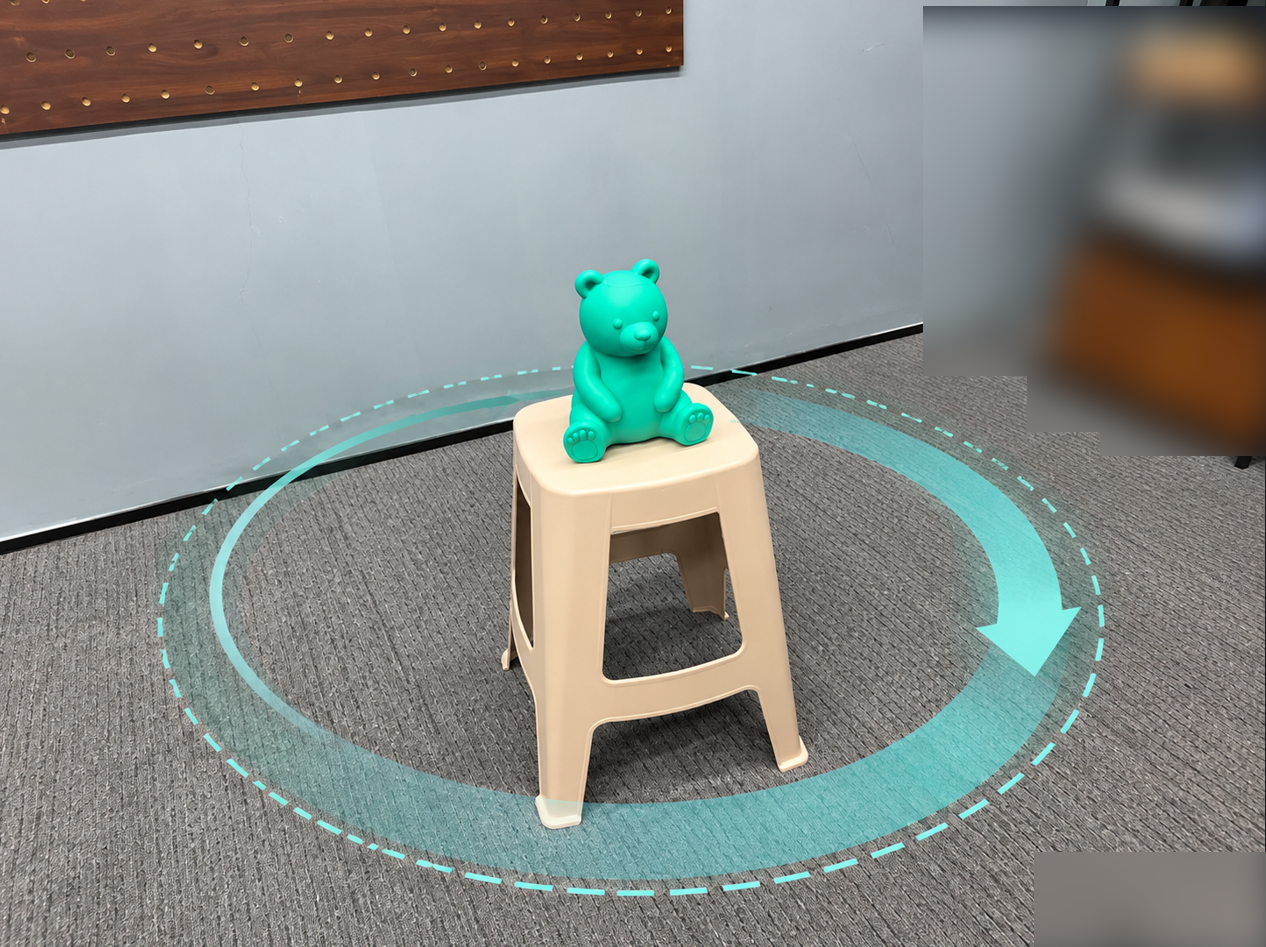
Note: When scanning by hand, do not simply rotate your wrist in place. Move your body and arm appropriately according to the shape of the object. When using a turntable, rotate it steadily and control the speed according to the actual data acquisition status displayed by the software.
¶ 6.2 Capture Details and Occluded Areas
- Click Pause Scanning.
- Press and hold the middle mouse button (scroll wheel), and inspect areas that are easy to miss, such as the underside of the jaw and grooves, from different heights and directions.
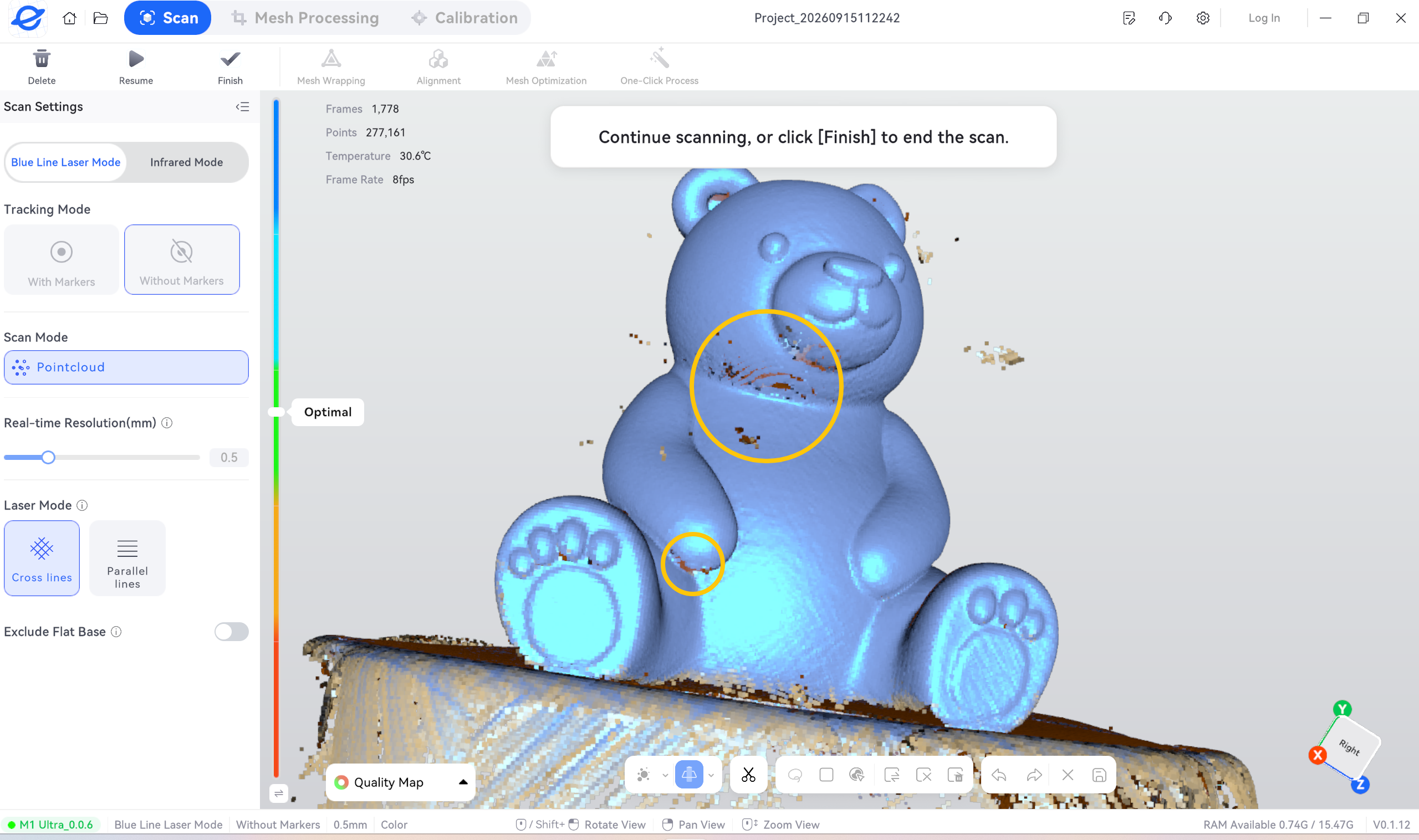
- Adjust the scanner angle so that the surface to be scanned enters the effective field of view (FOV) of the device.
Note: The scanner can only capture surfaces that can be effectively observed. Deep holes, narrow gaps, and severely occluded areas may not be captured completely. Staying at the same angle for an extended period usually cannot resolve these issues.
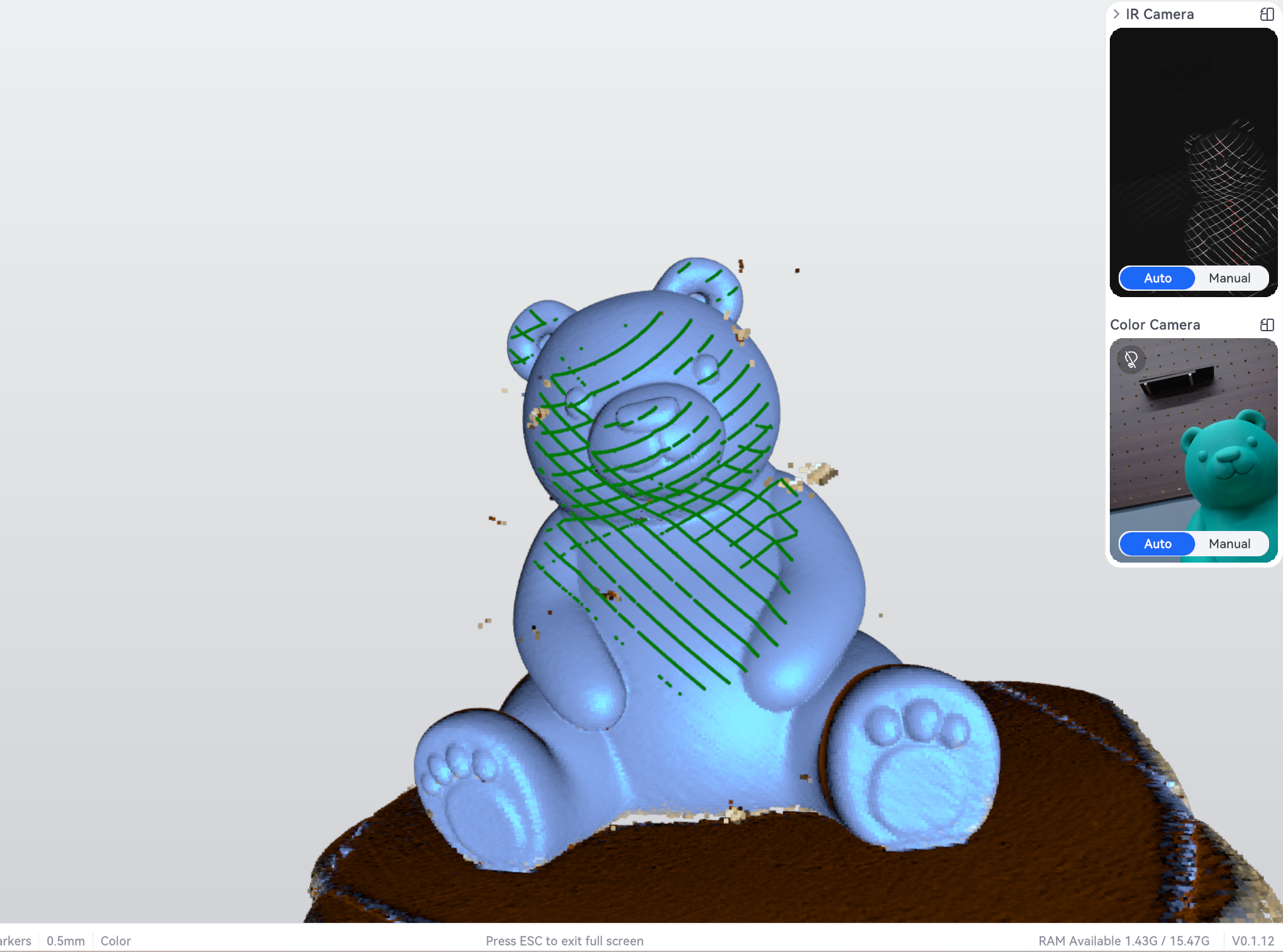
¶ 6.3 What to Do When Tracking Is Lost
- Stop moving the scanner. Pause scanning if necessary.
- Move the scanner back to a previously scanned area with clear features.
- Adjust the distance and angle and wait for tracking to recover.
- Confirm that the new data is correctly aligned with the existing model before continuing the scan.
- Click Pause after completing the current acquisition.
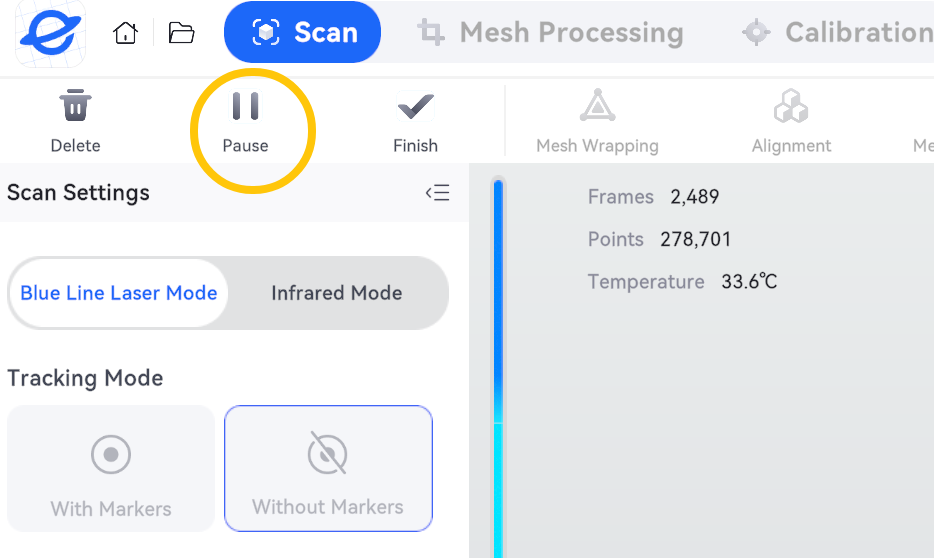
- Rotate the model in the software and check for any missed areas.
- If the missed area is still directly visible, click Resume to continue scanning.
¶ 7. Check Coverage and Rescan the Bottom
- Click Finish to save the current data.
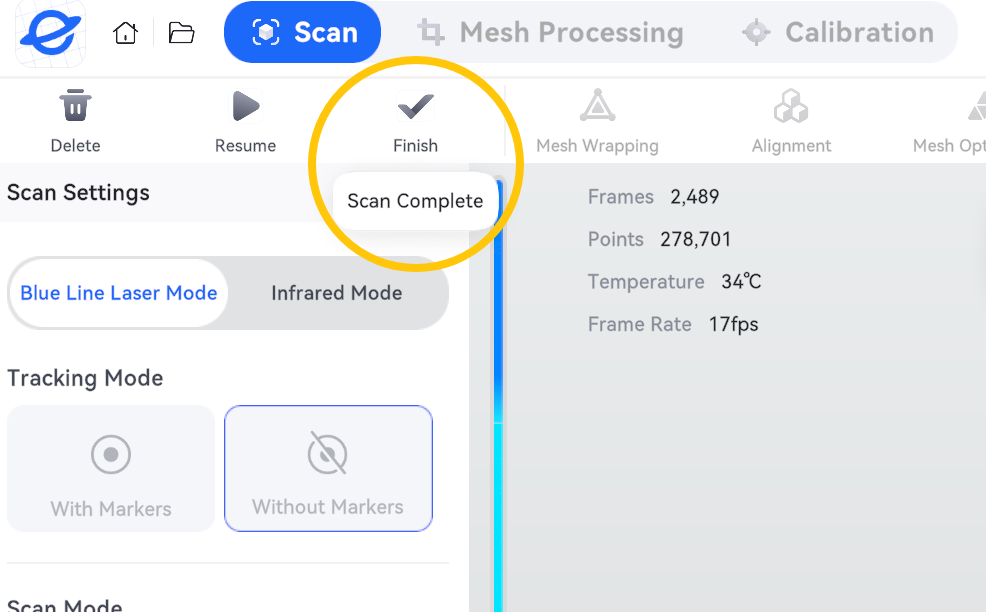
- Create a new scan group and select Blue Line Laser Mode - Without Markers - Cross Lines.
- Flip the object over and secure it again.
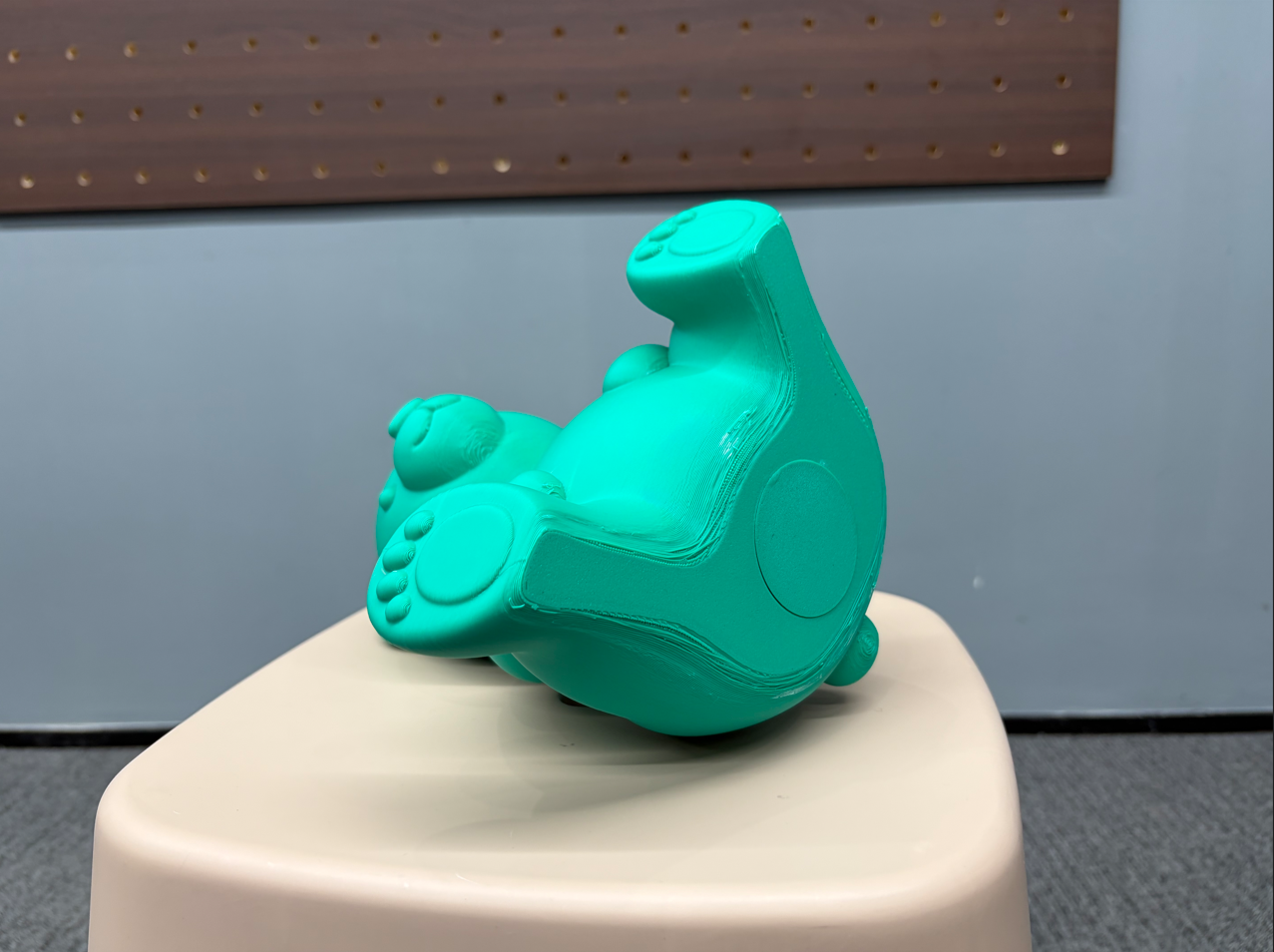
- Scan the bottom while also capturing part of the previously scanned side to retain a common area for alignment.
After flipping the object, the relative position between the object and the Reflective markers on the turntable or tabletop may have changed. The original relationship cannot be directly reused. The common area should contain identifiable features. Large flat surfaces or repetitive curved surfaces alone may not be sufficient for reliable alignment.
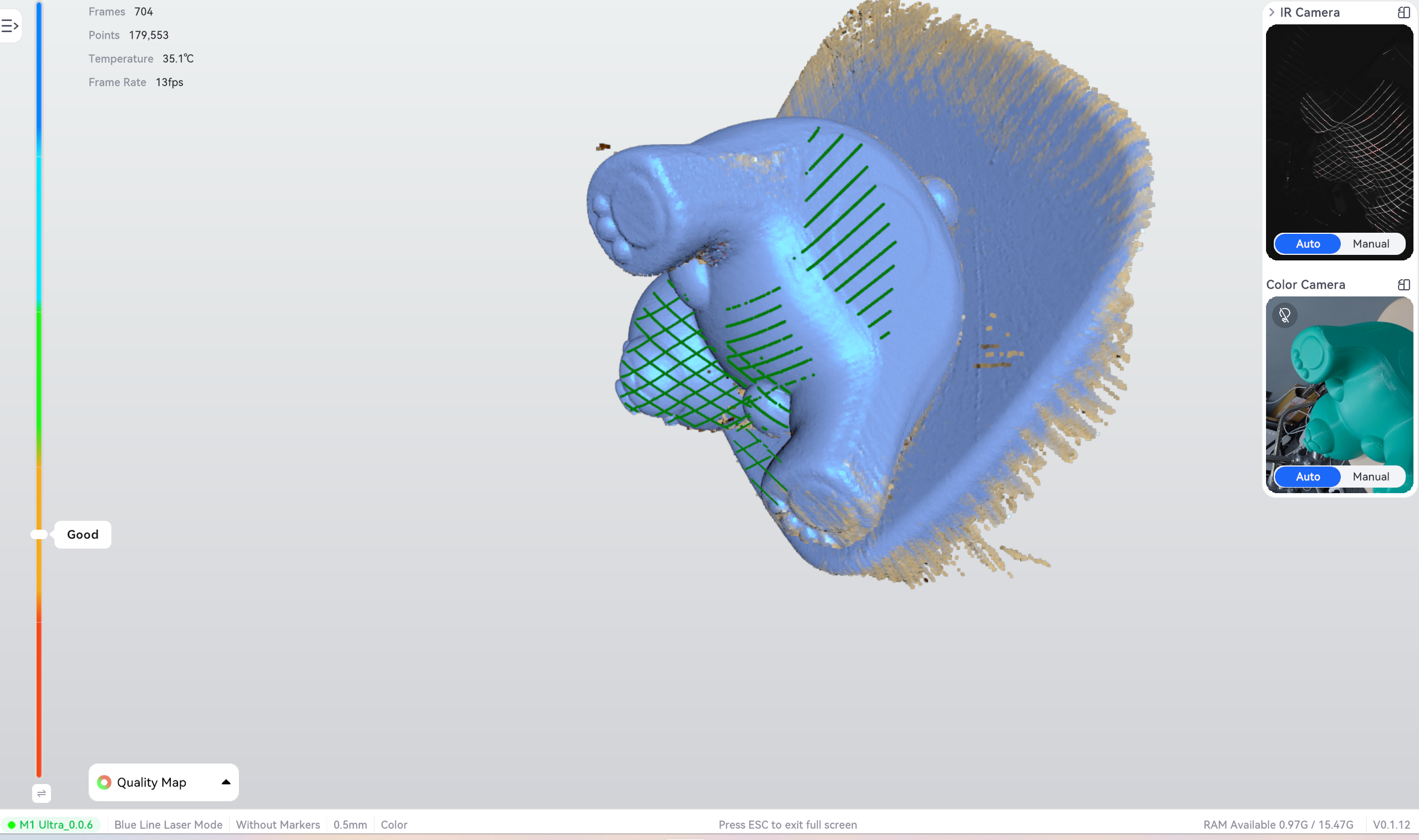
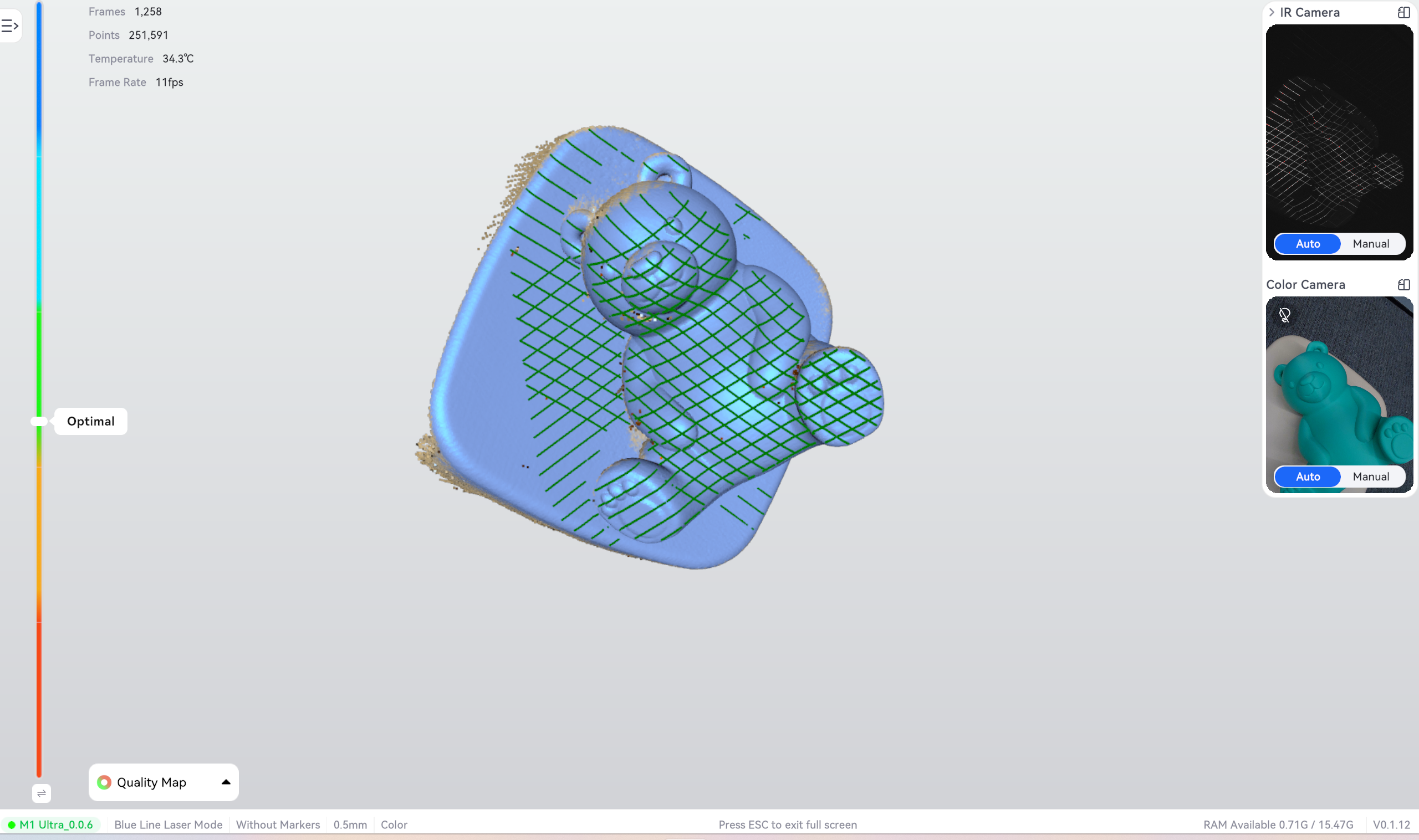


- Remove flat surfaces and other irrelevant areas from both sets of data.
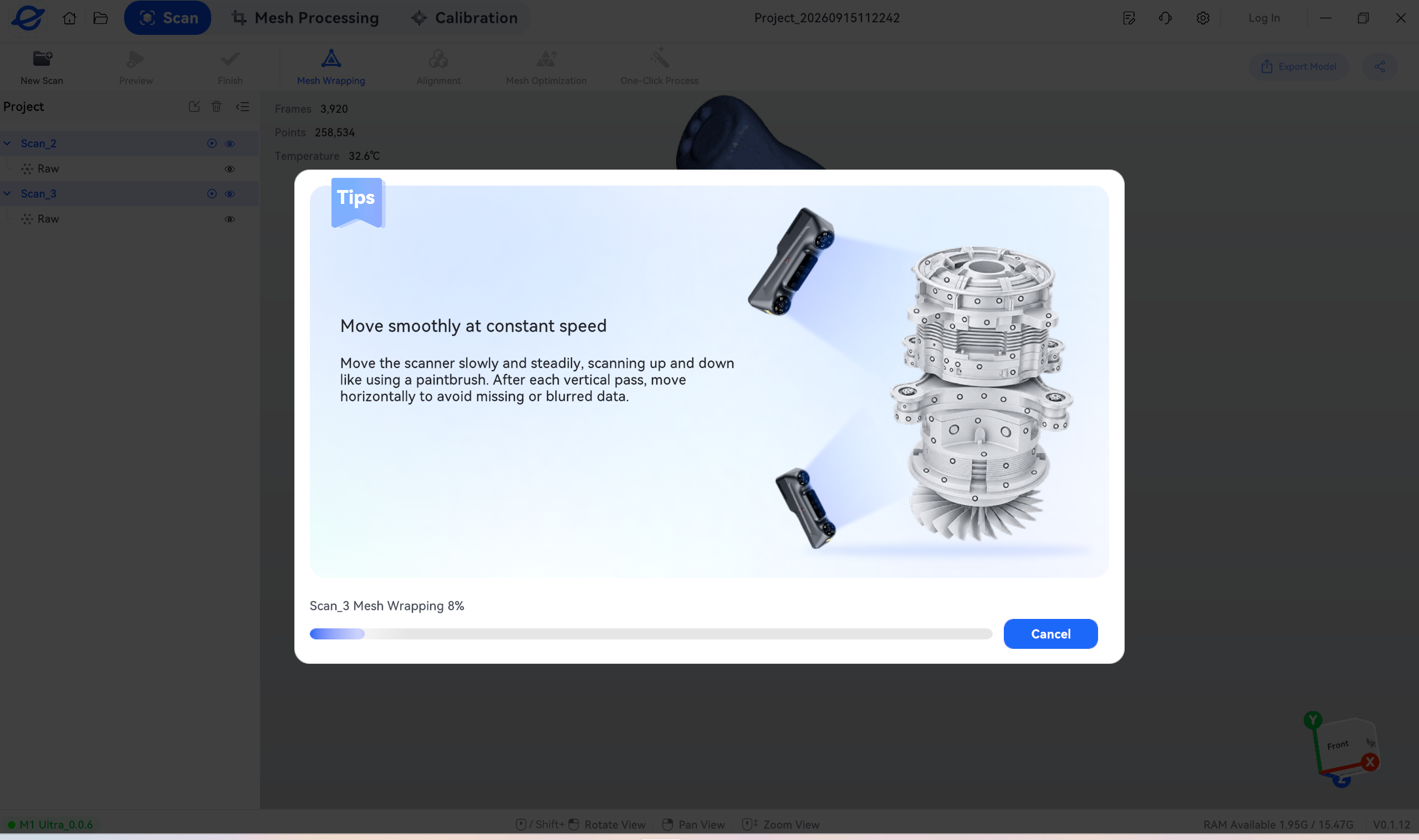
¶ 8. Mesh Wrapping
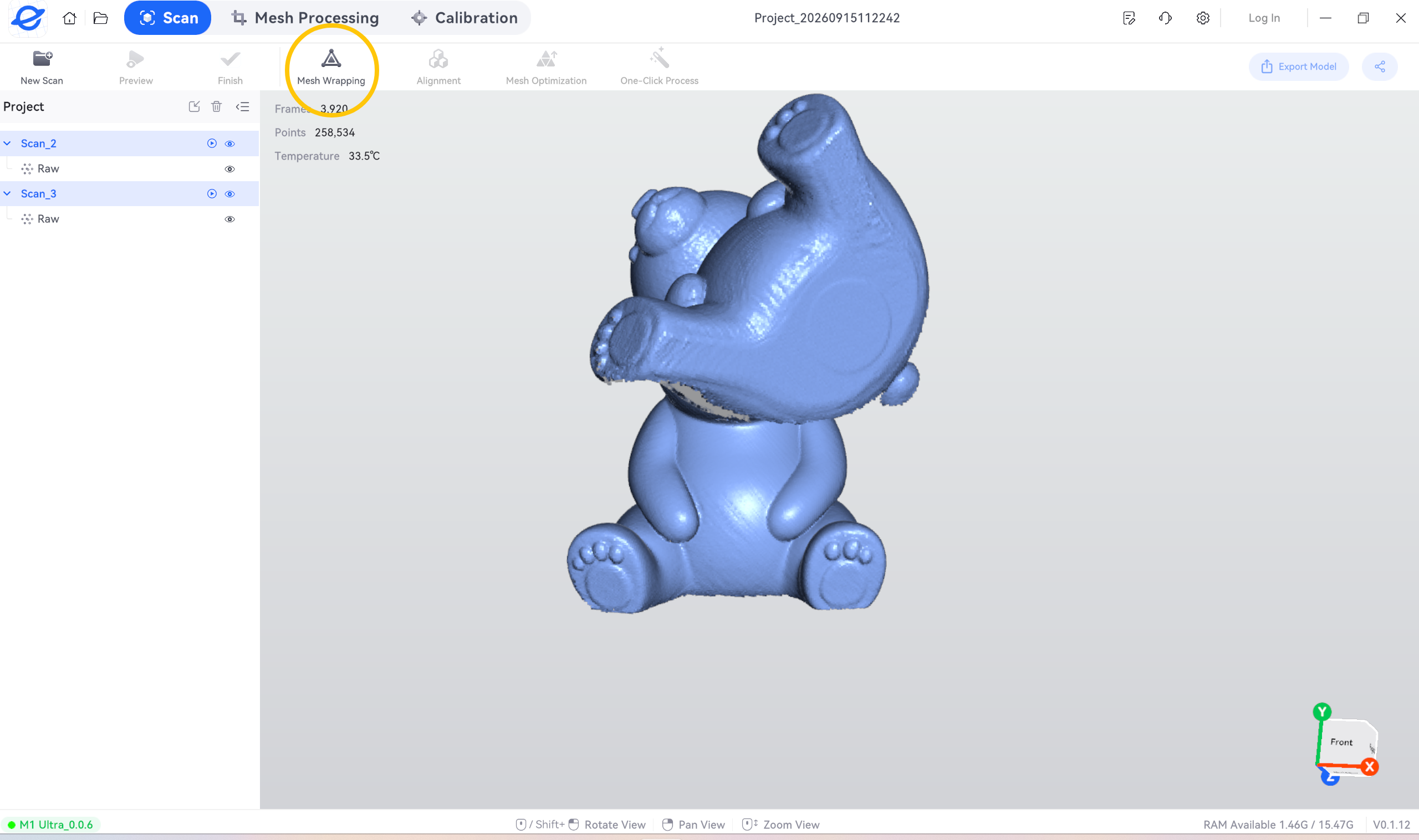
- Click Mesh Wrapping. Hold Ctrl and click with the left mouse button to select multiple items.
- Click OK.
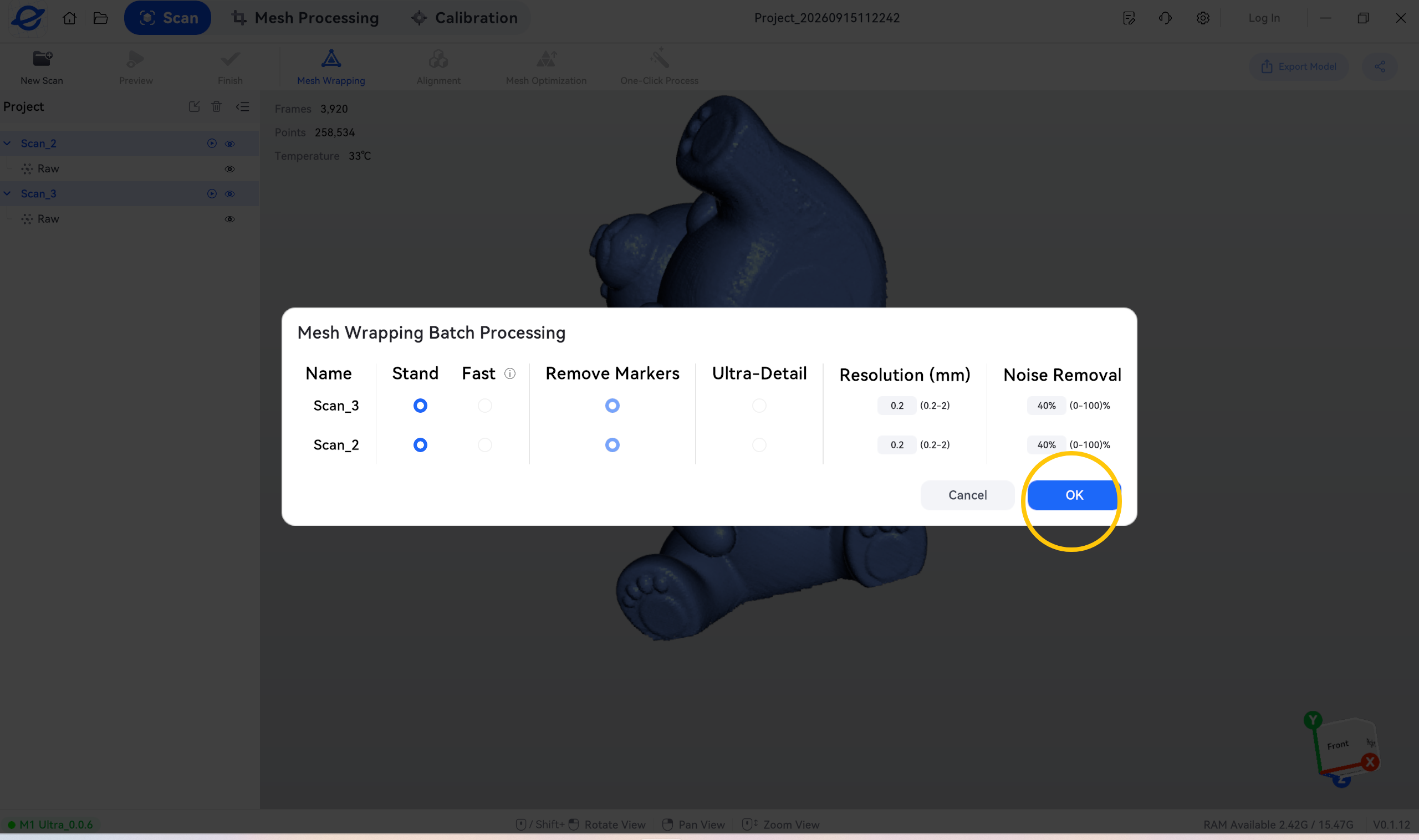
- Wait for Elegoo Scan to process the data.
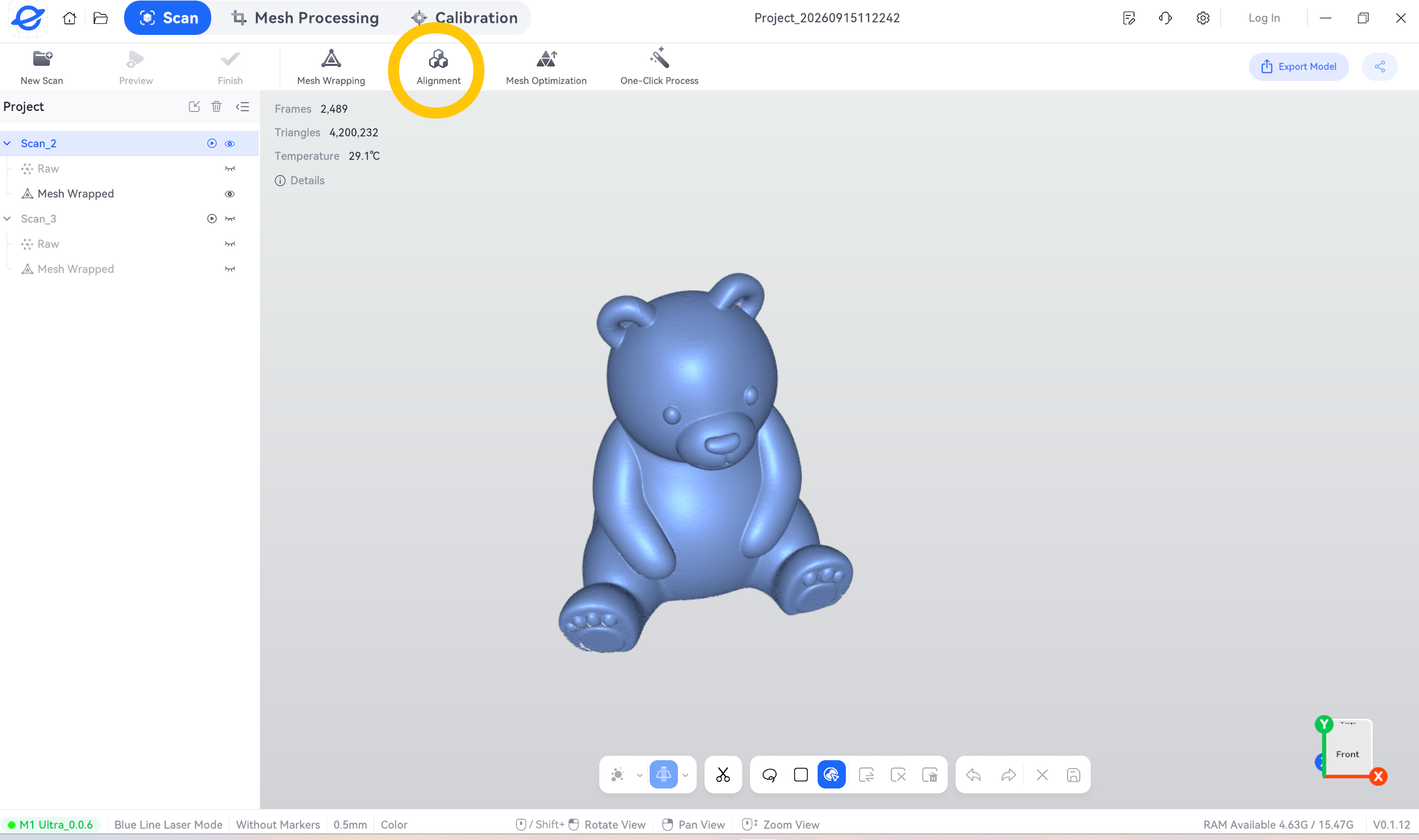
¶ 9. Align the Models
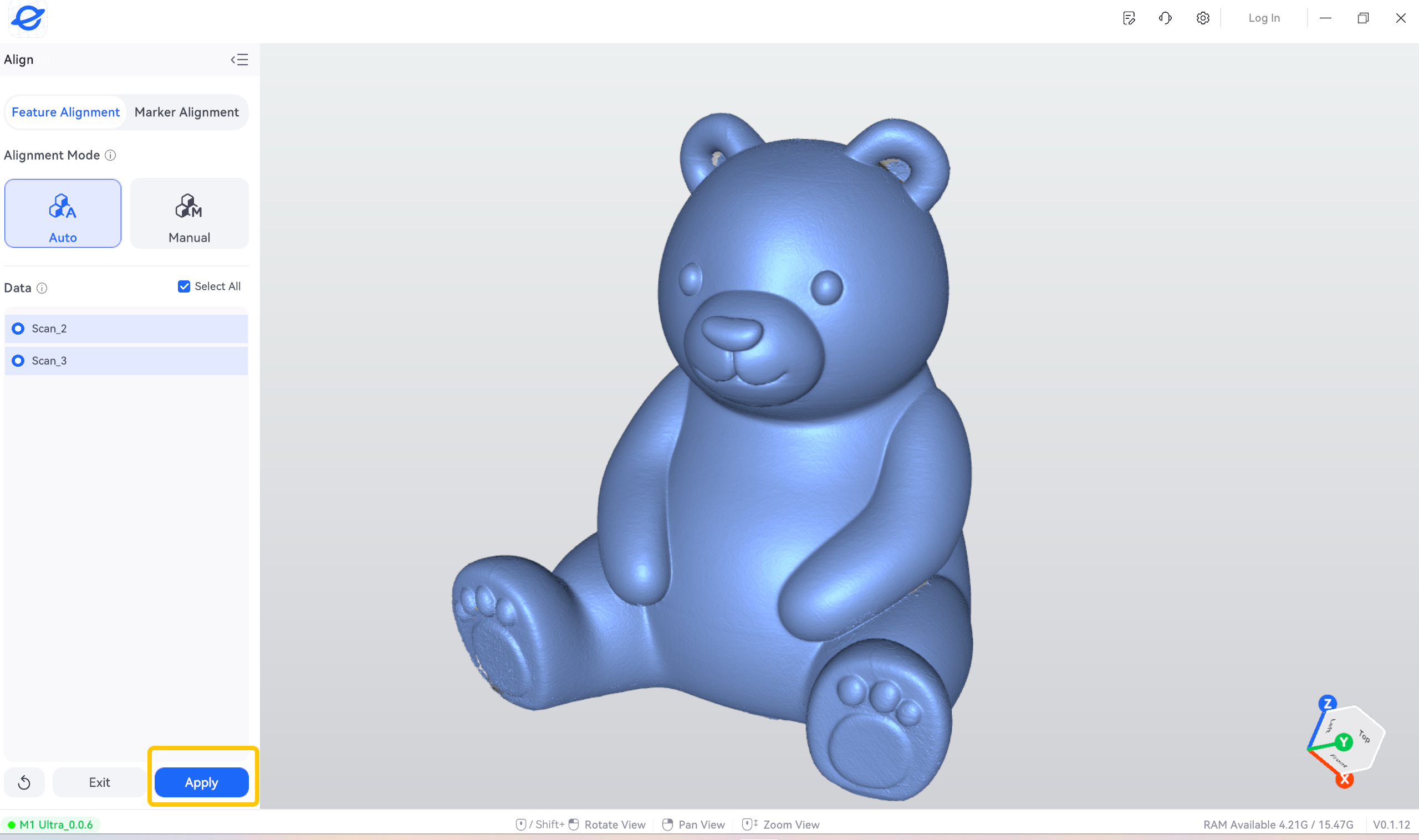
- Click the Alignment button.
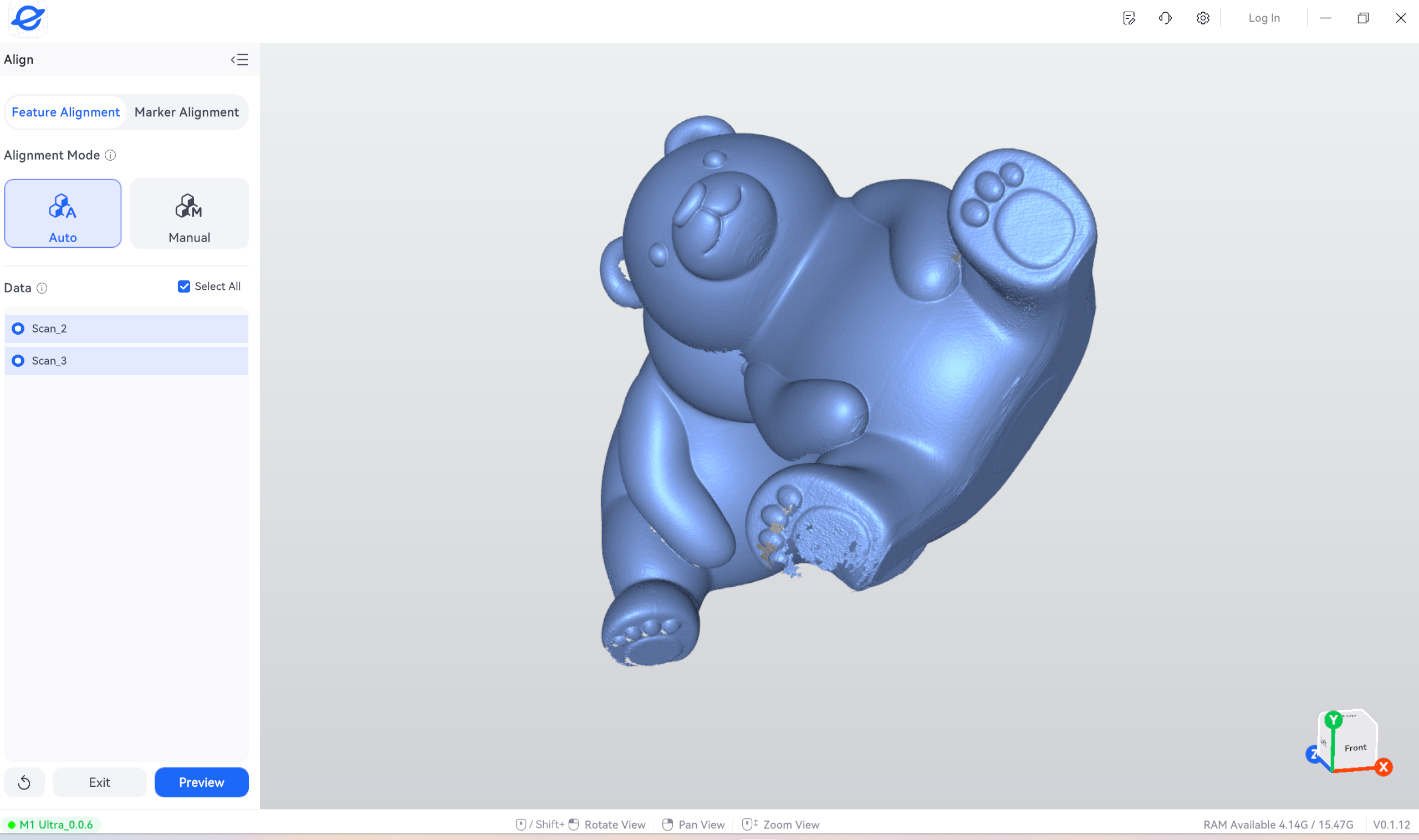
- Select Feature Alignment - Auto, and select the items to be aligned.
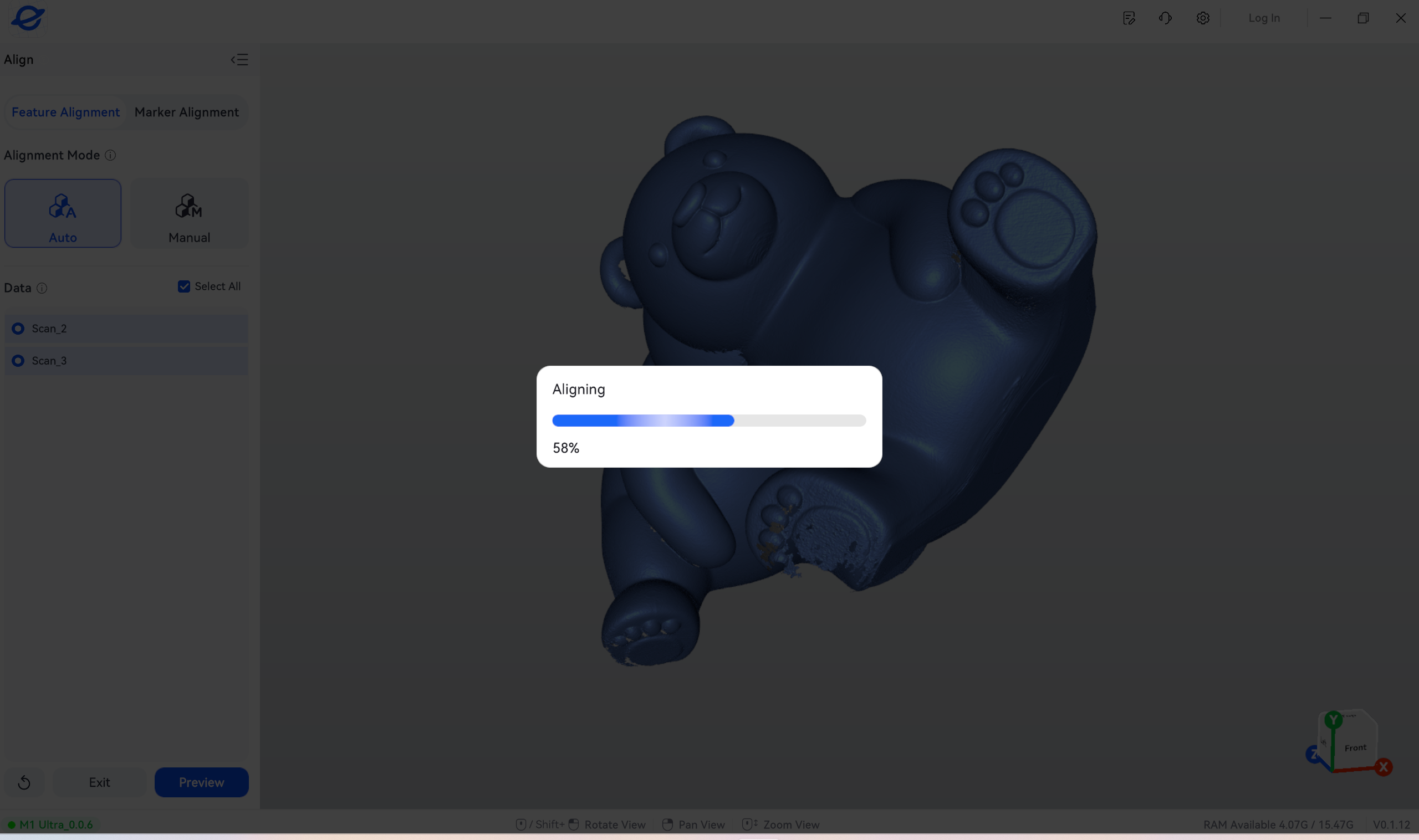
- Click Preview.
- Confirm that the alignment result is satisfactory, then click Apply.
Note: If large areas are still missing, create a new project, rescan the object, and then merge the data again.
¶ 10. Mesh Optimization
Reminder: Do not skip this step. Otherwise, the Mesh Processing function cannot be enabled.
- Click the Mesh Optimization button to enter this function.
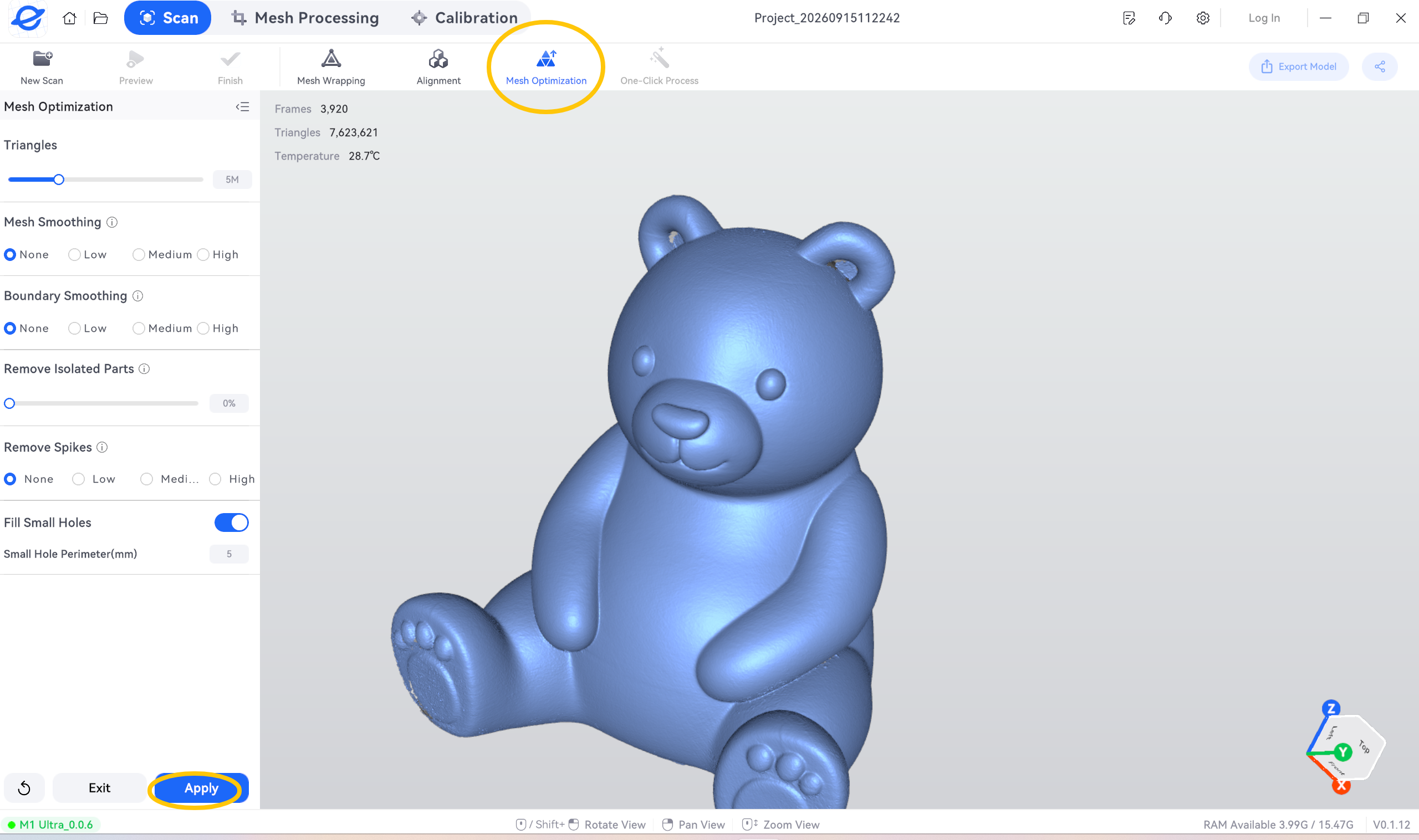
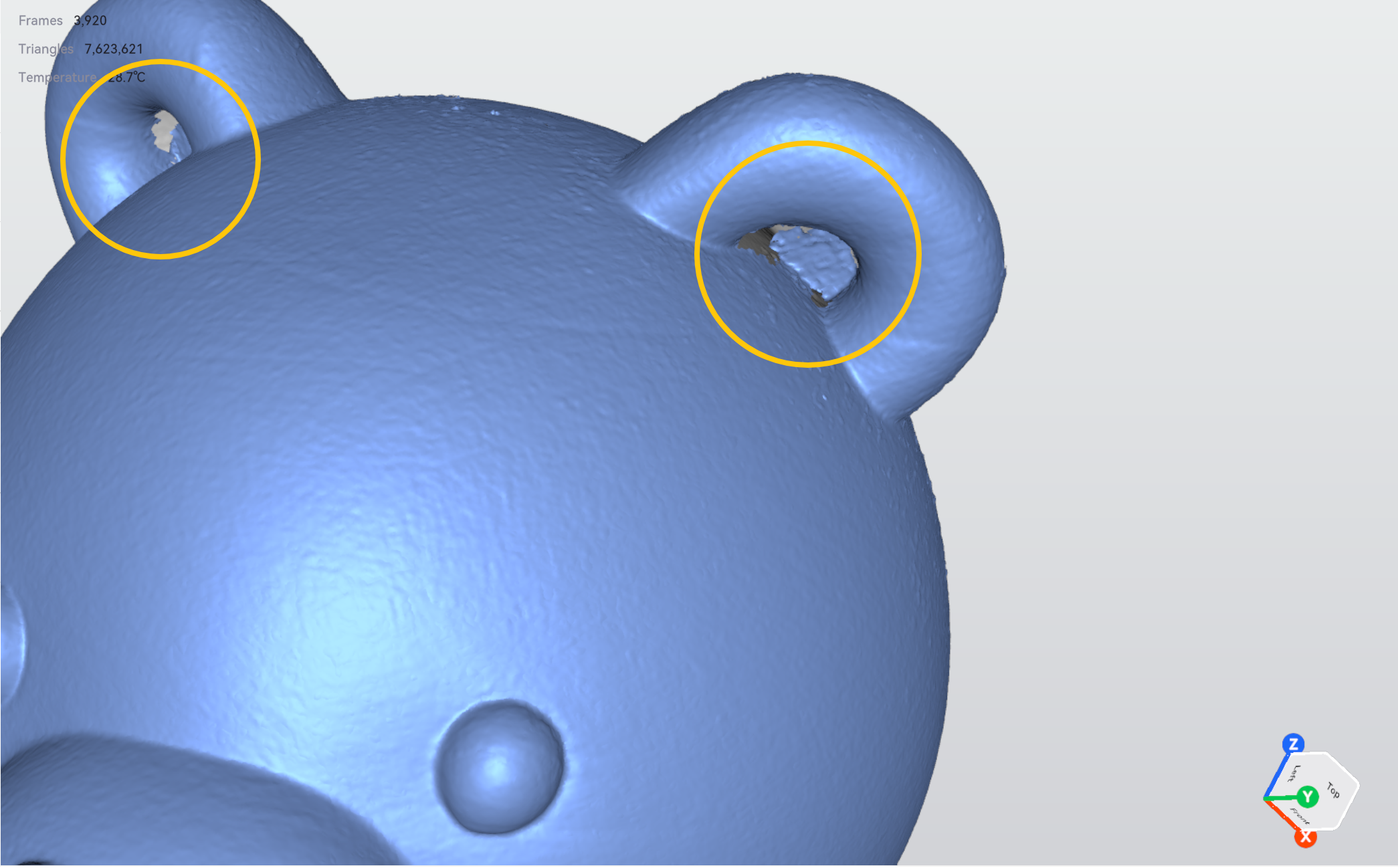
- If small holes are found in the model, enable Fill small holes and fine-tune this parameter according to the actual hole size.
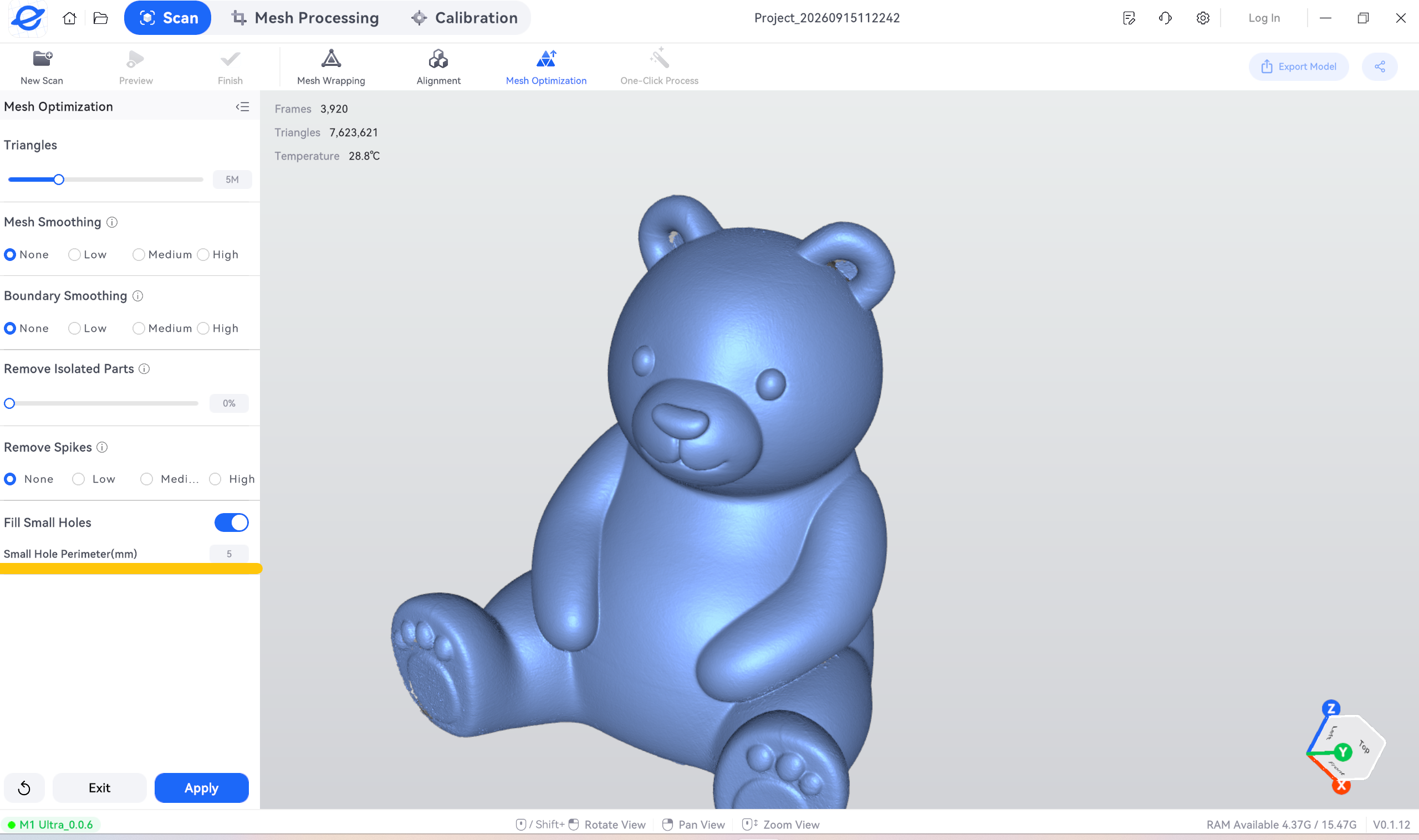
- After setting the parameters, click Apply to fill the small holes.
Automatic hole filling generates a surface estimated by the software rather than actual scanned data. When evaluating dimensions, retain the original data and use hole filling and smoothing functions with caution.
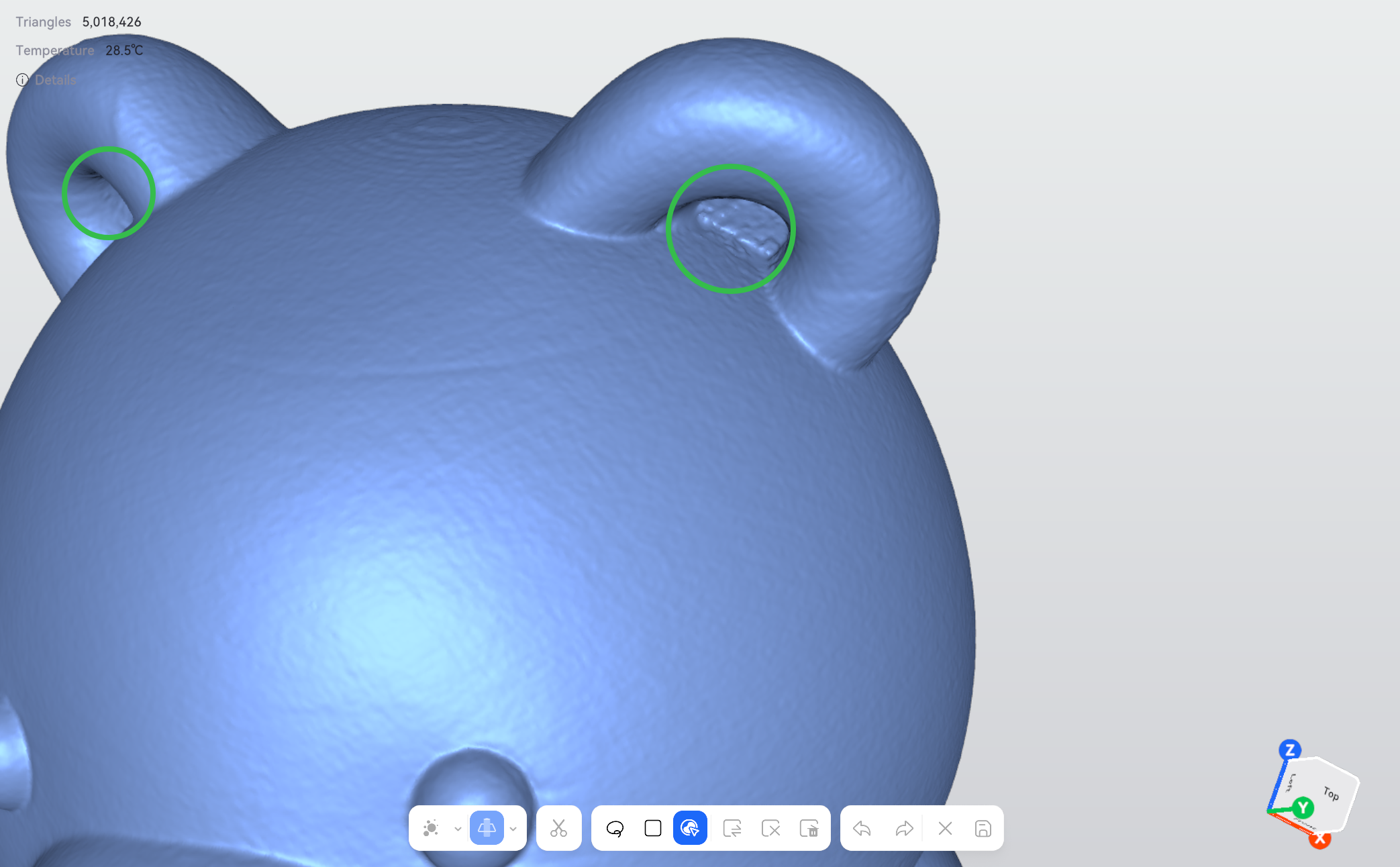
¶ 11. Mesh Processing
Refer to the descriptions below to learn about the sub-functions available under Mesh Processing. Select the required functions as needed. If no further optimization is required, you can skip this step and proceed to the pre-export inspection in Step 12.
¶ 11.1 Simplify
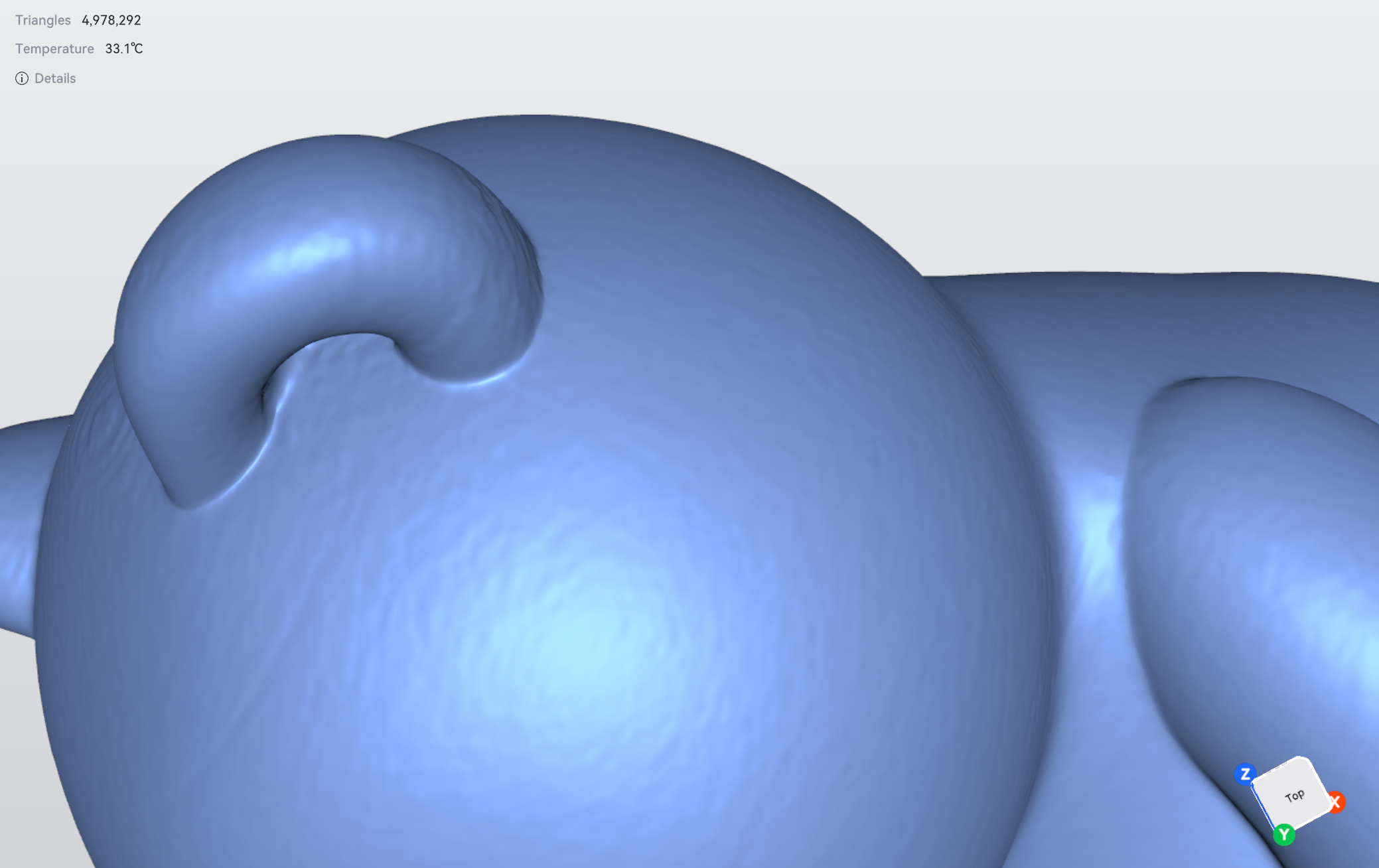
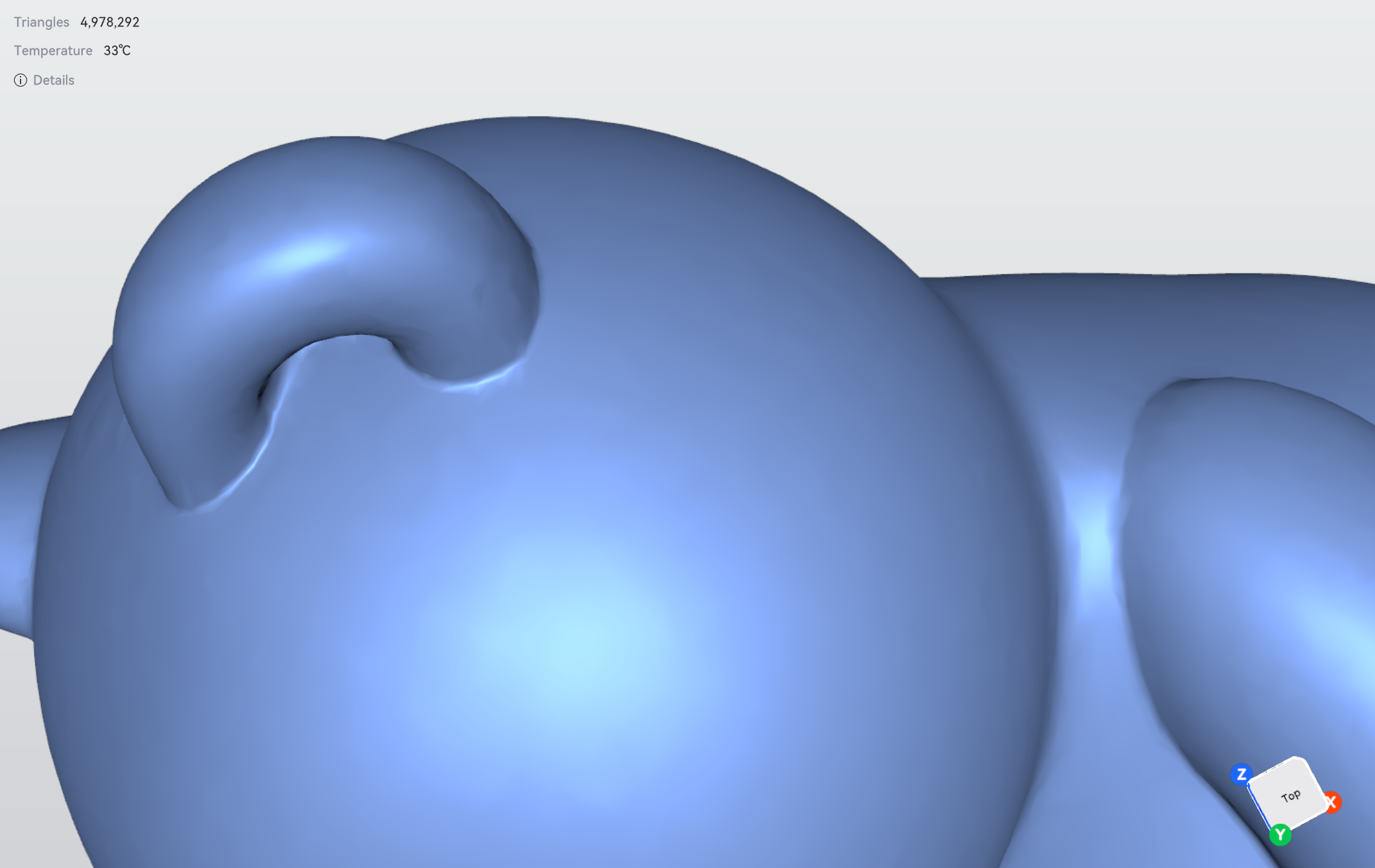
Reduce the number of mesh faces and the amount of data while preserving model details.
Before Simplification
After Simplification
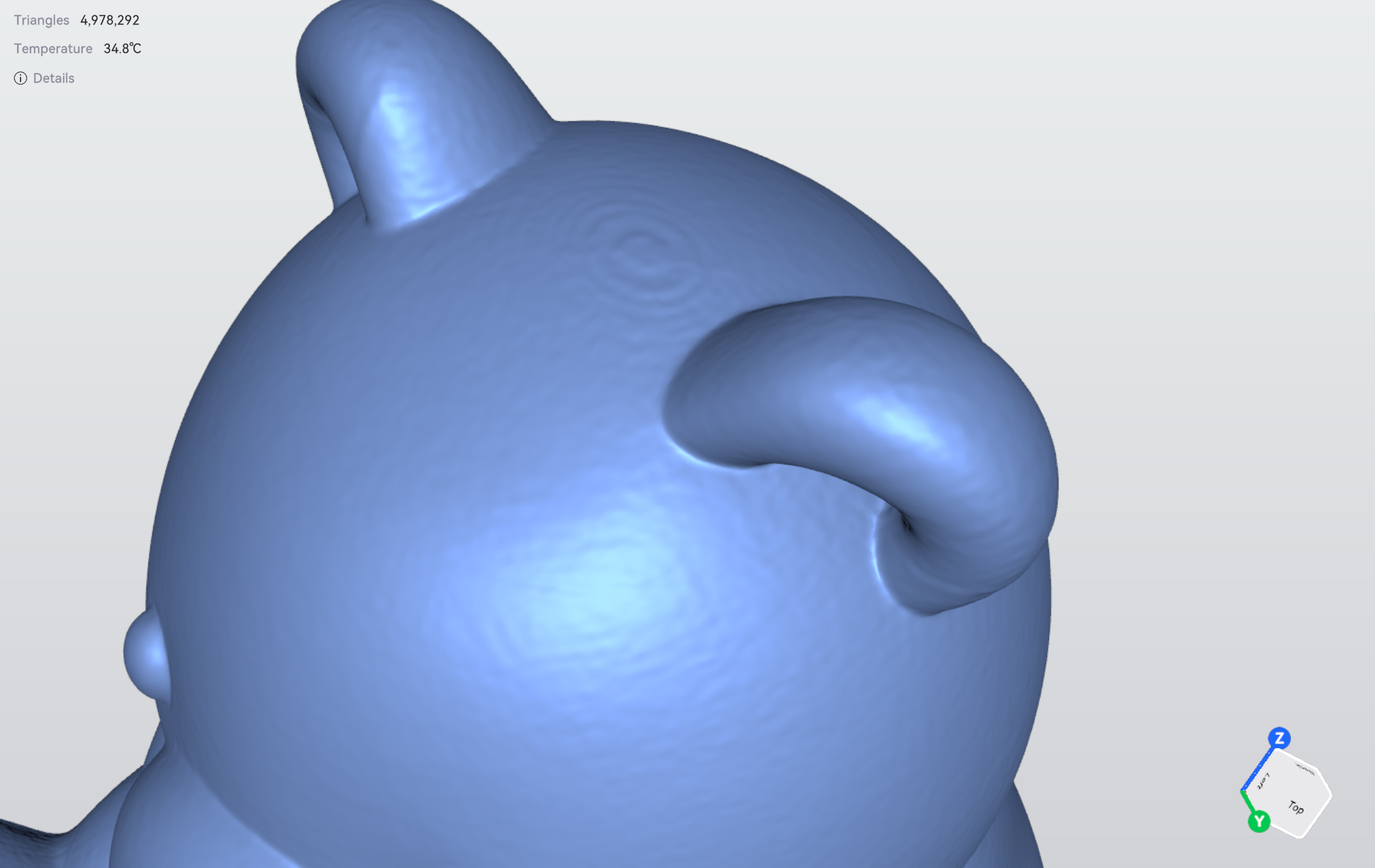
¶ 11.2 Smooth
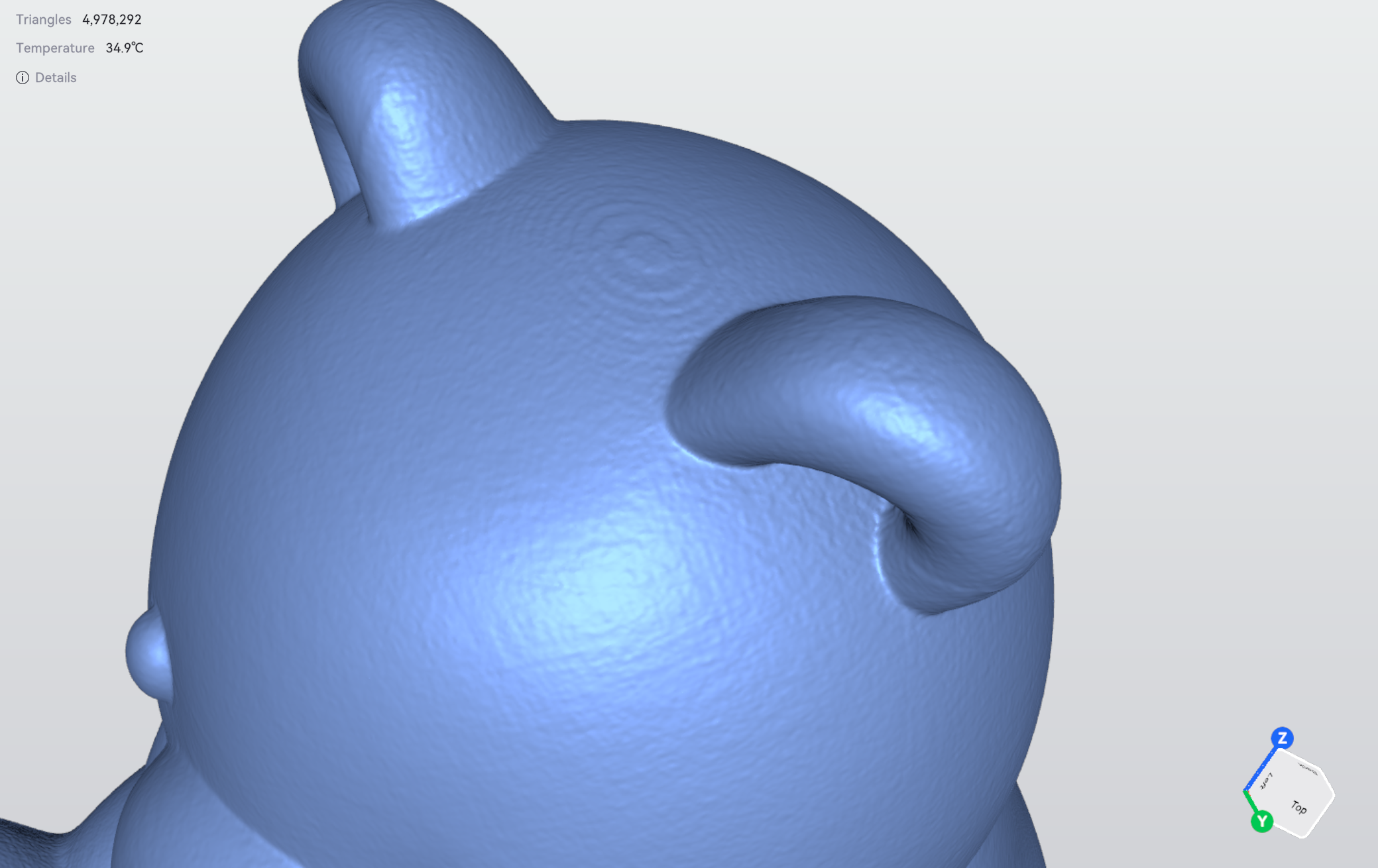
Smooth surface imperfections in the mesh and improve surface uniformity for smoother curved-surface transitions.
Before Smoothing
After Smoothing
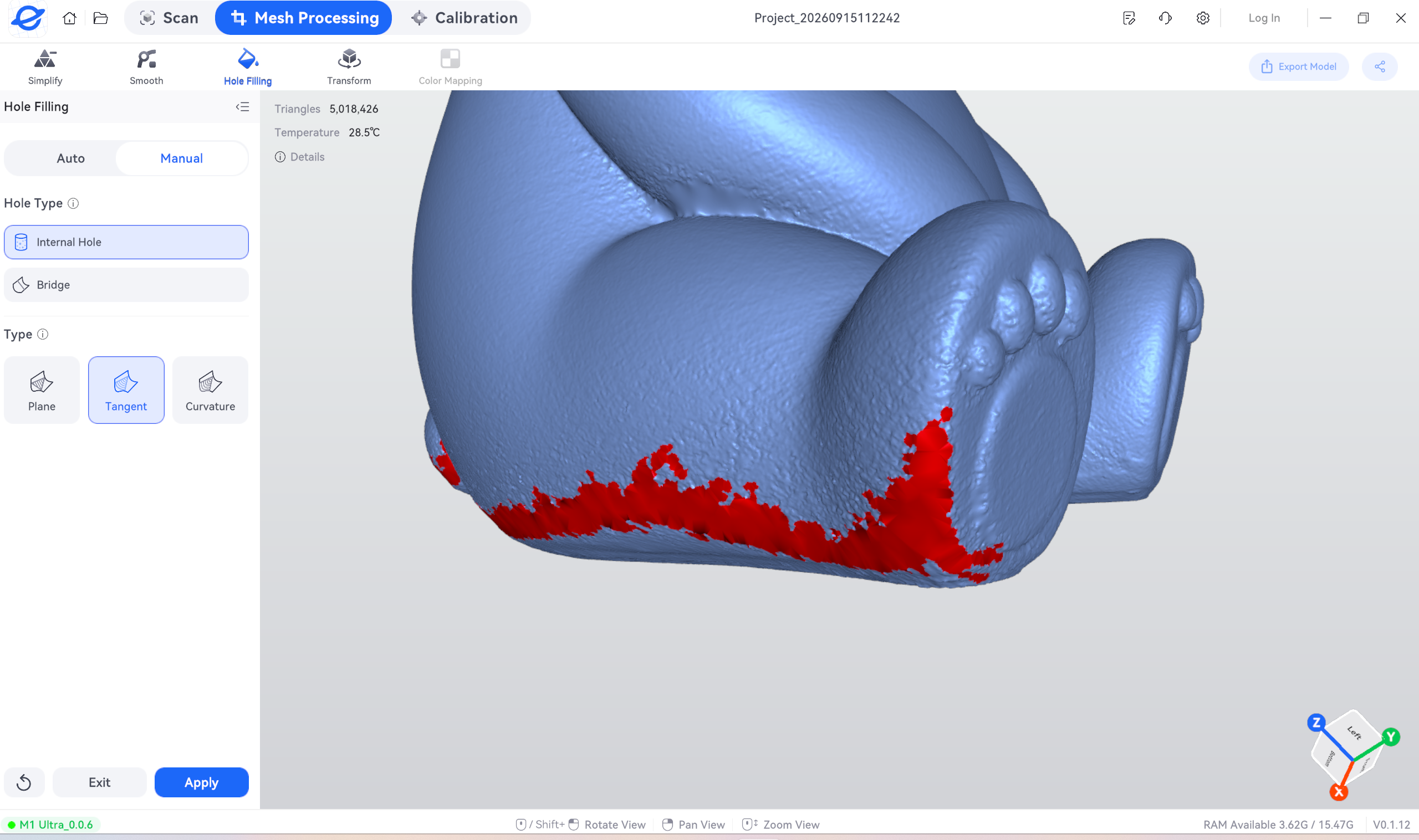
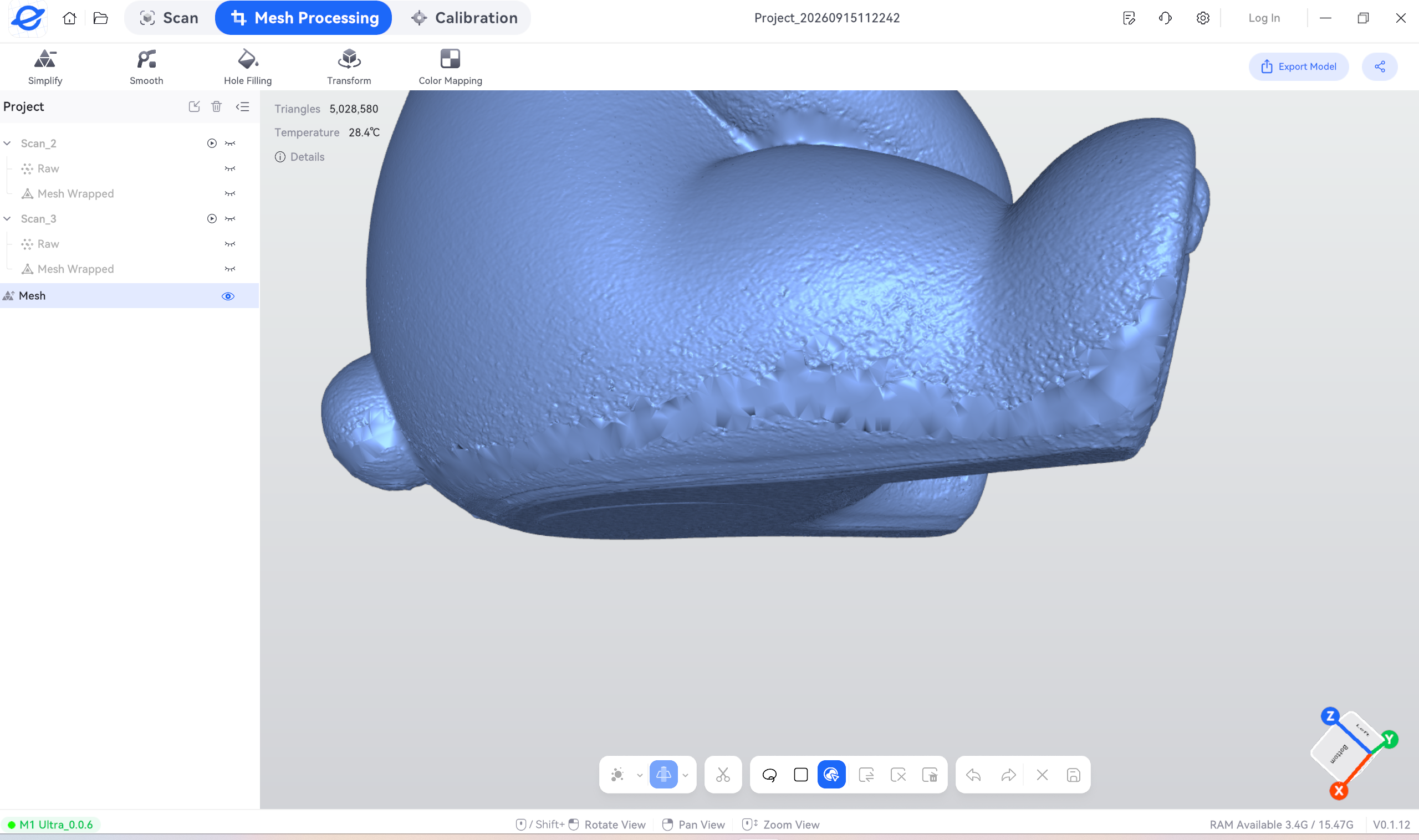
¶ 11.3 Fill Holes
Repair incomplete mesh areas and generate a complete closed model. Both automatic and manual hole filling are supported.
Before Hole Filling
After Hole Filling
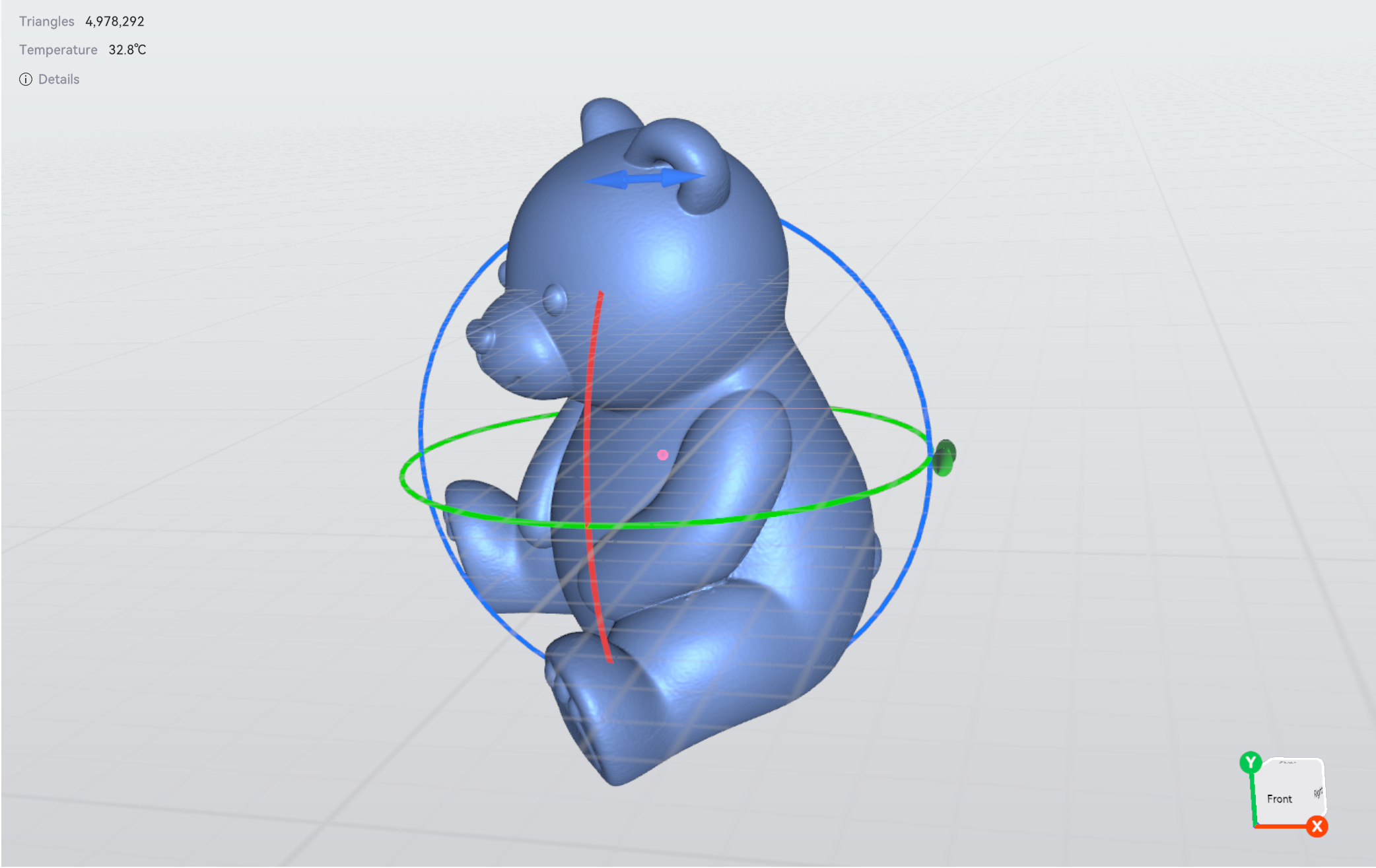
¶ 11.4 Adjust Model Orientation
Correct the spatial orientation of the model and adjust its relationship with the coordinate system.
Before Adjustment
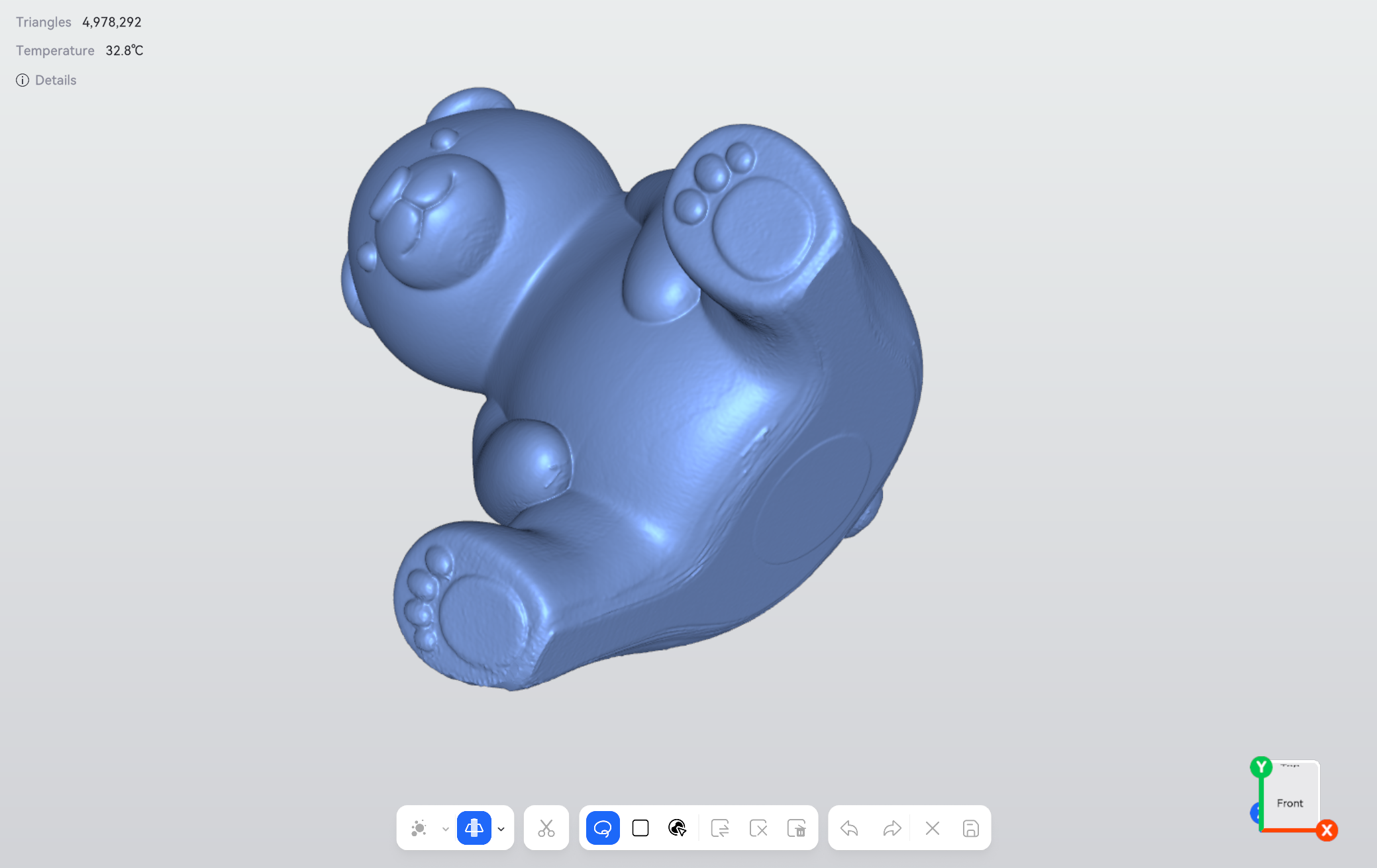
After Adjustment
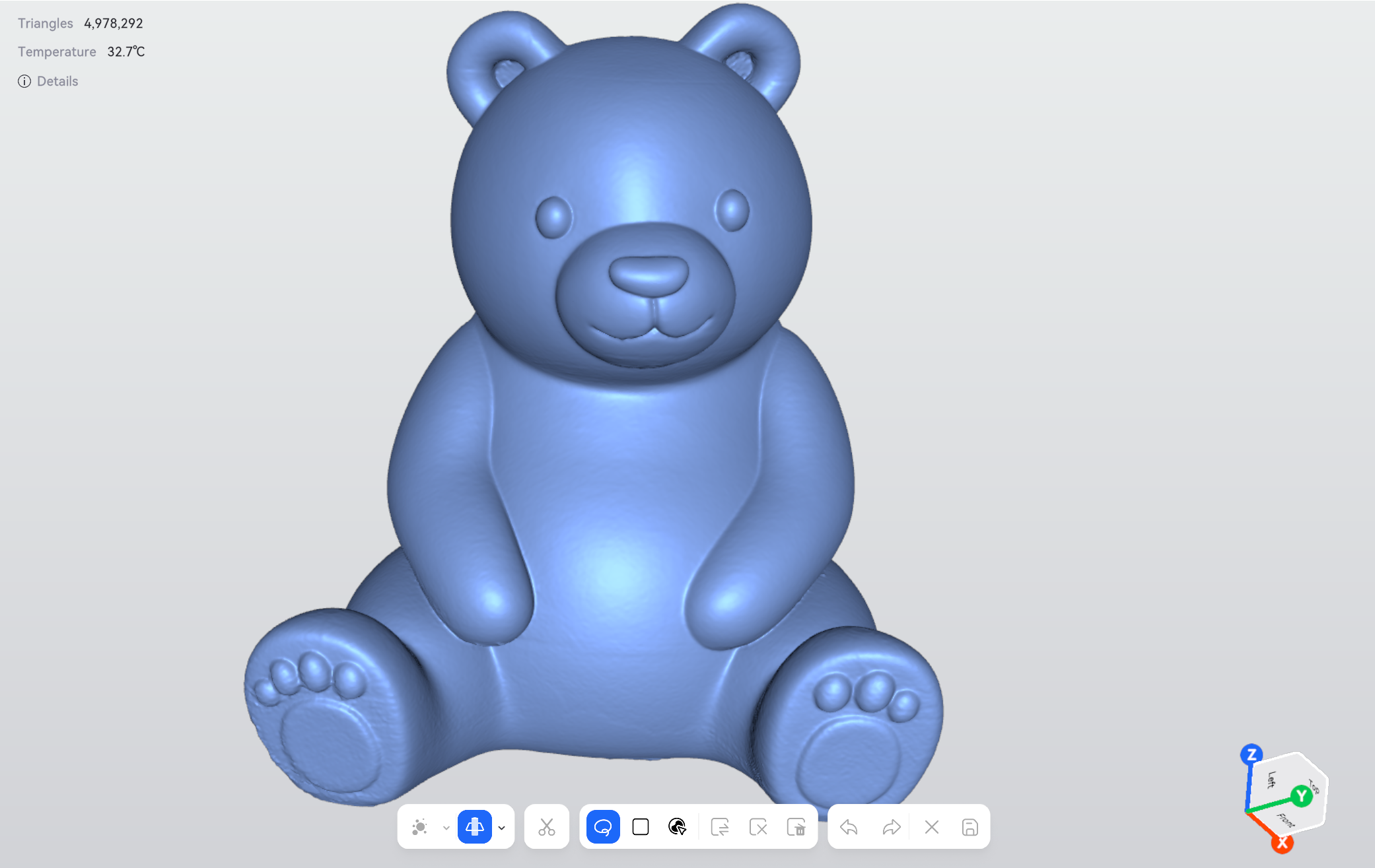
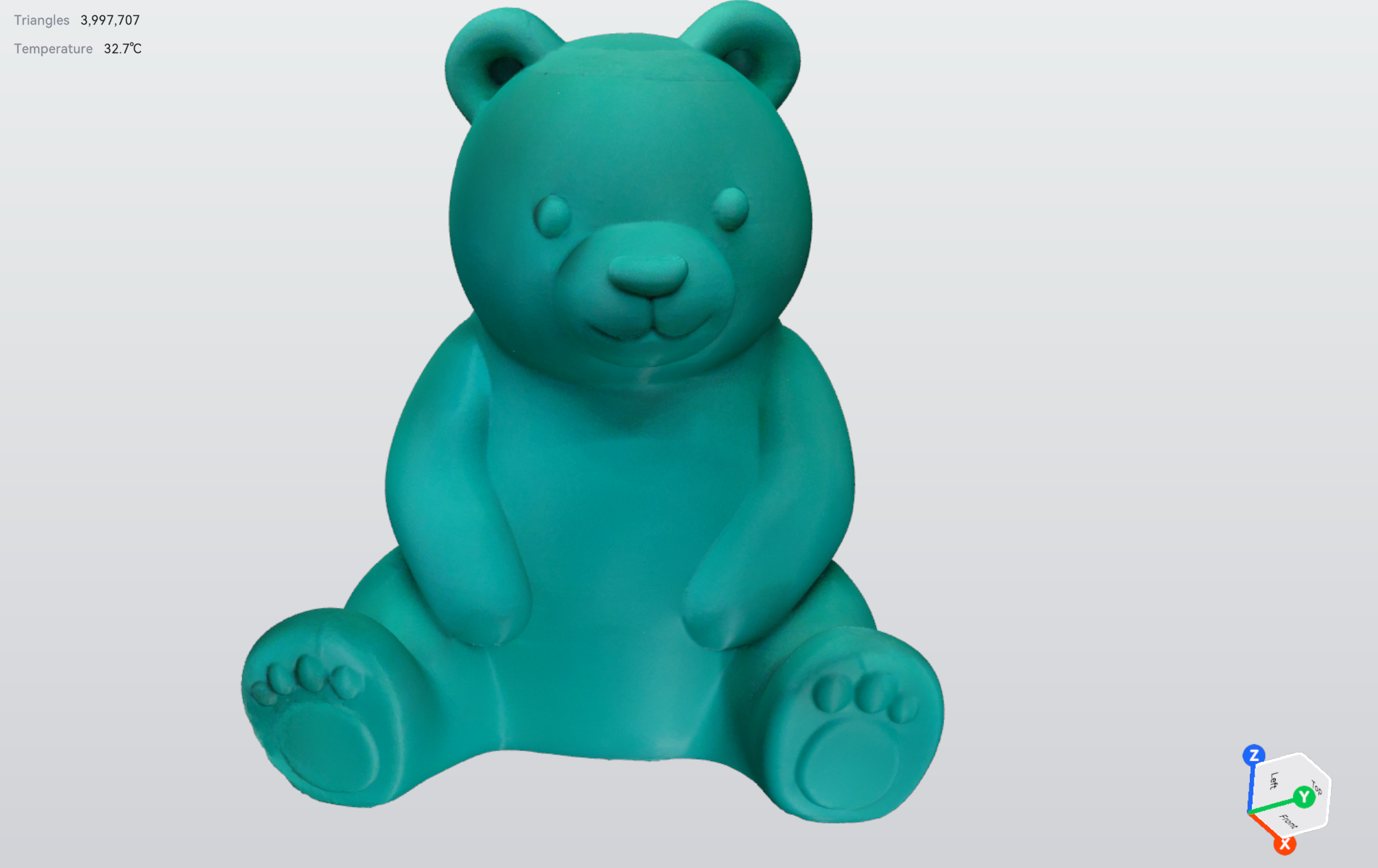
¶ 11.5 Color Texture
Automatically generate color texture to reproduce the actual color differences and surface details of the object.
Before Texture Mapping
After Texture Mapping

¶ 12. Pre-Export Inspection
Before exporting, rotate and zoom in on the model. Confirm the following:
- All required areas have been captured, with no obvious missing surfaces.
- There are no ghosting effects, misalignment, or abnormal protrusions.
- Unrelated data such as the tabletop and supports has been removed.
- Actual holes, grooves, and edges are preserved.
- If a color model is required, the texture has no obvious misalignment or missing areas.
¶ 13. Save and Export the Model
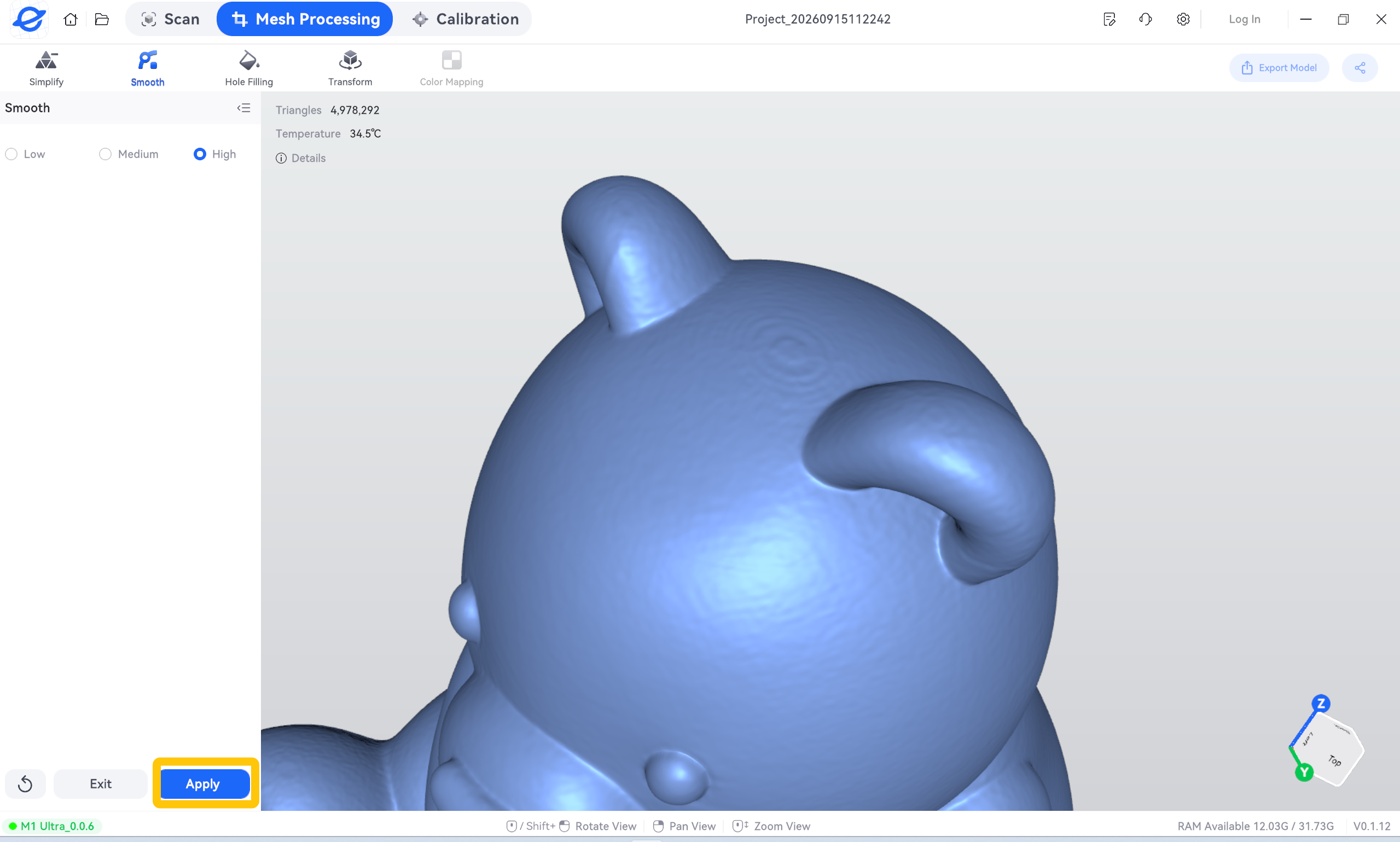
- After completing Mesh Processing and the inspection, click Apply to automatically save the result to the project.
- Click the button in the upper-right corner to export the file.
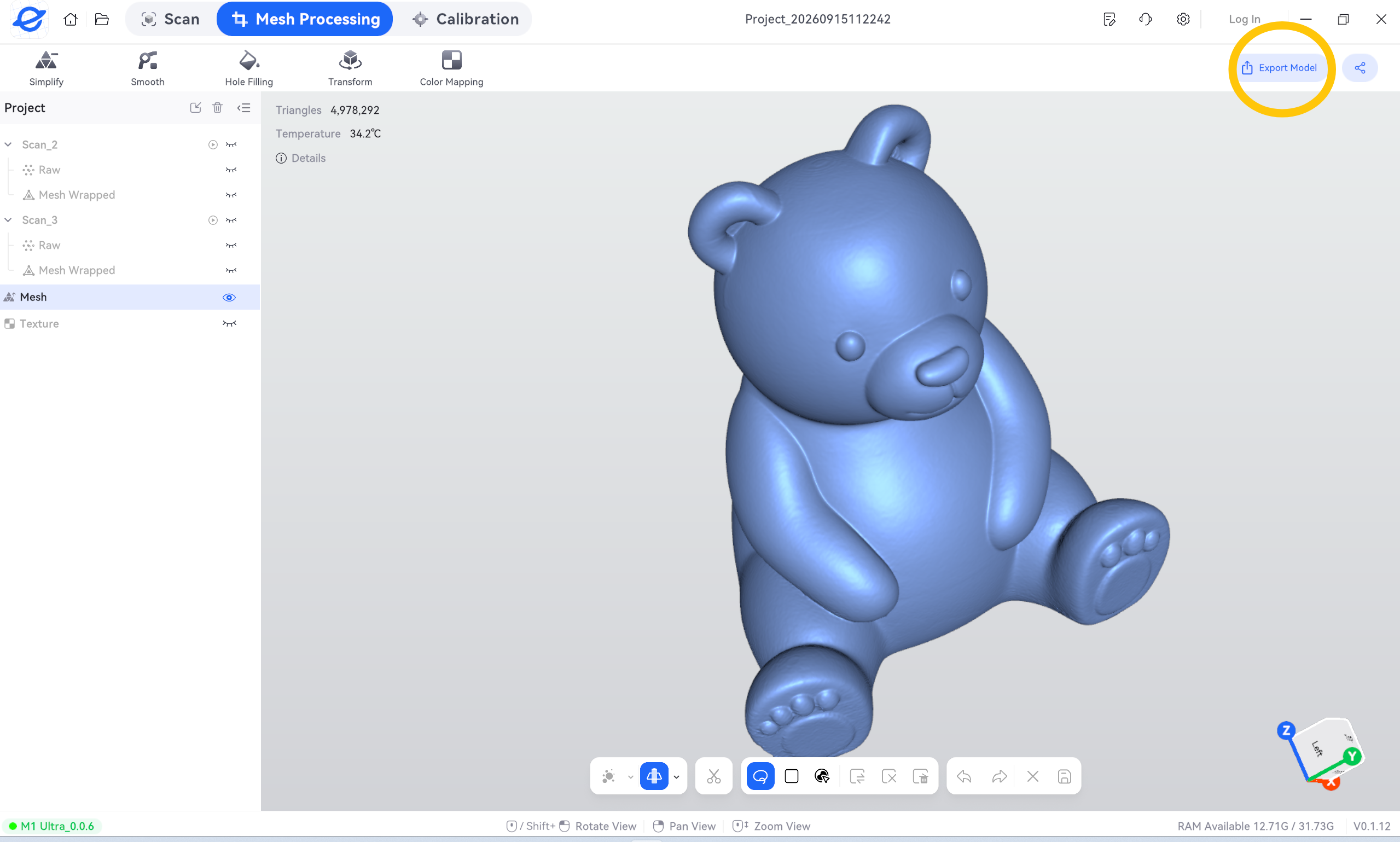
- Export the file according to its intended use. Project files can usually retain more original data and processing information, making them easier to edit later. Exported models cannot completely replace project files. The supported file formats may vary depending on the software version. A scanned mesh is not equivalent to a directly editable parametric CAD solid. If a CAD model is required, reverse engineering is usually required.
| File Format | Common Use | Notes After Export |
|---|---|---|
| STL | 3D printing; preserves geometry only | Does not store color texture and usually does not record units. Verify the dimensions when importing. |
| OBJ | Color display and mesh editing | If external texture files are used, retain the MTL file and texture images together. |
| PLY | Pointcloud or vertex-color data exchange | Confirm whether the exported data is a Pointcloud or mesh, and whether the target software supports the relevant attributes. |
| ASC | Pointcloud file (ASCII Point Cloud), mainly used to save scanned 3D Pointcloud data | Stores Pointcloud data only and does not contain mesh faces. Confirm the coordinate units and the correspondence between data columns when importing. |
- After exporting, reopen the file in the target software and confirm:
- The file can be opened correctly.
- The model dimensions and orientation are correct.
- The required texture or color information has not been lost.
- If the model is intended for 3D printing, all layers appear correctly in the slicing preview.
After completing the above checks, the model can be used for further editing, display, or printing.
¶ 14. Frequently Asked Questions
¶ 14.1 Unable to Scan or Large Areas Are Missing
Check whether the scanning distance, exposure, surface reflection or transparency, and selected scanning mode are appropriate.
¶ 14.2 Tracking Is Frequently Lost
Check whether the scanner is moving too quickly, whether adjacent views have sufficient overlap, and whether the object has sufficient geometric features.
¶ 14.3 Ghosting Appears on the Model
Check whether tracking was lost during scanning, whether the object moved, and whether the data groups were correctly aligned.
¶ 14.4 The Bottom Is Missing
Flip the object over and scan the bottom separately.
¶ 14.5 No Color After Export
Check whether color data was captured and texture was generated, and whether the file format and related files are complete.
¶ 14.6 Abnormal Dimensions After Import
Check whether the unit settings and scaling ratio are correct.
¶ 14.7 How to Find Scanned Projects
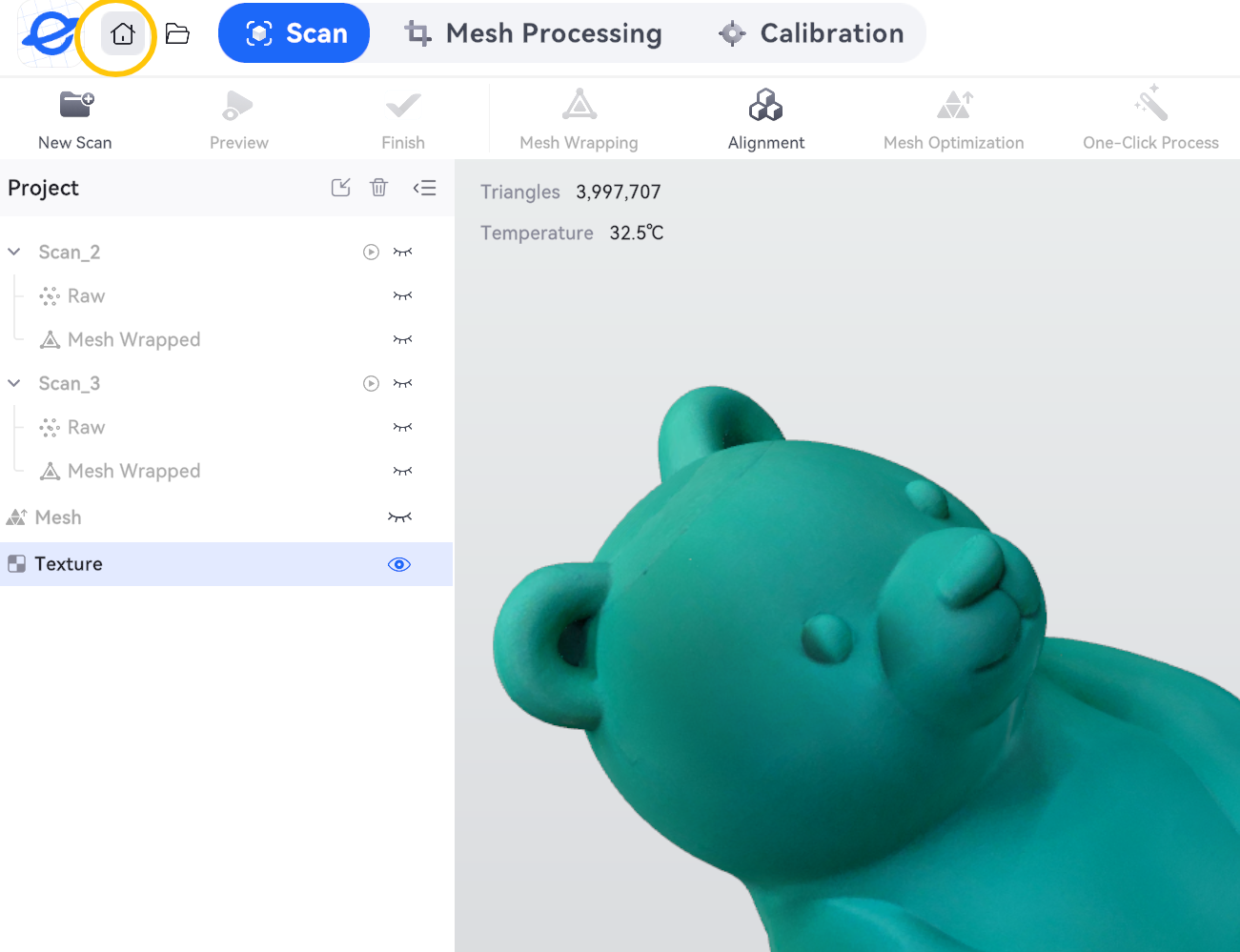
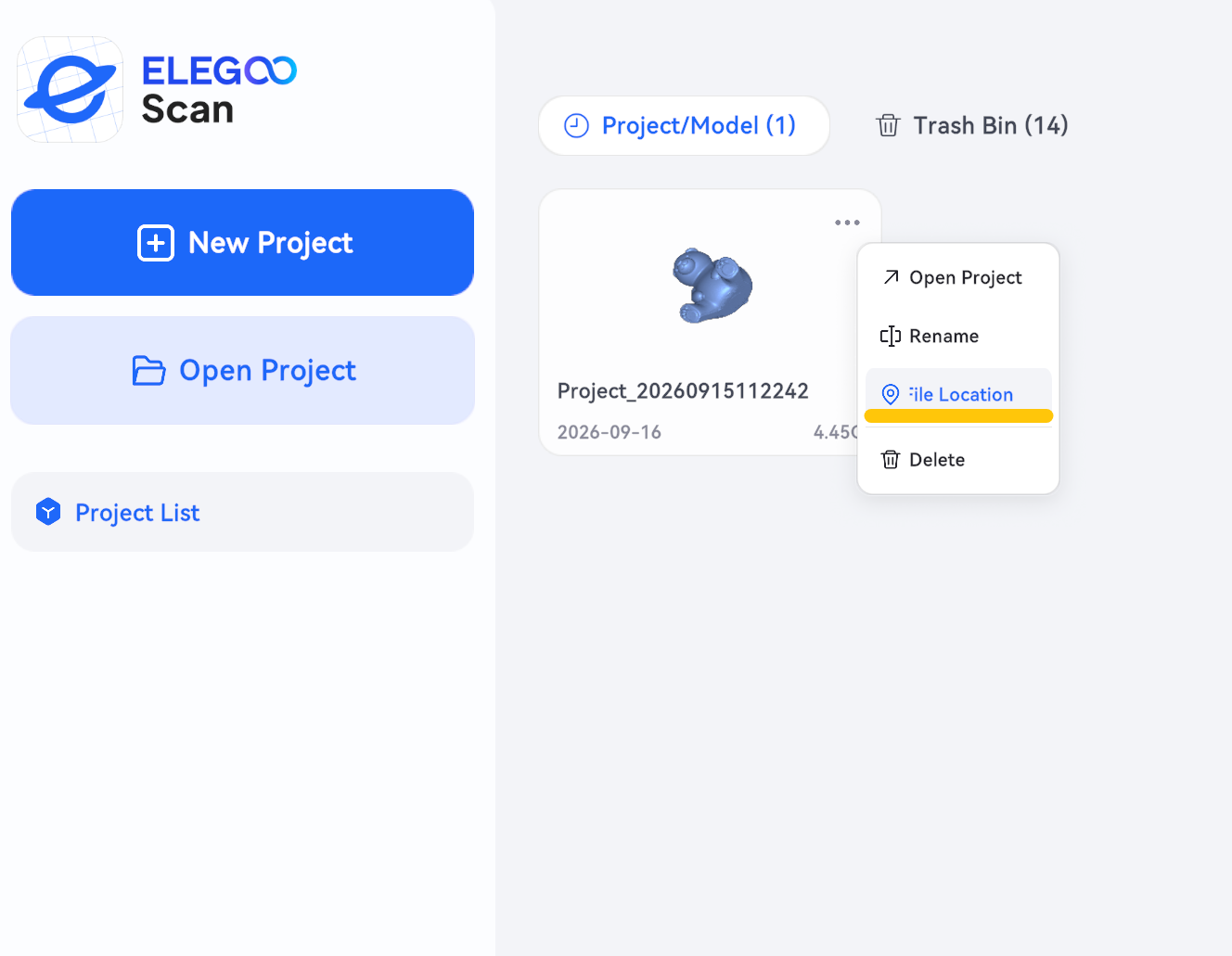
Click Home to return to the home page, where you can find the scanned projects/project file storage location.
¶ Help us improve
If you have any ideas about the wiki pages, please let us know via ELEGOO official feedback channel