¶ Preparation
¶ Install ELEGOO Scan
Please refer to ELEGOO Scan Installation and Uninstallation] to download and install the software.
¶ Check System Requirements
- WLAN mode requires a computer with built-in WLAN support or a WLAN adapter.
- To ensure smooth software operation, make sure your computer meets the following system requirements.
Windows System Requirements
Recommended Configuration:
- Operating System: Windows 10/11 (64-bit)
- Processor: Intel Core i7 Gen 13 or above
- Dedicated Graphics Card: NVIDIA RTX 4060 or above (8 GB VRAM)
- Memory: ≥32 GB
Minimum Configuration:
- Operating System: Windows 10/11 (64-bit)
- Processor: Intel Core i7 Gen 7
- Dedicated Graphics Card: NVIDIA GTX 1660 (6 GB VRAM)
- Memory: ≥16 GB
macOS System Requirements
Recommended Configuration:
- Operating System: macOS 14 or above
- Processor: Apple M4 or above
- Memory: ≥32 GB
Minimum Configuration:
- Operating System: macOS 14 or above
- Processor: Apple M2
- Memory: ≥16 GB
¶ WLAN Connection
Note: If you are powering on the scanner for the first time, select the scanner language first.

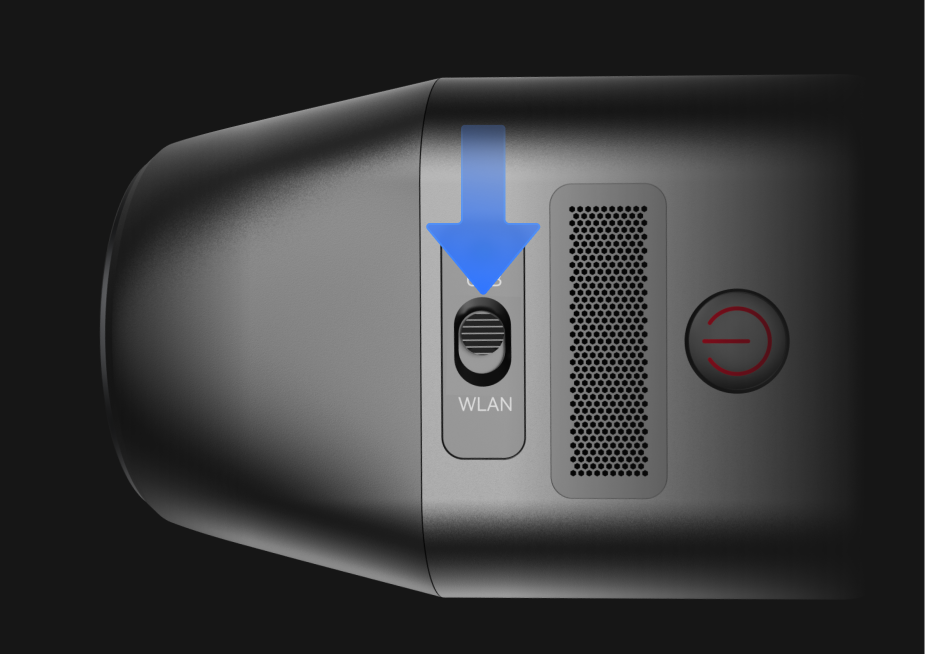
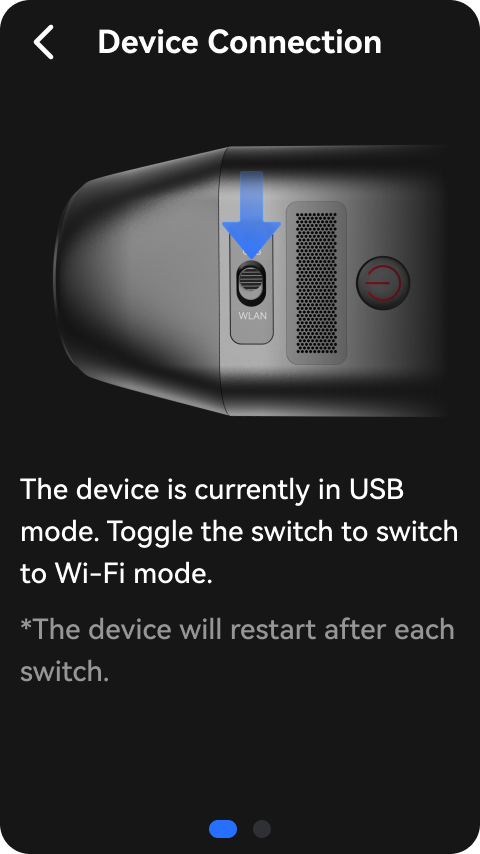
- Slide the mode switch on the top of the scanner to switch to WLAN mode.
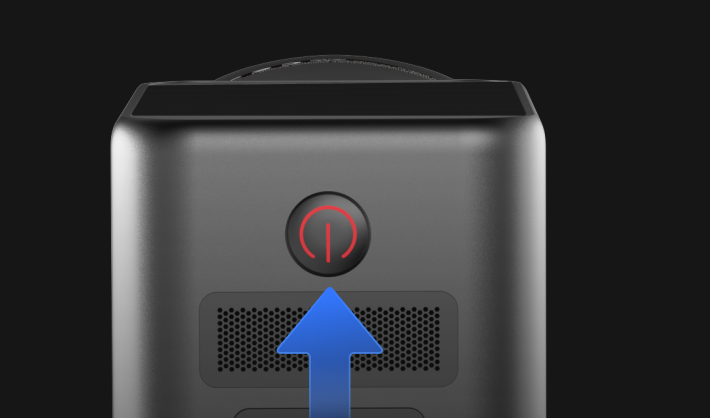
- Press and hold the Power button to turn on the scanner.
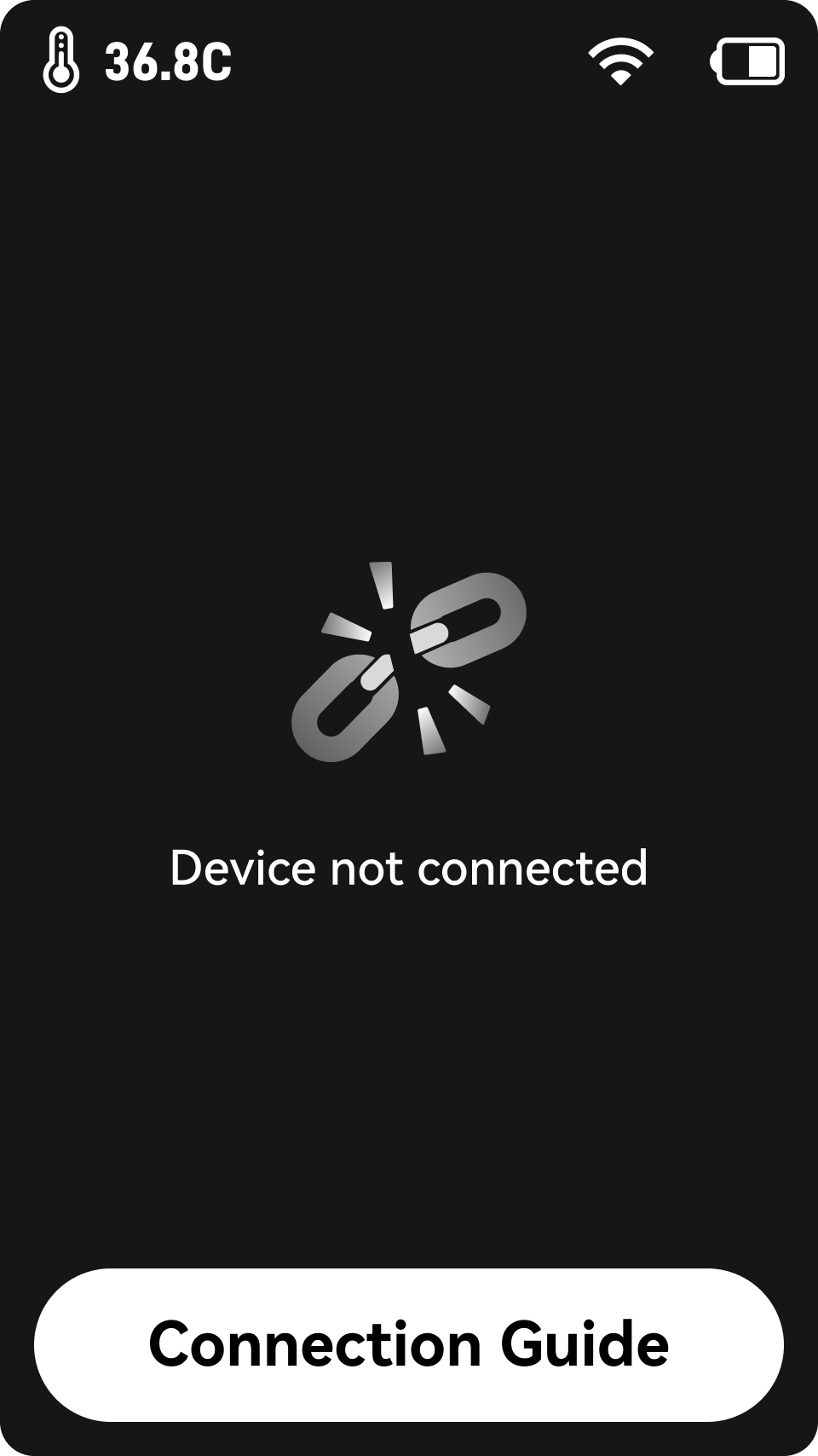
- Tap Connection Guide.
- Swipe right on the screen to switch to the hotspot information page.
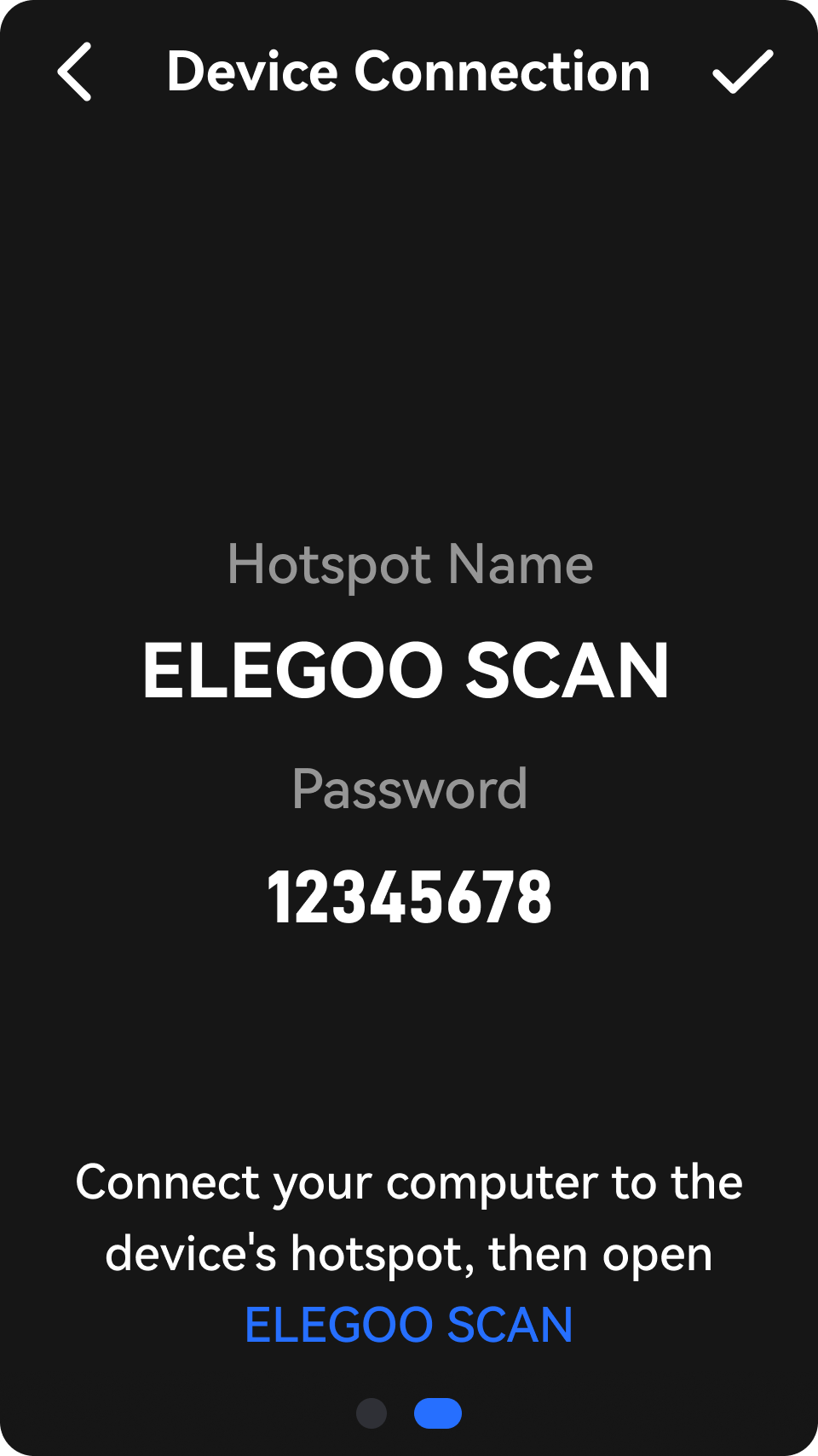
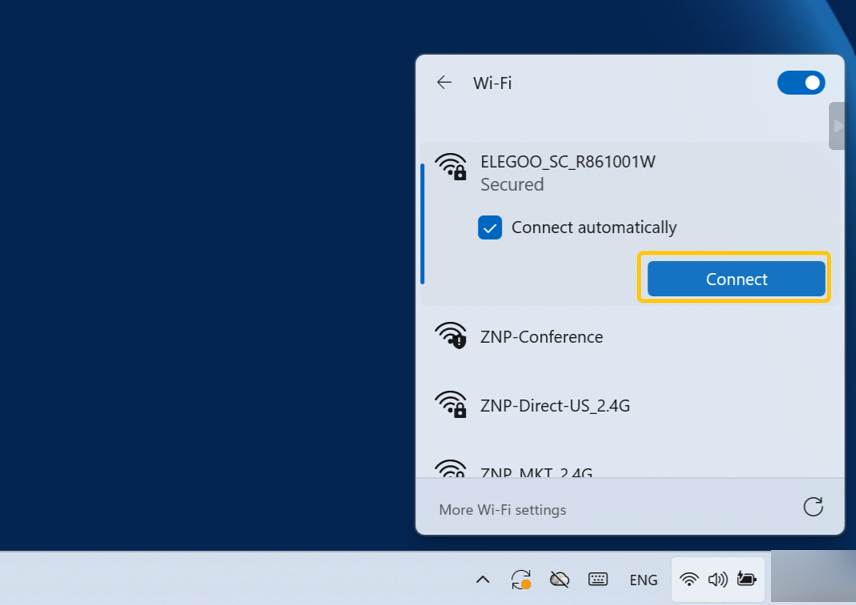
- On your computer, search for the scanner's WLAN hotspot and enter the password displayed on the scanner screen.
Note: The hotspot name and password are unique to each scanner. Do not use the hotspot password shown in this guide. Always use the hotspot name and password displayed on your scanner screen.
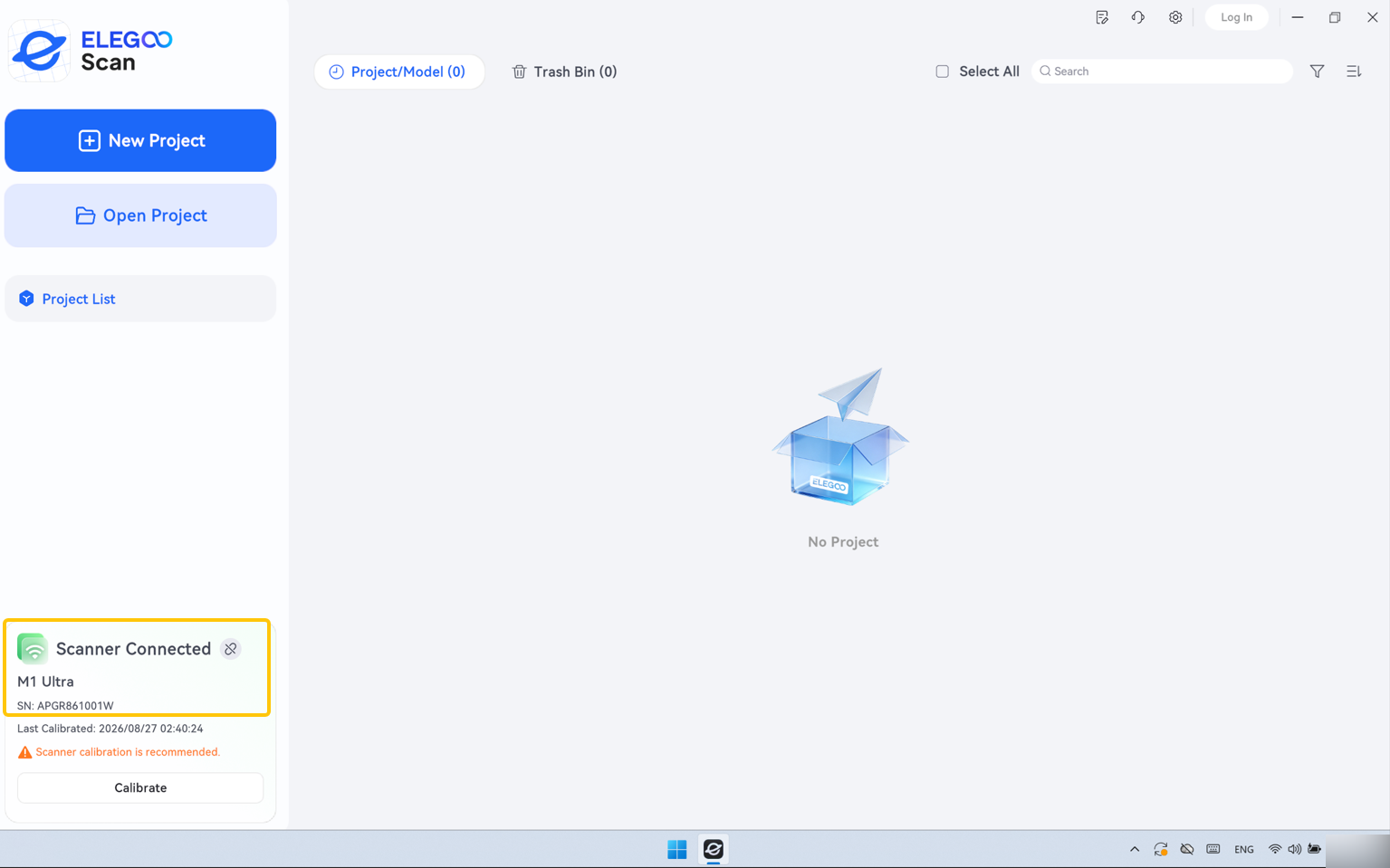
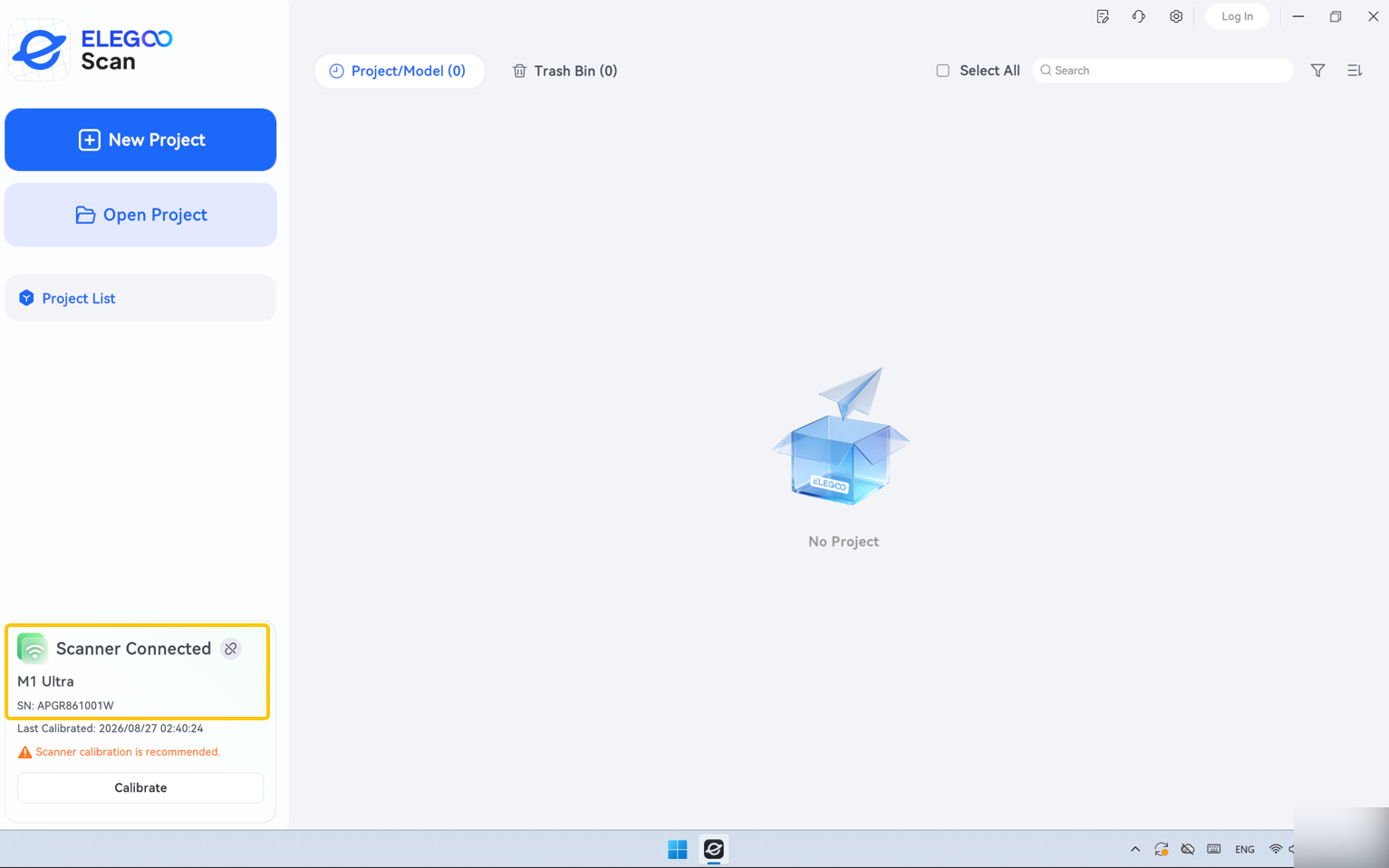
- Open ELEGOO Scan and check that "Scanner Connected" appears in the lower-left corner of the software. The WLAN connection is now established.
¶ USB 3.0 Data & Charge Cable Connection
- Slide the mode switch on the top of the scanner to switch to USB 3.0 data&charge cable mode.
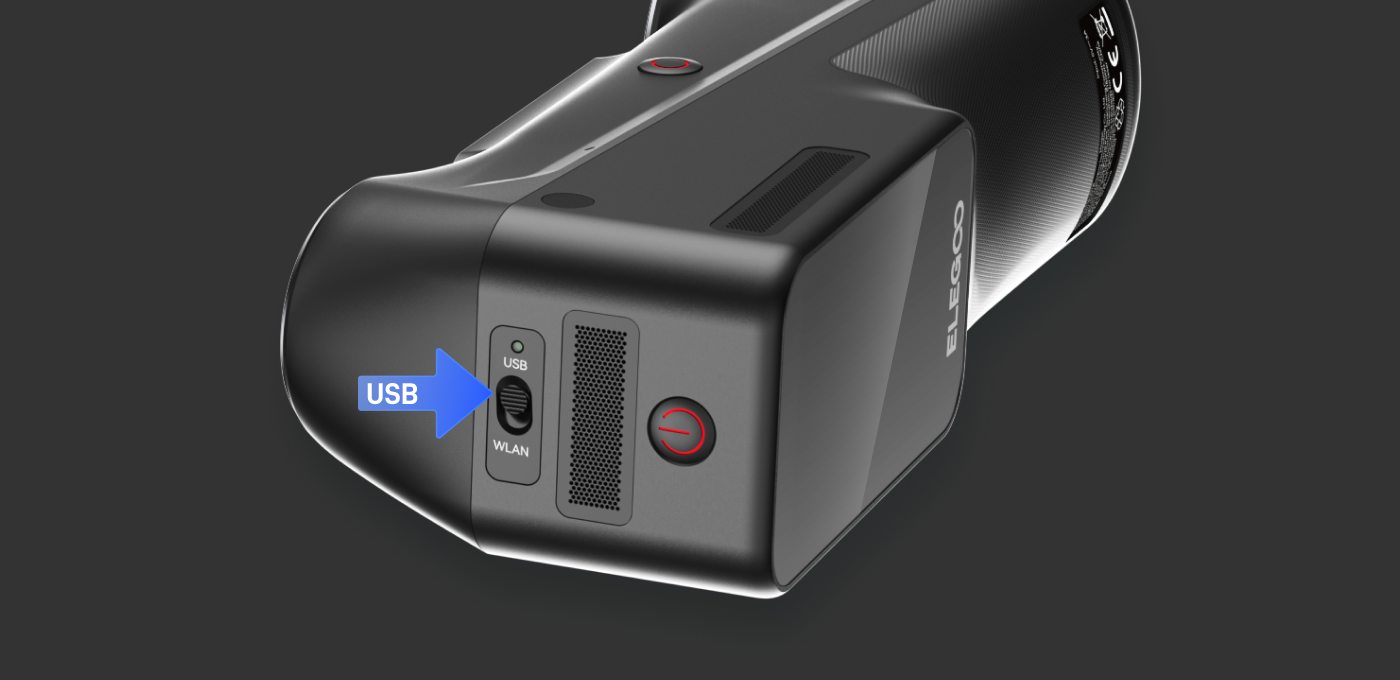
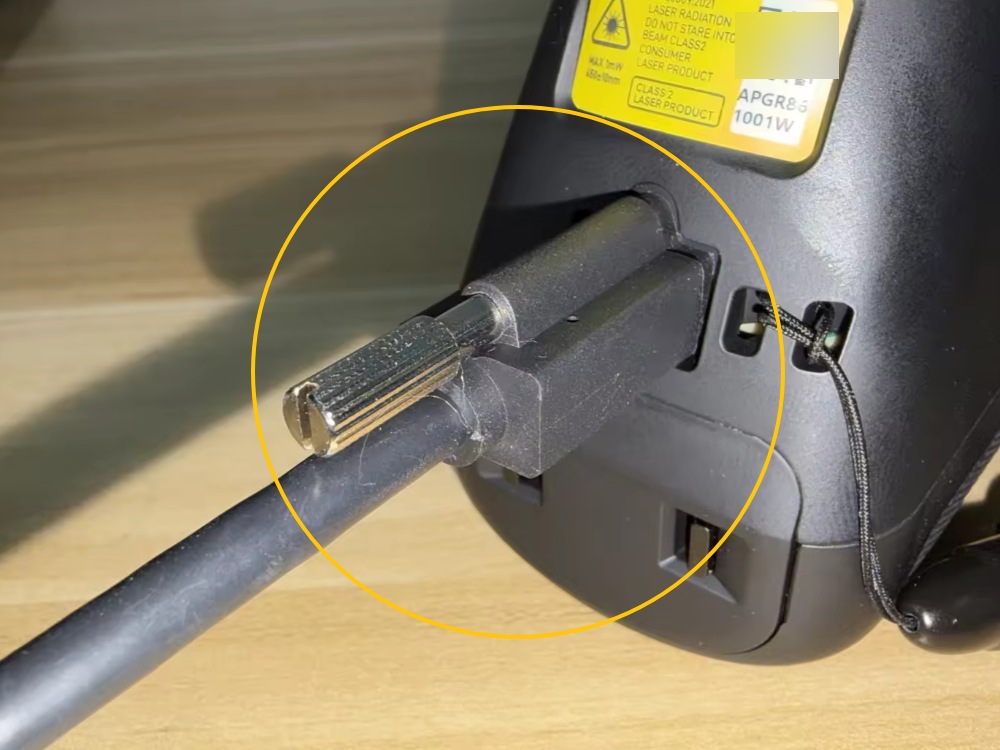
- Connect the scanner to the computer using the USB 3.0 data&charge cable.
Note: The end with the locking screws must be connected to the scanner. Make sure to tighten the locking screws securely.
Note: If you are using a desktop computer, we recommend connecting the USB 3.0 connector to a USB port on the rear of the computer for a more stable connection.
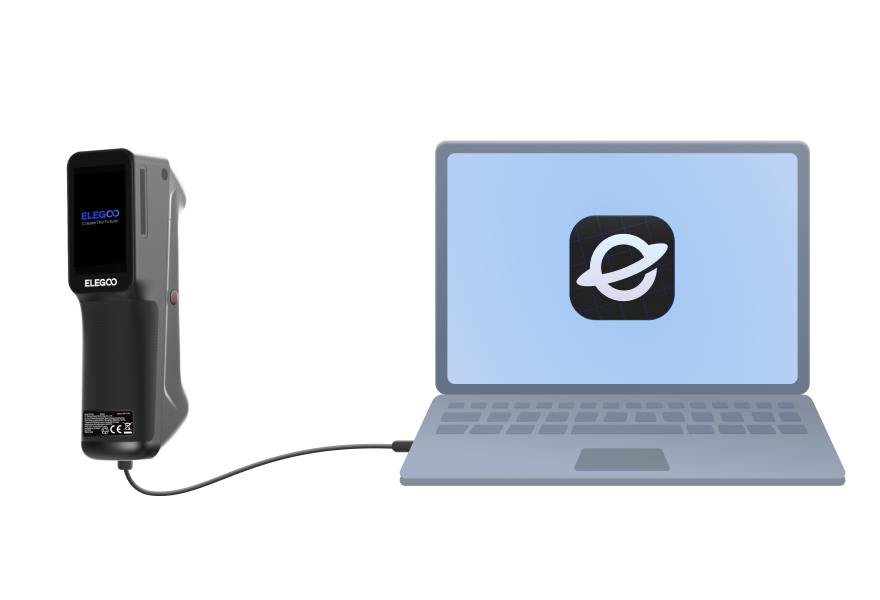
3. Press and hold the Power button to turn on the scanner.
4. Open ELEGOO Scan and check that "Scanner Connected" appears in the lower-left corner of the software. The USB connection is now established.
¶ Help Us Improve
If you have any suggestions or feedback about our wiki pages, please let us know through the ELEGOO official feedback channel.