¶ Scenario 1: Collecting Logs and Reporting Issues
¶ 1. Open ELEGOO Scan
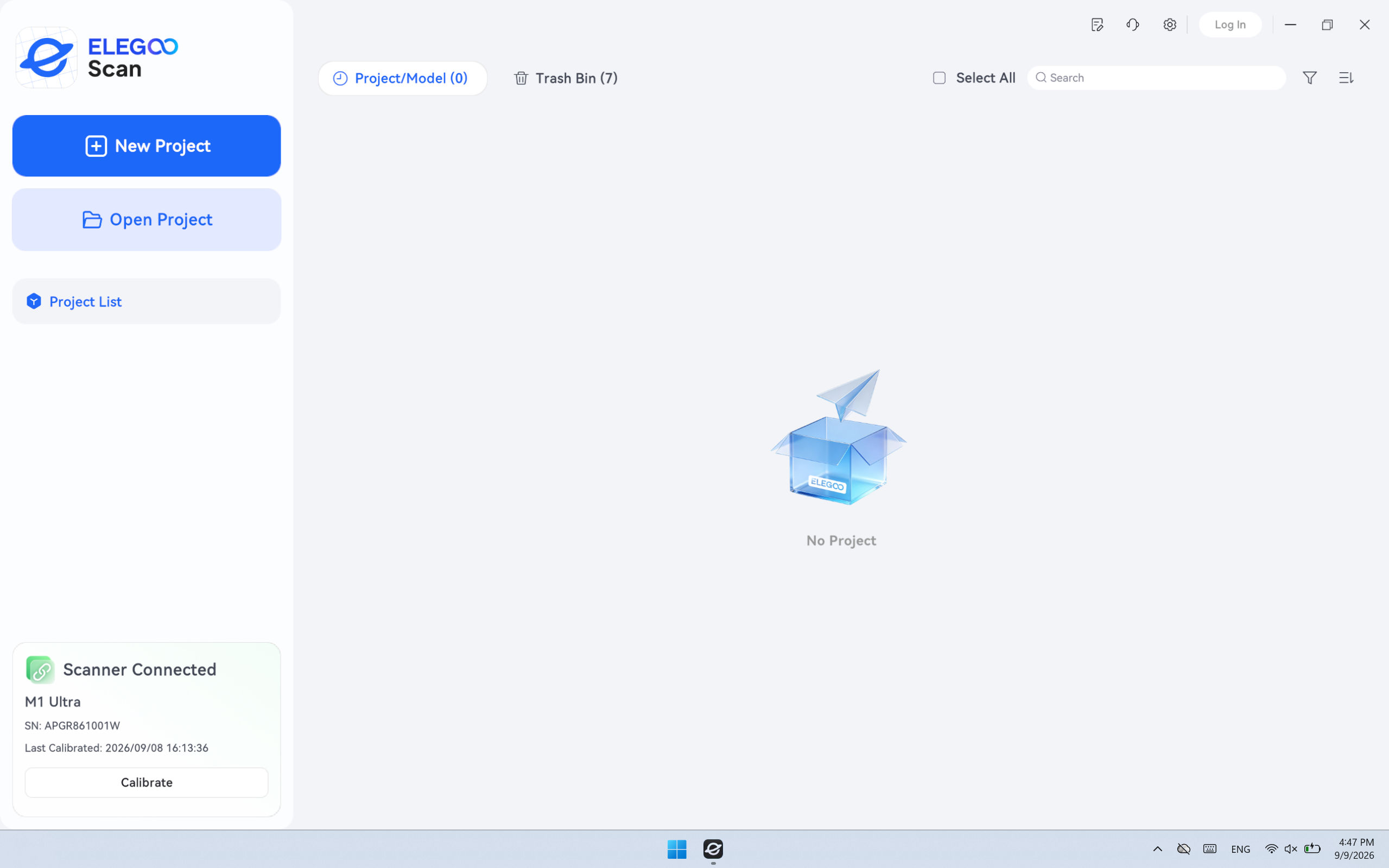
Launch ELEGOO Scan to enter the main software interface.
¶ 2. Open Settings
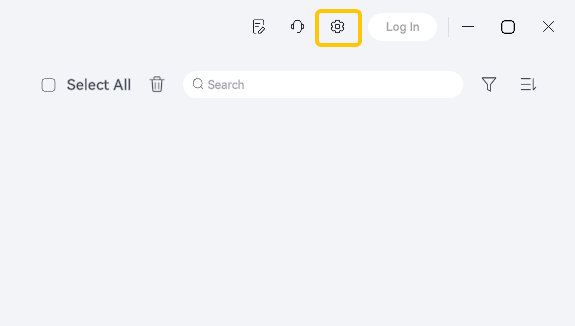
Click the gear icon (Settings button) in the upper-right corner of the interface.
¶ 3. Select Help & Tools
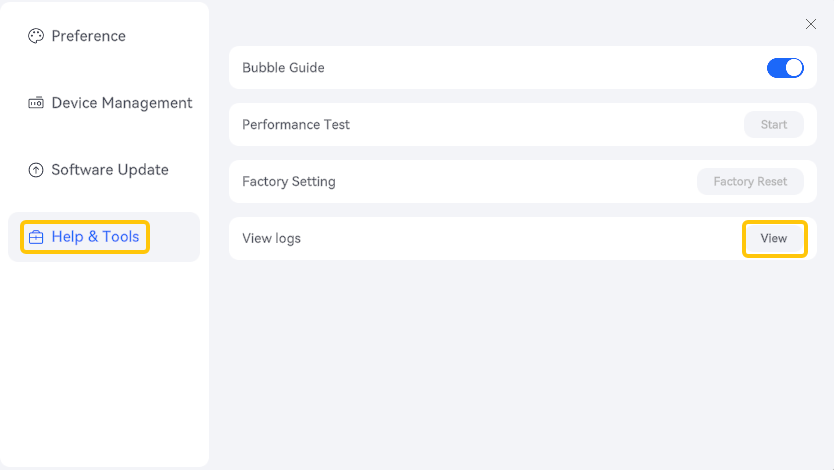
Click Help & Tools in the left sidebar of the Settings window. In the right panel, locate View logs and click the View button. The log folder will open automatically in File Explorer.
¶ 4. Select the Log Folder for the Issue
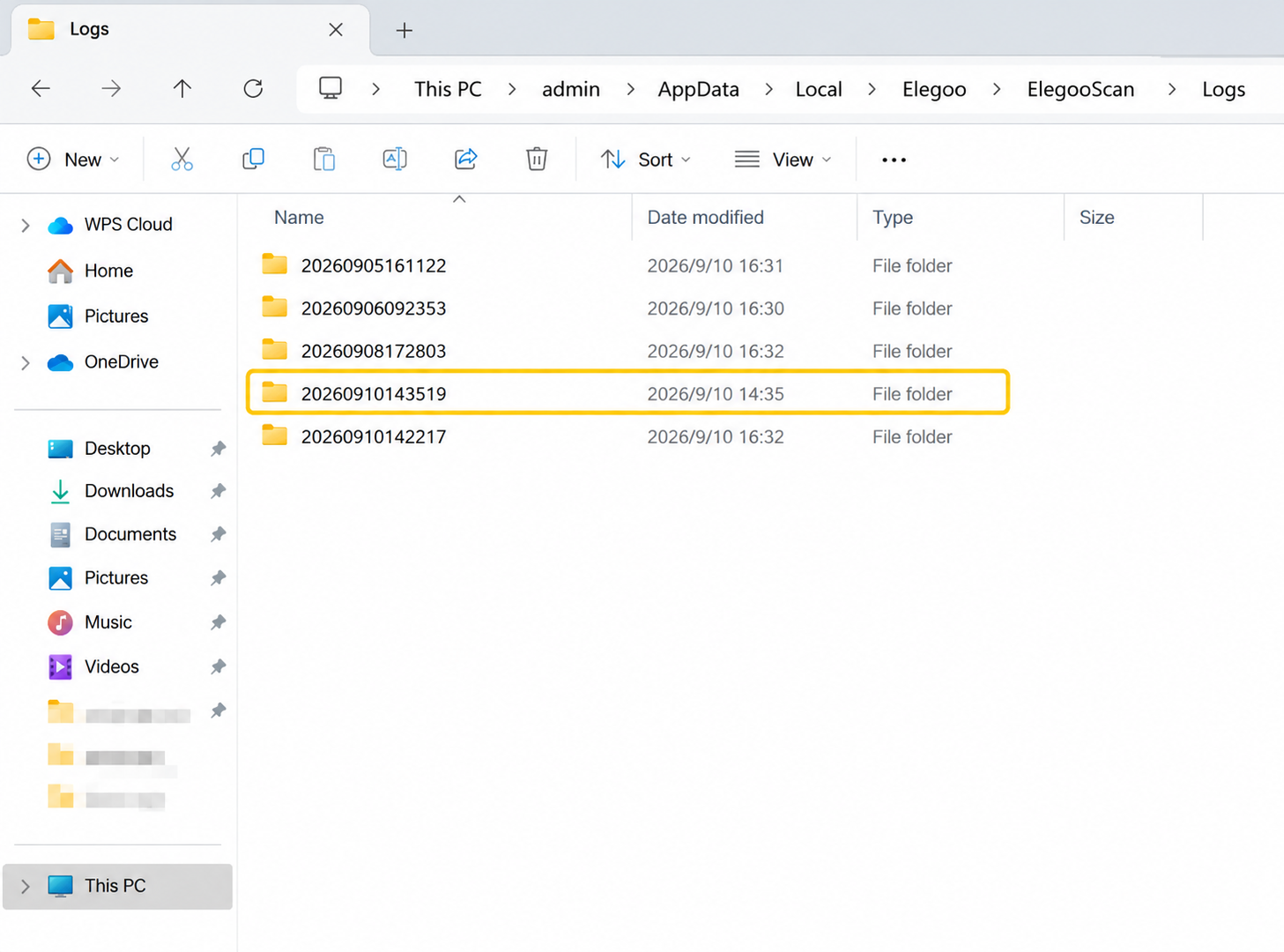
The folders in the log directory are named using timestamps in the format YYYYMMDDHHMMSS. For example, 20260910143519 corresponds to September 10, 2026, at 14:35:19.
Select the entire folder corresponding to the time when the issue occurred.
¶ Scenario 2: Software Errors, Crashes, or Unexpected Closures
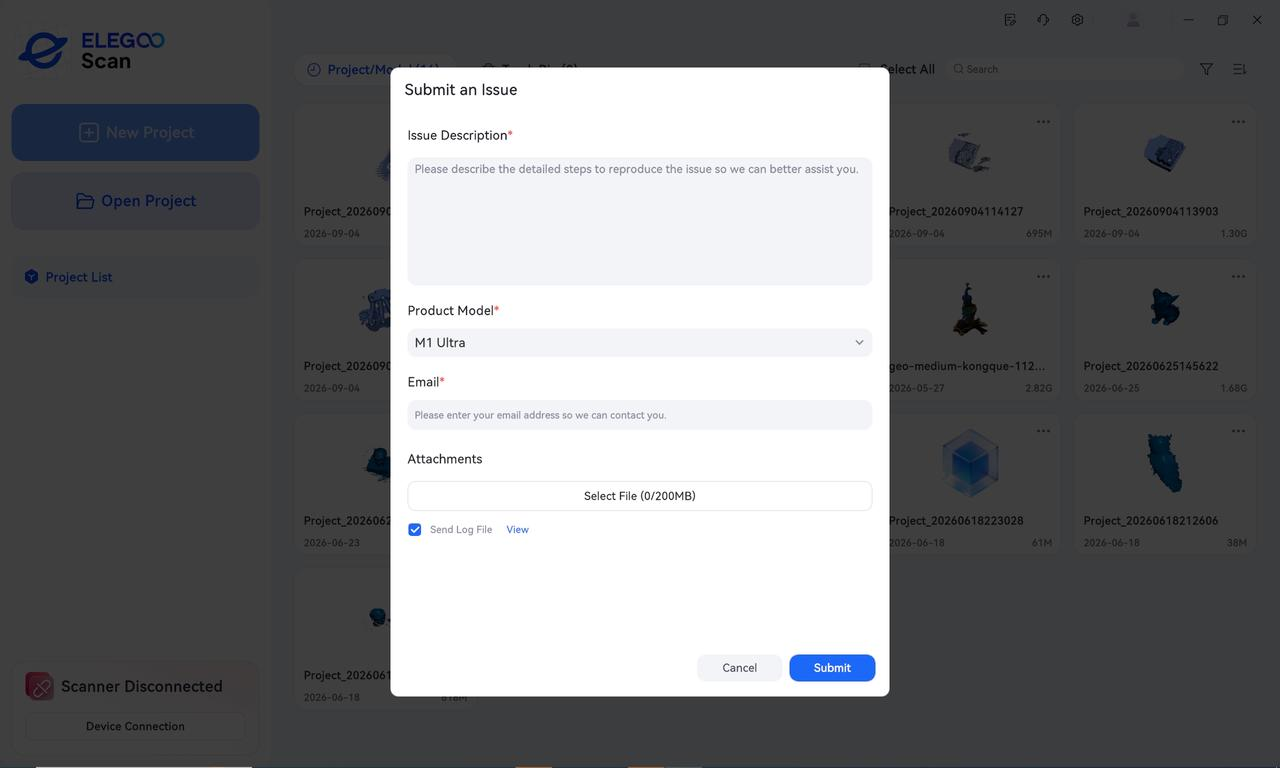
If an error occurs while the software is running or the software closes unexpectedly, a report dialog may appear when you relaunch the software, asking whether you want to report the issue.
¶ 1. Enter the Issue Description
In the Issue Description field, describe the issue and the steps to reproduce it in detail. This information helps the technical support team identify the cause.
¶ 2. Select the Product Model
Click the Product Model drop-down menu and select your scanner model, such as M1 Ultra.
¶ 3. Enter Your Contact Email
Enter a valid email address in the Email field so the technical support team can contact you after receiving your report.
¶ 4. Attach Screenshots or Additional Files
If you need to provide additional materials, such as error screenshots or model files, click Attachments to upload them. Each file must be no larger than 200 MB.
¶ 5. Select the Relevant Log Folder
The Send Log File checkbox at the bottom of the dialog is selected by default.
Click the View button on the right. As described in Scenario 1, the log folder will open automatically in File Explorer. Select the log folder corresponding to the time of the issue.
¶ 6. Submit the Report
After verifying that all the information is correct, click the Submit button at the bottom of the dialog.
¶ Contact Technical Support
Note: After obtaining the log files, please send them along with the following information to Technical Support.
- Complete log folder: Send the entire log folder rather than individual files. Missing files may make the logs incomplete and make it difficult for the support team to identify the cause of the issue.
- Computer specifications: Include the operating system version, CPU model, GPU model, and RAM capacity.
- Detailed issue description: Describe the issue and provide relevant screenshots or videos. This information is essential for troubleshooting.
- Reproducible issues: If the issue can be reproduced, reproduce it first and then collect the logs using the steps above. Select the latest log folder generated after reproducing the issue.
- Default log directory:
C:\Users\<username>\AppData\Local\Elegoo\ElegooScan\Logs. If necessary, navigate to this path manually to locate the logs.
¶ Help Us Improve
If you have any suggestions for improving our wiki pages, please let us know through the ELEGOO Official Feedback Channel.