¶ Issue Description
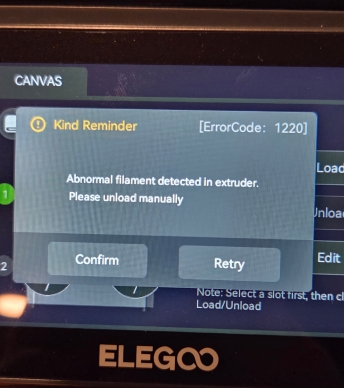
Abnormal filament detected in extruder. Please unload manual
¶ Fault Symptoms
The screen displays Error Code 1220, indicating that abnormal filament has been detected inside the Tool Head.
¶ Possible Causes
- Filament residue or blockage exists inside the Tool Head or 4-in-1 hub.
- The CANVAS filament feeding mechanism is malfunctioning, preventing filament from being transported properly.
- The filament detection board sensor or its connection cable is faulty.
¶ Required Tools
- 1.5 mm Allen key
- 2.5 mm Allen key
- 2.0 mm Allen key
- Phillips screwdriver
- Tweezers
¶ Troubleshooting
¶ 1. Check the Filament Loading Indicator
- Tap Filament Loading on the touch screen.
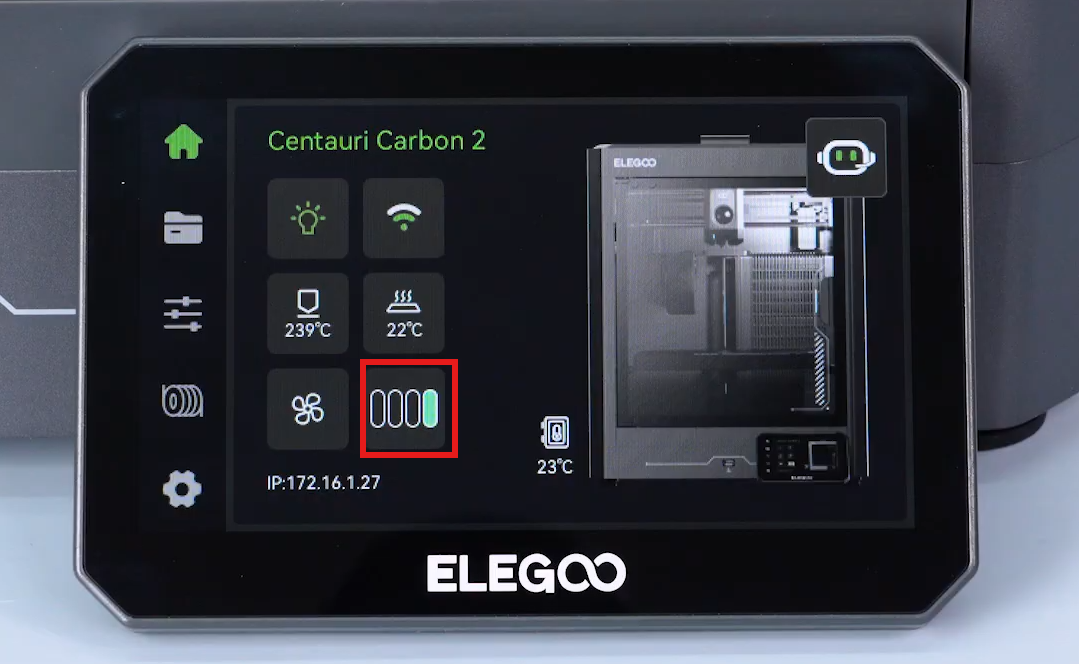
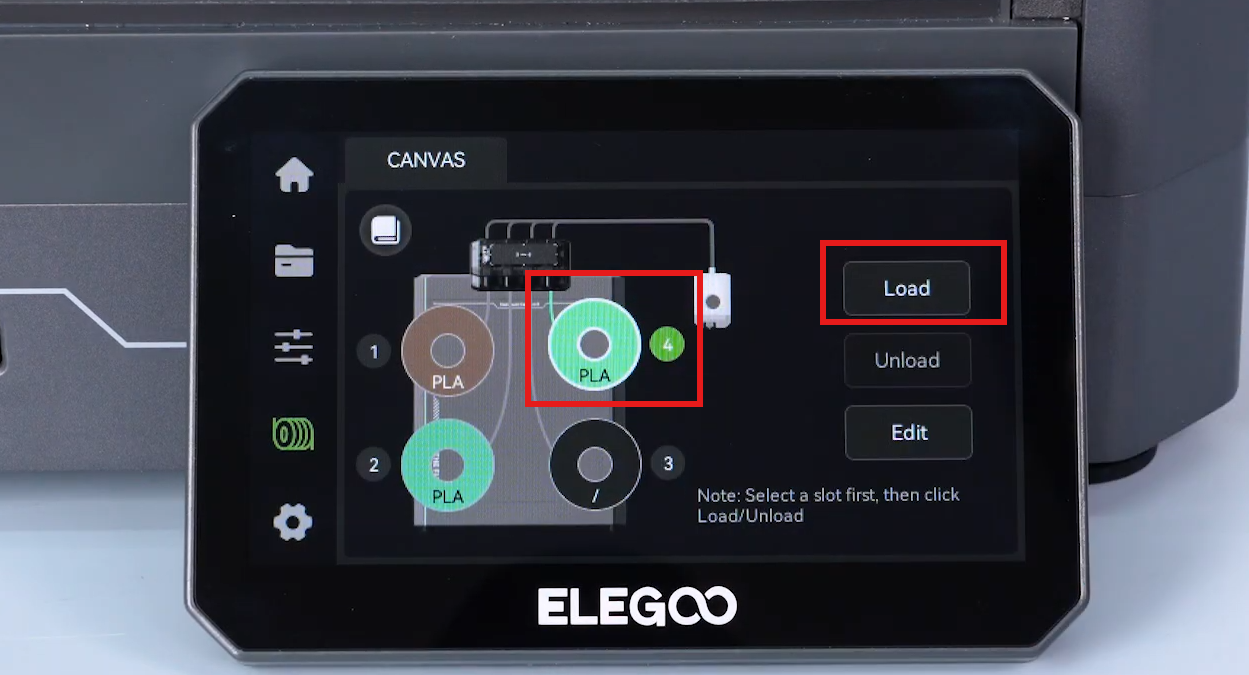
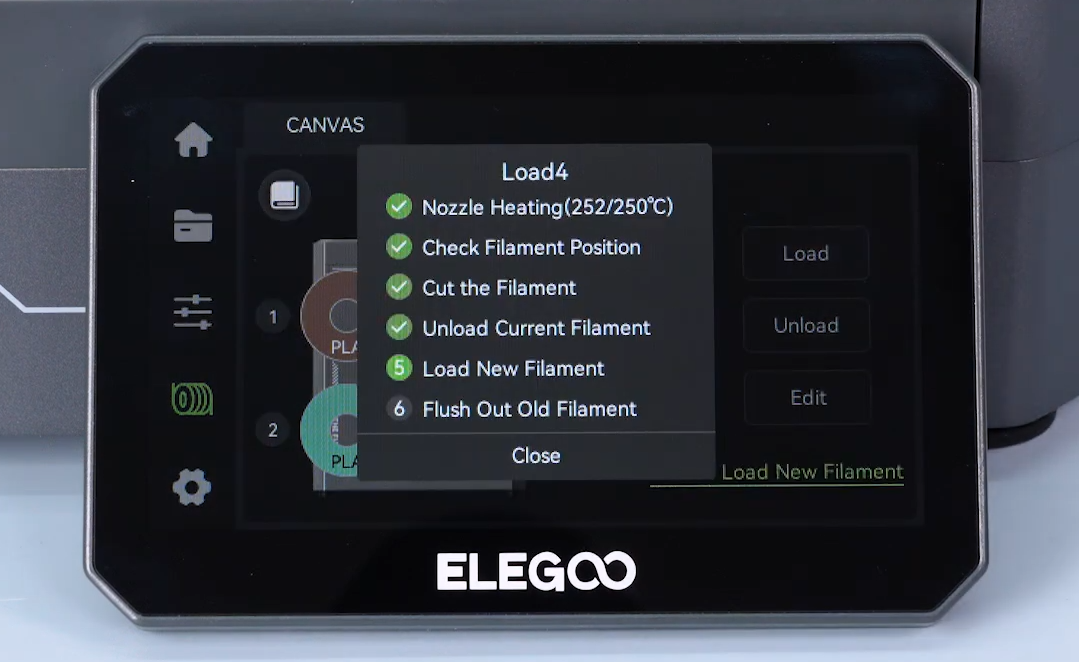
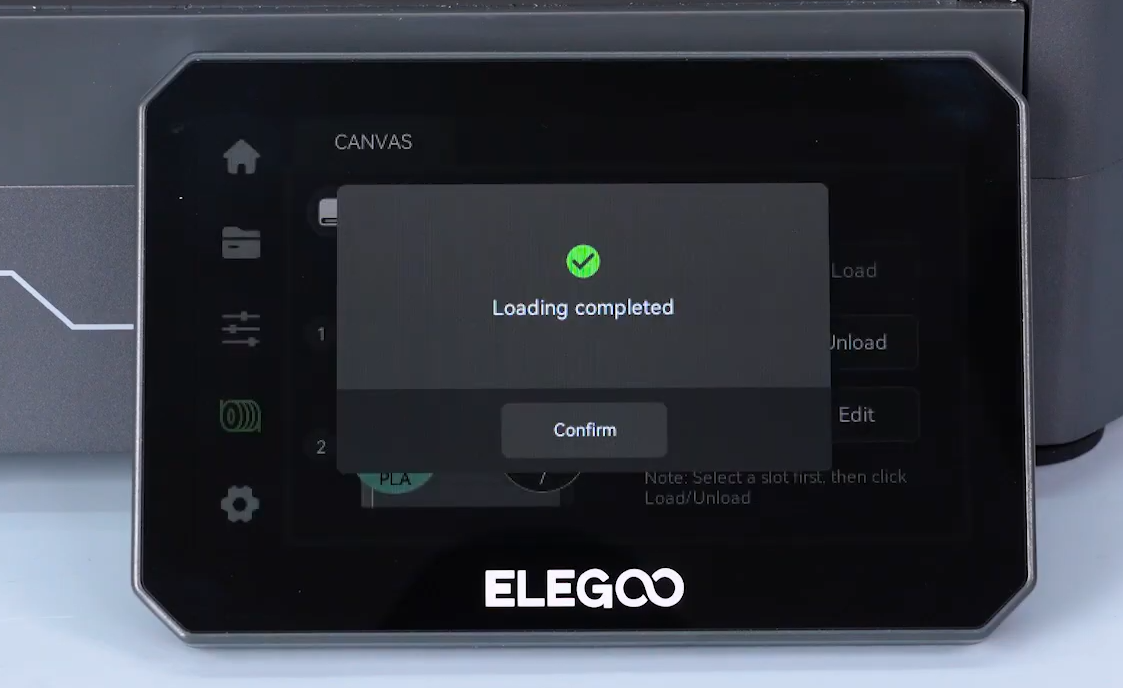
2. After filament loading is completed, check whether the Tool Head status indicator on the touch screen control interface turns green.
Please refer to the animation below for the detailed operation.
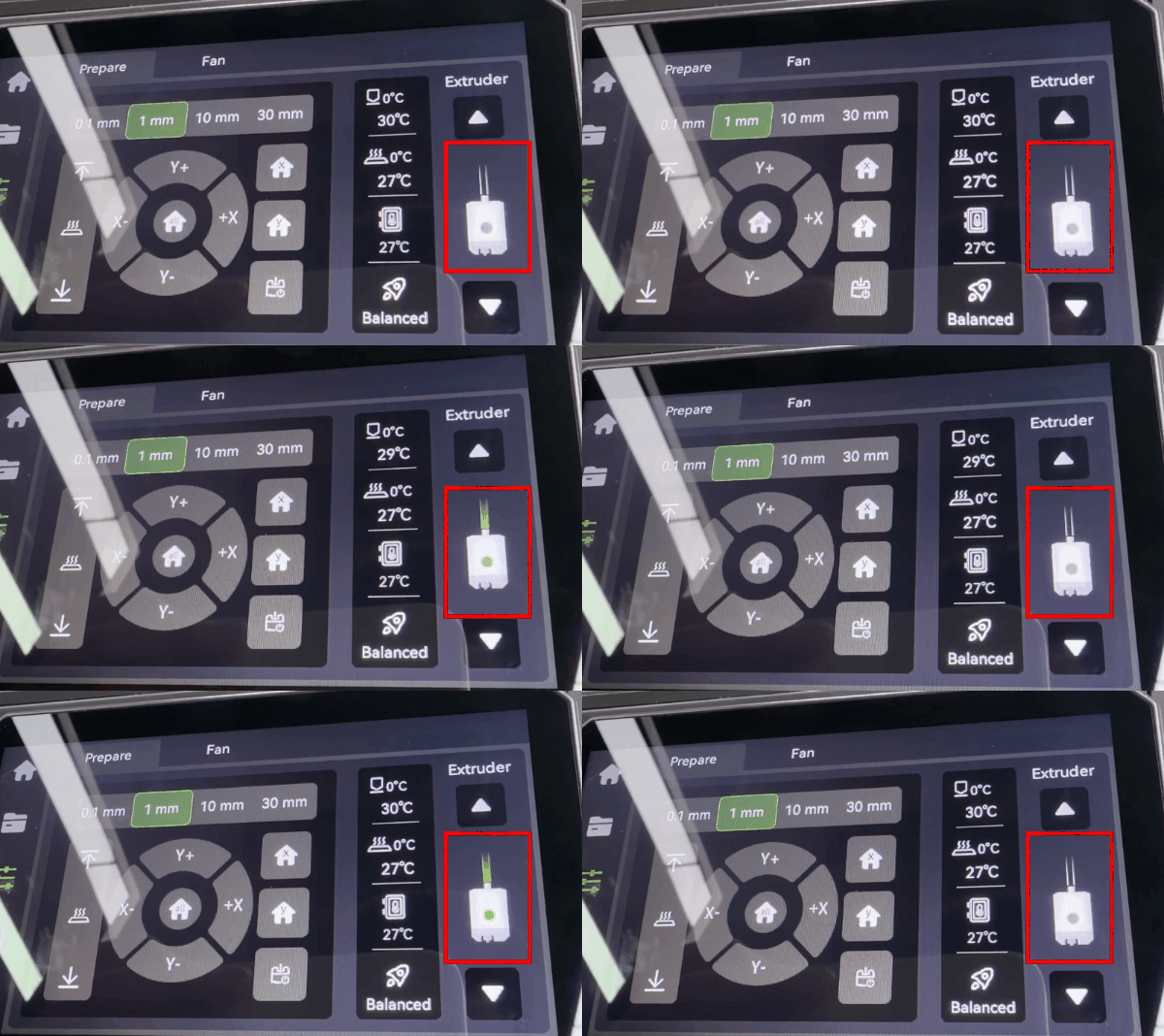
- If the Tool Head status indicator does not turn green after filament loading, continue with the following steps.
¶ 2. Check Whether Filament Is Jammed Inside the 4-in-1 Hub or Tool Head
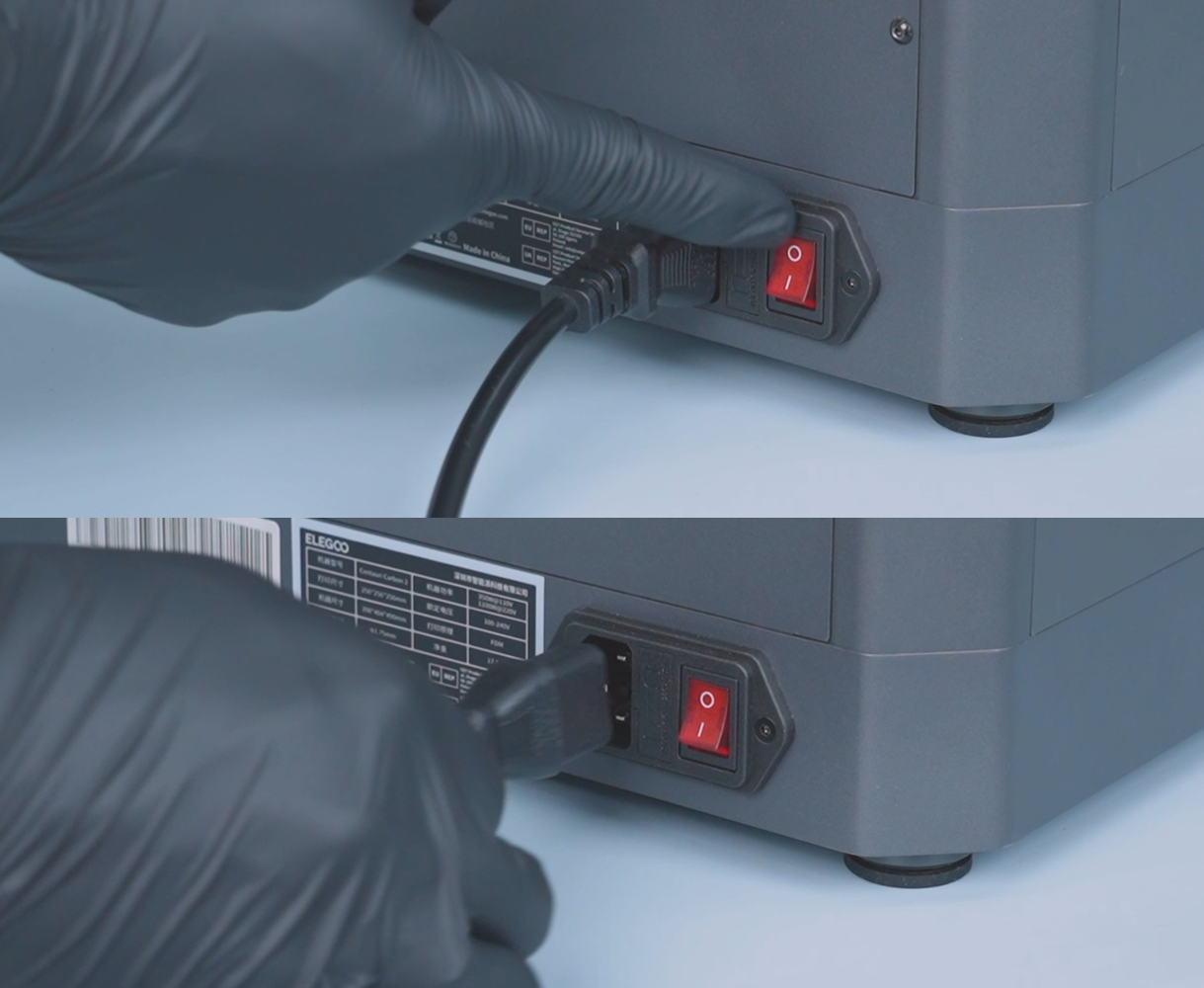
- Turn off the printer and unplug the power supply cable.
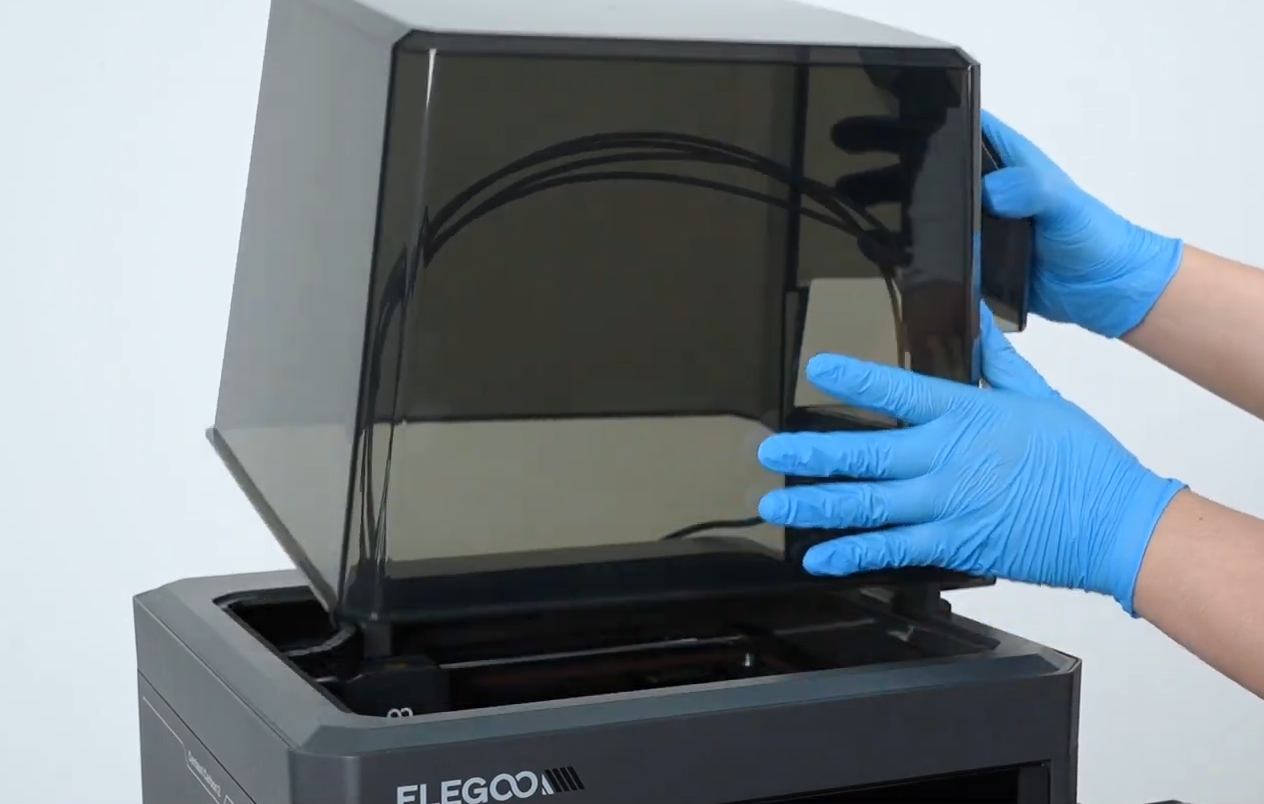
- Open the top cover of the CANVAS housing.
-
Remove the 4-in-1 hub.
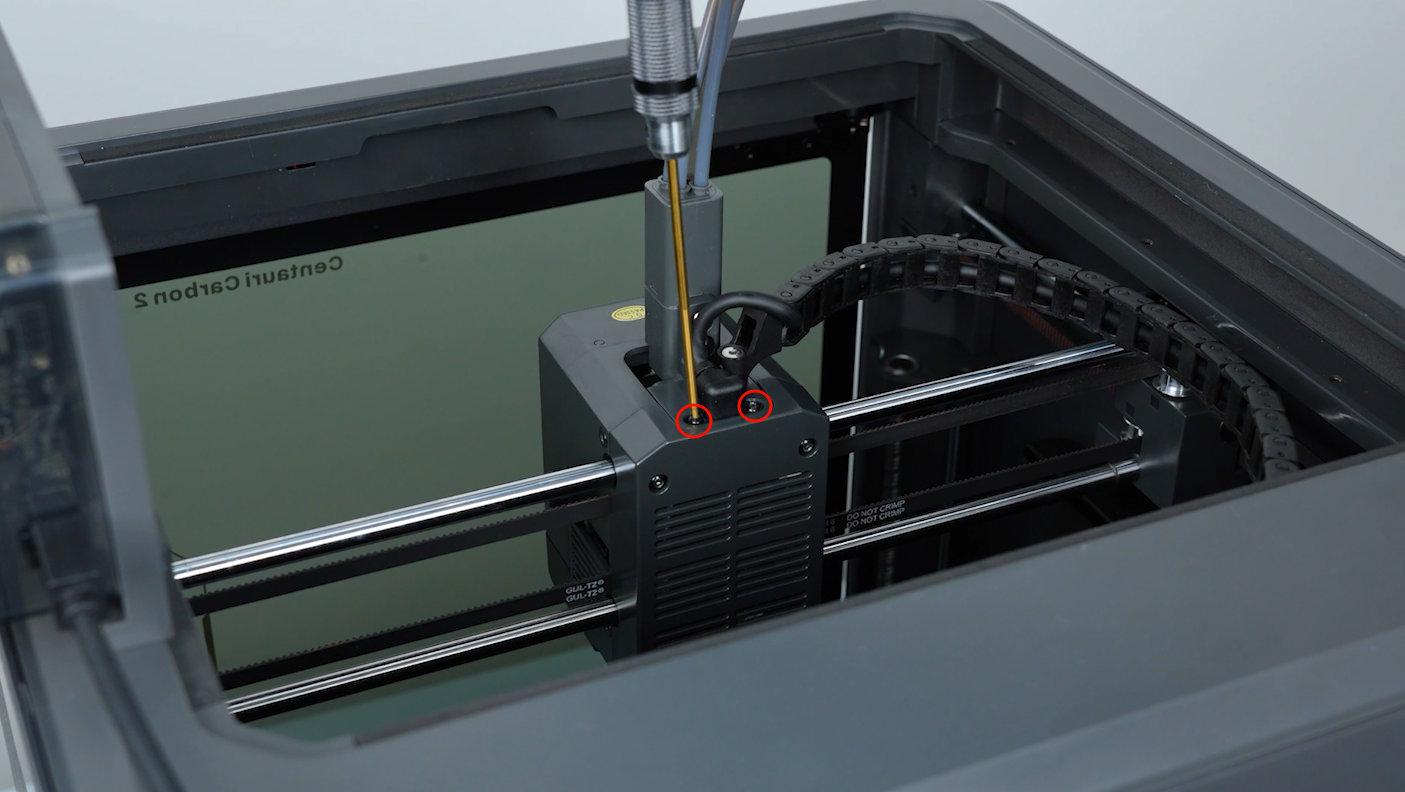
a. Use a 1.5 mm Allen key to remove the two screws fixing the Tool Head communication cable, then use tweezers to remove the loosened screws.
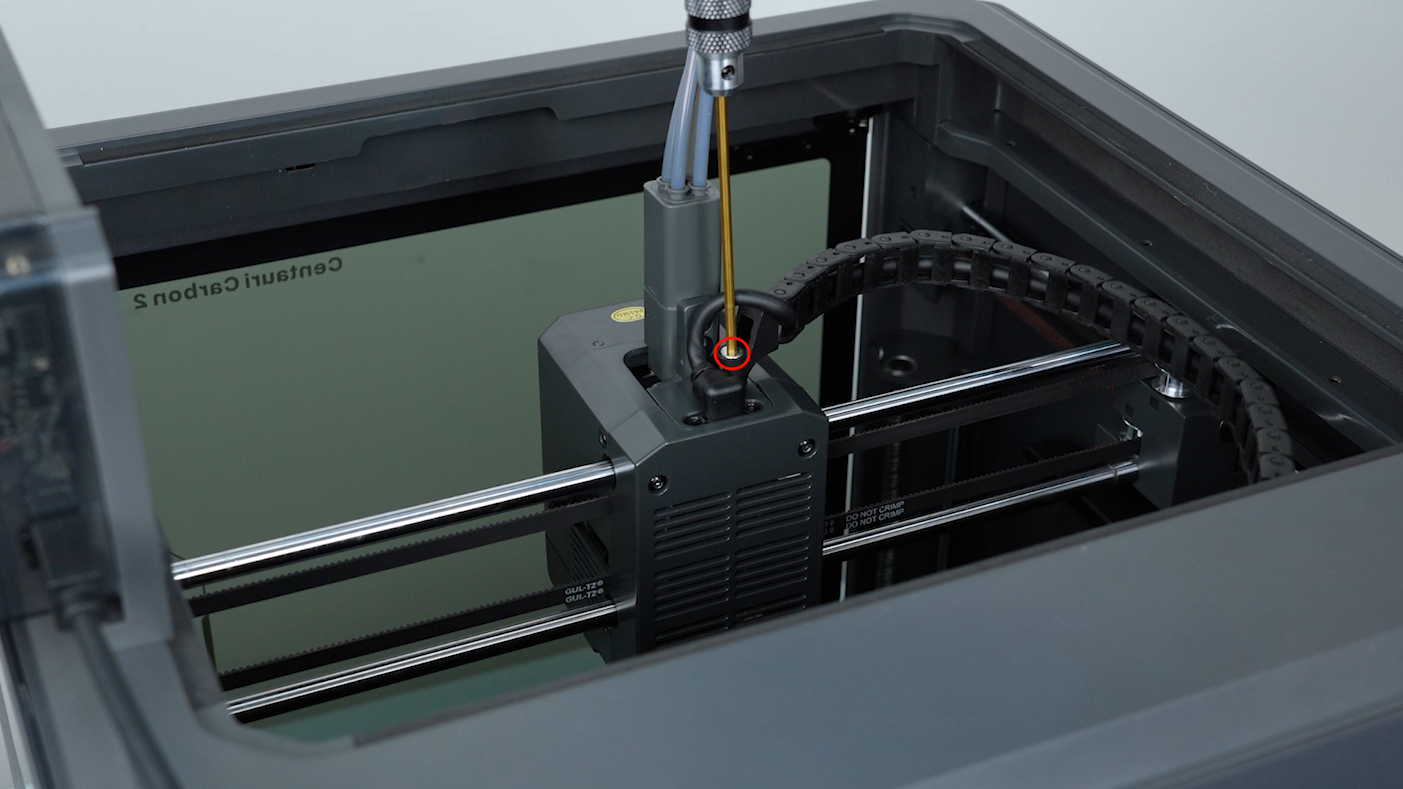
b. Use a 2.5 mm Allen key to remove the screws fixing the tank chain, then use tweezers to remove the screws.
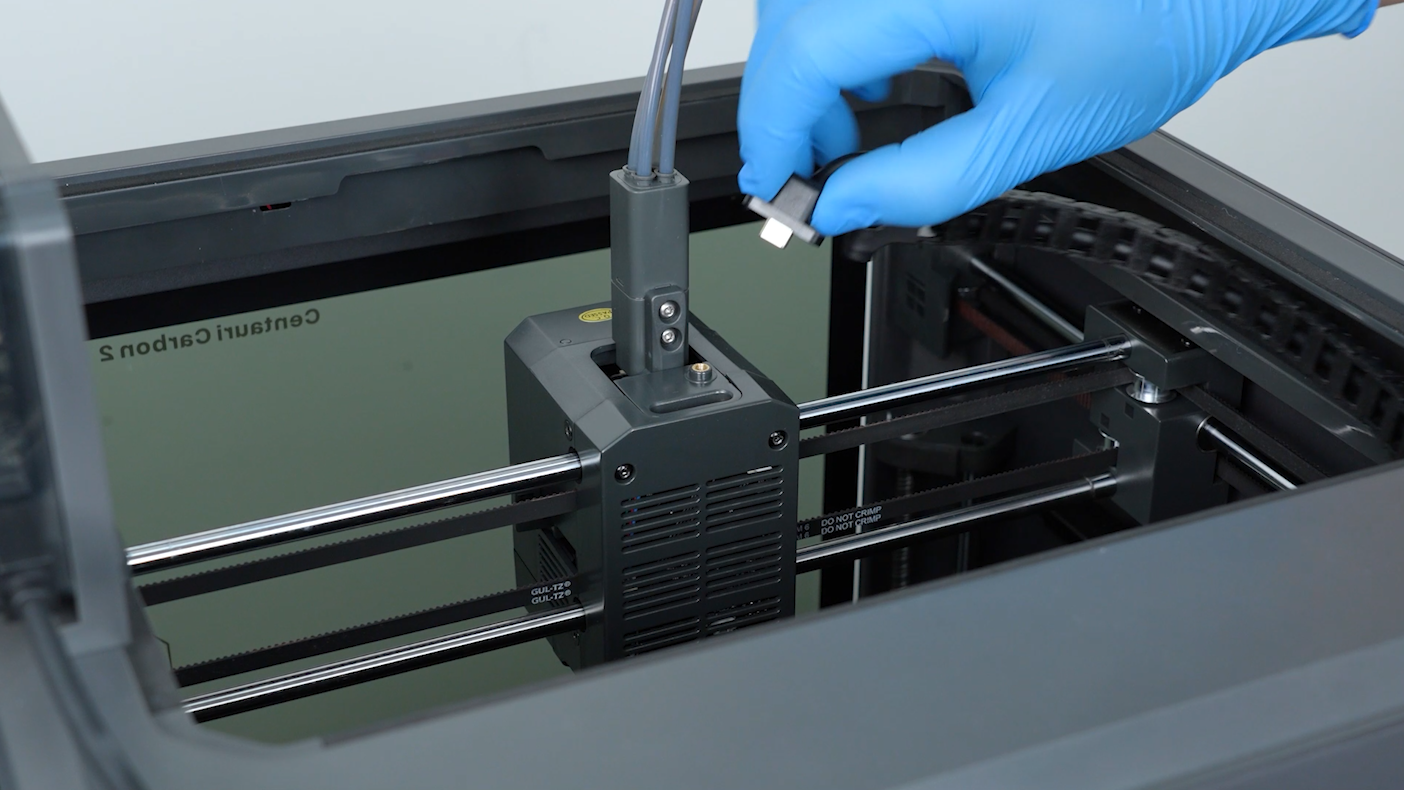
c. Disconnect the Tool Head communication cable plug.
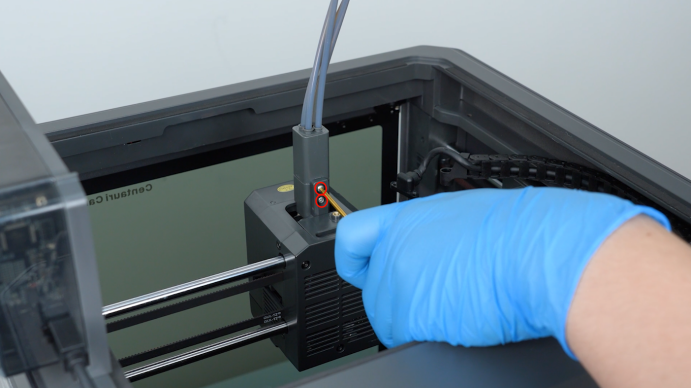
d. Use a 2.0 mm Allen key to remove the two screws fixing the 4-in-1 hub, then use tweezers to remove the screws and take out the 4-in-1 hub.
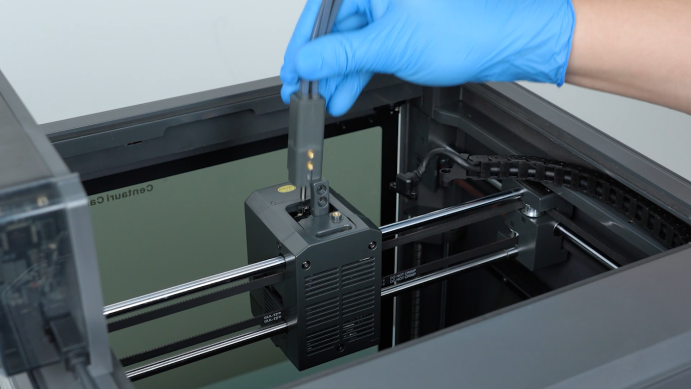
- Remove the front cover and housing of the Tool Head.
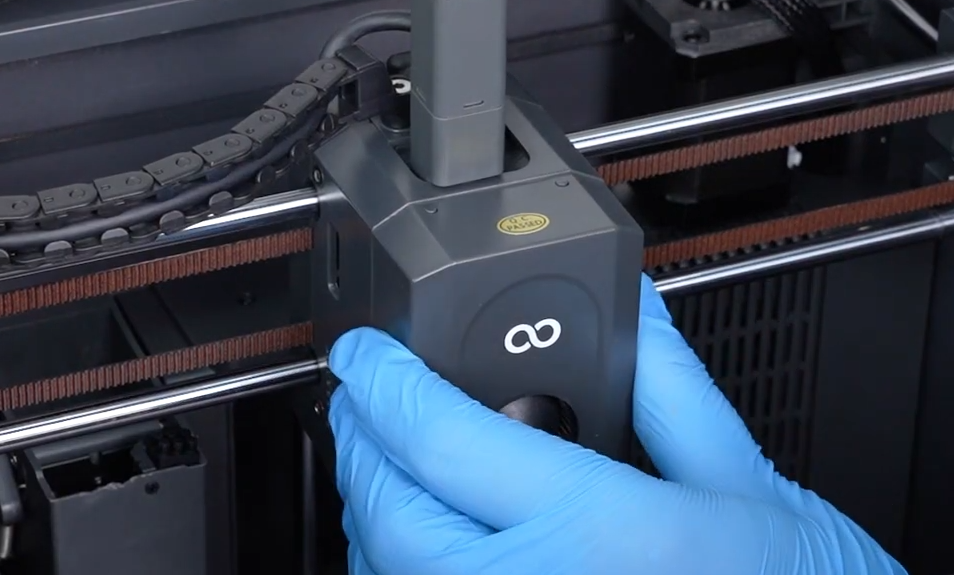
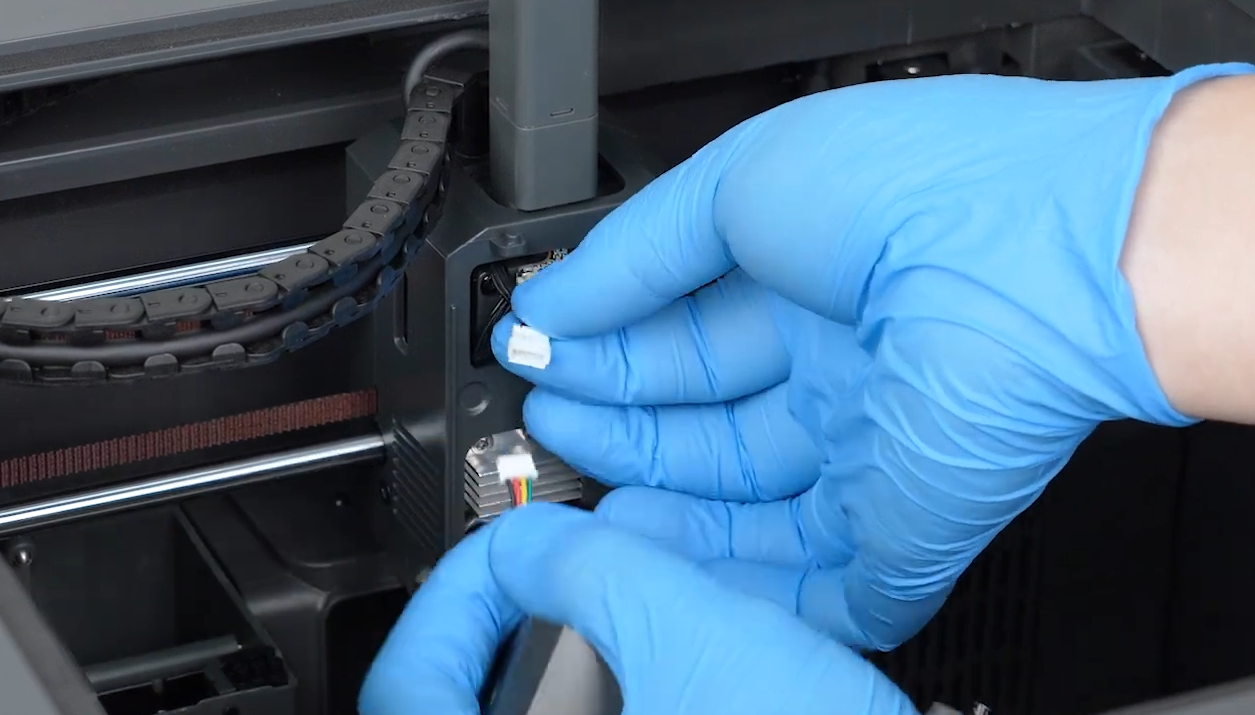
a. Disconnect the Tool Head model cooling fan cable.
b. Use a 2.0 mm Allen key to remove the four screws fixing the Tool Head housing.
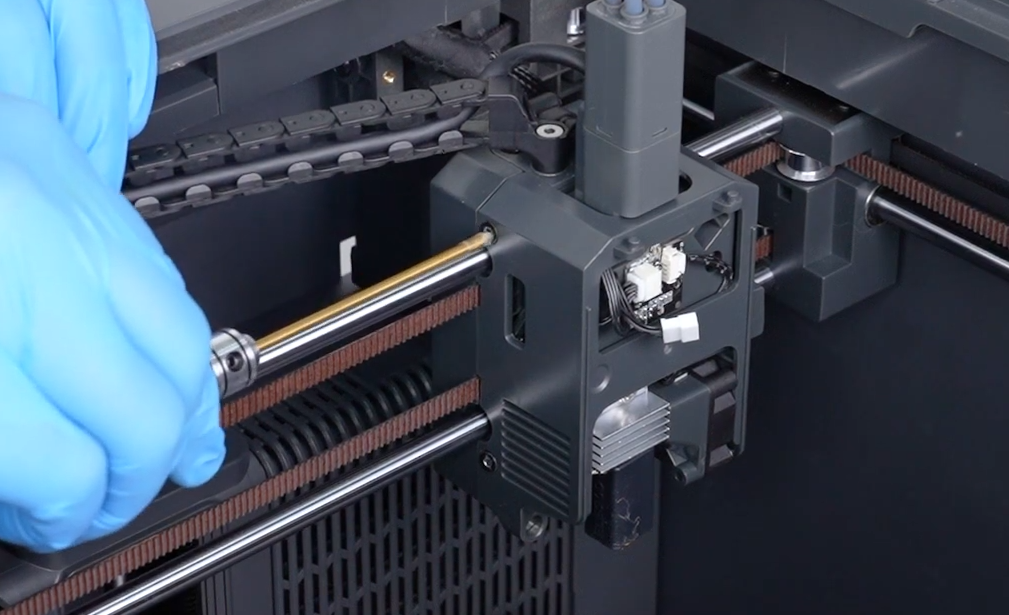
c. Remove the Tool Head housing.
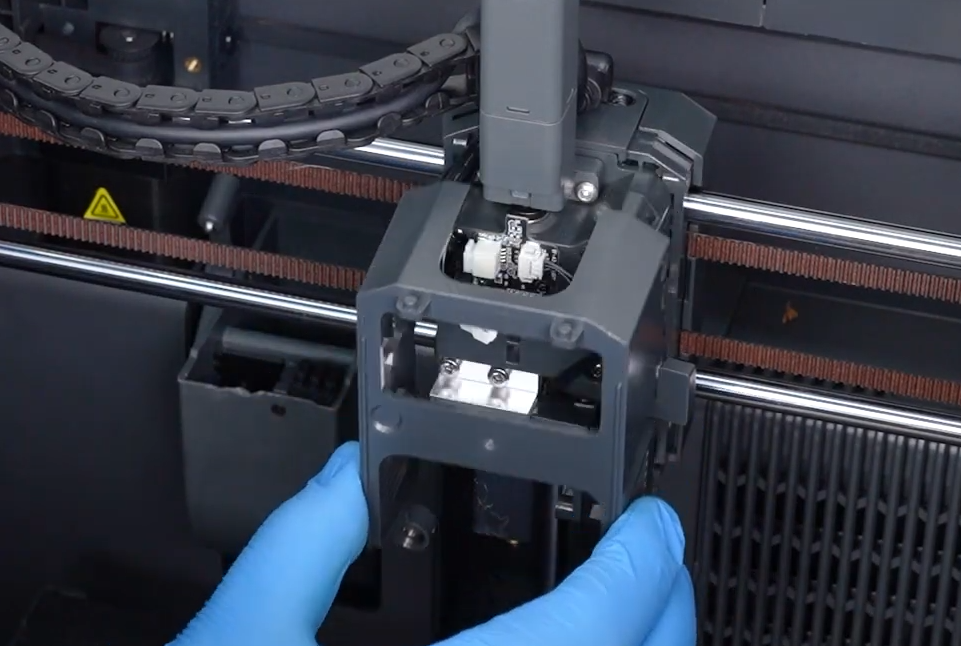
- Check whether there is filament residue or jammed filament inside the 4-in-1 hub and the filament inlet of the Tool Head.
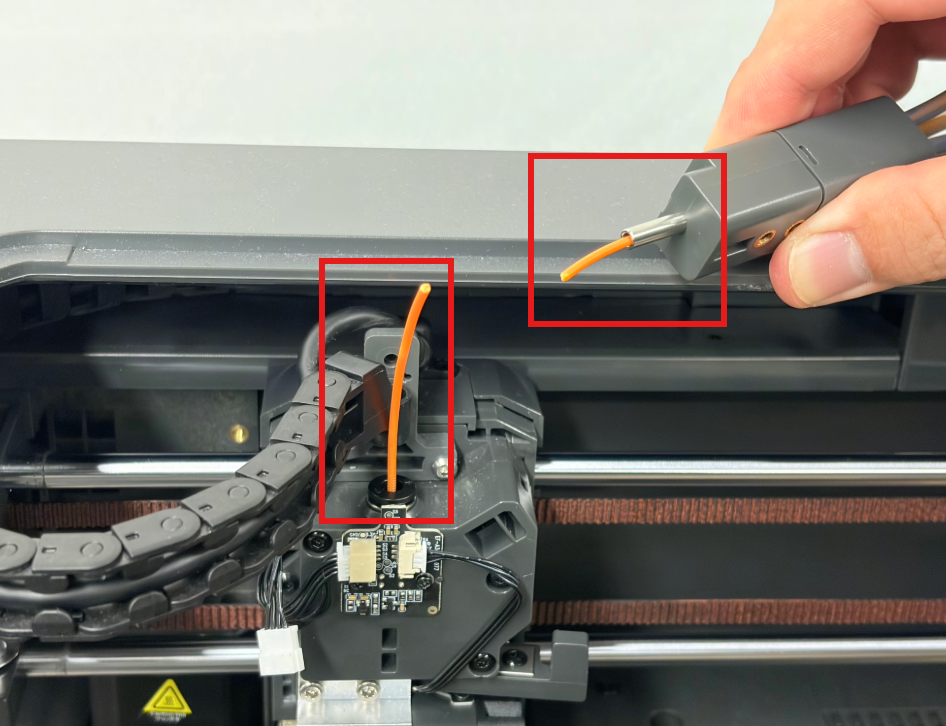
- If filament is jammed, try removing the jammed filament from the Tool Head and 4-in-1 hub. Reinstall all components, reload filament, and check whether Error Code 1220 no longer appears.
- If no filament blockage is found, or Error Code 1220 still appears after removing the filament, continue with the following steps.
¶ 3. Check the Filament Detection Board Status
Check whether there is dust, debris, or filament residue on the surface of the filament detection board. Also confirm that the detection board is properly installed and that the connection port and contacts are normal.
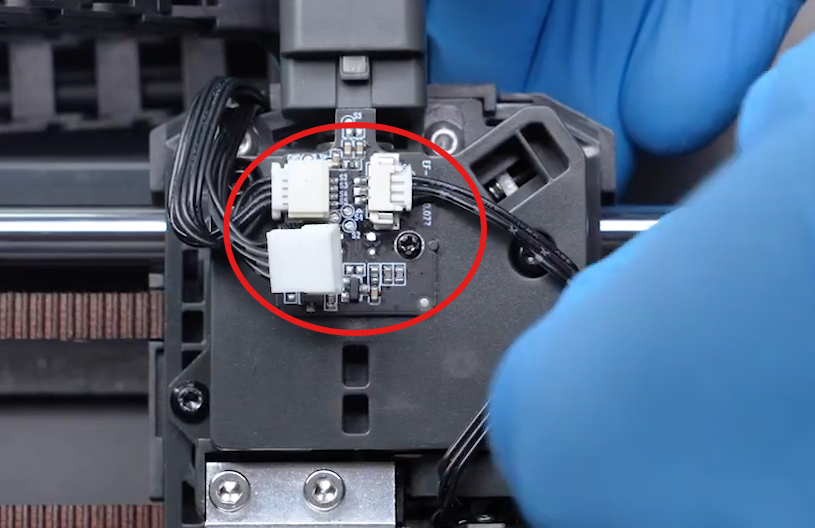
- If the filament detection board is dirty, clean the detection board.
- If the detection board and connection ports are normal but the issue persists, continue to the next step.
¶ 4. Check the Spring Plate Status Behind the Filament Detection Board
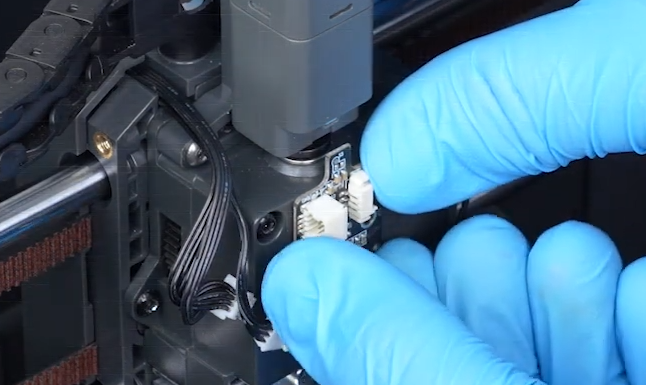
- Use a Phillips screwdriver to remove the two screws fixing the filament detection board.
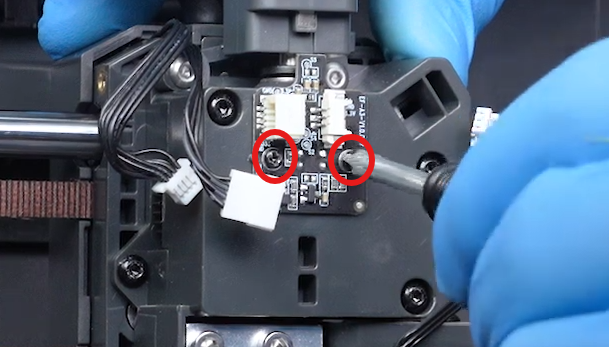
- Slowly open the filament detection board.
Note:
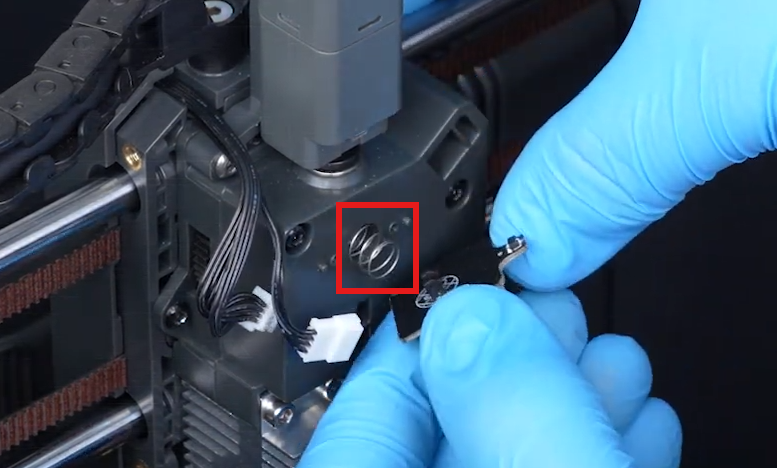
A small spring is located behind the filament detection board. Be careful during removal to prevent the spring from falling off or getting lost.
- Remove the spring behind the filament detection board.
-
Check the spring plate status.
-
Insert a small section of filament into the filament inlet and check whether the spring plate can normally spring outward.
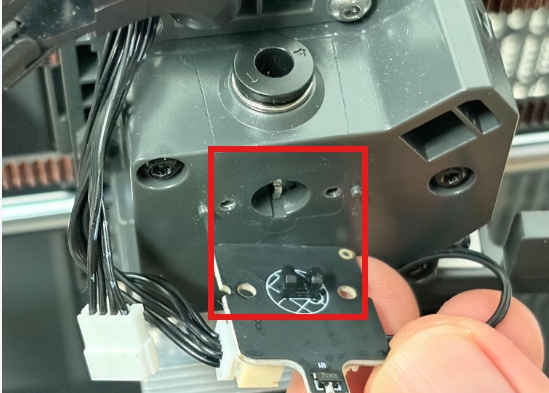
- If the spring plate cannot spring outward normally, there may be filament stuck inside the spring plate area.
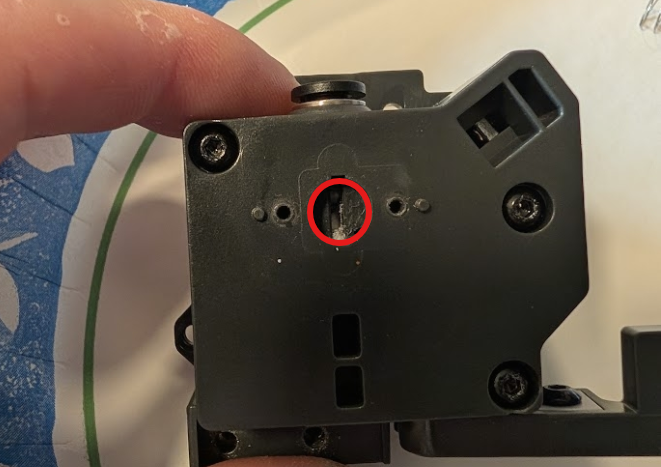
Use tweezers to remove the filament stuck inside. After cleaning, reinstall the related components, reload filament, and check whether Error Code 1220 is resolved.
¶ Still Not Resolved
If no abnormality is found after completing the above checks, please send the following information to our technical support email: 3dp@elegoo.com
Please provide:
- A photo of Error Code 1220 and a video showing the issue.
- Whether the filament detection indicator light turns green normally.
- Whether filament blockage or residue exists inside the 4-in-1 hub and Tool Head.
- Photos of the filament detection board appearance and inspection results.
- Whether the spring plate can spring outward normally.
- SN Code.
¶ Help us improve
If you have any ideas about the wiki pages, please let us know via ELEGOO official feedback channel