¶ Issue Description
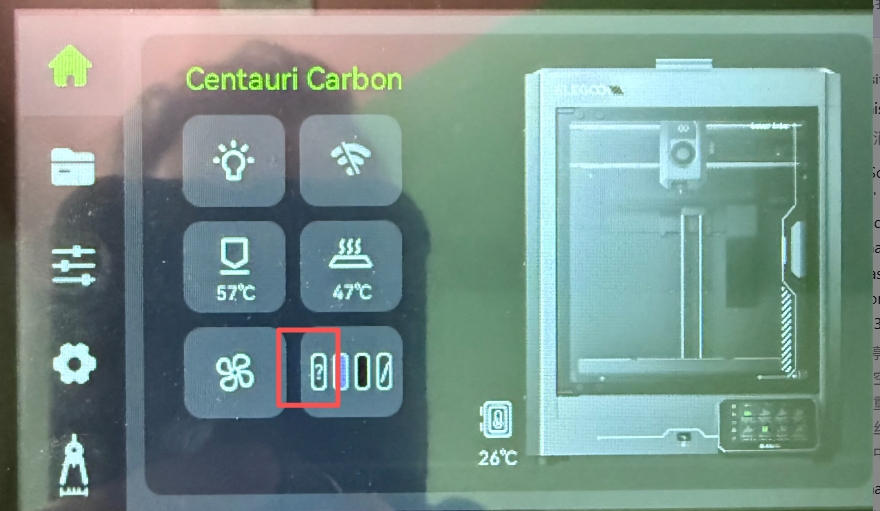
The CANVAS channel cannot load or update filament parameters properly. Both manual configuration and RFID recognition fail, and a “?” icon appears on the UI.
¶ Possible Causes
- The CANVAS channel parameters are not configured, corrupted, or contain invalid values.
- The CANVAS mainboard or CANVAS extension cable is faulty.
¶ Required Tools
- 2.0 mm Allen key
¶ Troubleshooting Steps
¶ Check and Configure CANVAS Filament Information
-
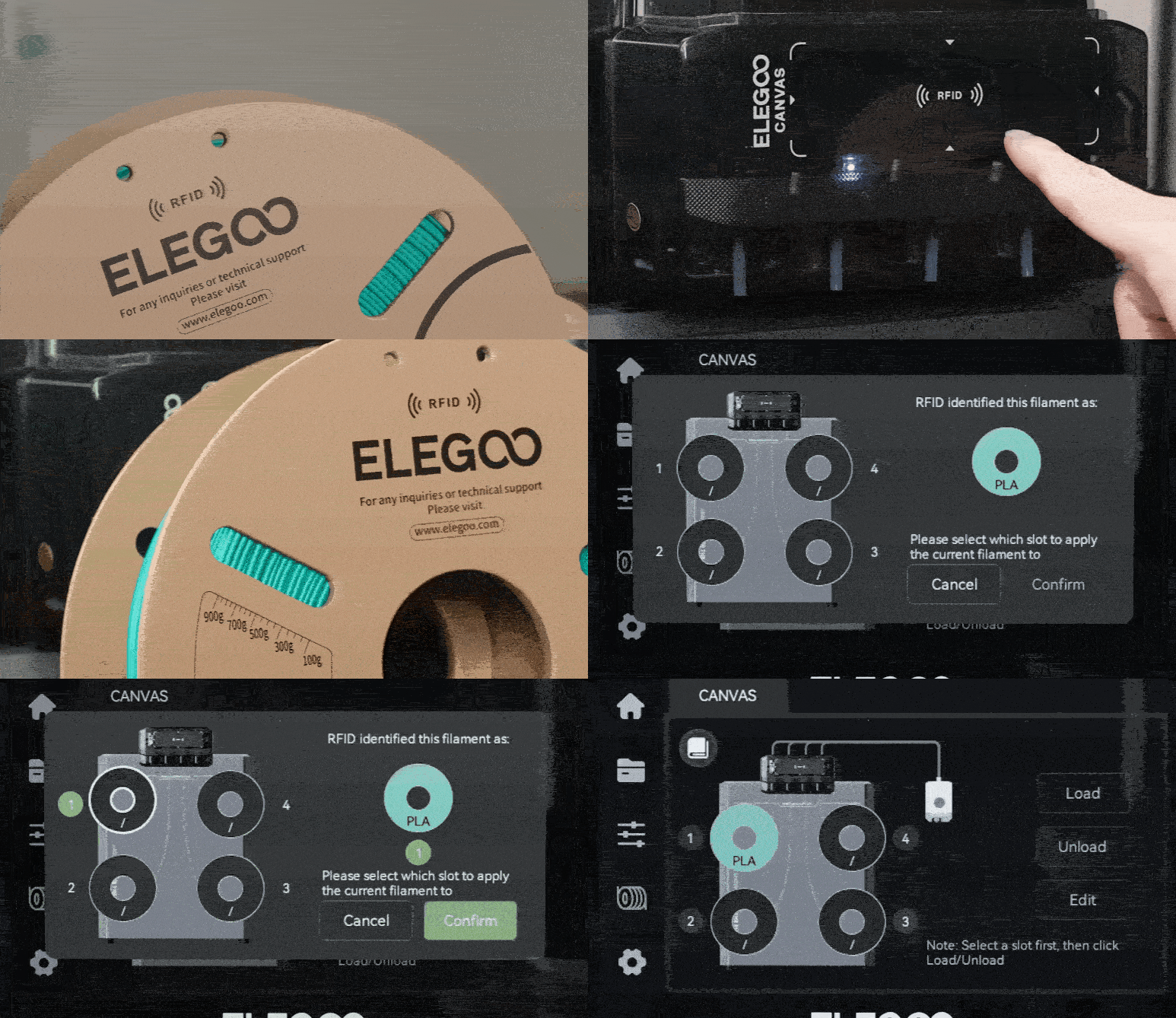
If using filament with an RFID chip:
-
Align the RFID tag on the filament spool with the RFID recognition area on CANVAS. After hearing a “beep” sound, select the corresponding spool slot number on the touch screen, then tap Confirm. The filament information will be automatically written, and the filament configuration will be completed.
-
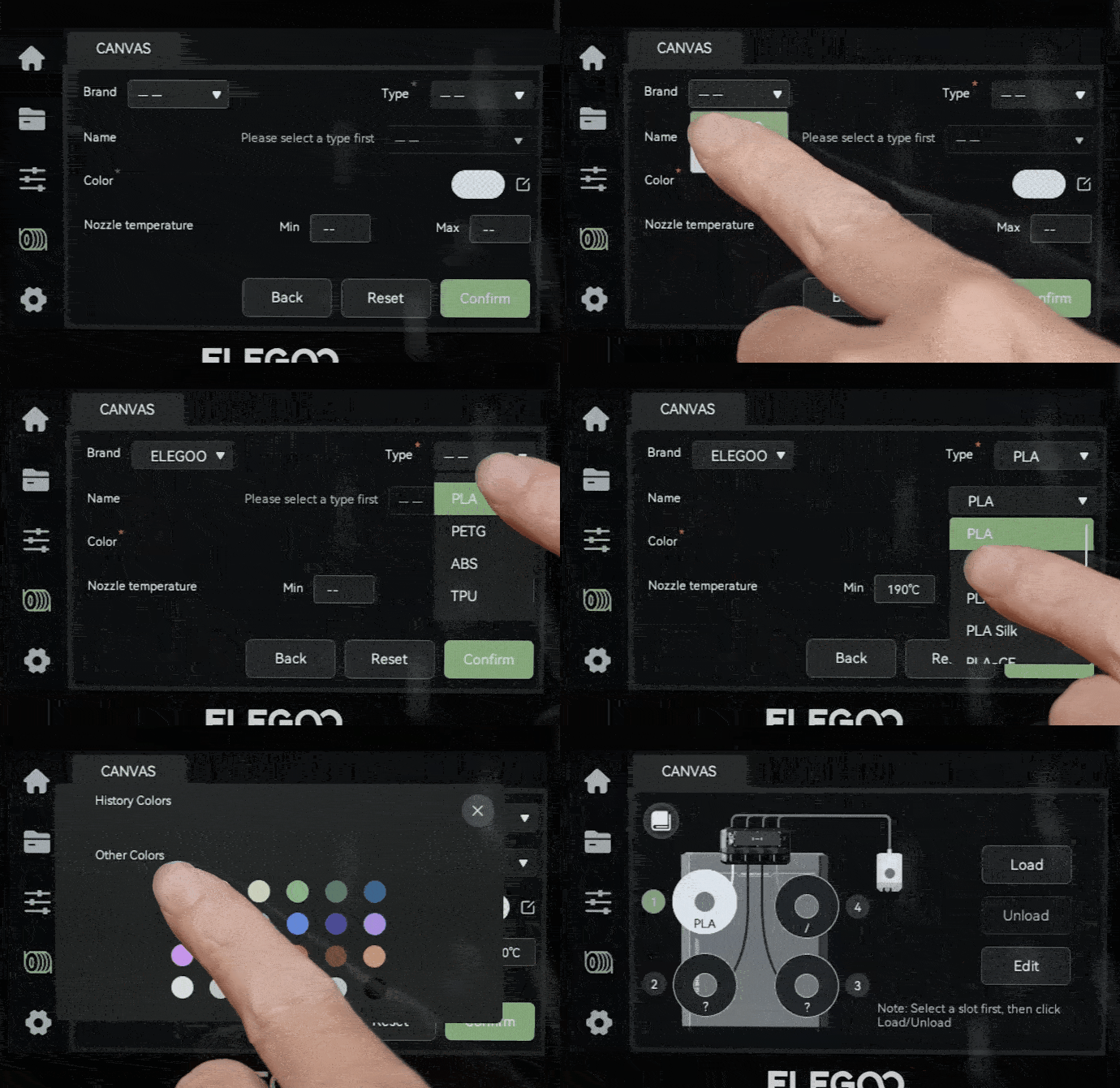
If using filament without an RFID chip:
-
Tap the corresponding spool slot number on the touch screen, then select Edit. Select the filament brand, filament type, filament subtype, and filament color in sequence. After confirmation, the filament configuration for this channel will be completed.
-
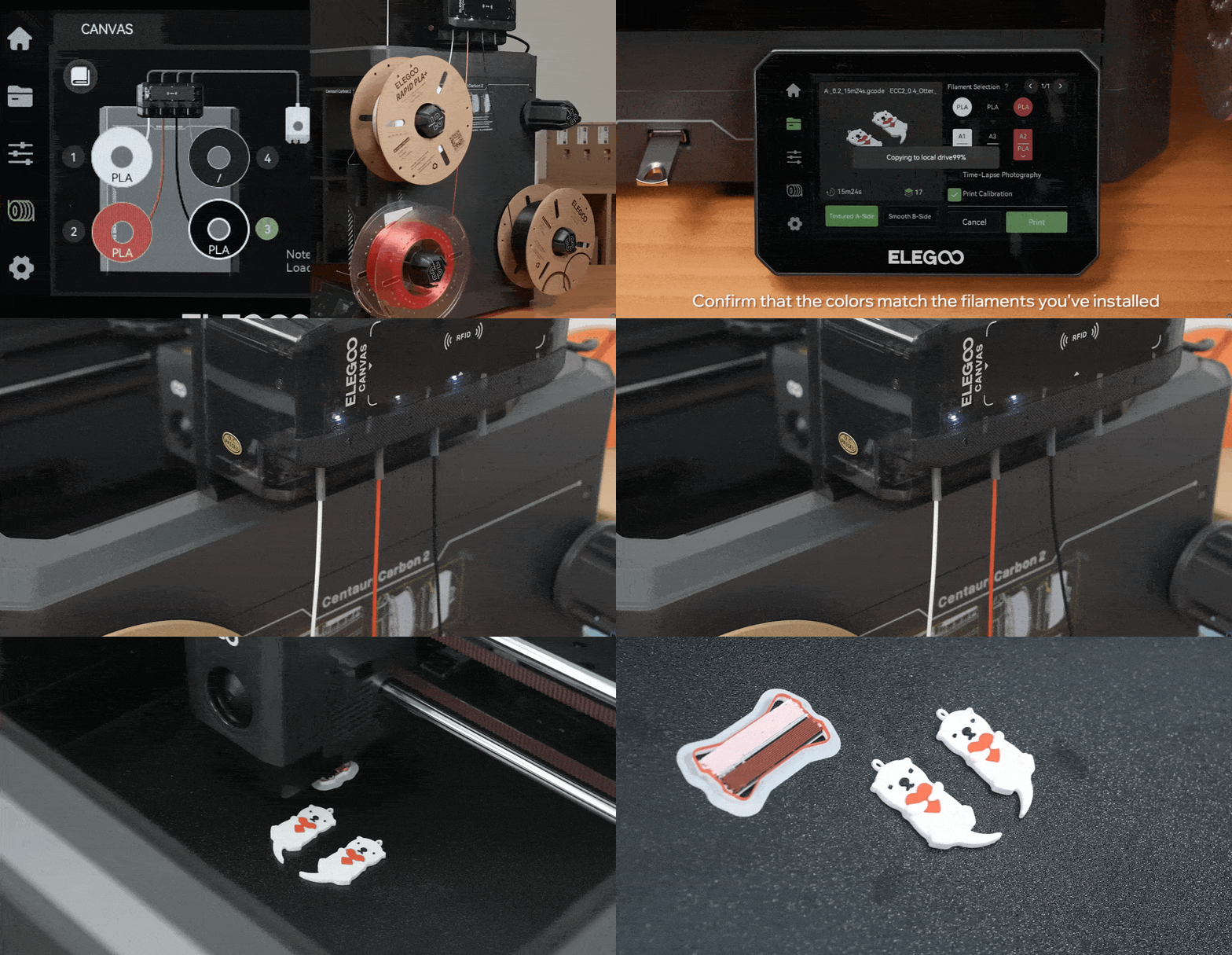
After configuration is completed, print a multi-color model as a test.
-
If the configured filament color does not match the filament color selected in the slicing software, confirm the corresponding filament color before printing. If the model prints normally, the filament configuration is completed successfully.
¶ Reseat the CANVAS Communication Cable Connector
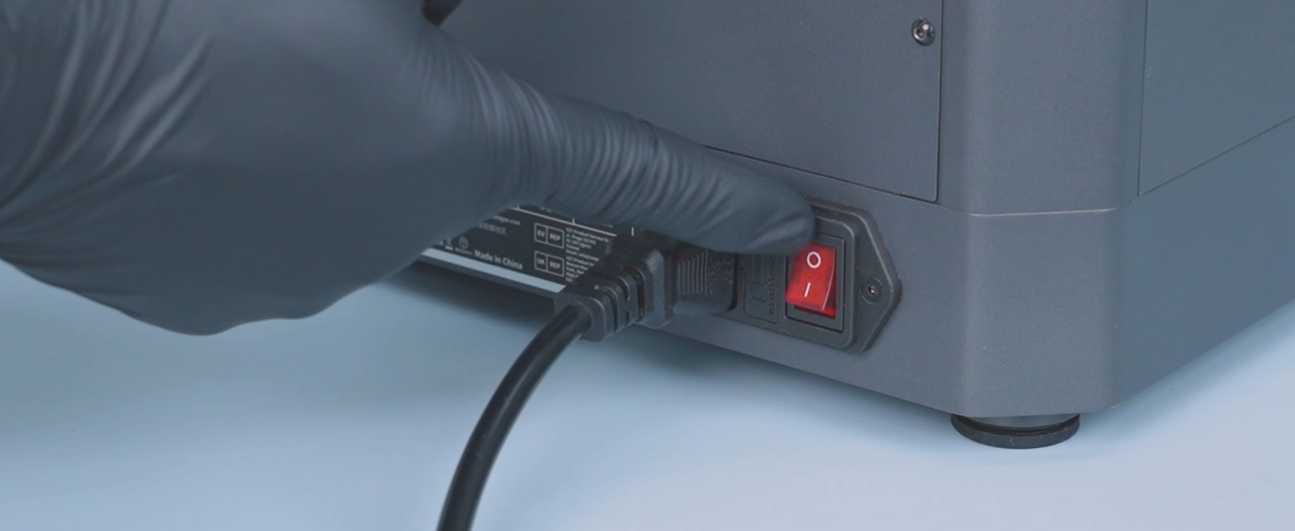
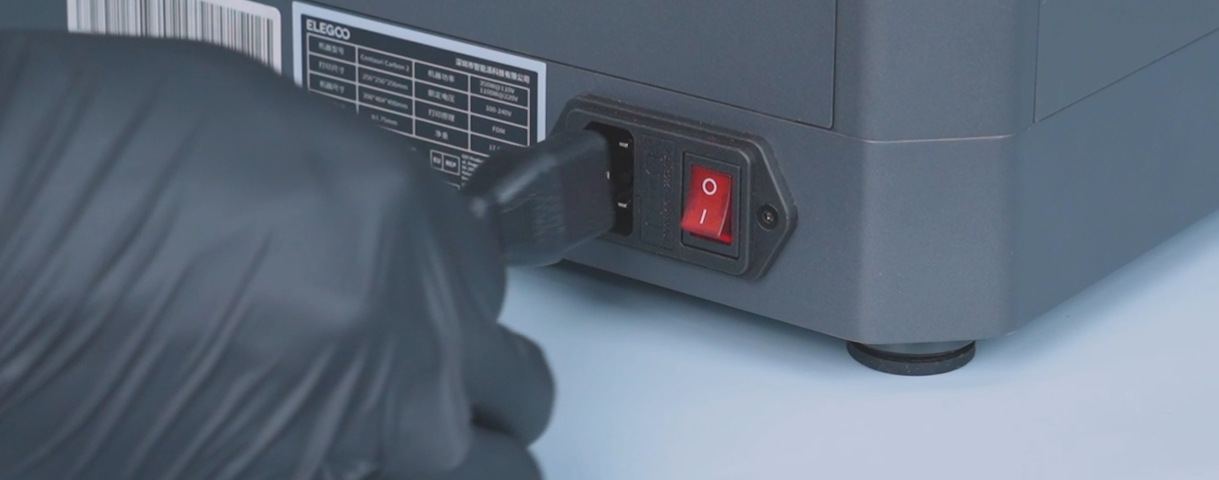
- Turn off the power switch and unplug the power cord.
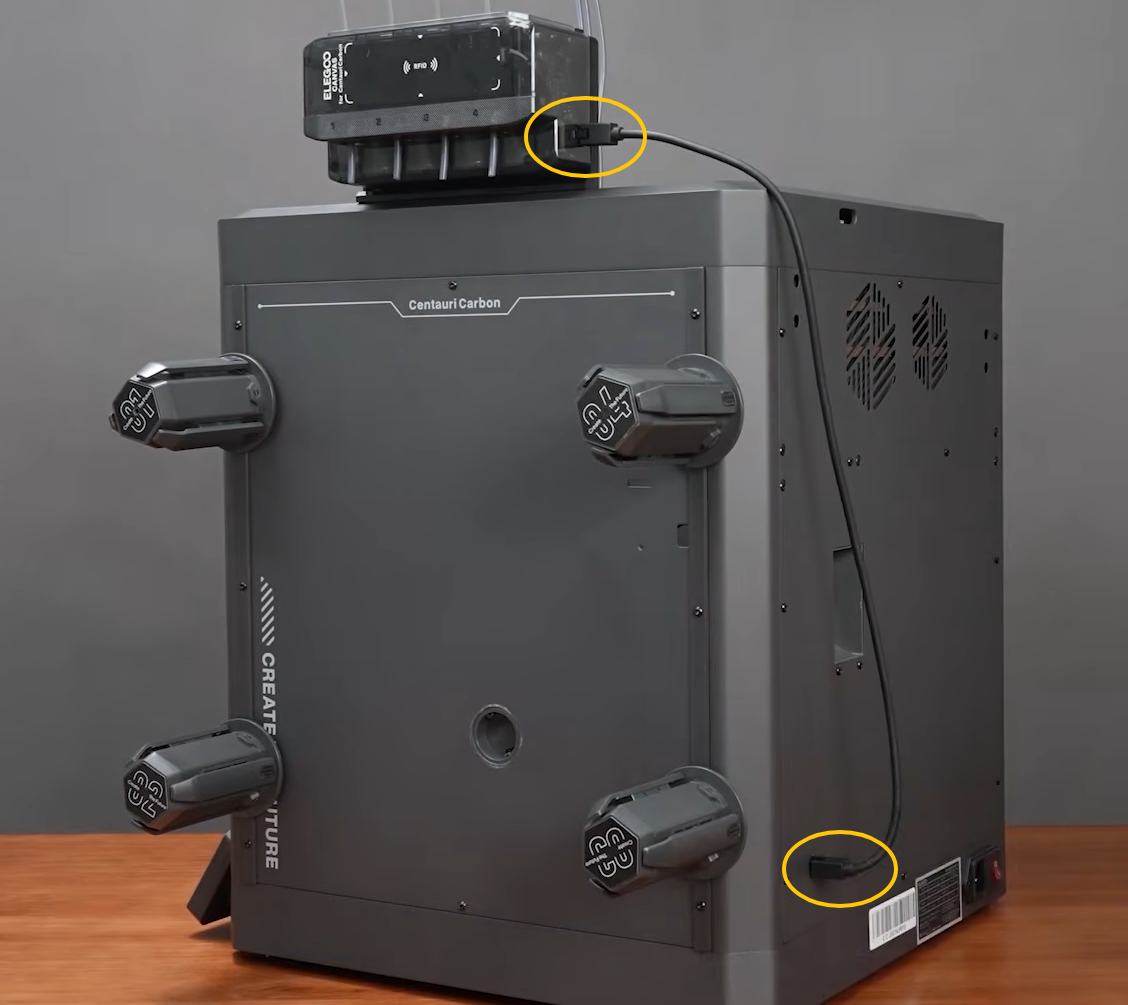
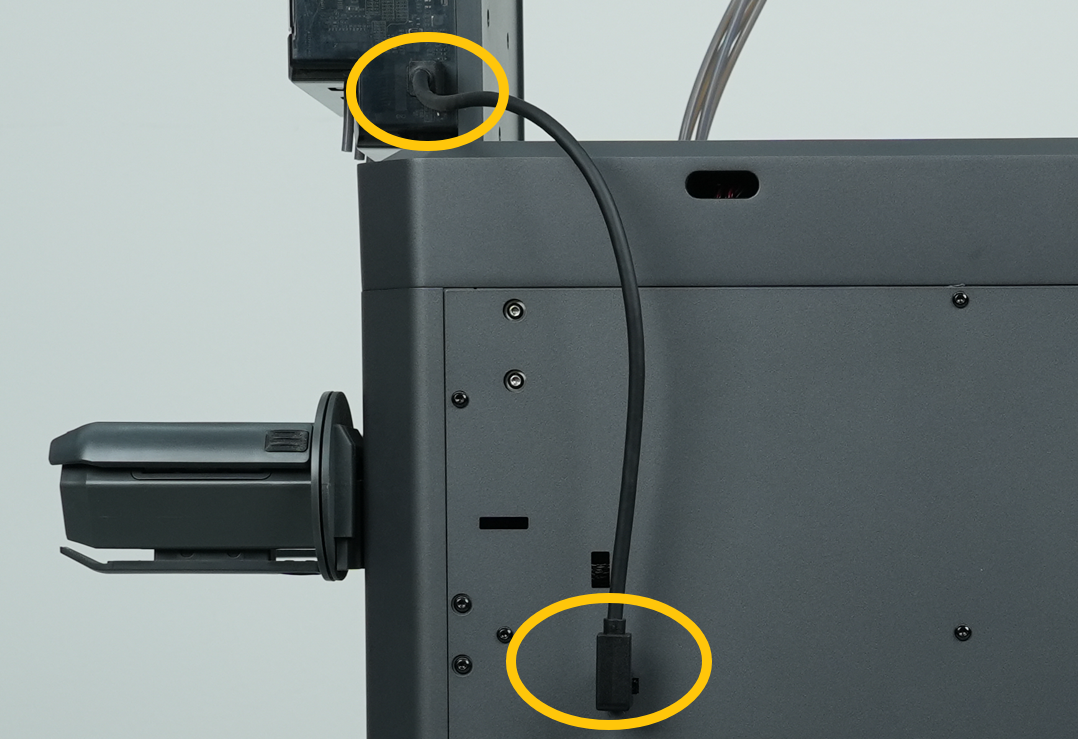
- Reconnect the CANVAS communication cable.
Centauri Carbon: Located on the lower left side.
Centauri 2 Series: Located on the upper left side.
¶ Restore the Printer to Factory Settings
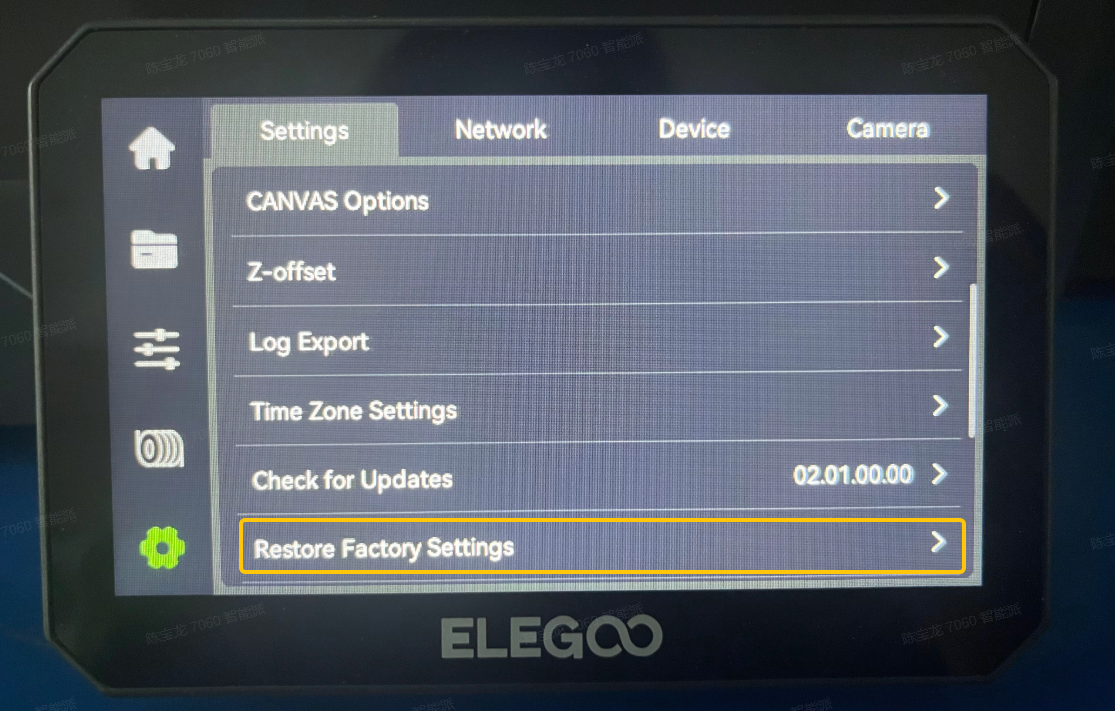
- On the printer touch screen, go to Settings → Restore Factory Settings.
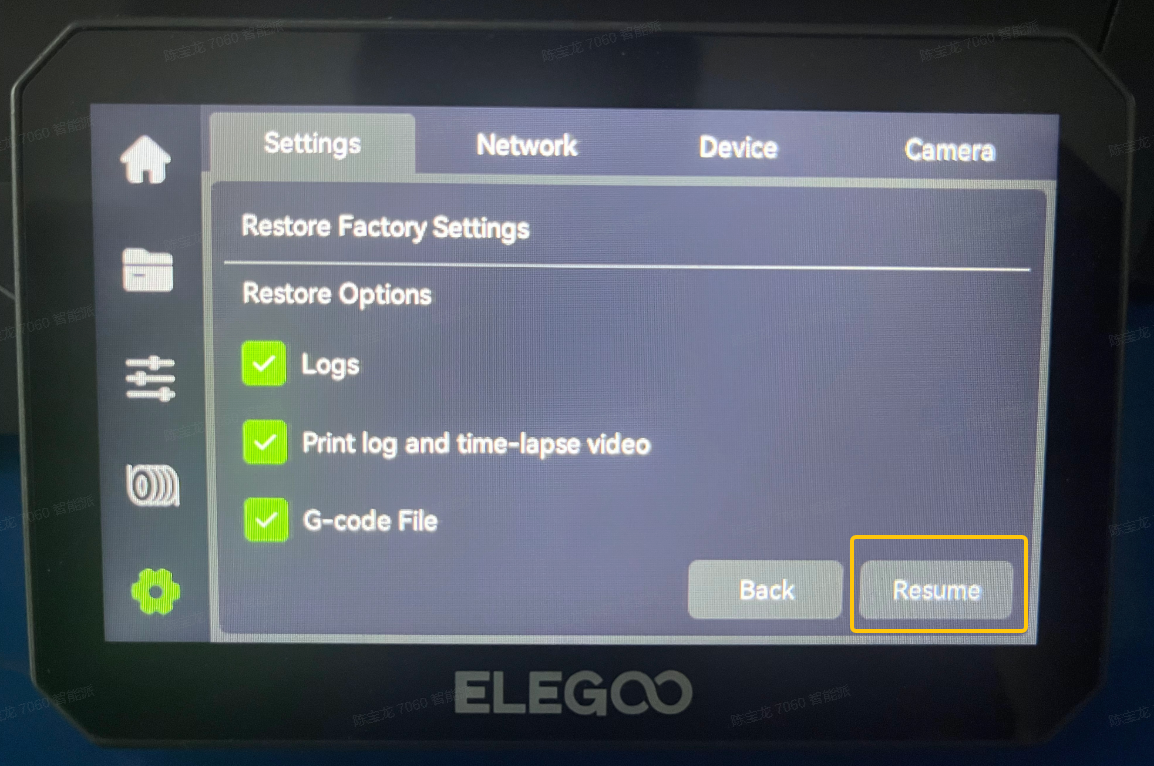
- Tap Resume.
¶ Still Not Resolved
If the issue persists after completing all troubleshooting steps, please provide the following information and contact technical support.
Technical Support Email: 3dp@elegoo.com
- Provide a picture showing the “?” displayed on the UI.
- Provide a video showing whether automatic configuration and manual configuration work properly.
- Provide pictures showing the CANVAS communication cable connection status and any visible damage to the cable.
¶ Help us improve
If you have any ideas about the wiki pages, please let us know via ELEGOO official feedback channel.