¶ User Manual
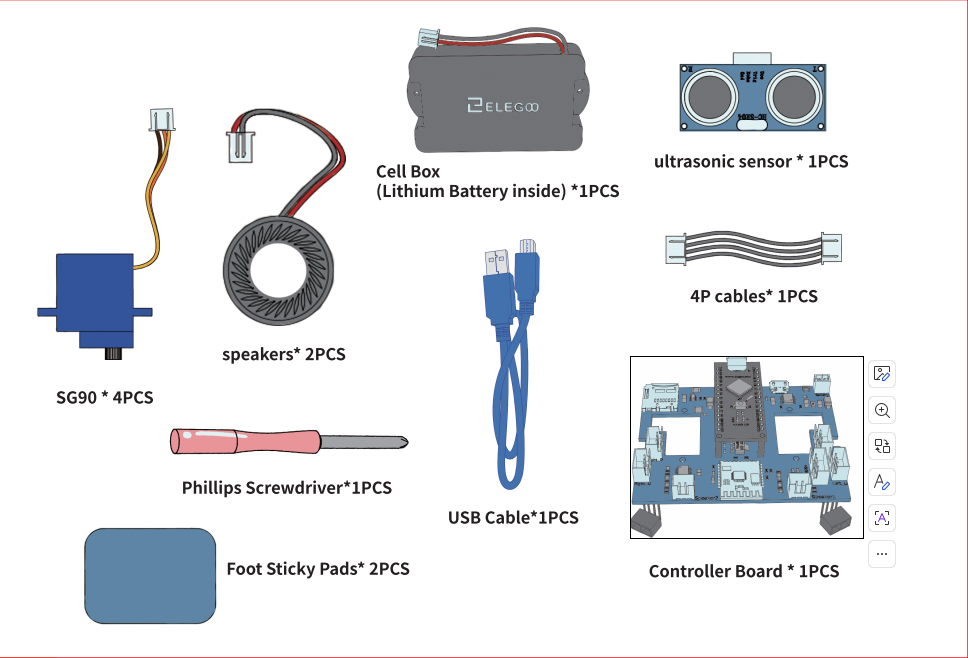
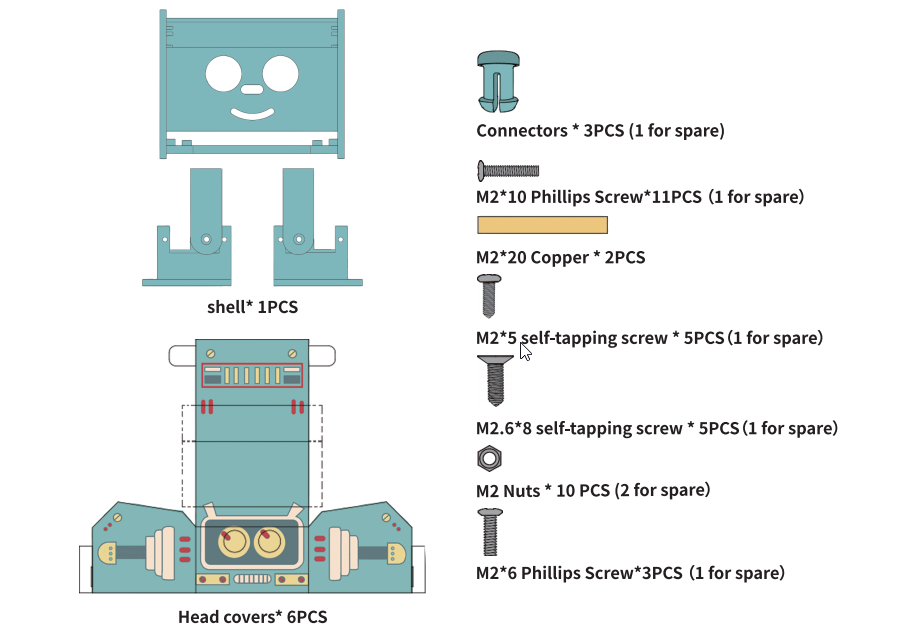
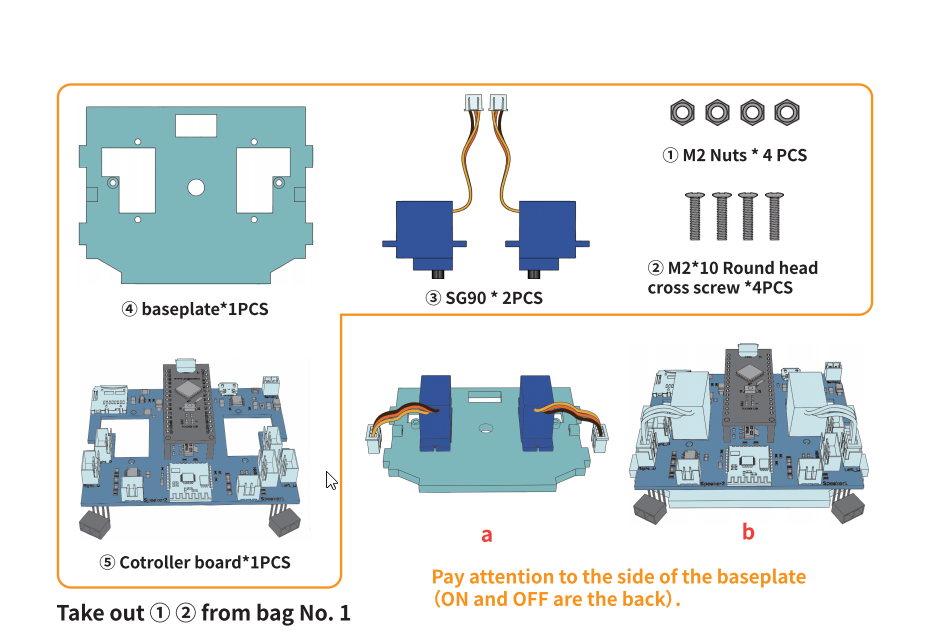
¶ Material List
¶ Assemble the legs
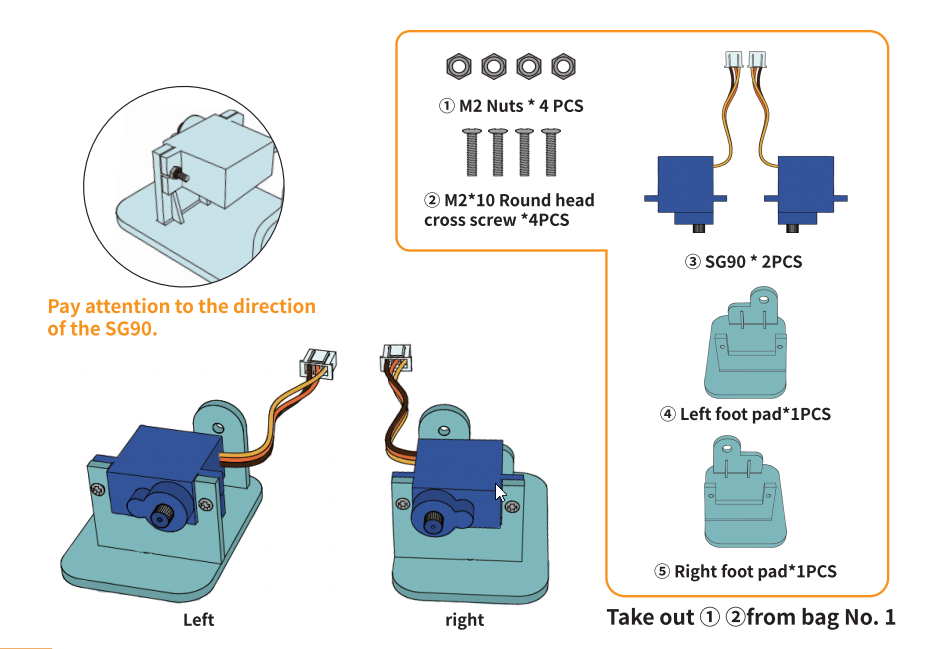
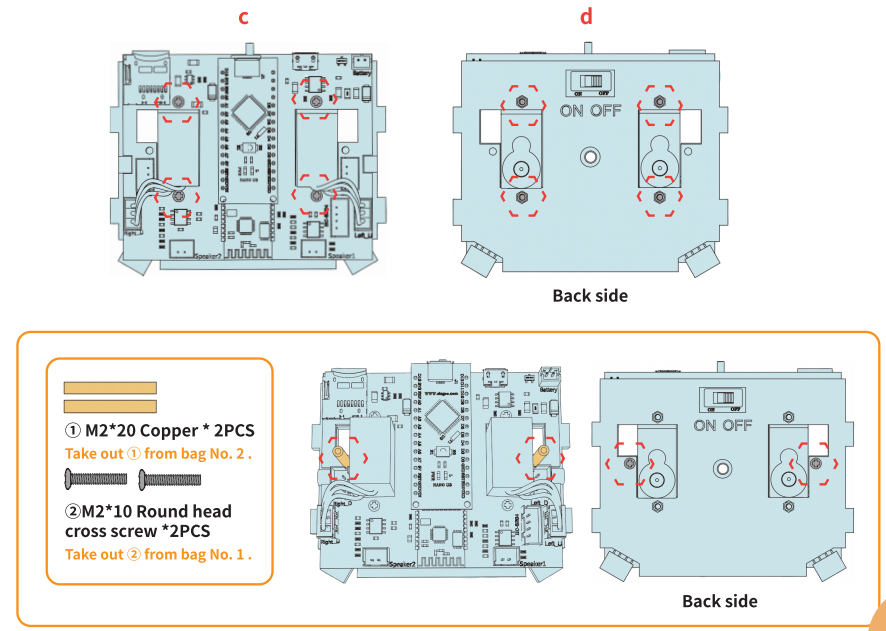
As shown in the figure, pay attention to the installation direction of the servos. When viewed from the front, all servo rotating shafts should face inward, not outward.
Only tighten the servo fixing screws here. Leave all other screws untightened for now, so you can adjust and reassemble easily if problems arise later.
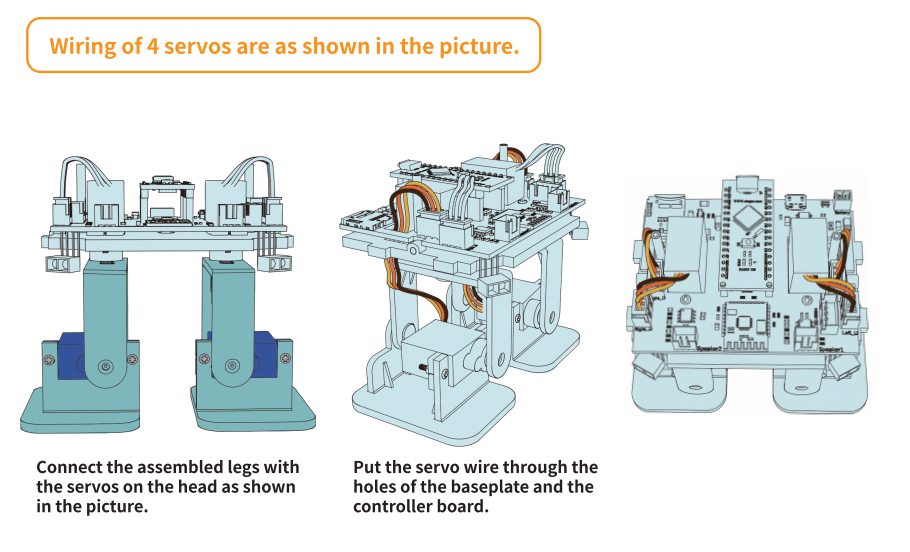
¶ Assemble the controller board
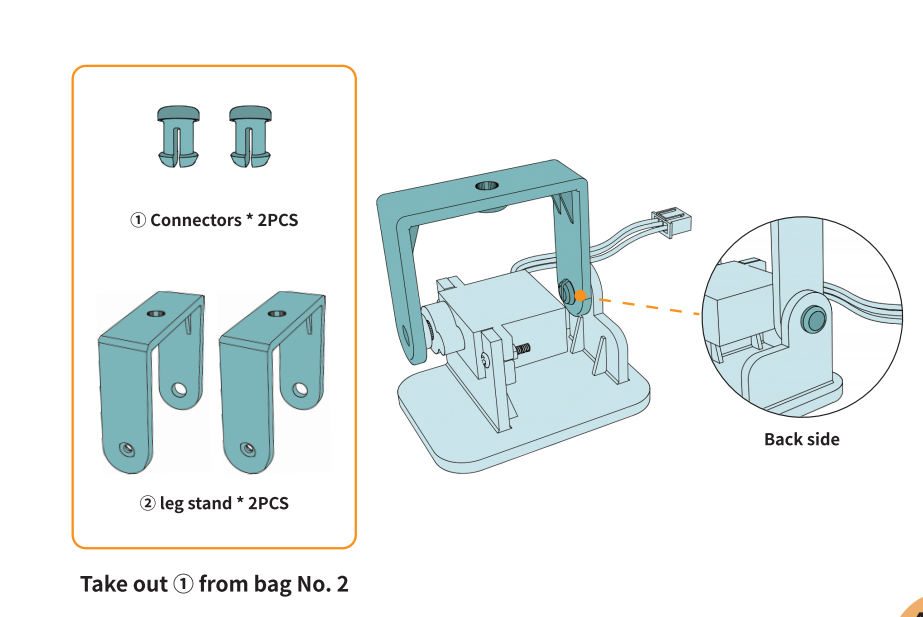
Assemble the brackets and control board from top to bottom. First tighten the screws for the brackets and control board, then fasten the screws on the bottom servos. You may also tighten the servo screws after all tests are completed.
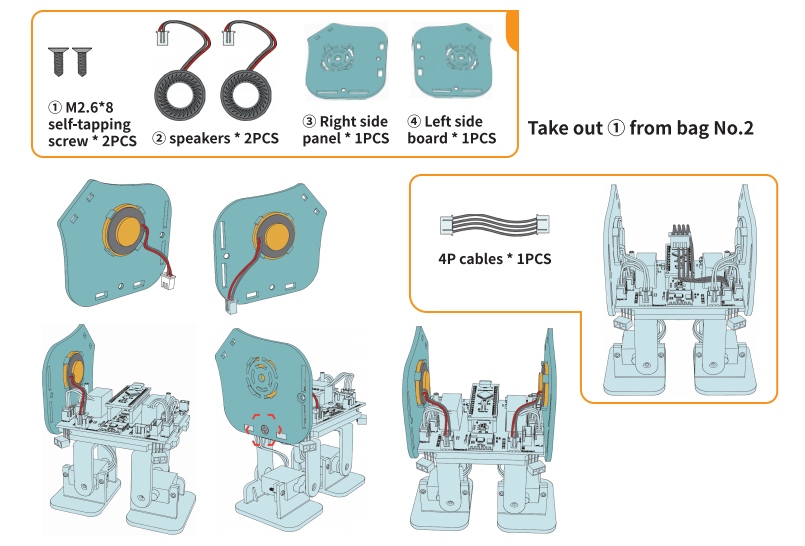
¶ Assemble the speakers
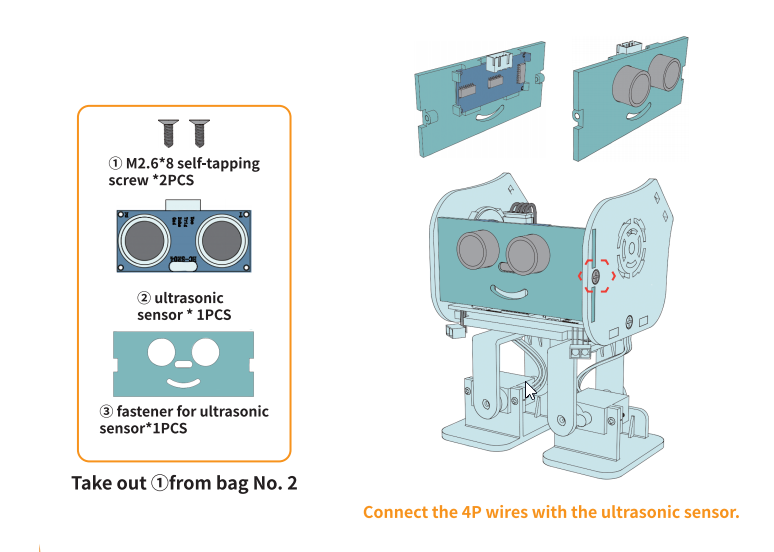
¶ Assemble the Ultrasonic sensor
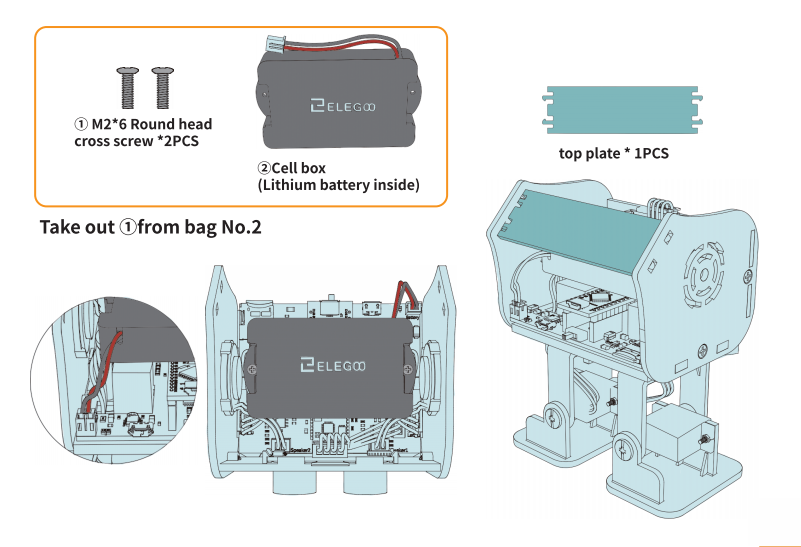
¶ Assemble the Cell Box
Plug the battery cables into the Battery port.
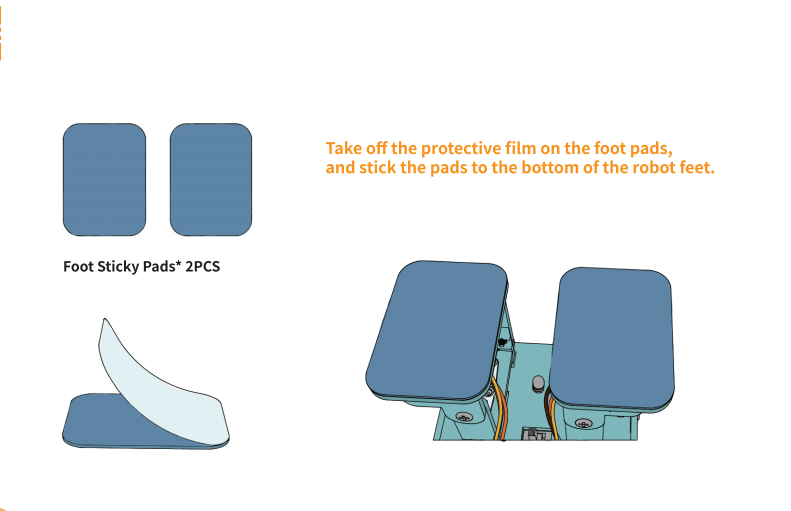
¶ Stick foot pads
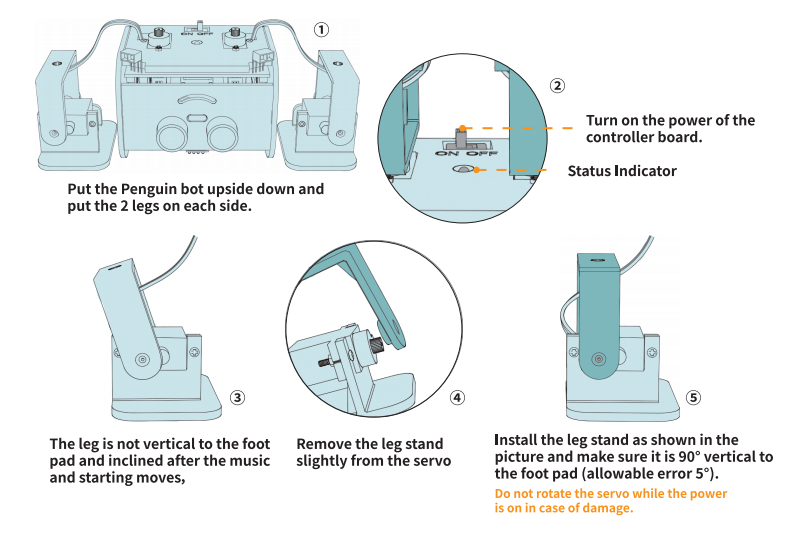
¶ Calibrate the servo
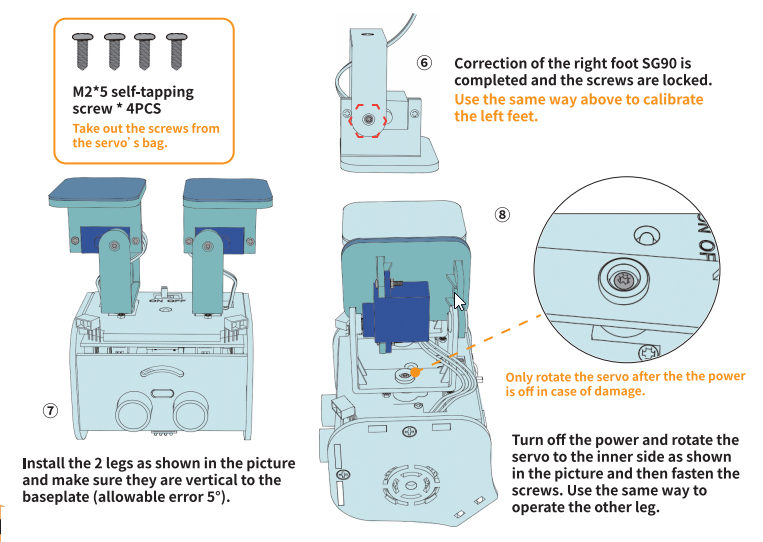
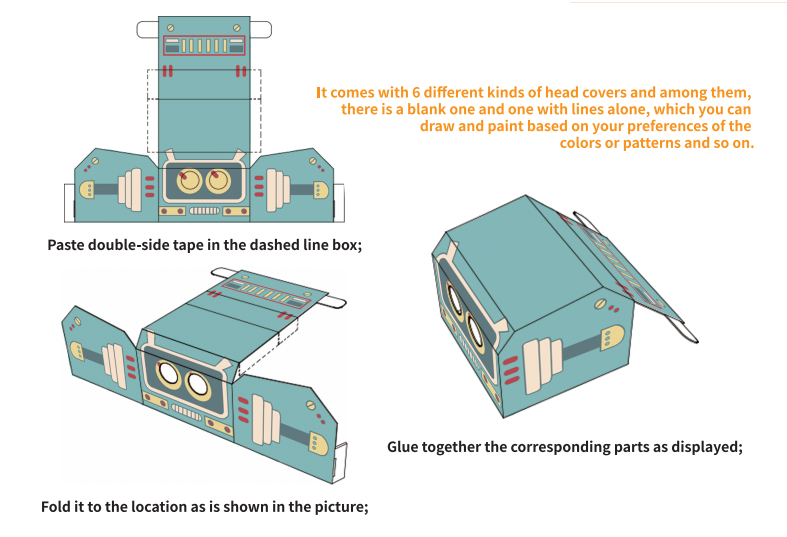
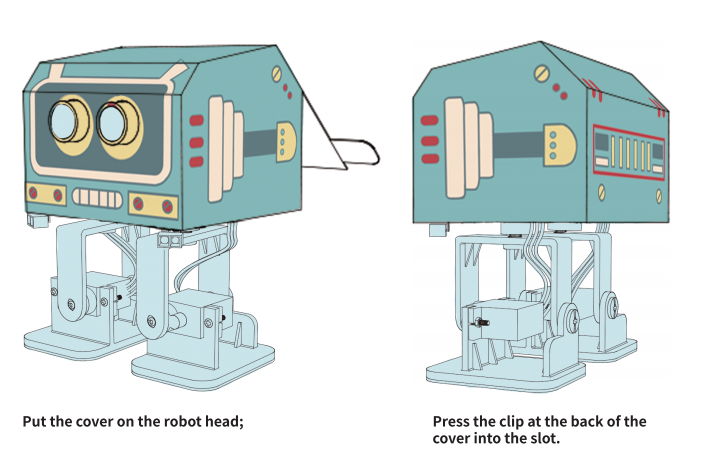
¶ Making Head Covers
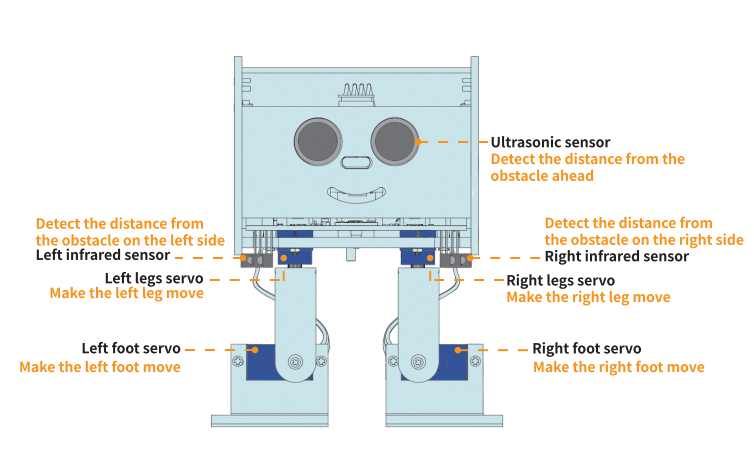
¶ Function of each component part
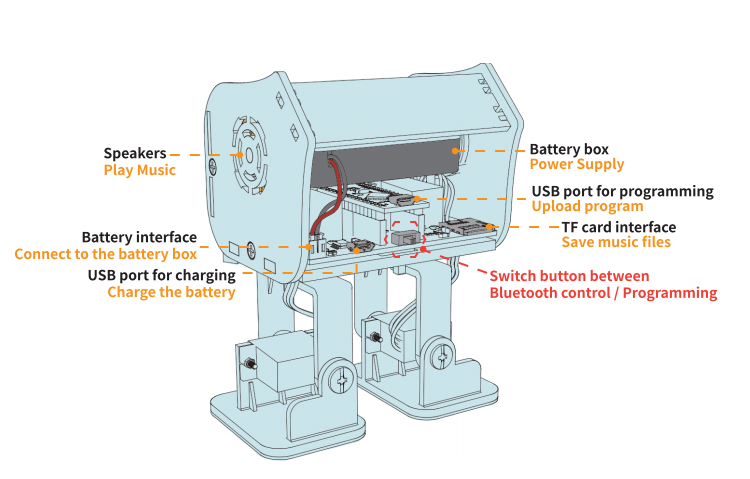
¶ App control
You can search for ElegooKit in the Google Play Store, download and install it.
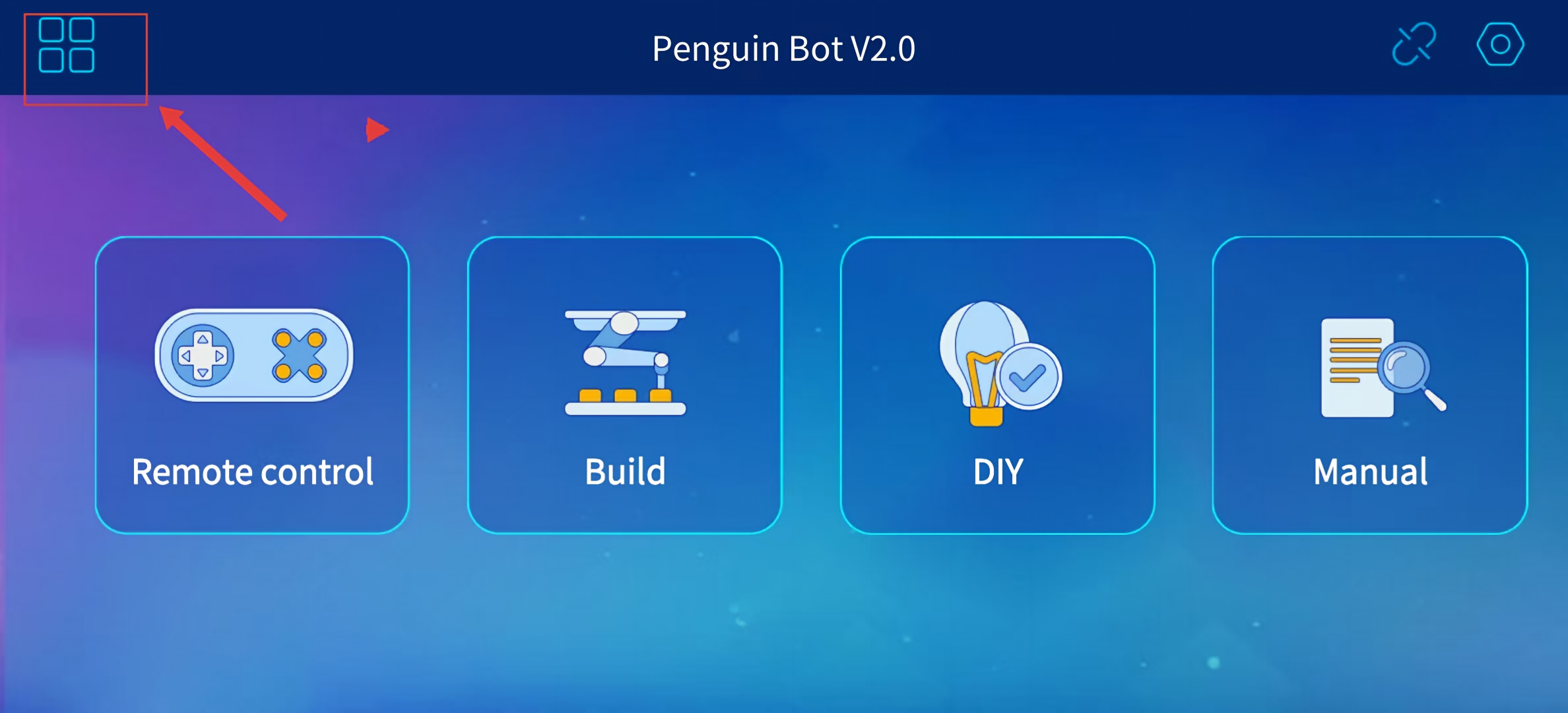
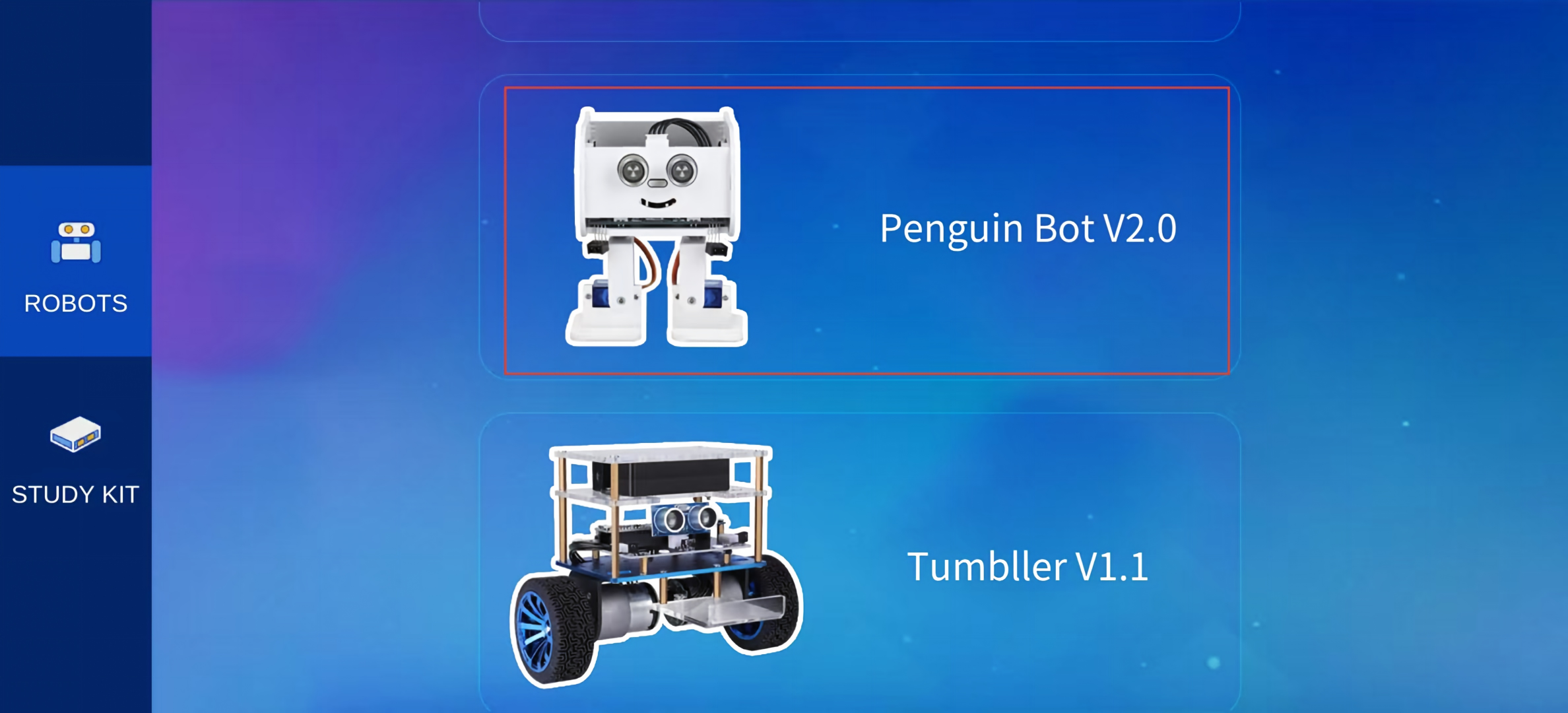
After launching the App, you will see the interface as shown below. Tap the button in the upper left corner and select Penguin Bot V2.0.
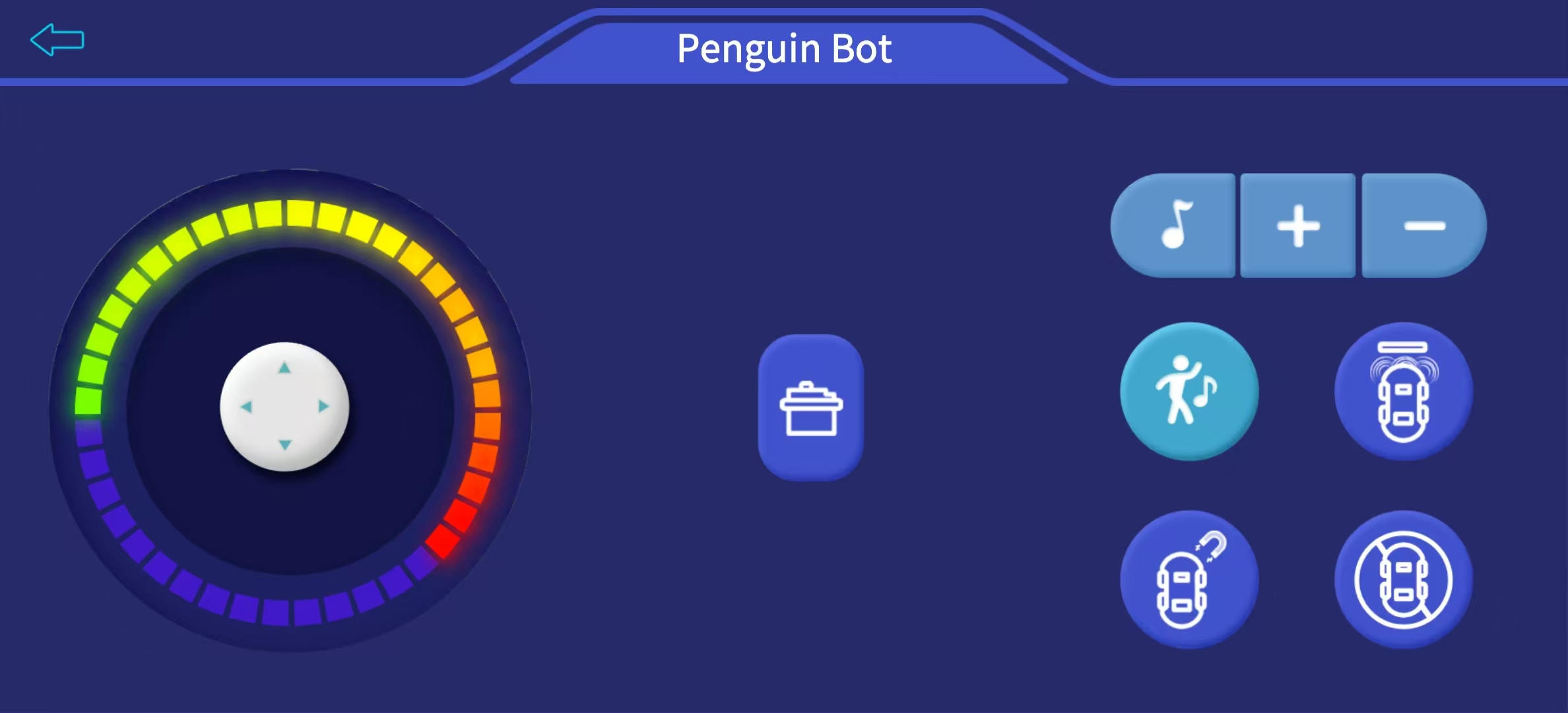
When you enter this interface and attempt to operate, the system will prompt you to connect via Bluetooth. Place your phone close to the Penguin Bot for automatic pairing. You can start operating once the connection is established.
¶ Upload Penguin Bot Program
Notice: We have uploaded some necessary programs before, thus you can skip uploading the programs. However, if you change the codes, you will need to upload them.
First of all, please go to our website below to download the Penguin Bot tutorial: http://www.elegoo.com/download/.
You can refer to the relevant documents for the detailed tutorial on environment installation.
Building-Environment-win
Building-Environment-mac
You can also visit the link below to check the detailed content.
https://wiki.elegoo.com/Robots&Kits/Building-Environment
https://wiki.elegoo.com/Robots&Kits/Building-Environment-win
Below are the download links for relevant resources. You can click the blue buttons to download the files to your local device.