As an open source software,Arduino IDE, based on ongoing Processing IDE development is an integrated development environment officially launched by Arduino.
By using Arduino IDE, you just write the program code in the IDE and upload itto the Arduino circuit board. The program will tell the Arduino circuit board what to do.
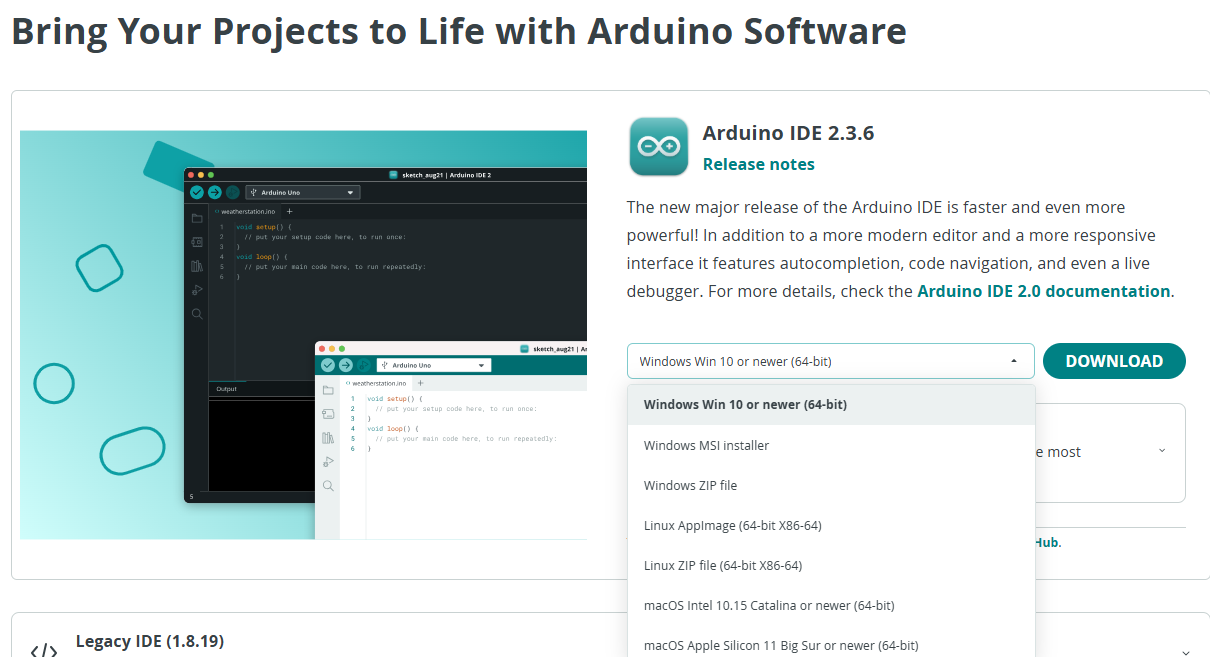
Go to https://www.arduino.cc/en/Main/Software and you will see the following page. The version available at this website is usually the latest version, and the actual version may be newer than the version in the picture.
¶ Installation
¶ Windows
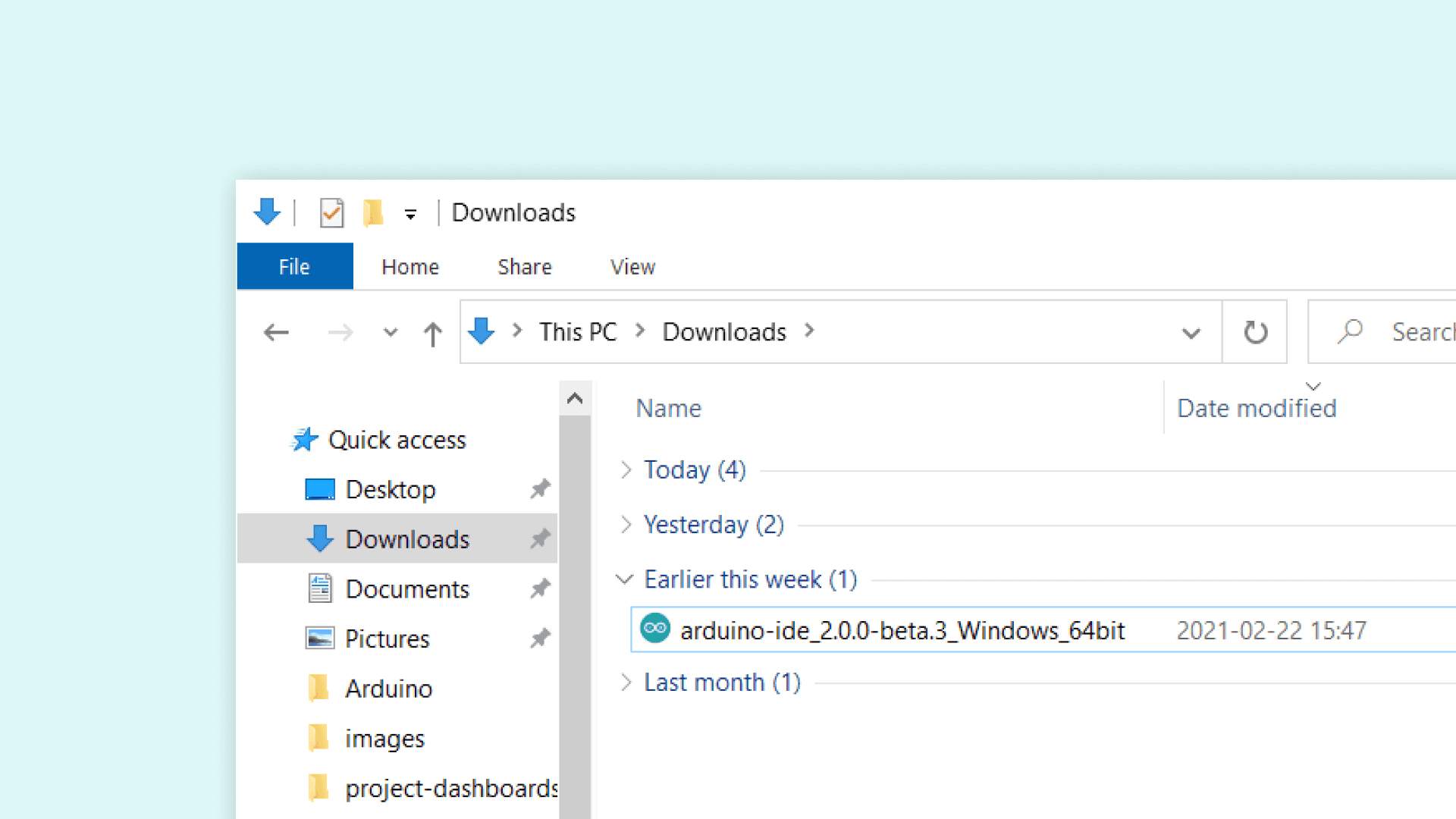
To install the Arduino IDE 2 on a Windows computer, simply run the file downloaded from the software page.
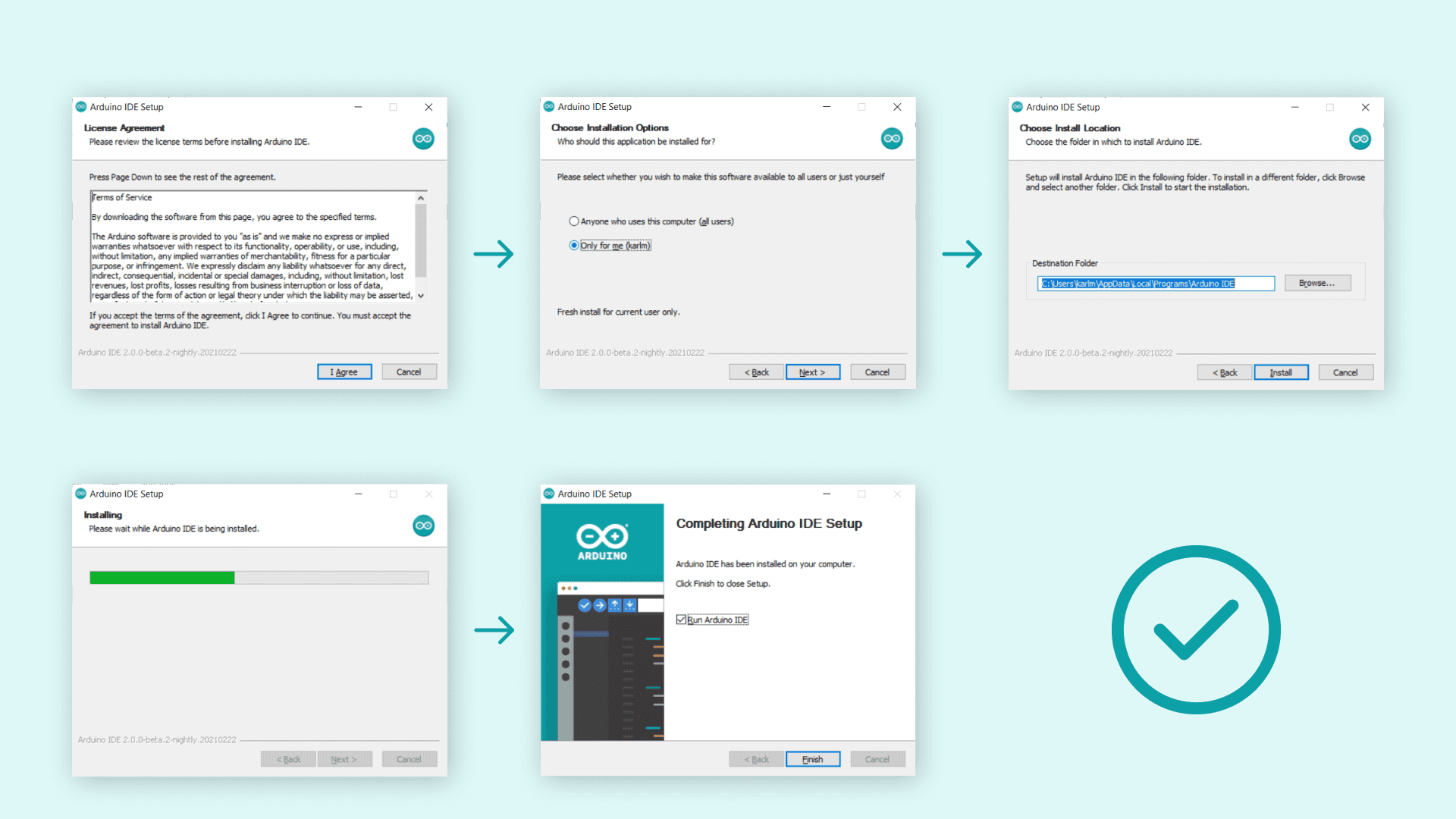
Follow the instructions in the installation guide. The installation may take several minutes.
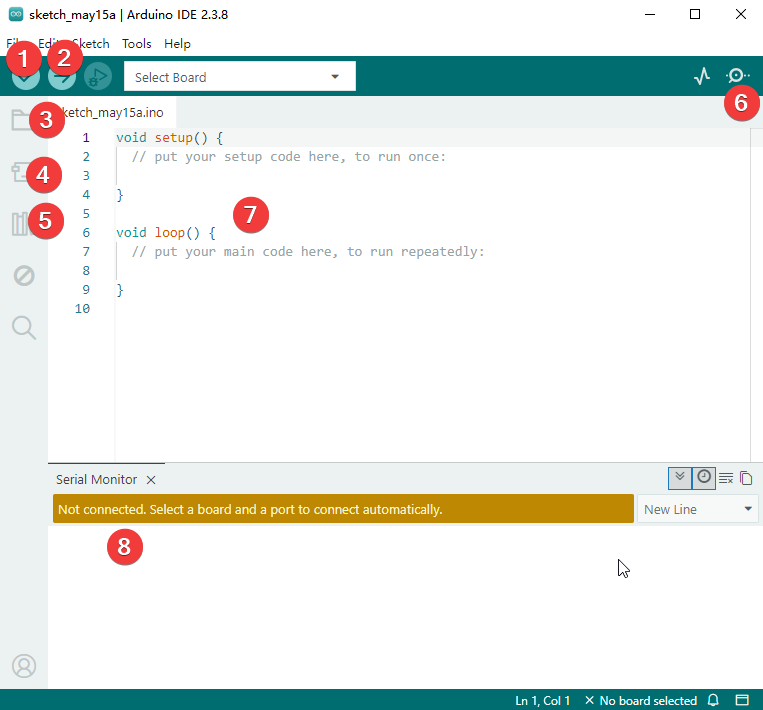
Next, we will introduce several commonly used functional buttons: Verify, Upload, Sketchbook, Boards Manager, Library Manager, and Serial Monitor.
-
Verify / Compile Checks your code for syntax errors and compiles it into a binary format without uploading it to the board.
-
Upload Compiles the sketch and uploads the resulting binary to the connected Arduino board.
-
Sketchbook A centralized hub to browse, open, and manage all your saved local and cloud projects.
-
Boards Manager Allows you to install, update, and manage core files and definitions for different Arduino-compatible boards.or open the path :Tool->board->boards manager
-
Library Manager Lets you search for, install, and update third-party libraries that add support for sensors, motors, and other hardware.open the path :SKetch->Include libary->Manage libaries.
-
Serial Monitor Displays data sent from the board over serial communication and allows you to send text commands to the board.
-
This is the code editing area, used for writing code.
-
This is the area displayed after opening the Serial Monitor, where serial output messages can be shown.
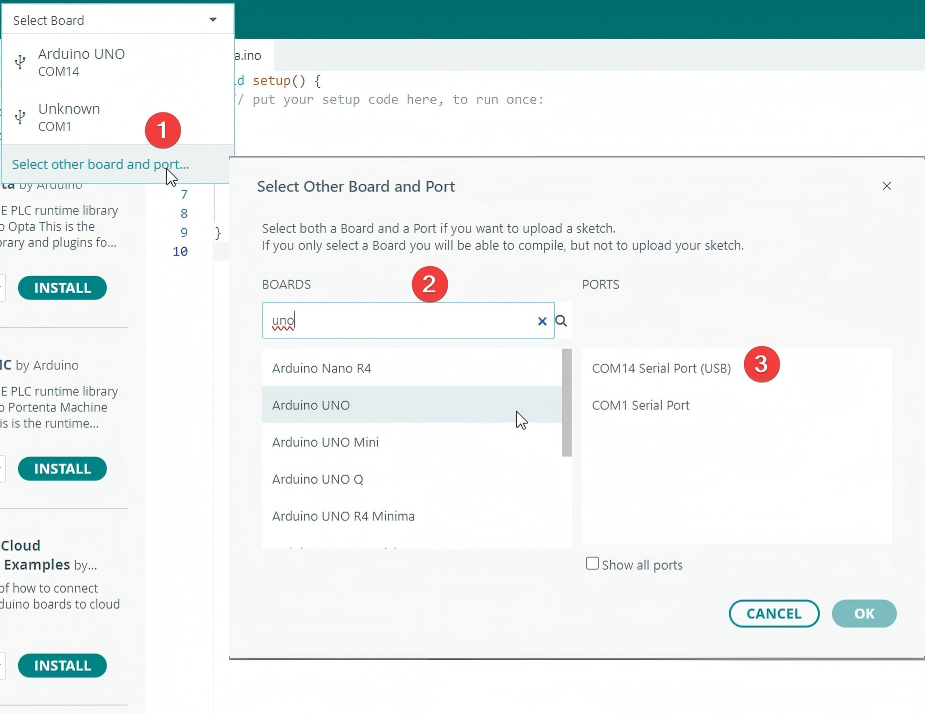
After familiarizing yourself with the basic buttons, connect the mainboard to your computer via a USB cable. The connection steps are shown in Figures 1, 2, and 3 below. If you are using version 1.8.x, follow the path provided below.“ Tools ”→“Board ”→“Arduino/Genuino Uno ”.