¶ Fault Symptoms
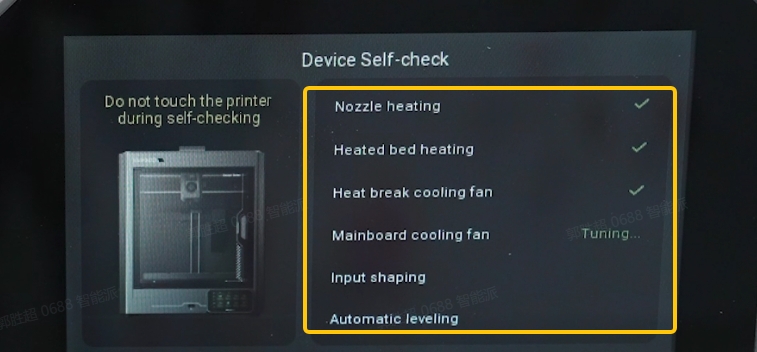
The printer gets stuck on the self-test screen and cannot enter the main interface.
¶ Possible Causes
- The mainboard or related hardware components may be faulty.
- The heating components or fans may be faulty.
- Auto leveling or Input Shaping calibration is abnormal.
- The firmware is abnormal.
¶ Troubleshooting Steps
¶ Skip the Self-Test
Note: Skipping the self-test is only for troubleshooting purposes and does not indicate that the printer has been fully restored.
- Turn off the printer and wait approximately 10 seconds before turning it on again.
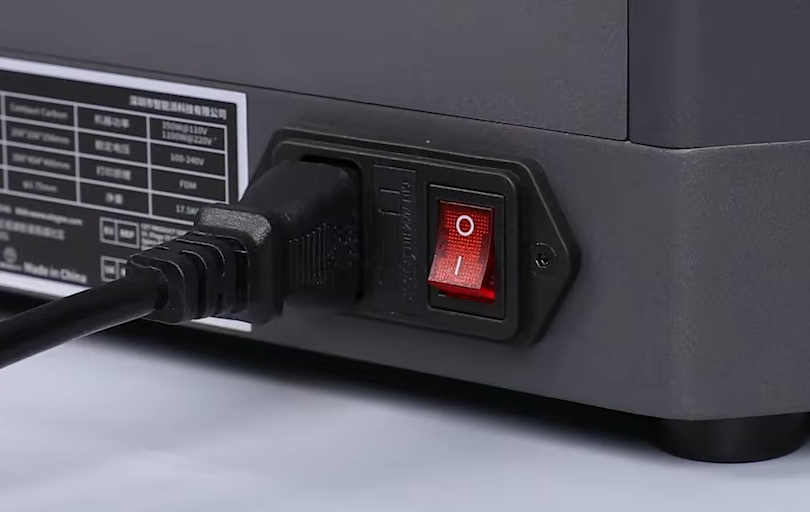
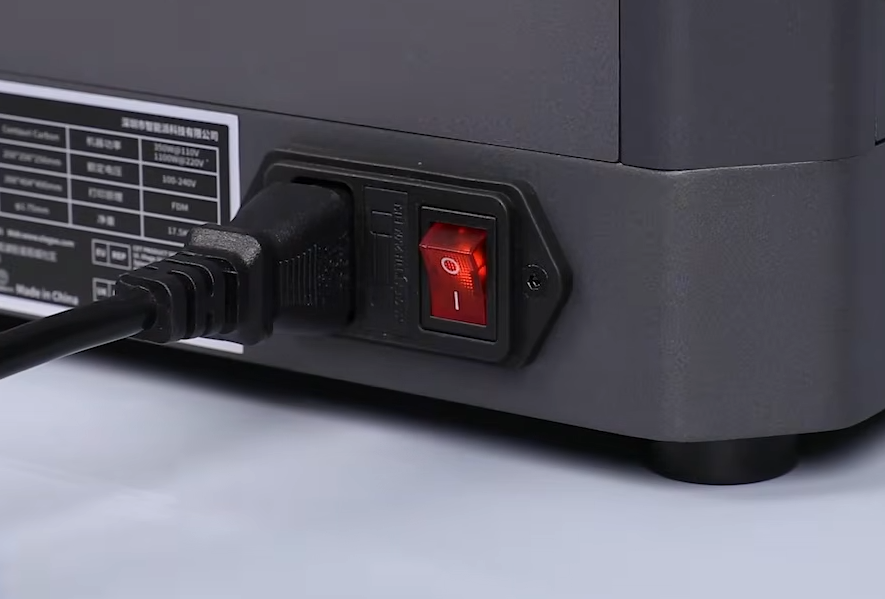

- Wait for the printer to finish starting up and automatically enter the language selection screen.
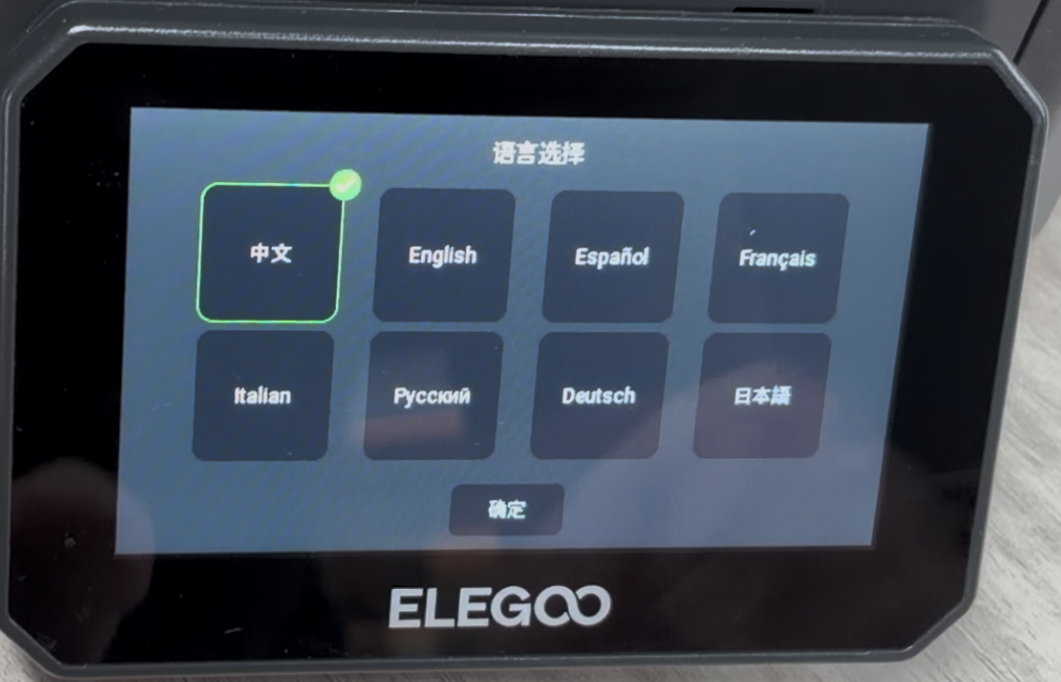
- Select and confirm the language, then quickly tap the specified area in the lower-left corner of the screen repeatedly to skip the self-test and enter the main interface.
For details, refer to the following video:
¶ Manually Test Printer Functions
¶ Test the Nozzle Heating and Hotend Fan Functions
- On the touch screen, tap Prepare > Nozzle Temperature and set a target nozzle temperature.

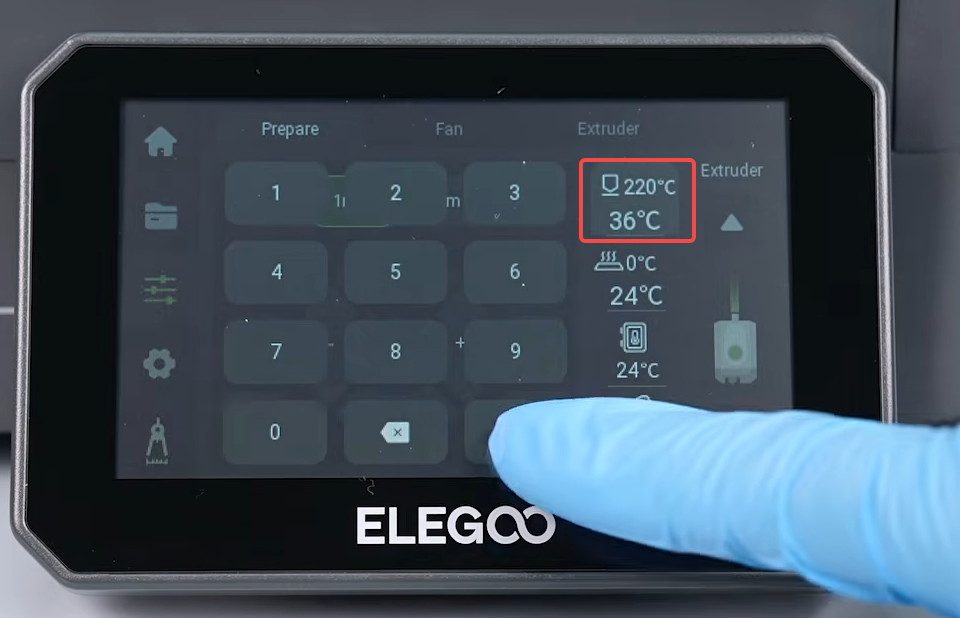
- Check whether the nozzle temperature increases normally and reaches the target temperature.
Normal: Continue to check whether the hotend fan rotates normally during nozzle heating.
Abnormal: Record the test result and contact Technical Support.
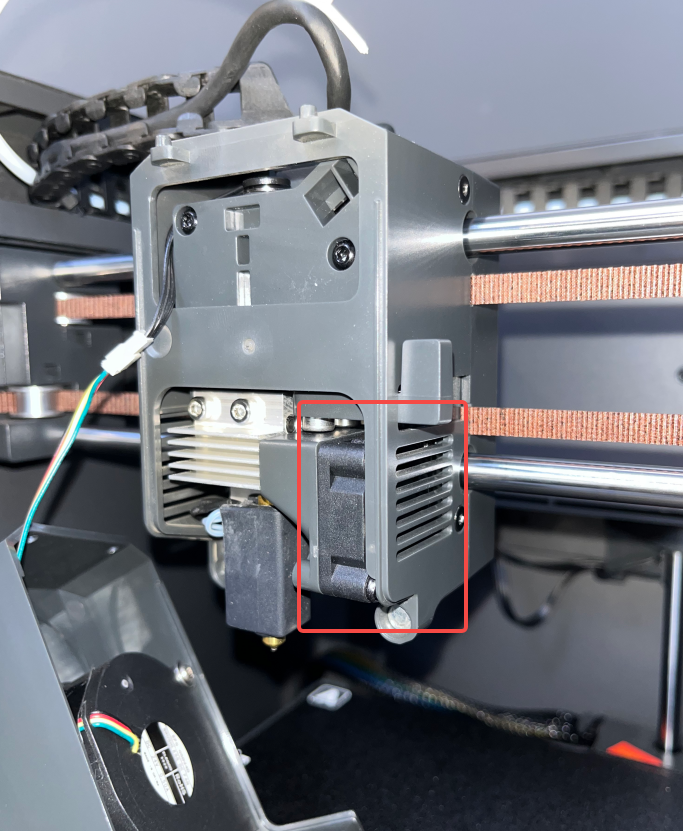
- Check whether the hotend fan rotates normally.
Open the front cover of the tool head and check whether the hotend fan is rotating normally.
If it is difficult to determine whether the fan is rotating, refer to the following video to remove the tool head housing:
https://www.youtube.com/watch?v=C3d6oWahcIg
Normal: Continue to the next test.
Abnormal: Record the test result and contact Technical Support.
¶ Test the Heated Bed Function
- On the touch screen, tap Prepare > Bed Temperature and set a target bed temperature.
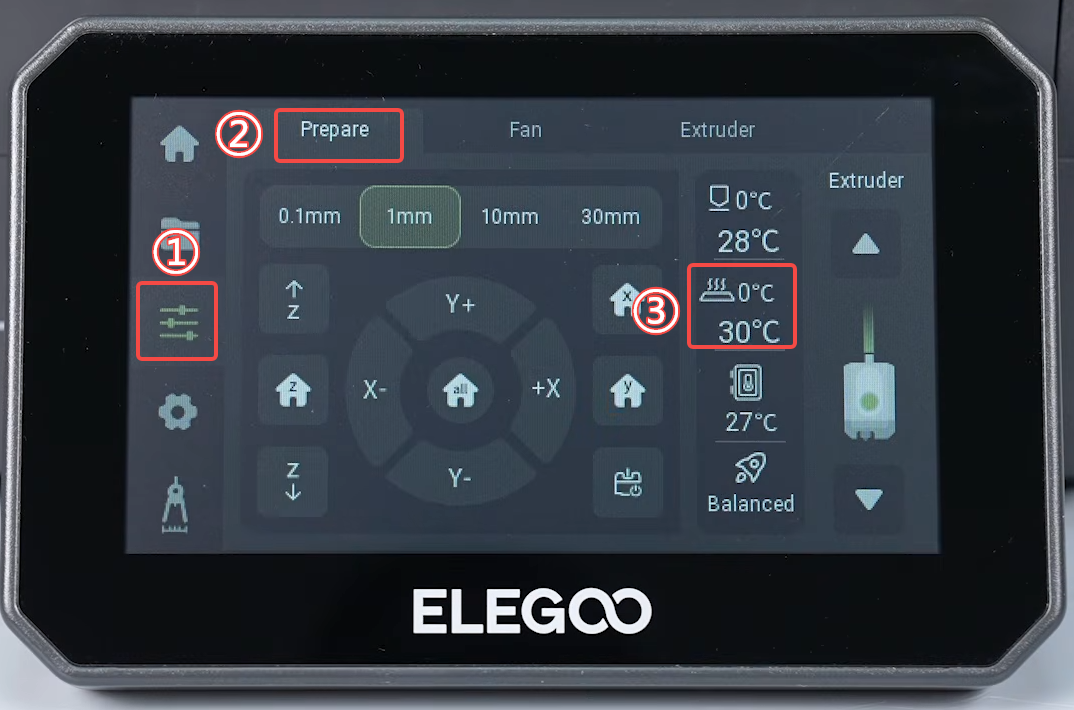
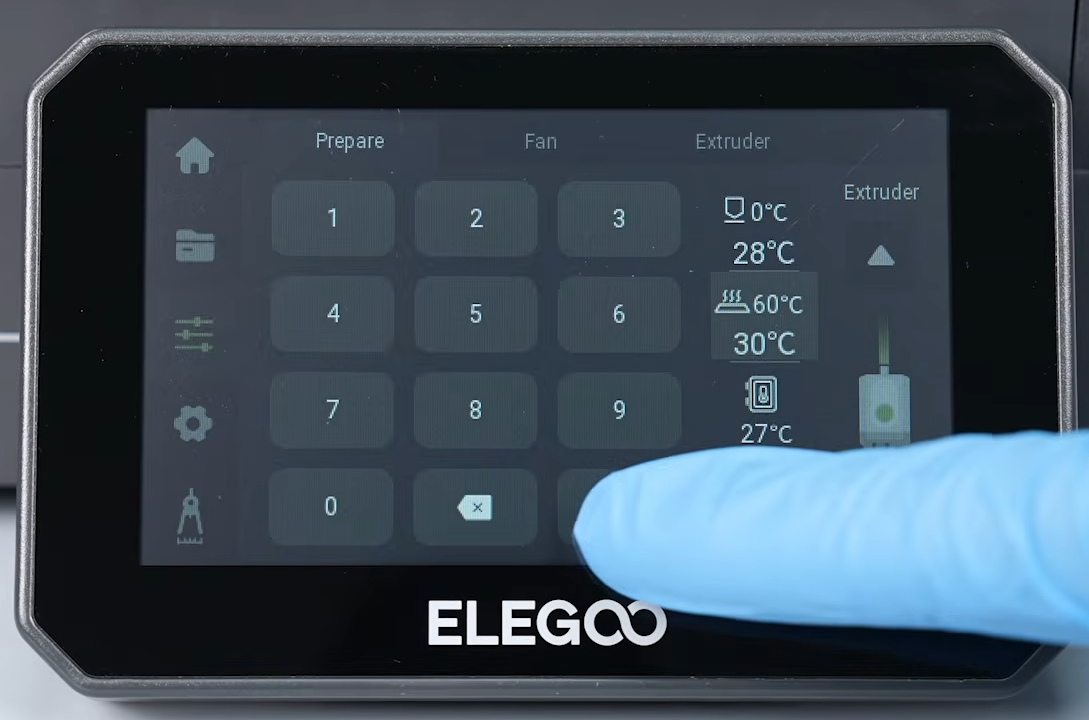
- Check whether the bed temperature increases normally and reaches the target temperature.
Normal: Continue to the next test.
Abnormal: Record the test result and contact Technical Support.
¶ Test the Mainboard Fan Function
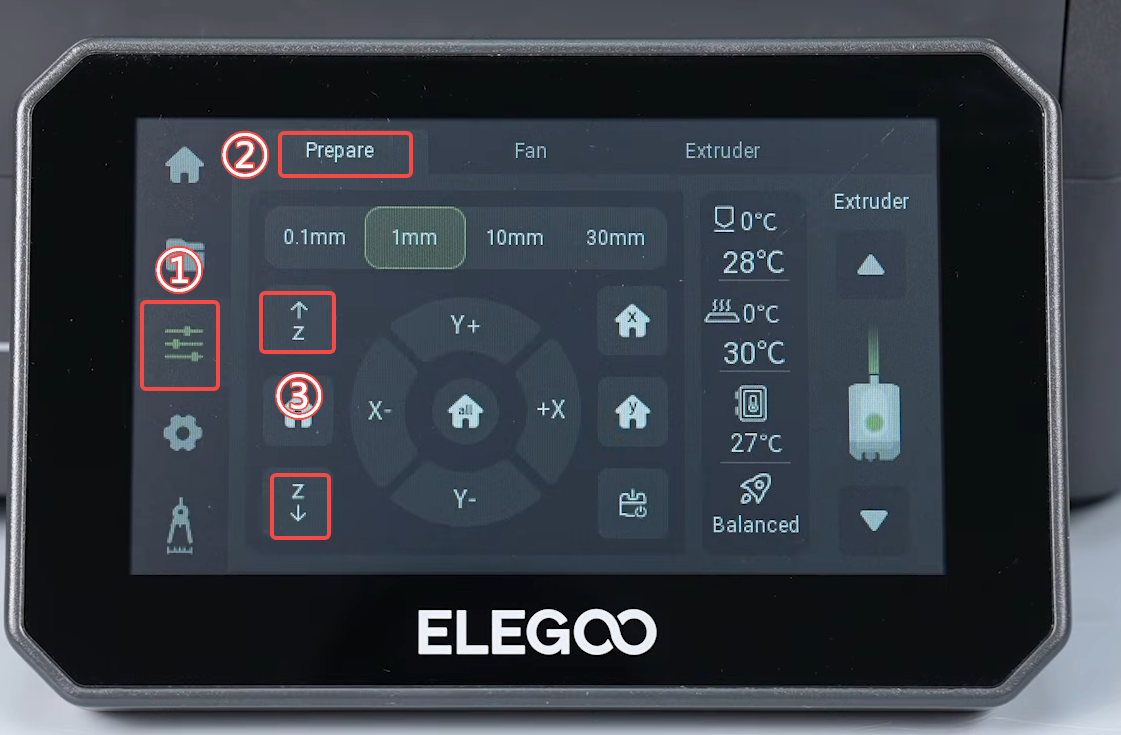
- On the touch screen, tap Prepare and move any of the X/Y/Z motors, such as the Z+ or Z- direction.
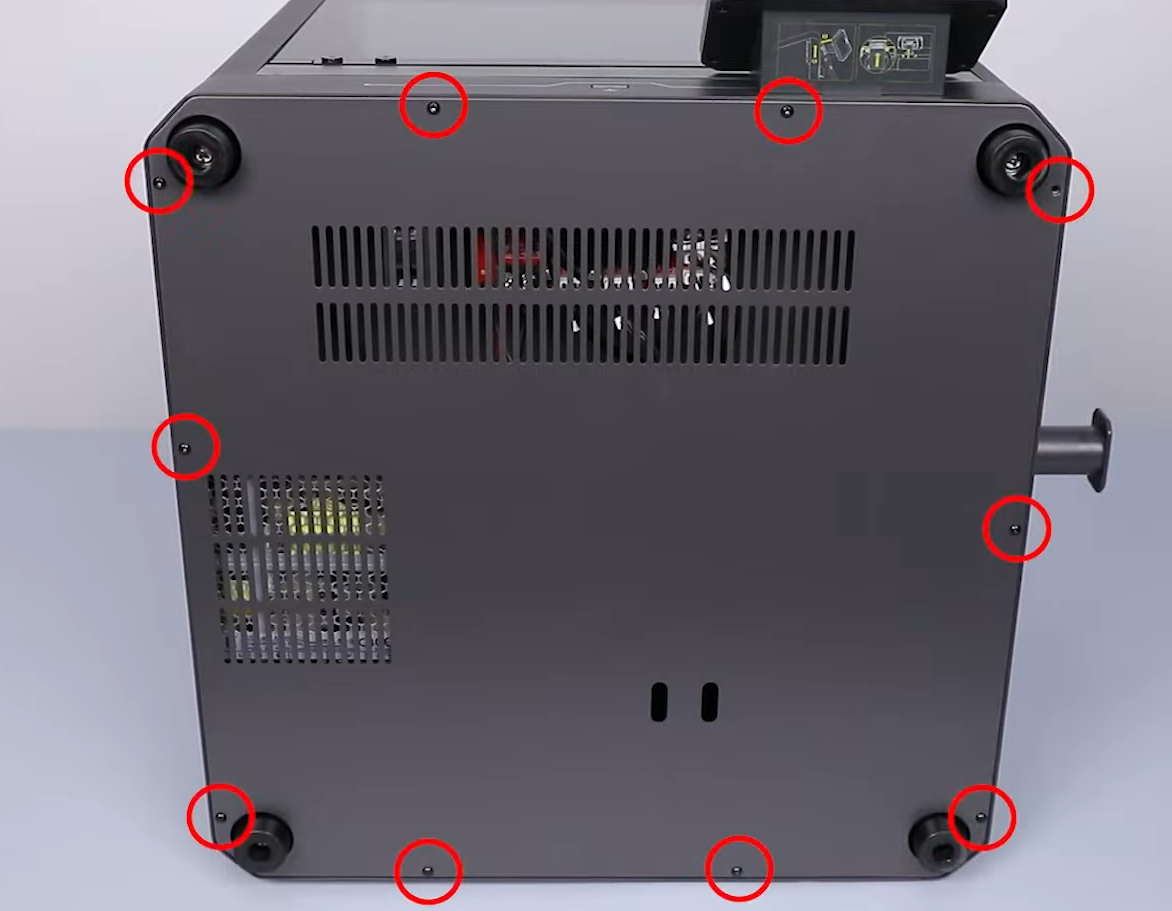
- Use a 2.0 mm Allen key to loosen the screws securing the bottom cover and remove the bottom cover.
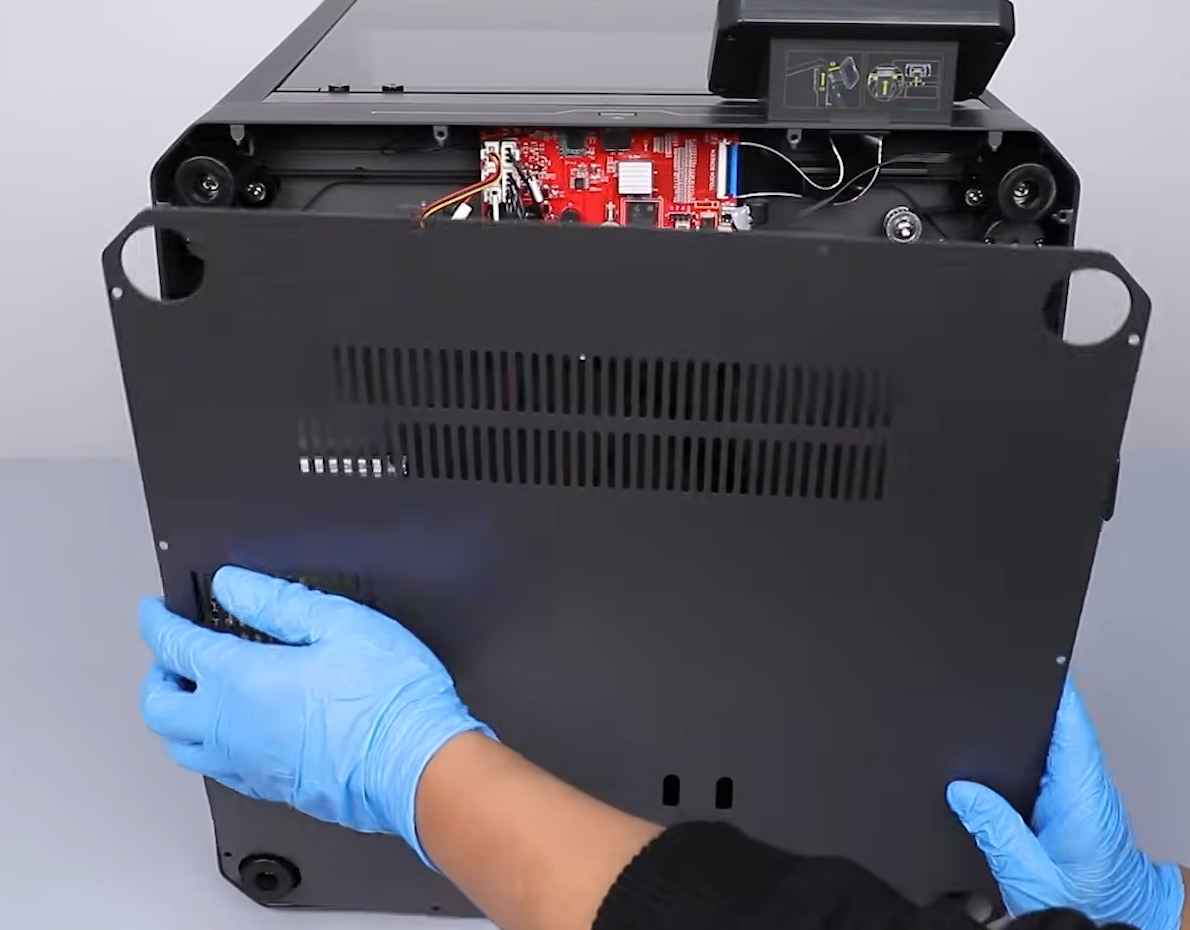
- While moving the Z axis, check whether the mainboard fan rotates normally.
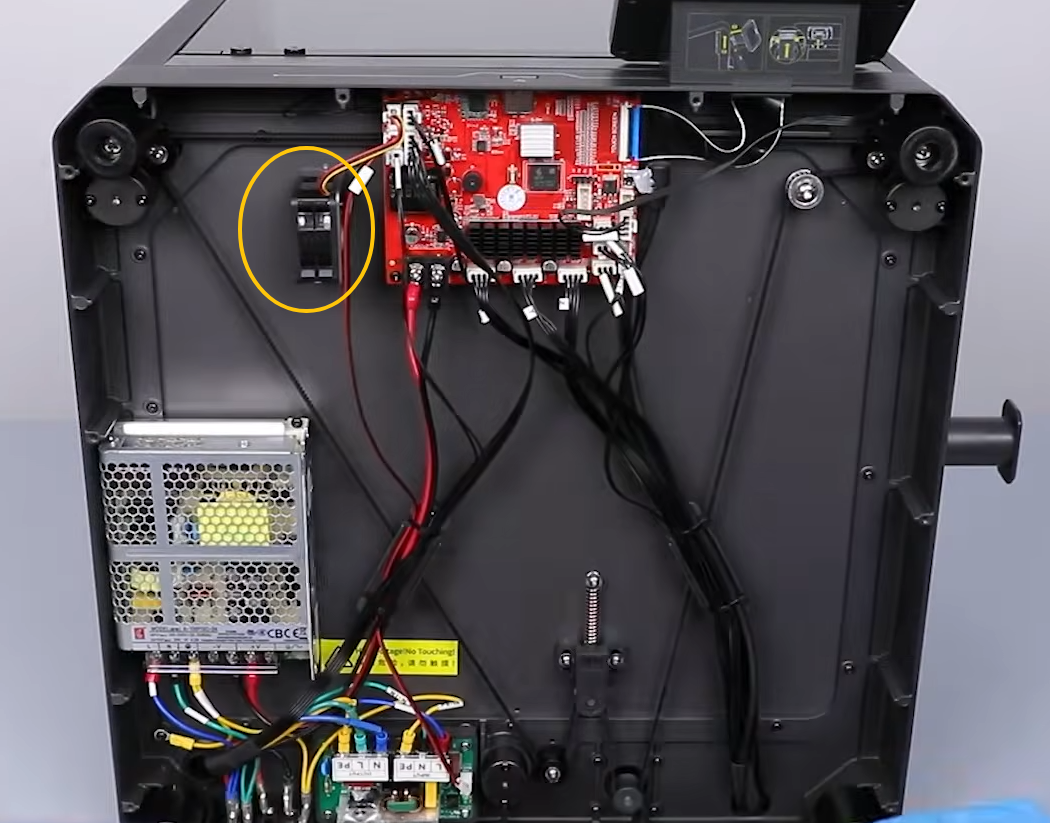
Normal: Continue to the next test.
Abnormal: Record the test result and contact Technical Support.
¶ Test the Input Shaping Calibration Function
- On the touch screen, tap Calibration > Input Shaping > Confirm.
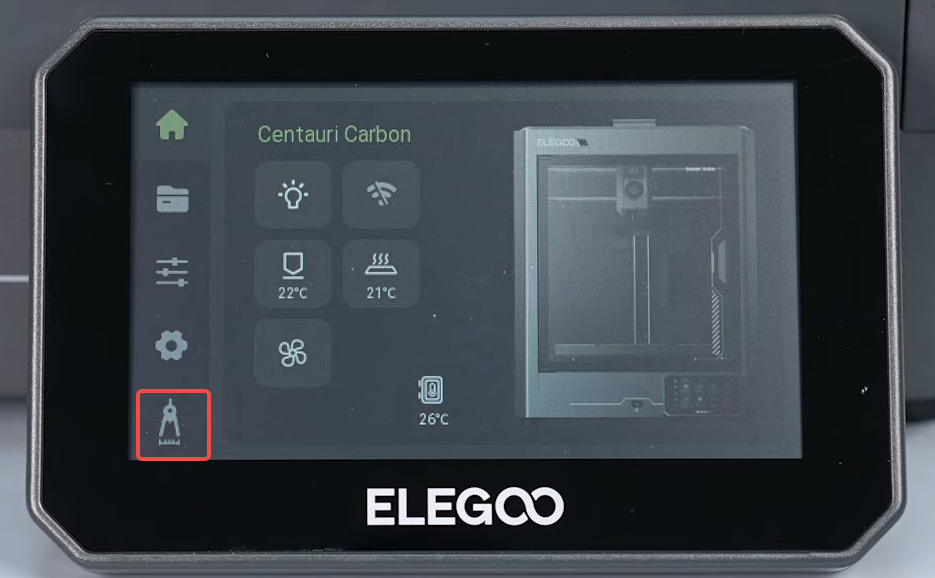
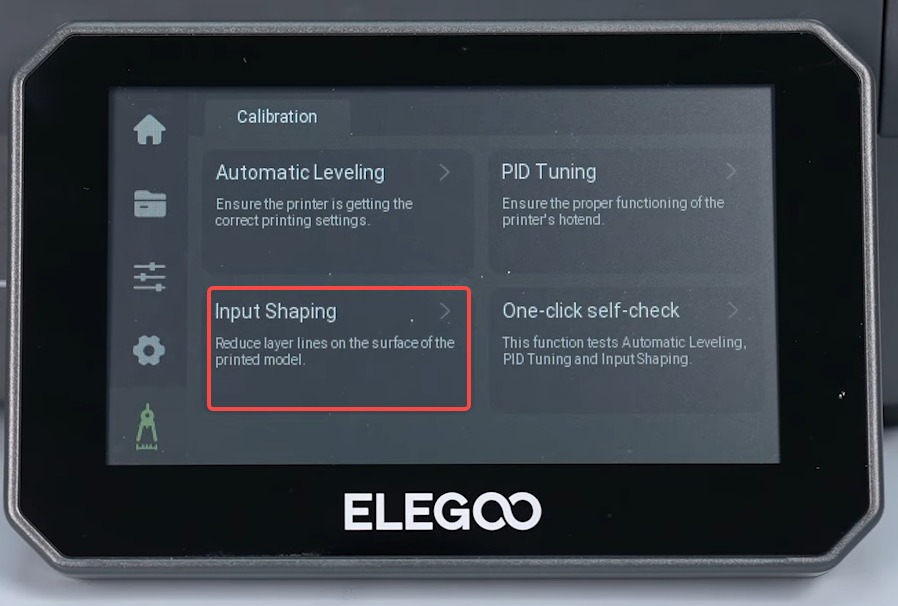
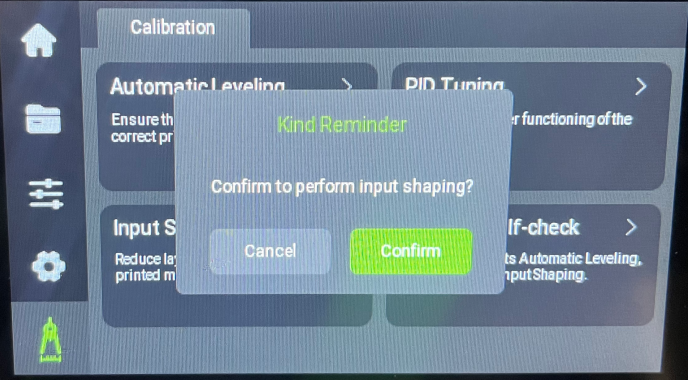
- Check whether the Input Shaping calibration completes normally.
Normal: Continue to the next test.
Abnormal: Record the test result and contact Technical Support.
¶ Test the Auto Leveling Calibration Function
- On the touch screen, tap Calibration > Auto Leveling > Confirm.
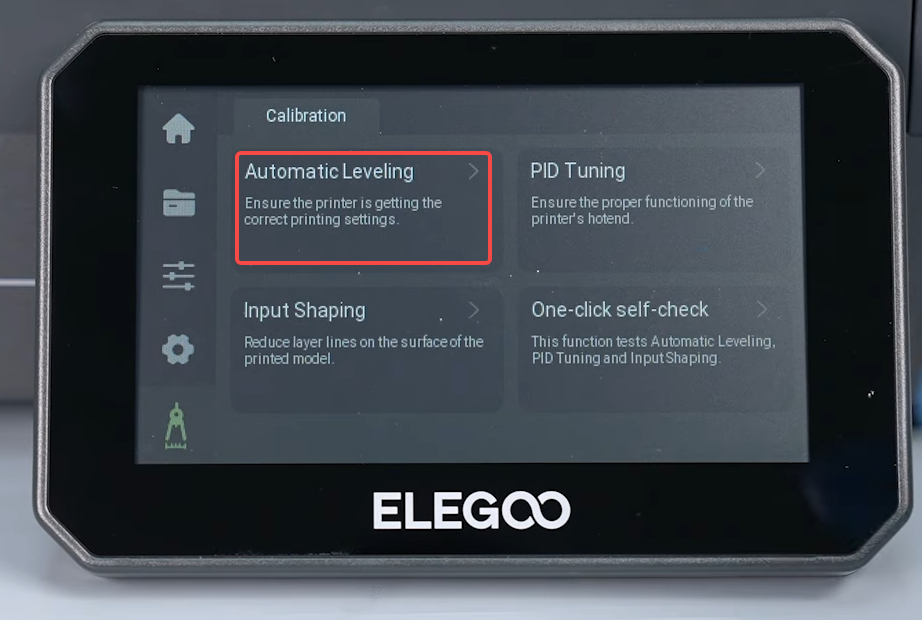
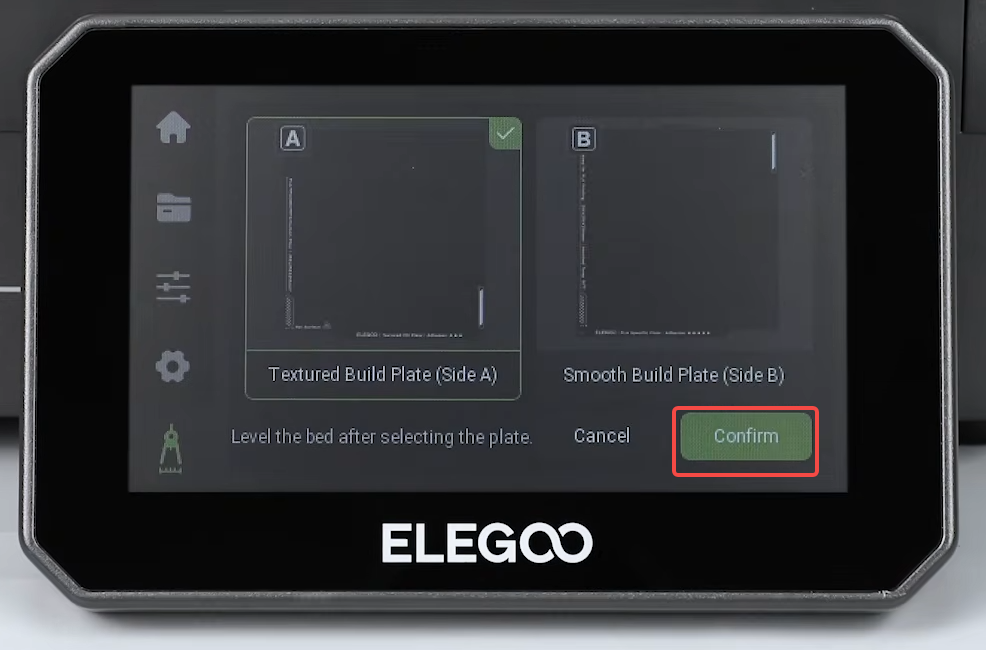
- Check whether the Auto Leveling calibration completes normally.
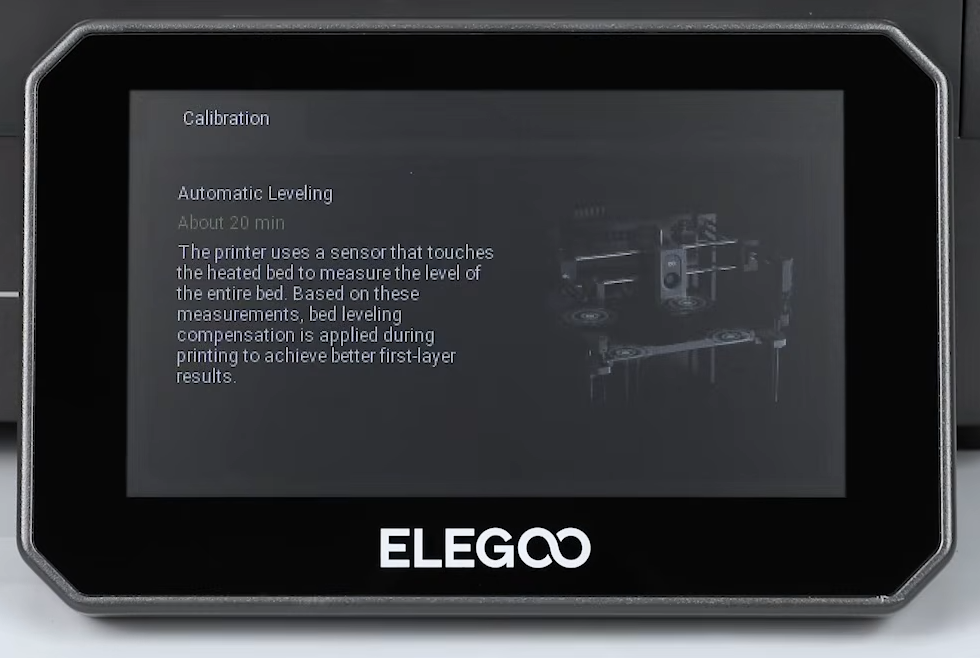
If the printer fails to complete the Auto Leveling calibration normally, provide the test result to our Technical Support team for further analysis.
¶ Contact Technical Support
Please provide the following information when contacting Technical Support:
Email: 3dp@elegoo.com
- Record a complete video showing the self-test failure process.
- Provide the results of the manual function tests performed after forcibly entering the main interface.
- Clearly identify which of the following tests failed:
- Nozzle heating
- Hotend fan
- Heated bed
- Mainboard fan
- Input Shaping calibration
- Auto Leveling calibration
- Provide the printer's serial number (SN).
¶ Help Us Improve
If you have any suggestions for improving our wiki pages, please let us know through the ELEGOO official feedback channel.