¶ The Prints Stop Randomly or Freeze Without Responding to Commands
¶ 1. Perform OTA Firmware Update via Home Network or Personal Hotspot
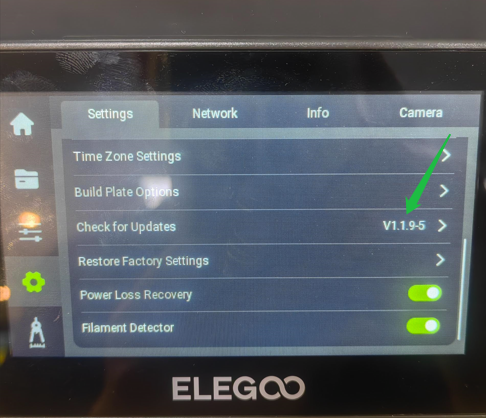
Step 1: Connect to Network: Link the machine to a home network or personal hotspot.
Step 2: Check for Updates:
-
Go to the printer’s settings interface and tap "Check for Updates".
-
Alternatively, after connecting to the network, restart the machine. It will automatically check for updates upon startup.
Note: After updating the firmware, restart the machine and re - level the bed before proceeding with any operations.
¶ 2. Provide Diagnostic Information for Further Analysis (If Issues Persist)
If the issue continues, please supply the following data for further analysis.:
- Gcode and STL files of the printed model.
- Firmware version information of the printer.
- Log files (all three as previously specified).
¶ How to Check Firmware Version Information
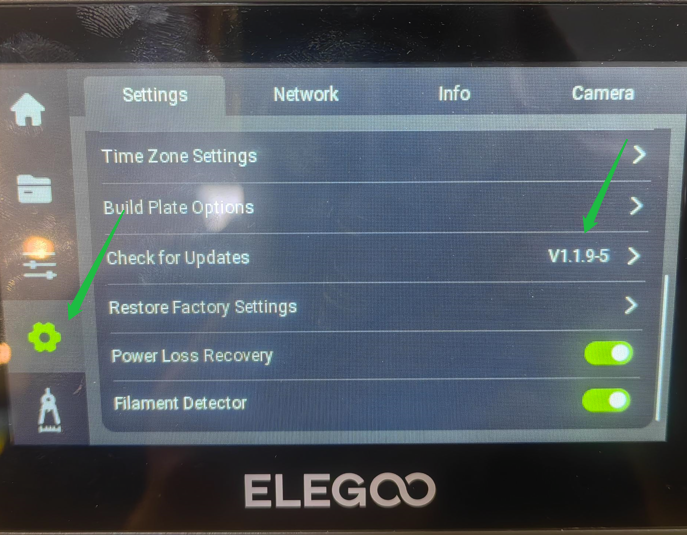
- Navigate to the Settings Interface: Scroll down within the machine's settings interface.
- Locate Version Information: The current firmware version will be displayed here.
Refer to the screenshot below for visual guidance.
¶ How to Export Log Files
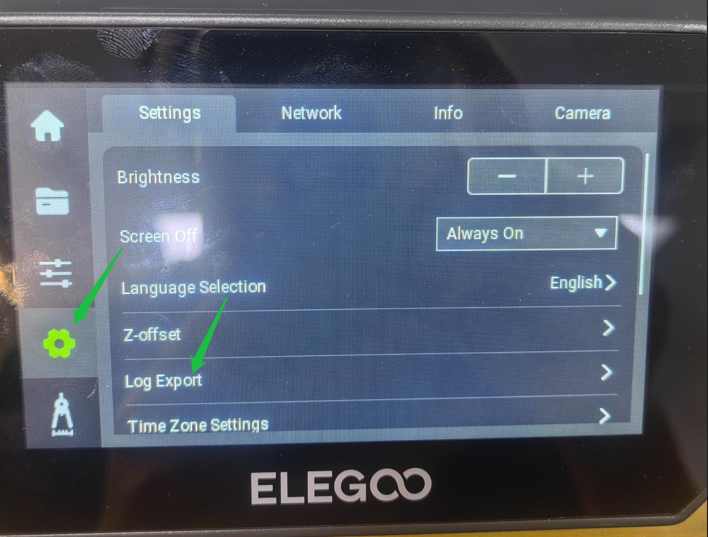
- Access Log Export Option: In the settings interface, find and select "Log Export".
- Export All Required Files: Note that there are three log files, all of which are needed:
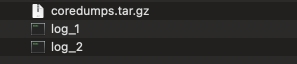
Important Note: Please make sure to include these three files when providing.