¶ Issue description
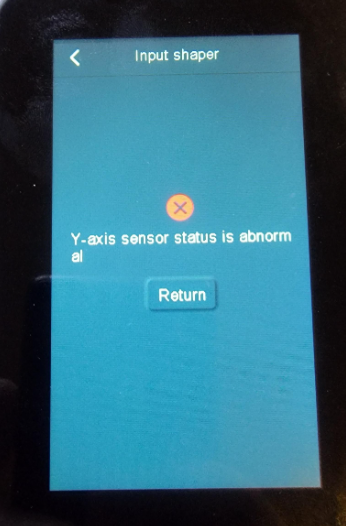
- During Input shaper calibration, the error message appears on the touch screen:
Y axis vibration detection failed
Y-axis sensor status is abnormal
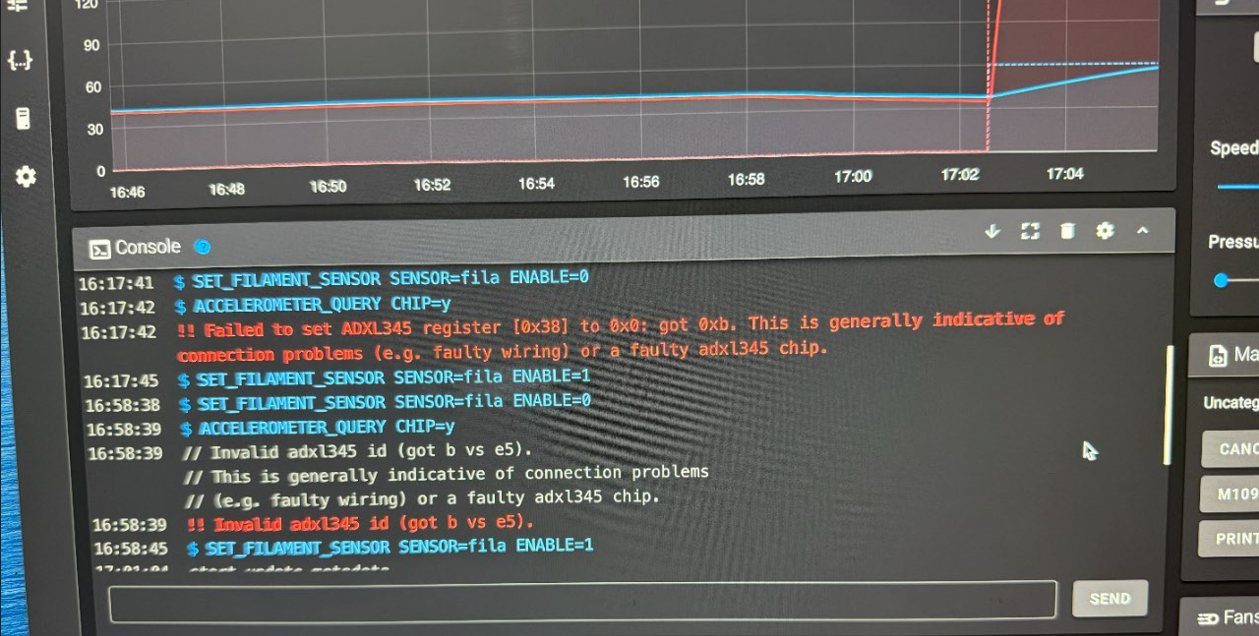
- During Input shaper calibration, the error message appeared in Fluidd
"Failed to set ADXL345 register / !! Invalid adxl345 id".
¶ Reasons
- The Y-accelerometer is loosely connected.
- The Y-accelerometer or its cable is damaged.
- The printer power was not restarted after the firmware update.
- The motherboard firmware and touchscreen firmware are incompatible.
¶ Troubleshooting steps
¶ Tools needed for troubleshooting
- 2.0mm Allen screwdriver x 1
- TF card - FAT-32 format, less than 32 GB capacity x 1
- USB flash drive - FAT-32 format, less than 16 GB capacity x 1
¶ Step 1 Check whether the Y-accelerometer cable is damaged or loose.
- Turn the power switch of the printer OFF (symbol “〇”) and unplug the power supply cable.
- Refer to https://www.youtube.com/watch?v=eFXSRcu_Sfk and check if the Y-accelerometer cable is damaged or loose.
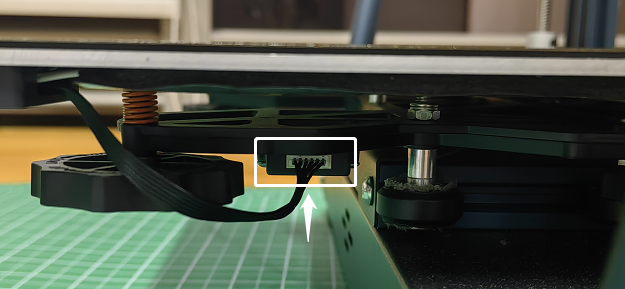
- If the Y-accelerometer cable is not damaged, replug the cable.

- Turn the power switch ON (symbol “|”) and check if the error messages stil occur.
If the issue still occurs, go to Step 2 and Step 3 for further troubleshooting.
¶ Step 2 If you have updated the firmware, restart the printer.
If the issue still occurs, follow the steps below for further troubleshooting.
¶ Step 3 Check if the touch screen firmware and motherboard firmware are compatible.
If the motherboard firmware and the touch screen firmware is incompatible, it will cause printer malfunctions.
- On the touch screen, select Settings→About machine. Refer to the list below and check the motherboard and touch screen firmware version.
Mainboard firmware: v1.2.2.64 Touchscreen firmware (UI) version 1.2.11
Mainboard firmware: v1.2.2.65 Touchscreen firmware (UI) version 1.2.12
Mainboard firmware: v1.2.3.0 Touchscreen firmware (UI) version 1.2.13
Mainboard firmware: v1.2.3.1 Touchscreen firmware (UI) version 1.2.14
Mainboard firmware: v1.2.3.2 Touchscreen firmware (UI) version 1.2.14
- Re-update the touch screen firmware and motherboard firmware.
Refer to the firmware update instructions and download links provided below.
Note: The firmware update process is the same for Neptune 4 series printers.
Firmware download link
https://www.elegoo.com/pages/download
Firmware Update Instructions
https://www.youtube.com/watch?v=TC-Y0lonv74
00:00 Note
00:06 Prepare before updating
00:27 Install the fix pack
01:29 Install the mainboard firmware
02:25 Install the screen firmware
04:01 FAQ
¶ Still have issues?
If you have completed the above three steps but the issue still occurs, it indicates that the Y-accelerometer or its cable may be damaged and needs replacement.
Contact ELEGOO technical support team via 3dp@elegoo.com.